
FTP Sites List View
Any provider of ratable products will send Call Detail Reports (CDR) via File Transfer Protocol (FTP) Sites. It is imperative that these sites are monitored regularly to prevent billing errors. The FTP Sites list view displays all FTP sites configured for incoming and outgoing call rating in your instance. From this list view, you can view add, edit, copy, and view various details for the sites. You can also access the site's files.
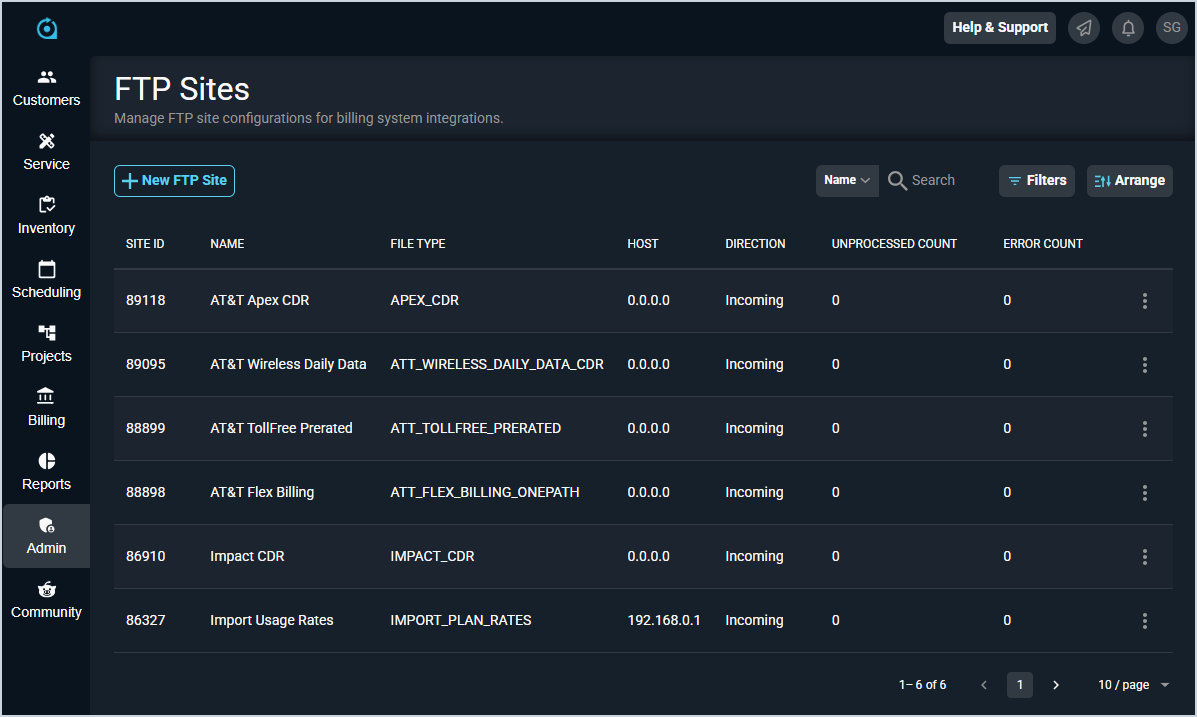
Each field on the FTP Sites list view is defined below.
| No. | Label | Definition |
| 1 | Site ID | Numerical identifier for the FTP site. |
| 2 | Name | Name of the FTP site. |
| 3 | File Type | Type of the FTP file. |
| 3 | Host | Host of the FTP site. |
| 4 | Direction | Direction of the FTP site configuration. Direction options include Incoming and Outgoing. |
| 5 | Unprocessed Count | Number of files that are unprocessed. |
| 6 | Error Count | Number of files that failed to process. |
The following actions are available on the FTP Sites list view.
- Add a new FTP site by clicking the New FTP Site button and entering the relevant details. See the Add/Edit FTP Sites article for more information.
- Search the FTP sites by selecting a column from the dropdown above the grid and entering text in the Search field. The list view updates to display records matching your search in the column you selected.
- Filter the FTP sites displayed on this view by clicking the Filter button above the grid and checking the Include Inactive Sites option. The list view hides FTP sites with an Inactive Status by default so you can focus on the sites that need your attention most. Checking this option shows all FTP sites in the list view, regardless of their status.
- Customize which columns display and the order in which they display by clicking the Arrange button and making the desired changes. See the Arrange Columns article for more information.
- Sort the results in the table by clicking the column label in the table header.
- View files for the FTP site by clicking the menu at the end of the row and selecting Files from the menu options. See the View FTP Site Files article for more information
- Edit an FTP site by clicking the menu at the end of the row and selecting Edit from the menu options. See the Add/Edit FTP Sites article for more information.
- Copy an FTP site by clicking the menu at the end of the row and selecting Copy from the menu options.