
System Settings: Agreements
The Agreements category on the System Settings screen allows you to configure agreement templates, overage pricing templates, time entry rates, and general billing settings used by the Agreements feature. It is accessible by navigating to Admin > System Settings > Agreements.
Agreement Templates
The Agreement Templates tab displays all agreement templates configured in your Rev.io environment. Agreement templates allow you to standardize agreement structures so they can be applied quickly when creating new customer agreements.
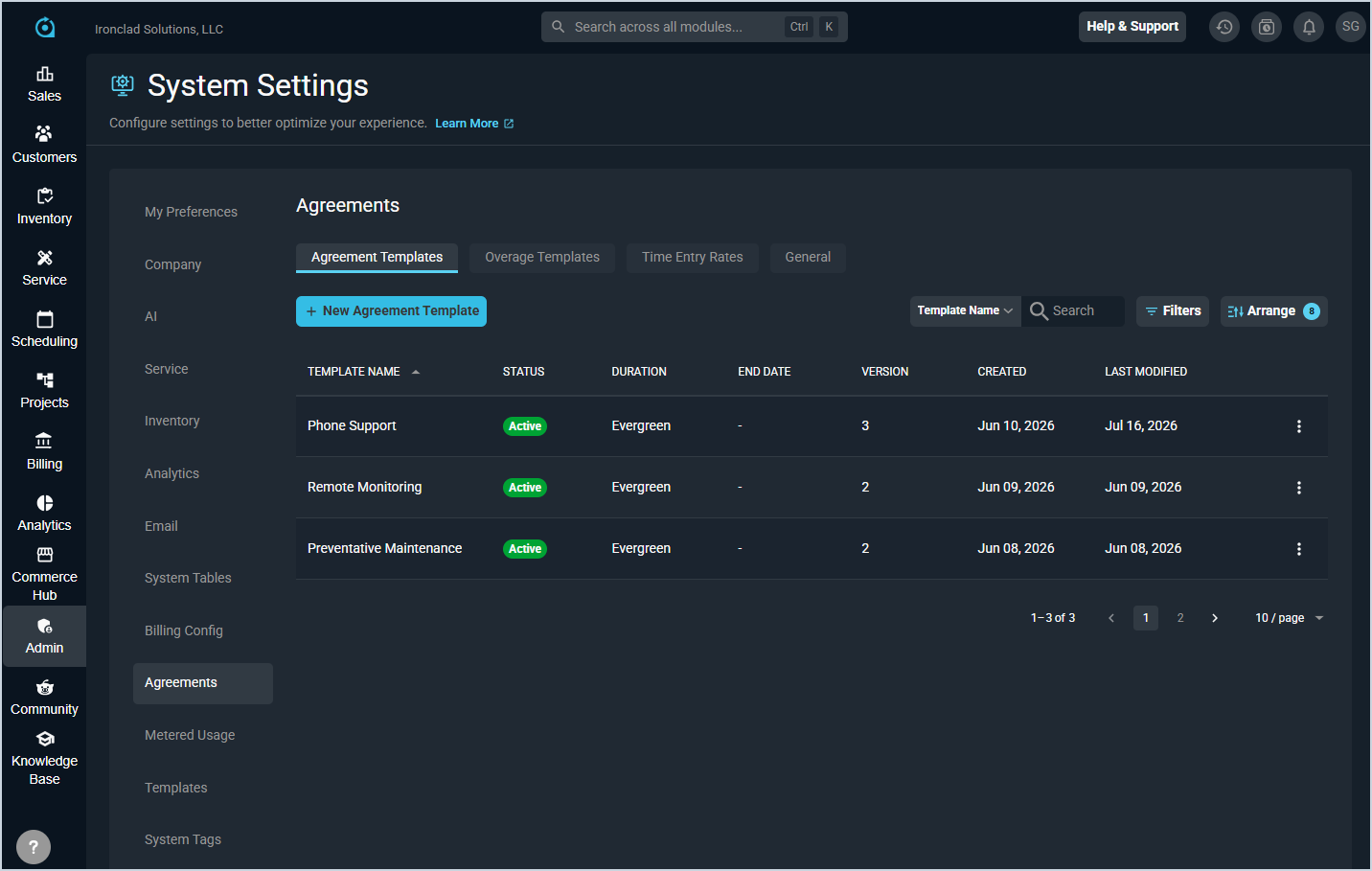
Each field in the Agreement Templates list is defined below.
| No. | Label | Definition |
|---|---|---|
| 1 | Template Name | Name of the agreement template. |
| 2 | Version | Current version number of the template. The version increments each time the template is saved. |
| 3 | Created | Date the template was created. |
| 4 | Last Modified | Date the template was last modified. |
The following actions are available in the Agreement Templates tab.
- Create a new agreement template by clicking New Agreement Template. See the Create/Edit Agreement Templates article for more information.
- Search for a specific template by entering text in the Search field.
- Sort the list by clicking a column label in the table header.
- Customize which columns display in the list by clicking the Arrange button. See the Arrange Columns article for more information.
- Edit or delete a template by clicking the ellipsis at the end of the row.
Overage Templates
The Overage Templates tab displays all overage templates configured in your Rev.io environment. Overage templates define reusable overage pricing structures that can be applied to block hour components on agreement templates and individual agreements.
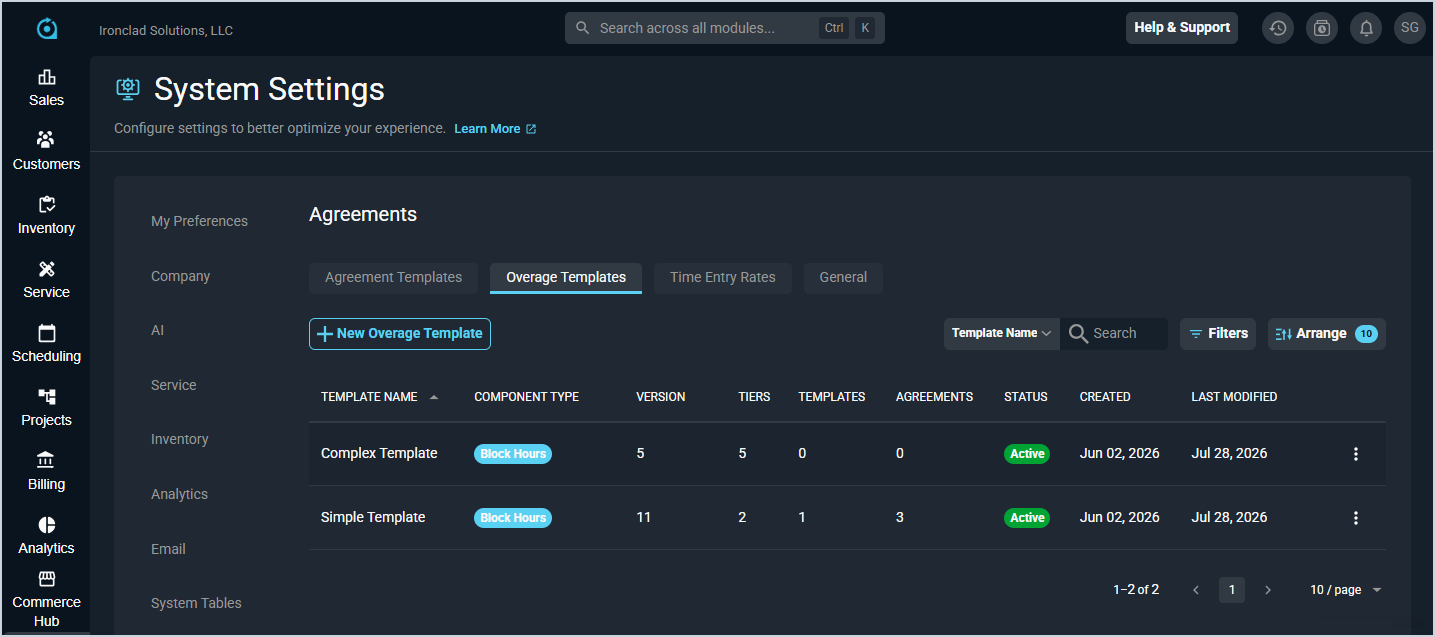
Each field in the Overage Templates list is defined below.
| No. | Label | Definition |
|---|---|---|
| 1 | Template Name | Name of the overage template. |
| 2 | Component Type | Component type the overage template applies to, such as Block Hours. |
| 3 | Version | Current version number of the template. |
| 4 | Tiers | Number of overage tiers configured on the template. |
| 5 | Templates | Number of agreement templates referencing this overage template. |
| 6 | Agreements | Number of agreements referencing this overage template. |
| 7 | Status | Current status of the overage template, such as Active. |
| 8 | Created | Date the template was created. |
| 9 | Last Modified | Date the template was last modified. |
The following actions are available in the Overage Templates tab.
- Create a new overage template by clicking New Overage Template. See the Create/Edit Overage Templates article for more information.
- Search for a specific template by entering text in the Search field.
- Filter the list by clicking the Filters button.
- Sort the list by clicking a column label in the table header.
- Customize which columns display in the list by clicking the Arrange button. See the Arrange Columns article for more information.
- Edit a template by clicking the ellipsis at the end of the row and selecting Edit.
Time Entry Rates
The Time Entry Rates tab displays agreement-specific rates for time log reasons. These rates override the default rates on individual time log reasons for agreement-covered work and can be managed from a central location.
| NOTE: Time log reasons cannot be added from this tab. To add a new time log reason, navigate to System Tables > Time Entry. See the System Settings: System Tables - Time Entry article for more information. |
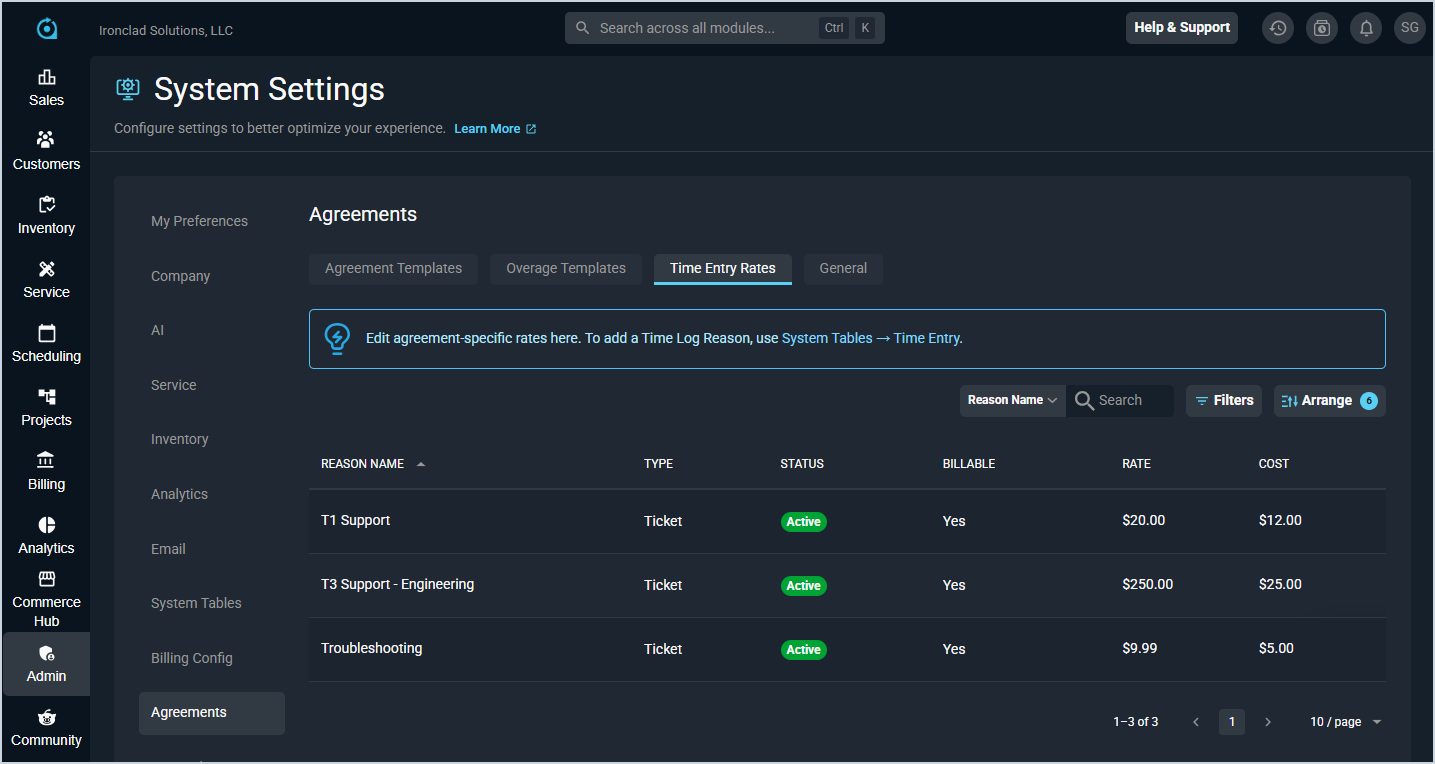
Each field in the Time Entry Rates list is defined below.
| No. | Label | Definition |
|---|---|---|
| 1 | Reason Name | Name of the time log reason. |
| 2 | Type | Type of the time log reason, such as Ticket. |
| 3 | Status | Current status of the time log reason, such as Active. |
| 4 | Billable | Indicates whether the time log reason is billable. |
| 5 | Rate | Billing rate configured for the time log reason. |
| 6 | Cost | Cost rate configured for the time log reason. |
The following actions are available in the Time Entry Rates tab.
- Search for a specific time log reason by entering text in the Search field.
- Filter the list by clicking the Filters button.
- Sort the list by clicking a column label in the table header.
- Customize which columns display in the list by clicking the Arrange button. See the Arrange Columns article for more information.
- Edit a time entry rate by clicking the ellipsis at the end of the row and selecting Edit. See the Add/Edit Agreement Time Entry Rates article for more information.
General
The General tab displays system-wide product type settings used when billing usage from agreements.
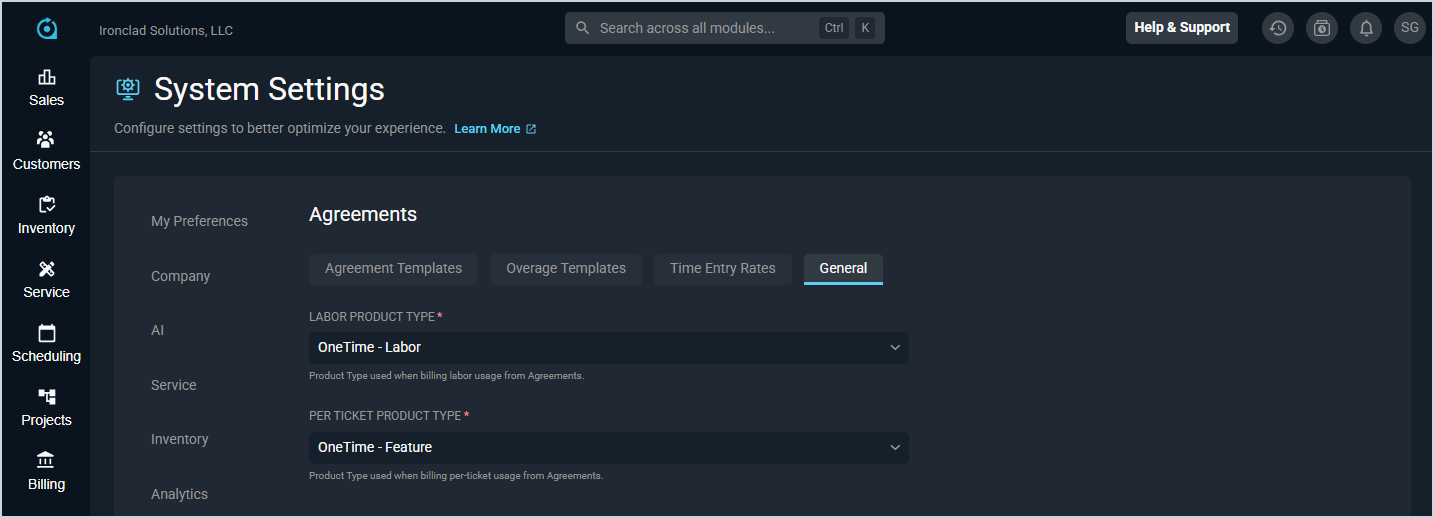
Each field on the General tab is defined below.
| No. | Label | Definition |
|---|---|---|
| 1 | Labor Product Type | Product type used when billing labor usage from agreements. |
| 2 | Per Ticket Product Type | Product type used when billing per-ticket usage from agreements. |