
Inventory Views: Stock Levels
The Stock Levels tab on the Inventory Management screen shows which products you need to order. It compares the parts requested on tickets with the stock you have on hand and the purchase orders you have already placed, then recommends how many of each product to order. To open it, click Inventory in the sidebar menu, select Inventory Management, and click the Stock Levels tab.
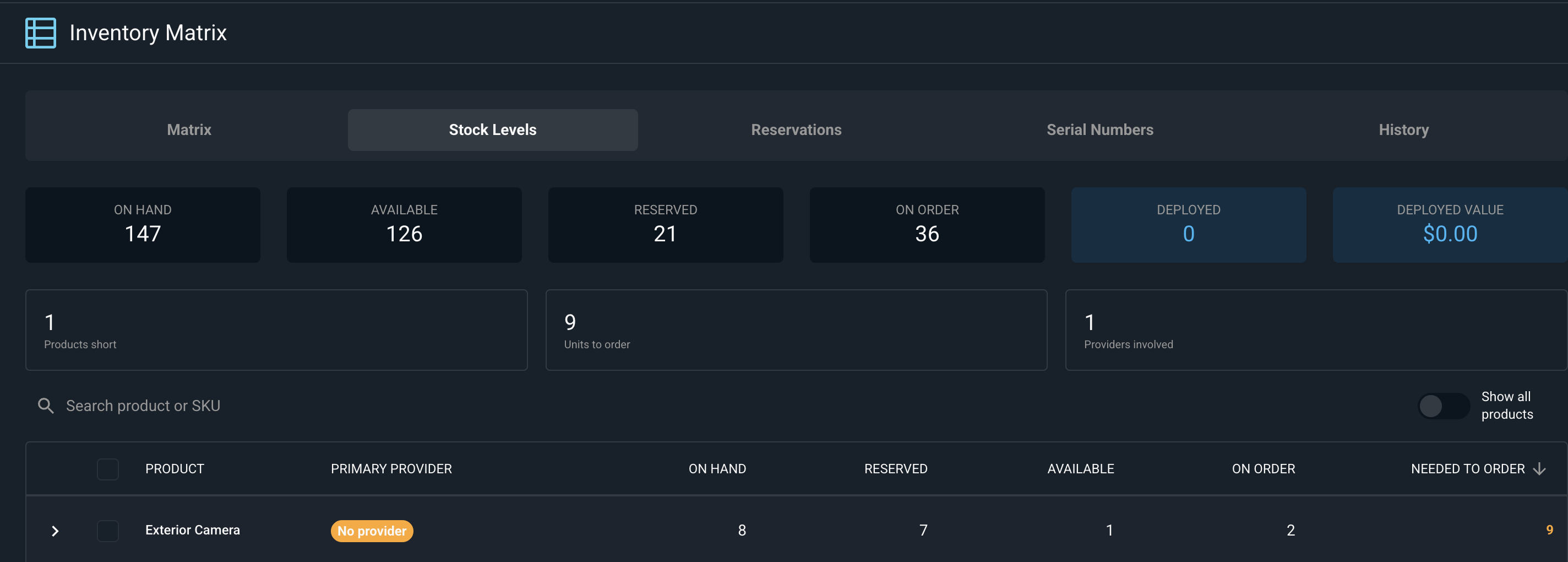
The recommended quantity in the Needed to Order column looks at tickets that are not voided or invoiced and have parts that are not yet reserved, and compares them with the quantity available and the quantity already on order.
The summary tiles at the top of the screen are defined below.
| Label | Definition |
| On Hand | Total quantity of products in your inventory. |
| Available | Total quantity of products that are not reserved and could be used today. |
| Reserved | Total quantity of products set aside for tickets that have not been sold yet. |
| On Order | Total quantity of products on purchase orders that have not been received yet. |
| Deployed | Total number of serialized items currently deployed to customers. See the Deploying Inventory to a Customer article for more information. |
| Deployed Value | Total value of the items currently deployed to customers. |
| Products short | Number of products that need more stock ordered. |
| Units to order | Total number of units the system recommends ordering across all products. |
| Providers involved | Number of providers the recommended products would be ordered from. |
Each column in the list of products is defined below.
| Label | Definition |
| Product | Name of the product. |
| Primary Provider | Provider assigned to the product as its primary provider. Rev.io uses this provider when you create purchase orders from this tab, and you can change it before the purchase orders are created. |
| On Hand | Quantity of the product in your inventory. |
| Reserved | Quantity of the product set aside for tickets that have not been sold yet. |
| Available | Quantity of the product that is not reserved and could be used today. |
| On Order | Quantity of the product on purchase orders that have not been received yet. |
| Needed to Order | Quantity of the product the system recommends ordering. |
These actions are available on the Stock Levels tab.
- Switch to another view by clicking the Matrix, Reservations, Serial Numbers, or History tab at the top of the screen. See the Inventory Views: Matrix, Inventory Views: Reservations, Inventory Views: Serial Numbers, and Inventory History articles for more information.
- Search for a product by entering a product name or SKU in the Search product or SKU field.
- Show all products by turning on the Show all products toggle.
- Review the list in order of greatest need. The list is sorted by Needed to Order from highest to lowest when you open the tab.
- Review the tickets behind a recommendation by clicking the arrow at the start of the product’s row.
- Select products by clicking the checkbox at the start of each row. Select the whole list by clicking the checkbox in the header row.
- Clear your selection by clicking Clear next to the number of products selected.
- Create purchase orders for the selected products by clicking the Create PO(s) button, which appears once you select at least one product. See the Creating Purchase Orders from Stock Levels article for more information.
For information on the other tabs on the Inventory Management screen, see the related articles.
Inventory Views: Matrix
Inventory Views: Reservations
Inventory Views: Serial Numbers
Inventory History
Creating Purchase Orders from Stock Levels