
Customer Profile: Billing Section - Recurring Services Tab
The Recurring Services tab in the Billing section of the customer profile displays all recurring services associated with the customer account. Each service row can be expanded to view its associated products. From this tab, you can review service details, track which services are linked to quotes, and add new recurring services to the account.
| NOTE: Once a quote reaches a Completed Status (signed by all signers), the system automatically creates a new recurring service in a Pending Status containing all recurring products on the quote. |
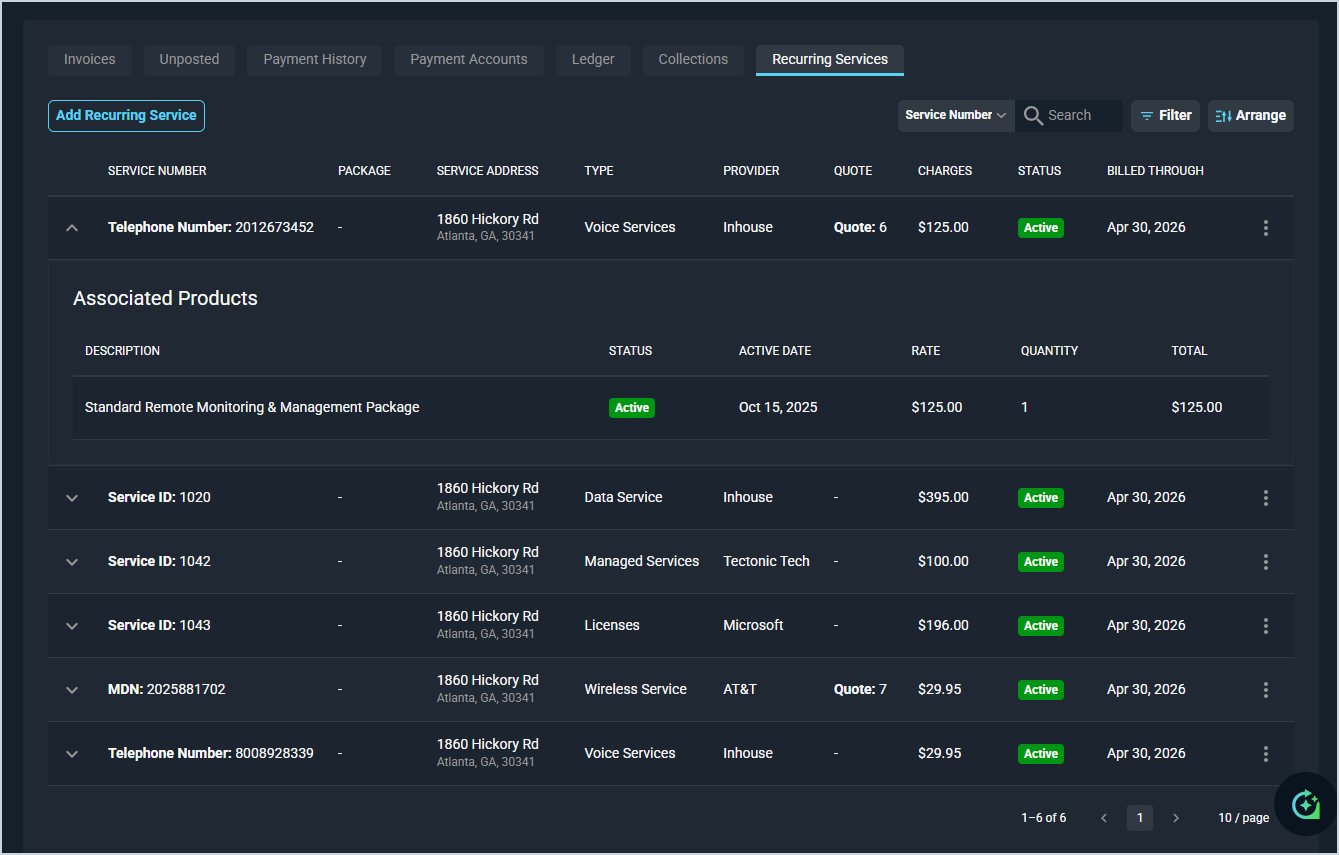
Each field in the Recurring Services tab is defined below.
| No. | Label | Definition |
| 1 | Service Number | Identifier for the recurring service. For telecom services, this displays as a telephone number, MDN, or other service identifier. For non-telecom services, this displays as a system-assigned Service ID. |
| 2 | Package | Package associated with the service, if applicable. |
| 3 | Service Address | Address associated with the service. |
| 4 | Type | Type of service, such as Voice Services, Data Service, Managed Services, Licenses, or Wireless Service. |
| 5 | Provider | Provider associated with the service. |
| 6 | Quote | Quote associated with the service, if applicable. Click the link to open the quote. |
| 7 | Charges | Total recurring charges for the service. |
| 8 | Status | Current status of the service, displayed as a badge. |
| 9 | Billed Through | Date through which the service has been billed. |
| Associated Products | ||
| 10 | Description | Name of the product associated with the service. |
| 11 | Status | Current status of the product, displayed as a badge. |
| 12 | Active Date | Date the product became active. |
| 13 | Rate | Billing rate for the product. |
| 14 | Quantity | Quantity of the product included in the service. |
| 15 | Total | Total charges for the product based on the rate and quantity. |
The following actions are available on the Recurring Services tab.
- Add a new recurring service to the account by clicking the Add Recurring Service button. See the Add/Edit Recurring Services article for more information.
- Search the records displayed on this tab by selecting a column from the dropdown above the grid and entering text in the Search field. The list view updates to display records matching your search in the column you selected.
- Filter the services displayed by status by clicking the Filter button and selecting the desired status options.
- Sort the results in the table by clicking the column label in the table header.
- Expand a service row to view its associated products by clicking anywhere in the row.
- Edit a service by clicking the menu at the end of the service row and selecting Edit Recurring Service from the menu options. See the Add/Edit Recurring Services article for more information.
Tabs in the Billing Section
For information on other tabs in the Billing section of the customer profile, see the related articles.
- Customer Profile: Billing Section - Invoices Tab
- Customer Profile: Billing Section - Unposted Tab
- Customer Profile: Billing Section - Payment History Tab
- Customer Profile: Billing Section - Payment Accounts Tab
- Customer Profile: Billing Section - Ledger Tab
- Customer Profile: Billing Section - Collections Tab