Receiving Items on Purchase Orders
If the Inventory Management feature is enabled in your database, you can stage and commit receipts for purchase orders, allowing you to review and confirm inventory updates before they are finalized. If Inventory Management is not enabled, you can still enter receipts for purchase orders, but the staging and commit options will not be available.
| NOTE: Purchase orders created before Inventory Management was last enabled in your instance are not eligible for inventory-related functionality, including staging and committing receipts. |
Receiving Products with Inventory Management
When inventory management is enabled in your instance, receiving items on a purchase order follows a staged process that allows you to review and control inventory updates before they are finalized. Cost adjustments made during receipt entry will cascade to any linked ticket, if applicable, but will not update the product Cost in the catalog.
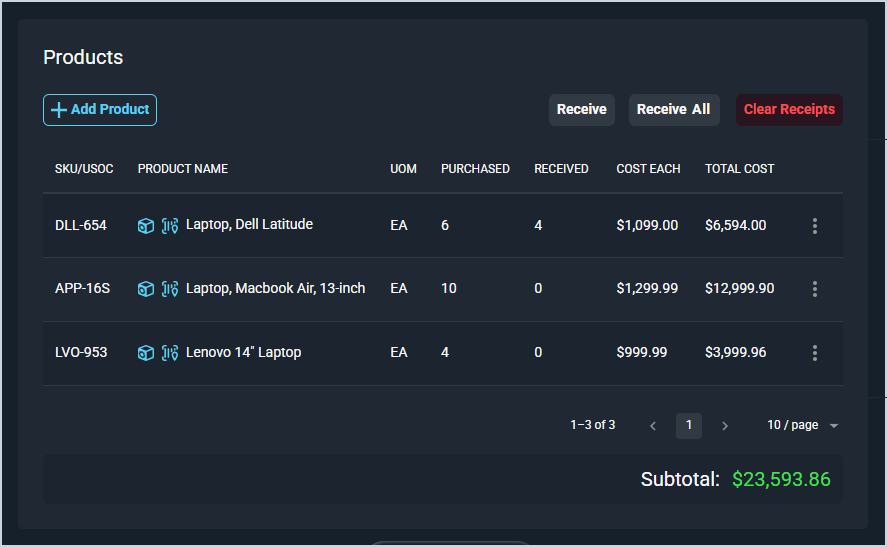
You can receive products by clicking Receive and entering receipt details for individual items, or manage staged receipts using the Clear Staged Receipts and Commit Receipts options.
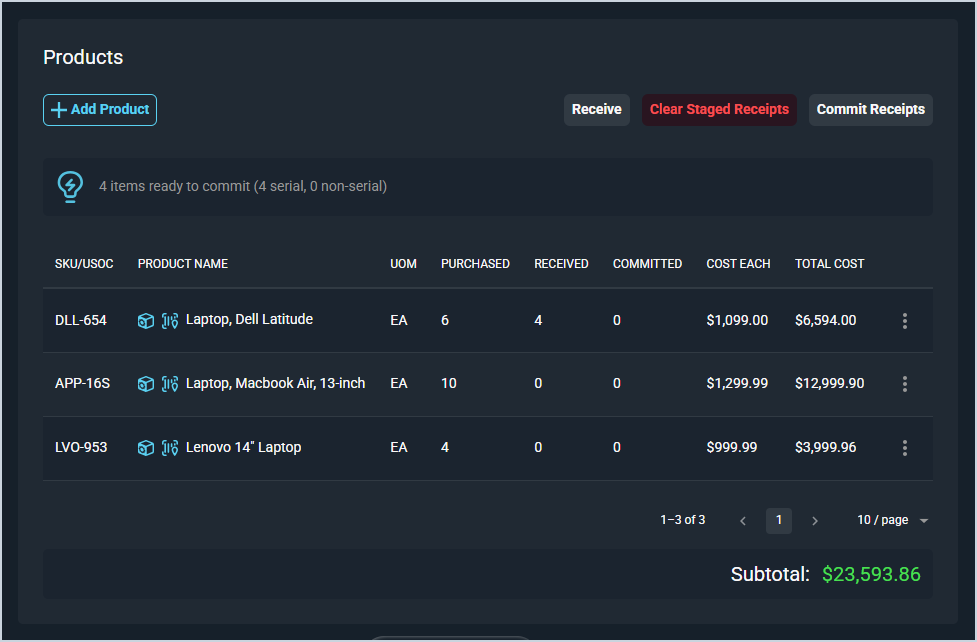
Clicking the Receive button opens the Receive All Products window where you can enter the quantity of items you're Receiving Now, the Location where you want to receive the items, and the Cost (either for each product or for the total ordered for that product). If the products are set to require serial number tracking, you can also enter Serial Numbers on this window either manually or using the Import Serial Numbers button.
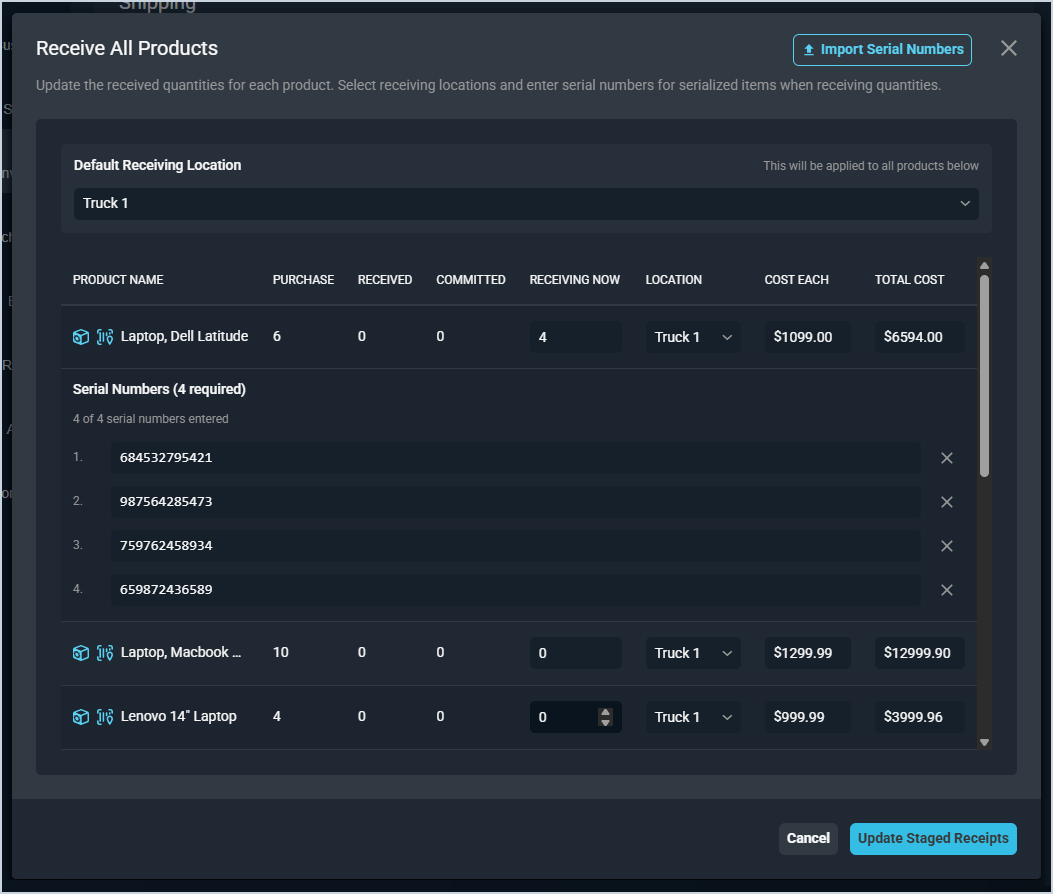
Clicking the Update Staged Receipts button records the receipt information in the system without officially applying the updates to inventory. You can review the information entered on the purchase order and click the Commit Receipts button when you're ready to commit the receipts to your inventory. Alternatively, if you need to make changes, click the Clear Staged Receipts button.
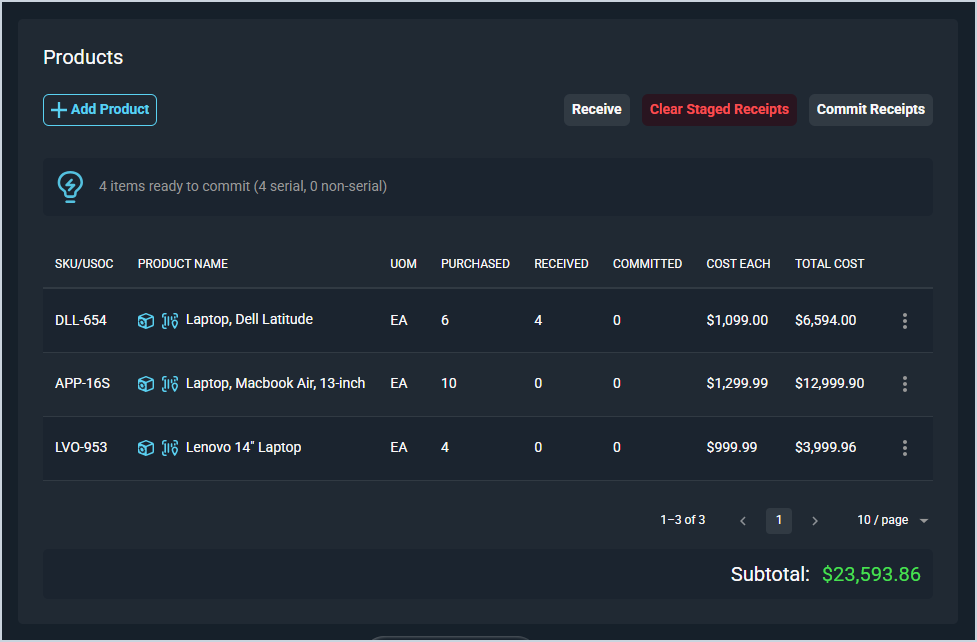
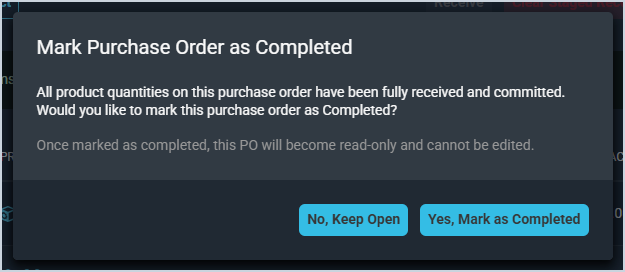
Once all receipts have been entered and committed on the purchase order, the purchase order can be marked as completed. If you click No, Keep Open on the pop-up message but want to complete the purchase order later, you can edit the purchase order and select Completed from the Status dropdown.
Receiving Products without Inventory Management
When inventory management is not enabled in your instance, receiving items on a purchase order is a simplified process. You can receive individual items using the Receive button or receive all items at once using the Receive All button. You can also clear entered receipts using the Clear Receipts option to reset received quantities as needed before saving the purchase order. As with inventory-enabled purchase orders, received quantities cannot exceed the originally ordered amounts, and any cost adjustments made during receipt entry will cascade to the linked ticket without affecting the product catalog.