
Collections List View
The Collections list view provides a centralized snapshot of collection activity across your system, giving you clear visibility into timing and overall progress at a glance. It helps you quickly understand what’s coming up, what’s in progress, and how collections are moving through the system so you can manage efforts efficiently.
The Collections list is populated with accounts that are past due based on the grace period defined in the collection template assigned to the customer’s bill profile. See the Add/Edit Collection Templates article for more information.
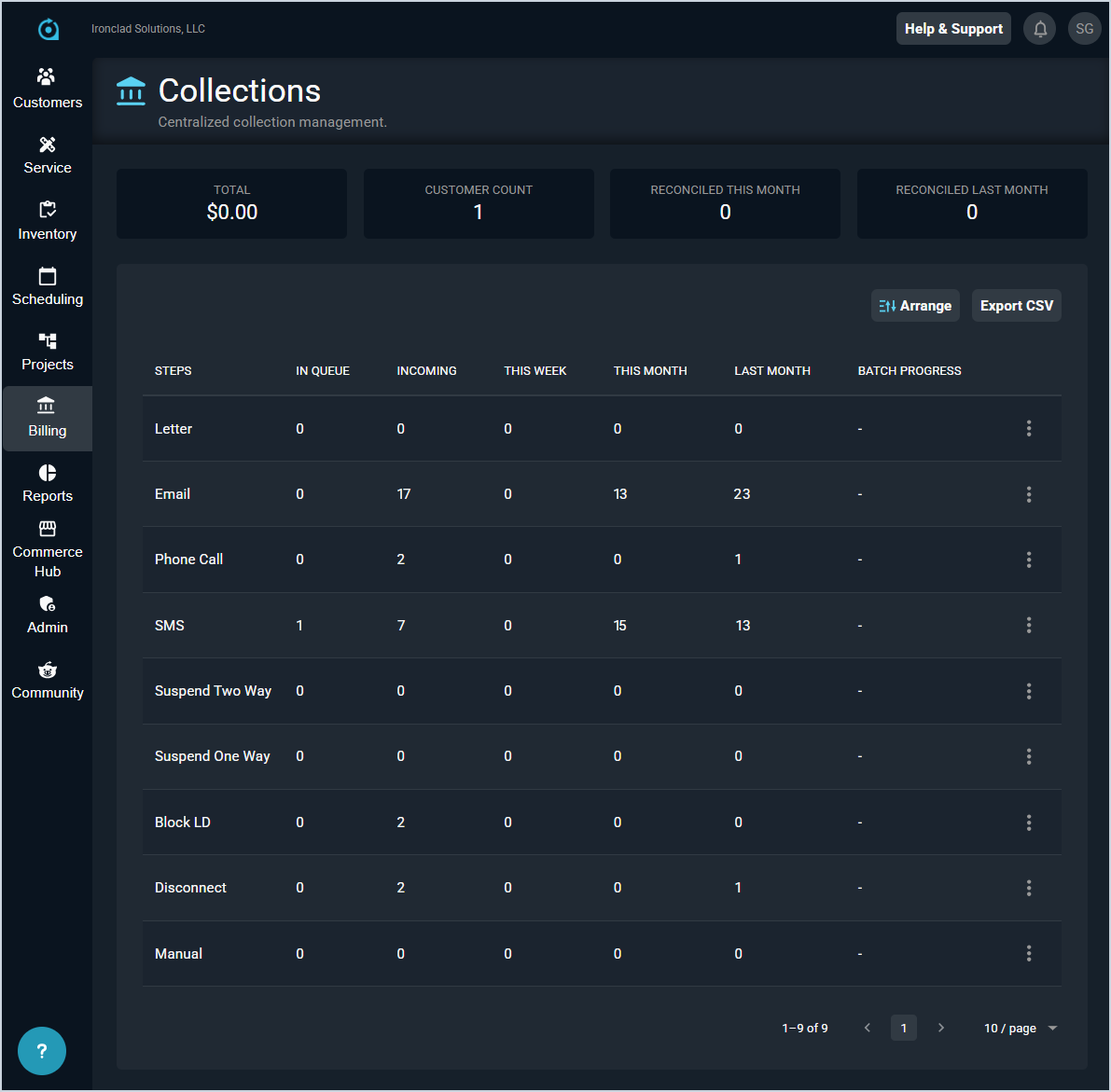
Each field on the Collections list view is defined below.
| No. | Label | Definition |
| 1 | Steps | Name of the collection step. |
| 2 | In Queue | Number of customers in queue for the collection step type. |
| 3 | Incoming | Number of customers that will be in queue for the collection step type soon if they don't pay off the past-due portion of their bill in full. |
| 4 | This Week | Number of collection steps executed this week for the step type. |
| 5 | This Month | Number of collection steps executed this month for the step type. |
| 6 | Last Month | Number of collection steps executed last month for the step type. |
| 7 | Batch Progress | Progress for the collection batch. When a step is executed, this column displays the progression while the step is processing. |
These actions are available on the Collections list view.
- View the Total dollar value of the collection items in the queue, the Customer Count for the number of customers in the collection queue, the number of collections Reconciled Last Month, and the number of collections Reconciled This Month using the tiles at the top of the screen.
- Customize which columns display in the list view and the order in which they display by clicking the Arrange button and making the desired changes. See the Arrange Columns article for more information.
- Export information on this screen by clicking the Export CSV button.
- View more details for the collection step by clicking the menu icon at the end of the row and selecting View from the menu options. See the View Collection Step Details article for more information.
- View history for the Letter collection step by clicking the menu icon at the end of the row and selecting Download Batch from the menu options. See the View Collection Batch History Details article for more information.