
Hudu Integration: Additional Steps
After configuring the Rev.io to Hudu integration, you must complete the following steps in your Hudu instance. These steps set up the webhook that notifies Rev.io when a company record changes in Hudu.
| NOTE: Before configuring alerts using the steps below, be sure you have completed the configuration. See the Hudu Integration: Configuration article for more information. |
Step 1: Access the Hudu Admin Area
- Log in to your Hudu instance as an Administrator.
- Navigate to Admin in the top navigation bar.
- In the left-hand sidebar, select Alerts.
Step 2: Create a New Alert
- Click Edit Alert or create a new alert.
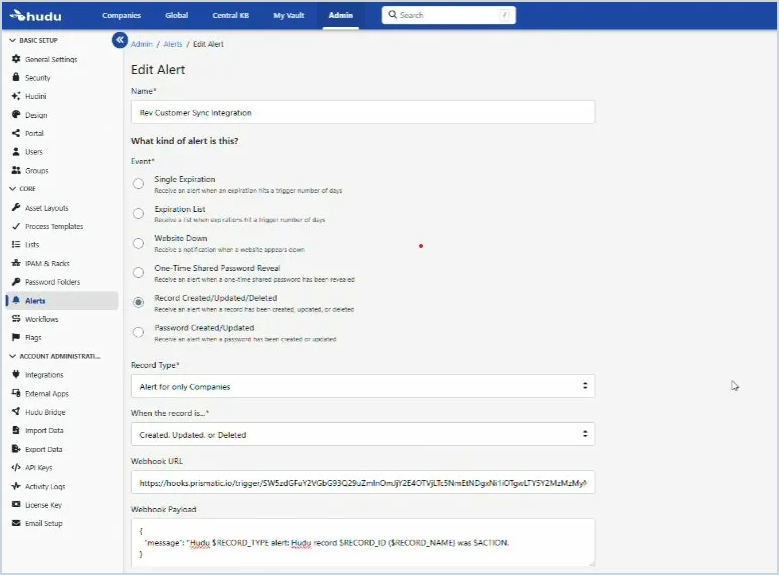
- Enter a name for the alert, for example: Rev Customer Sync Integration.
Step 3: Configure the Alert Settings
Complete the following fields on the alert form.
| NOTE: The Record Created/Updated/Deleted event type must be selected. This is what triggers the webhook to fire when company data changes in Hudu. |
| Field | Value |
|---|---|
| Event | Record Created/Updated/Deleted |
| Record Type | Alert for only Companies |
| When the record is... | Created, Updated, or Deleted |
Step 4: Get the Webhook URL from Rev.io
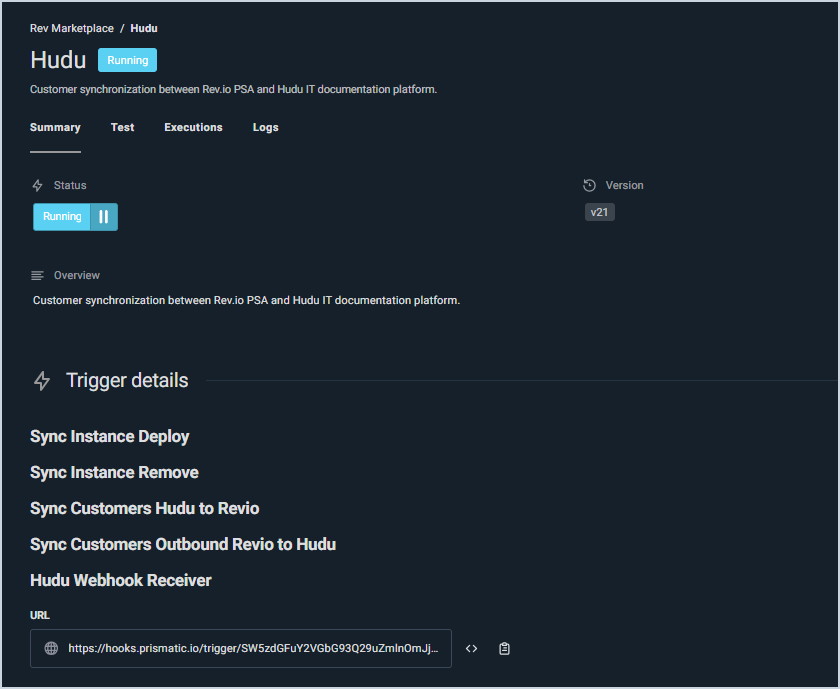
The webhook URL is unique to your Rev.io instance and is found in the Integrations Library.
- Log in to your Rev.io instance.
- Navigate to Admin > Integrations Library.
- Locate the Hudu integration card.
- Select the Summary tab.
- Under Hudu Webhook Receiver, copy the Post URL. This is your webhook URL.
NOTE: This URL is unique to your instance. Do not share it externally.
Step 5: Enter the Webhook URL in Hudu
- Return to the Hudu alert you are configuring.
- Paste the copied Post URL into the Webhook URL field.
Step 6: Enter the Webhook Payload
In the Webhook Payload field, enter the following exactly as shown:
{
  "message": "Hudu $RECORD_TYPE alert: Hudu record $RECORD_ID ($RECORD_NAME) was $ACTION."
}
Step 7: Save the Alert
Click Save to complete the alert configuration. Once saved, Hudu will automatically send a webhook to Rev.io whenever a company record is created, updated, or deleted, triggering the customer sync.