
Audit Logs: Overview
The Audit Logs screen in the Admin module provides a centralized view of system activity and user actions across Rev.io. From this screen, you can search and filter audit records to quickly review changes, track actions, and gain visibility into how and when updates are made throughout the platform.
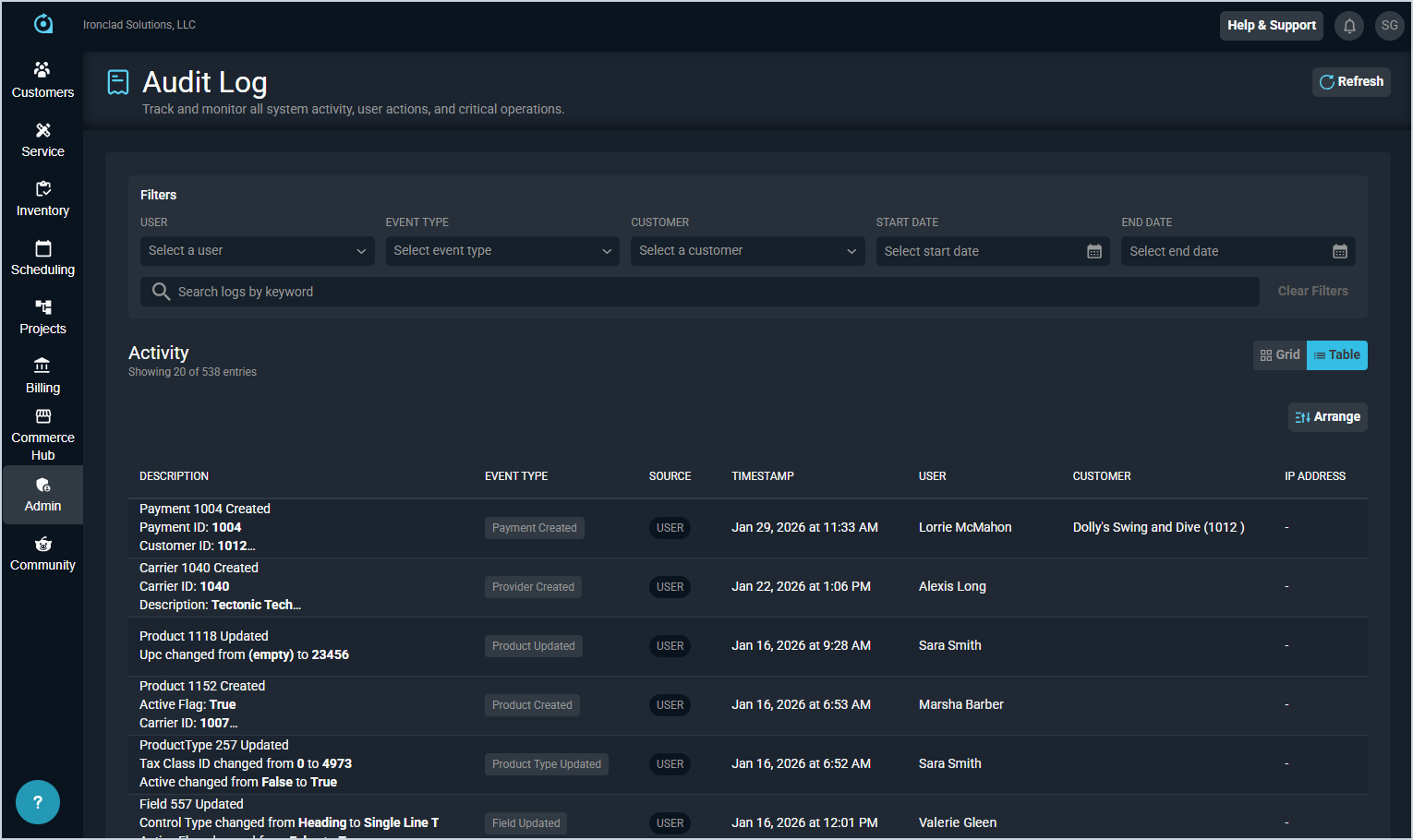
Filters Section
The Audit Logs screen features several filters to help you find the system activity or user action you need. Each filter available in the Filters section is defined below.
| No. | Label | Definition |
| 1 | User | Select specific user(s) in your Rev.io instance to view their activity. This dropdown is populated with active users in your instance. |
| 2 | Event Type | Select the type of event you want to view activity for. At this time, many events listed are only available in classic Rev.io Billing. |
| 3 | Customer | Select specific customer(s) in your Rev.io instance to view their activity. This dropdown is populated with active customers in your instance. |
| 4 | Start Date | Select a start date to narrow the date range of activity displayed. |
| 5 | End Date | Select an end date to narrow the date range of activity displayed. |
| 6 | Search | Enter text to view activity matching the characters entered. The results update in real time as you enter text in this field. |
| 7 | Clear Filters | Click this option to clear all filters set on the Audit Log screen and view all activity for your instance. |
Activity Section
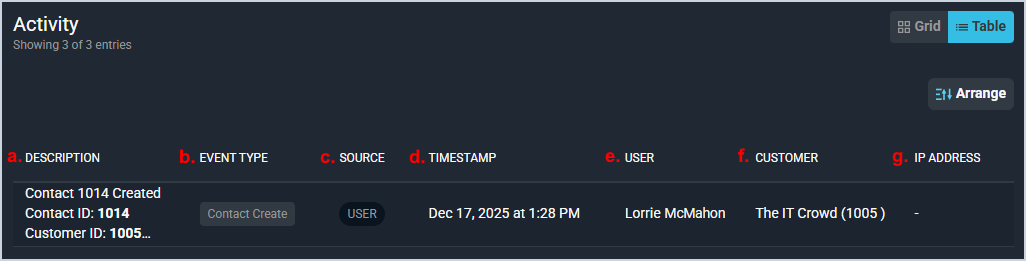
The Activity section displays the log of individual activity records for the system in either a Grid view or a Table view.
Grid View
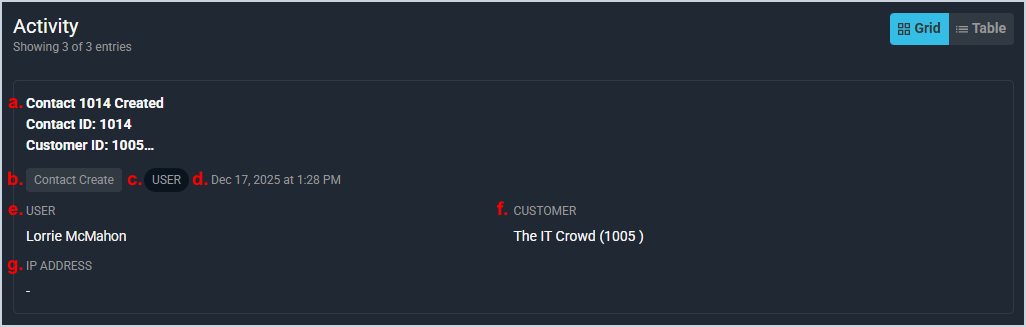
Table View
Field Definitions
Each field in the Activity section is defined below.
| Area | Label | Definition |
| a. | Description | Description of the activity being logged. Some items include only a short description of the activity while others display multiple lines to provide more details about the activity. Clicking an activity item opens the Audit Log Details window. See the View Audit Log Details article for more information. |
| b. | Event Type | Type of event that the activity was logged for. |
| c. | Source | Source of the activity. |
| d. | Timestamp | Date and time the activity took place in the system. |
| e. | User | Name of the user who initiated the activity. |
| f. | Customer | Customer the activity was initiated for, if applicable. |
| g. | IP Address | This field is not currently available. |
These actions are available on the Audit Log screen.
- Reload the activity displayed on this screen to ensure you have the most up-to-date information by clicking the Refresh button at the top of the screen.
- Filter the activity displayed by selecting specific options in the Filters section at the top of the screen. The results update in real time as you select different options.
- Search the activity displayed on this screen by entering text in the Search field. The results update in real time as you enter text in this field.
- Clear any filters set on this screen by clicking the Clear Filters button.
- View activity for your Rev.io instance in a specific format by selecting the Grid or Table option in the Activity section.
- Customize which columns display in the Table view and the order in which they display by clicking the Arrange button and making the desired changes. See the Arrange Columns article for more information.
- View additional details for an item by clicking the activity in the table/grid view. See the View Audit Log Details article for more information.