
Managing Work Item Dependencies
Work item dependencies let you connect tasks, tickets, and milestones to define the order in which work is done. When a work item moves, the items that depend on it can move with it, so you don't have to update every date by hand. You can manage dependencies from the work item panel when adding or editing a task or ticket, or directly in the Gantt chart on the Planning tab of a project.
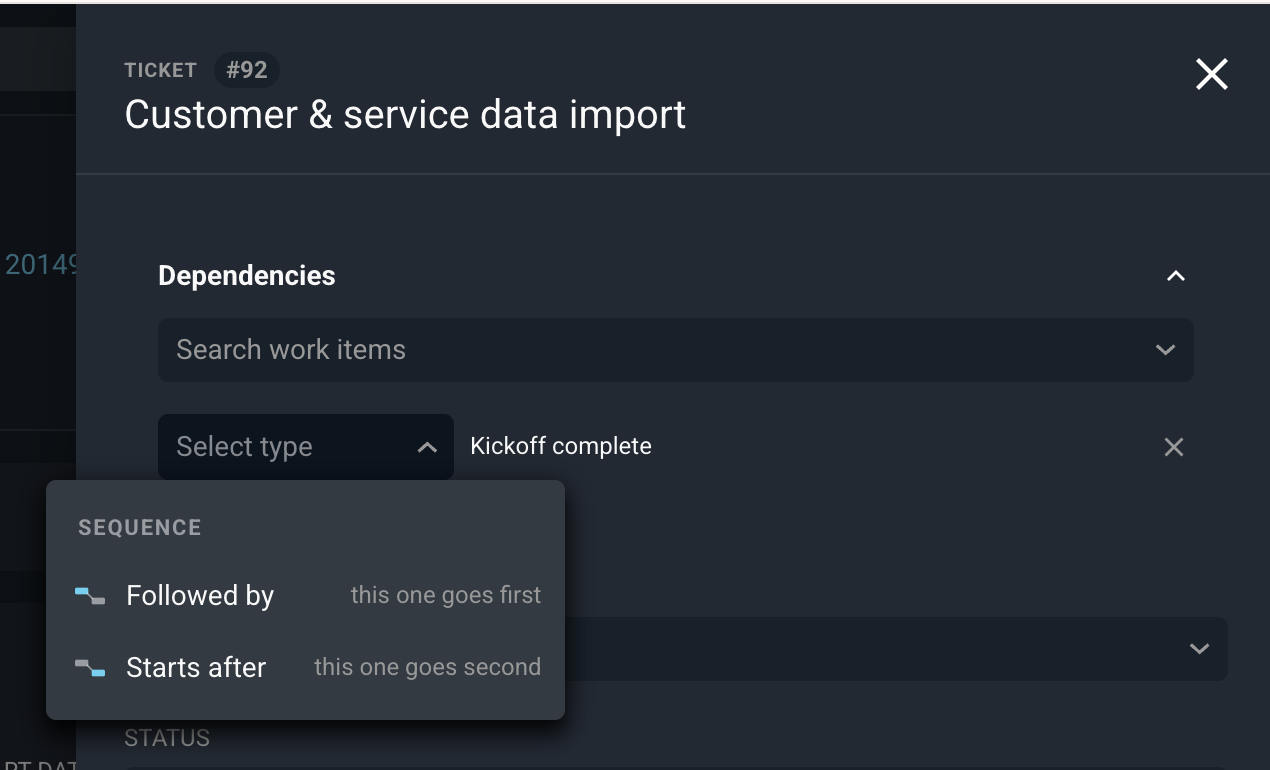
Each relationship type you can select for a linked work item is defined below. Relationships are always described from the point of view of the item you are editing.
No. | Label | Definition |
|---|---|---|
1 | Followed by | The item you are editing goes first, and the linked item comes after it. |
2 | Starts after | The item you are editing goes second, and it starts after the linked item. |
3 | Related to | Connects the two items without setting an order or affecting dates. |
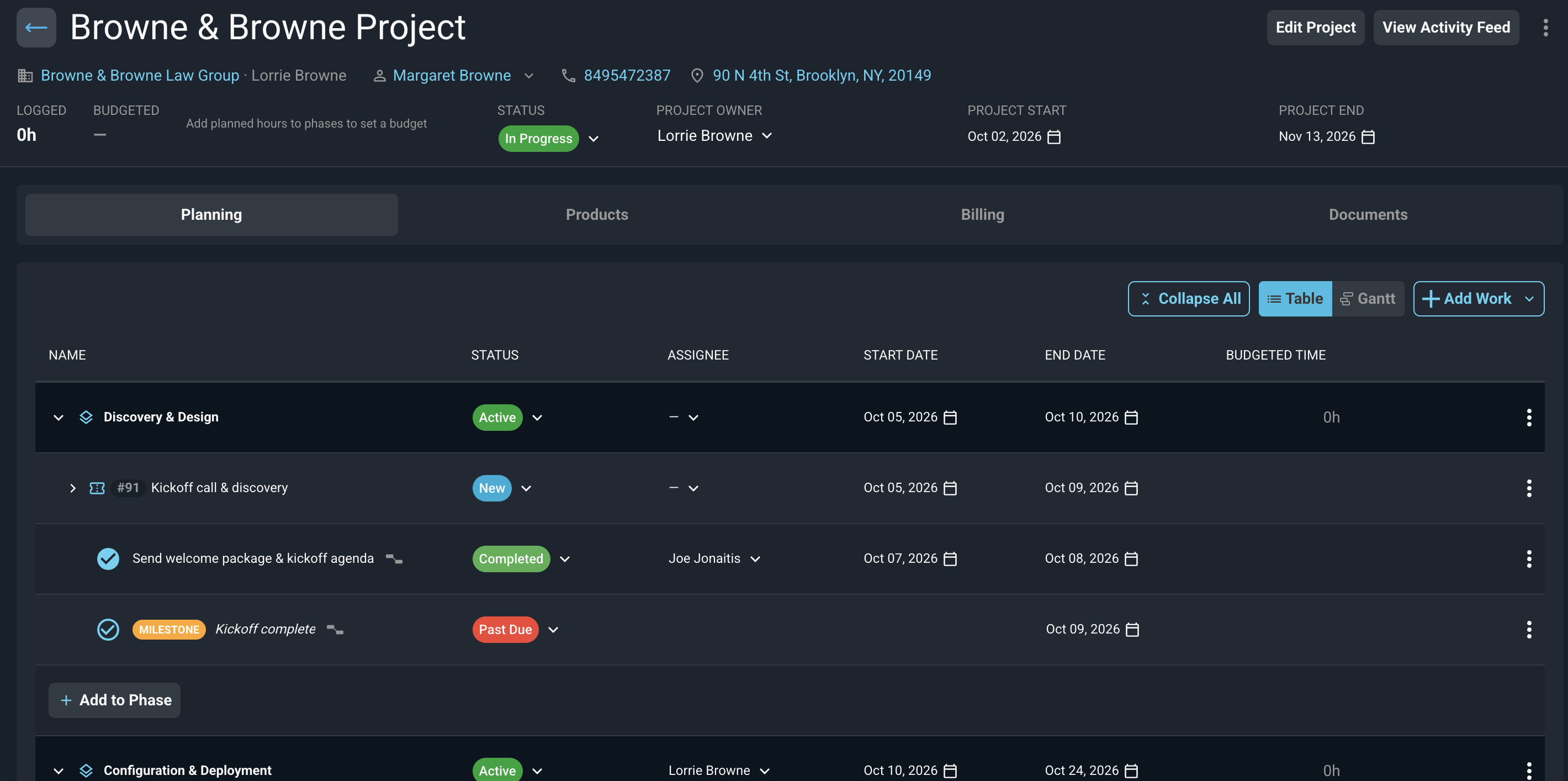
Followed by and Starts after describe the same link from opposite sides. If you set a task to be Followed by a ticket, the ticket shows as Starts after that task. A small dependency icon appears next to any work item in the planning list that has links.
Follow these steps to add a dependency from a work item drawer or panel.
- Open the project and click the Planning tab.
- Open the work item for editing. The Dependencies section is available when editing a task, when editing a ticket from the planning drawer, and when editing a milestone.
- Click the Search work items dropdown and select the work item you want to link. Only work items in the same project are listed.
- Select a relationship type from the Select type dropdown next to the linked item.
- Click the Save changes button.
These actions are available in the Dependencies section of a drawer.
- Change a link's type by selecting a different option from the dropdown next to the linked item.
- Remove a link by clicking the X next to the linked item.
- Add as many links as you need. There is no limit, and you can build chains of any length.
NOTE: The Dependencies section is not available when adding a new milestone. Save the milestone first, and then edit it to add dependencies. It is also not available on the full ticket page or in the calendar item editor. |
Linked items also appear on the Gantt chart. Switch to the Gantt view by clicking the Gantt button at the top of the Planning tab. Each link is drawn as a line with an arrowhead from the end of one bar to the start of the next. Solid lines show Followed by and Starts after links, and dashed lines show Related to links. A legend below the chart explains the lines and the bar colors.
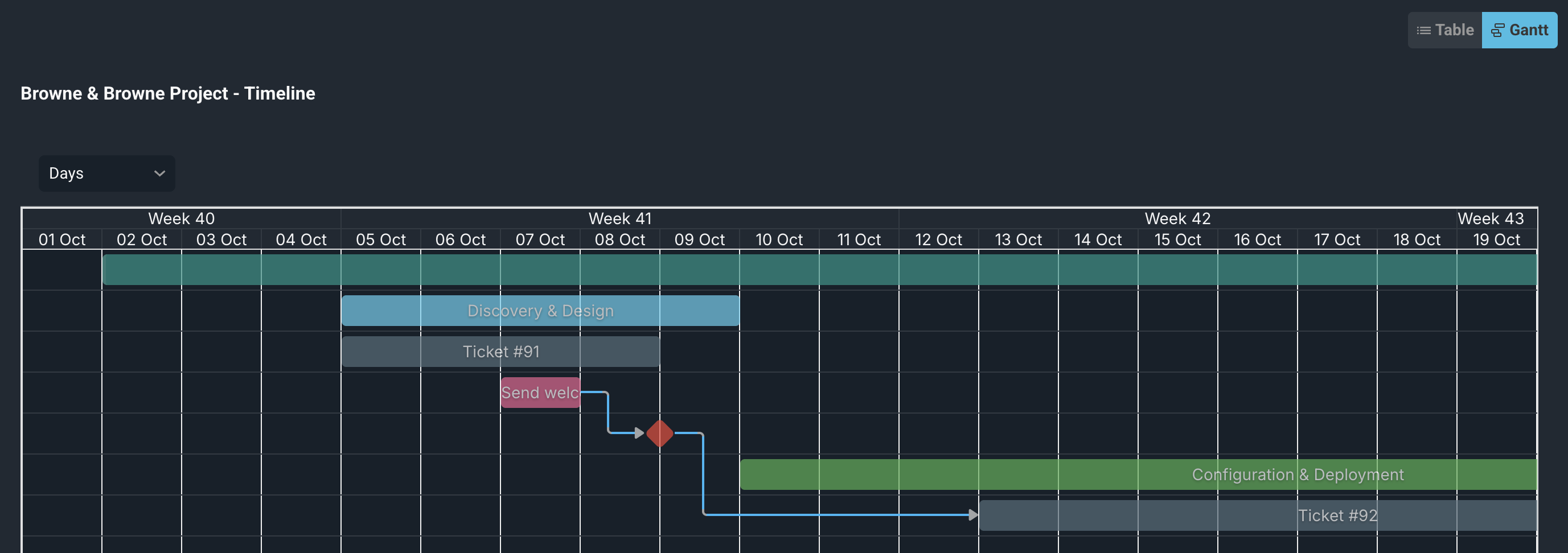
These actions are available for links in the Gantt chart.
- Create a link by dragging from the end handle of one bar to the start of another bar. The link is saved as a sequence link, with the first bar going first.
- Remove a link by double-clicking its line and confirming in the Delete Dependency dialog.
- Change a link's type from the work item drawer. The type cannot be changed in the Gantt chart.
Only end-to-start drags are accepted in the Gantt chart. If you drag a link any other way, it is not saved and a message appears.
A link is only drawn when both bars are on the chart. Tickets that do not have project schedule dates do not have a bar, so their links are not drawn. The chart also only shows bars within the visible date range, so scroll to the linked items if you do not see the lines.
IMPORTANT: Dragging a task, milestone, or phase bar in the Gantt chart saves the new dates without a review, and items that depend on it do not move. To have linked items follow, change the dates from the planning list or the drawer instead. See the Editing Dates and Reviewing Schedule Impact article for more information. |
Keep the following rules in mind when linking work items.
- Both work items must be in the same project.
- A work item cannot be linked to itself, and the same two items cannot be linked twice. Once two items are linked, each one is hidden from the other's search. To reverse the order, change the type on the existing link.
- Links that would create a loop are not allowed. The message names the path, such as "This would create a loop: Pull cable → Terminate → Test → Pull cable."
- Viewing dependencies requires access to view the project. Adding, changing, or removing a link, and applying a schedule review, require the project update permission. The drag and double-click actions in the Gantt chart are disabled without it.
- For tickets with a closed or void status, the Status and Assignee fields in the drawer are locked. They are also locked if you do not have permission to update tickets. The Phase and plan dates remain editable.
When you duplicate a project, its dependencies are copied to the new project. Revii can also create, view, and duplicate dependencies for you.
Related Articles
- Editing Dates and Reviewing Schedule Impact
- Project Details: Work Tab
- Add/Edit Project Work
- Add/Edit Project Milestones