
Configuring Bill Messages on Invoices
Bill messages let you communicate important information directly on your customers' invoices. You can include a special message and separate autopay messages for customers who pay automatically by ACH or by card. Messages can be set on a bill profile and overridden for individual customers, and they print on invoices wherever you place the Bill Messages component in an invoice template.
Note: You will need Admin permission to access the bill profiles where bill messages are configured.
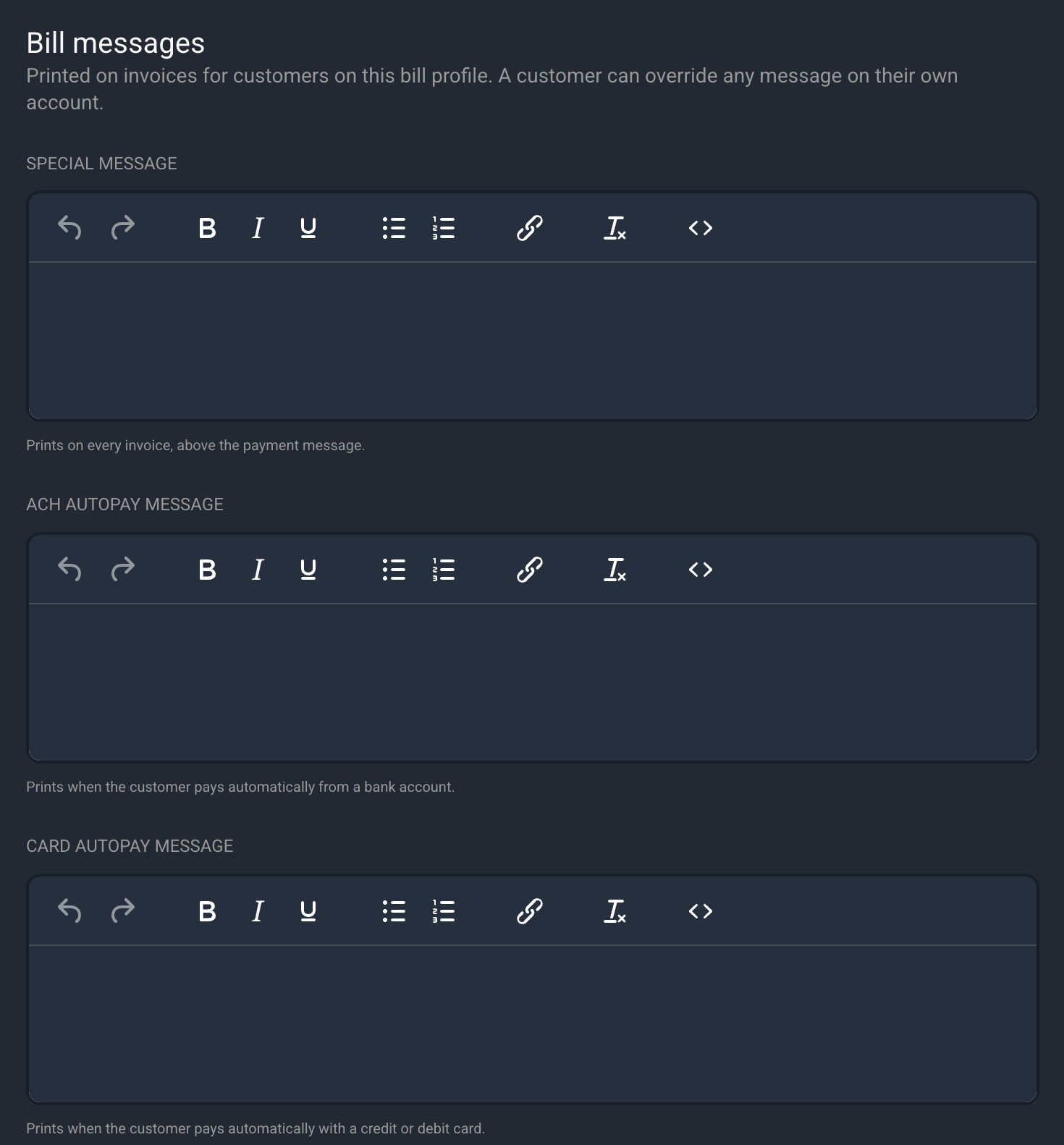
Each type of bill message is defined below.
No. | Label | Definition |
|---|---|---|
1 | Special Message | A message that prints on the customer's invoices. Use it for announcements or notes that apply to the customer's invoices in general. |
2 | ACH Autopay Message | A message that prints when the customer pays automatically from a bank account. |
3 | Card Autopay Message | A message that prints when the customer pays automatically with a credit or debit card. |
The autopay messages are based on the customer's payment accounts. If the customer has autopay set up with an ACH account or a card on file, the matching message prints. If the customer does not have autopay set up, the autopay messages do not print, and no blank space is left on the invoice.
Setting Default Bill Messages on the Bill Profile
Follow these steps to set bill messages on a bill profile.
- Click Admin in the sidebar menu and select System Settings. Select Billing Config and then click on the Bill Profiles tab.
- Open the bill profile you want to edit.
- Scroll to the Bill Messages section at the bottom of the screen.
- Enter the Special Message, ACH Autopay Message, and Card Autopay Message you want to use.
- Click the Save button.
Setting Bill Message Overrides on a Customer Account
Follow these steps to set bill messages for a specific customer.
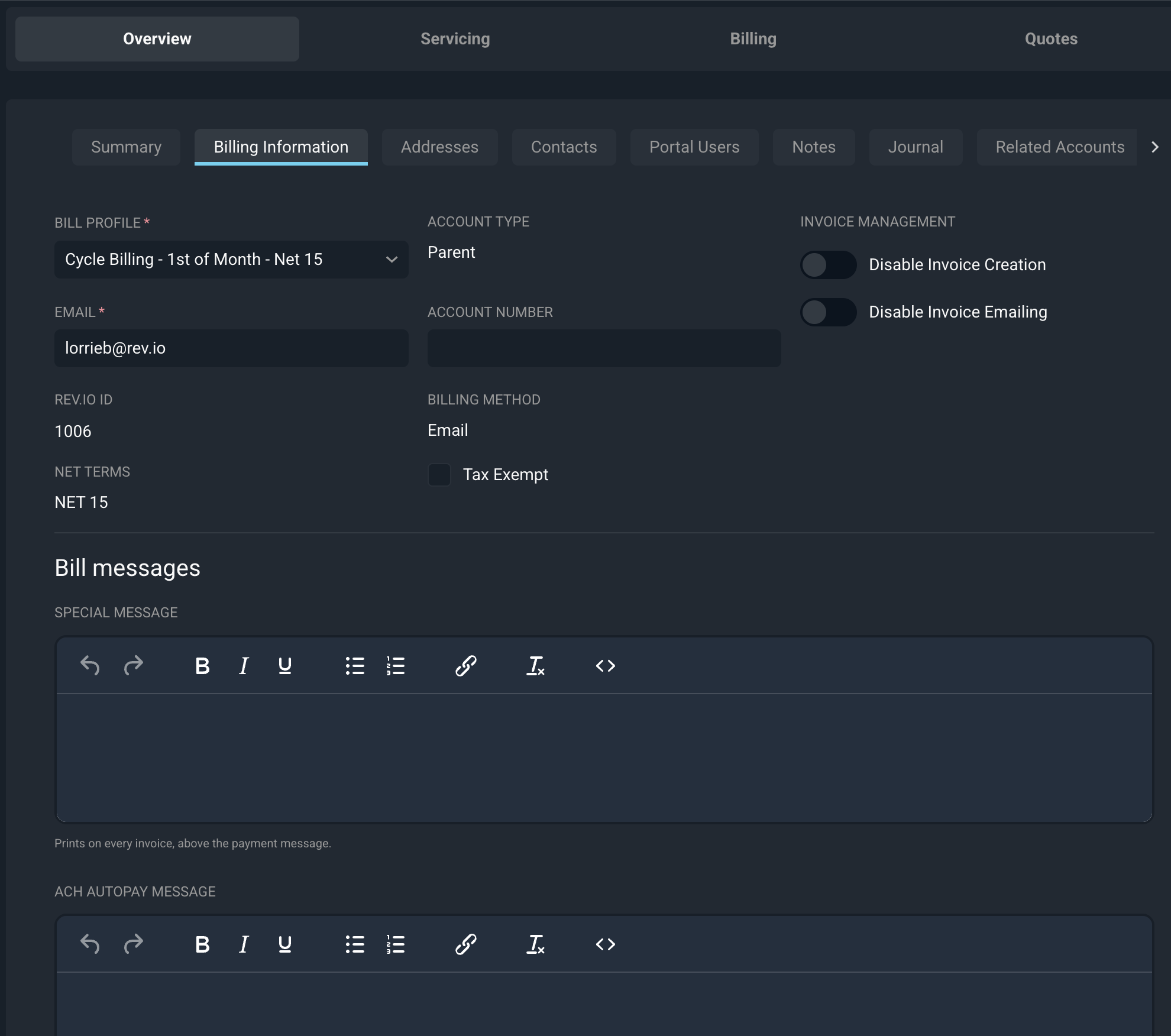
- Open the customer's profile and click the Billing Information tab.
- Click the Edit button.
- Scroll to the Bill Messages section at the bottom of the tab. Messages from the customer's bill profile are filled in automatically.
- To enter a customer-specific message, click the Override button below the message and enter your text.
- Click the Save button.
NOTE: A message entered on the customer always takes precedence over the same message on the bill profile. Customers without an override use the message from their bill profile. |
Configuring Default Bill Messages on Bill Profiles
Follow these steps to display bill messages on an invoice template.
Click Admin in the sidebar menu, select System Settings, and click Billing Config.
- Open the Invoice Templates tab and open the template you want to edit. Bill messages work for both one-time and recurring templates.
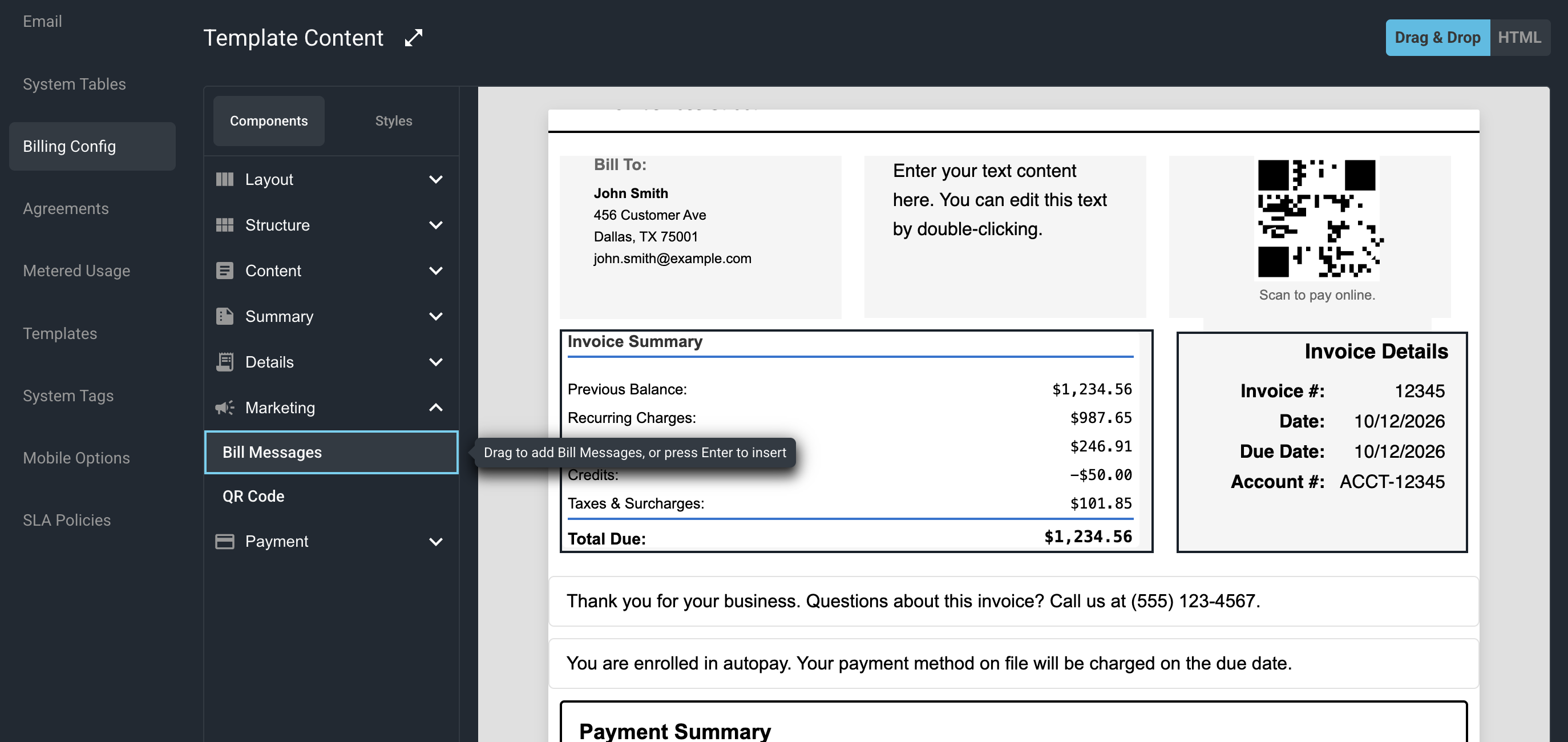
- In the Components tab, expand the Marketing category and drag the Bill Messages component to where you want the messages to appear.
- To change how the messages look, select the component, click the Styles tab, and adjust the options.
- Click Save Changes.
The Bill Messages component includes multiple text boxes by default. The first box is the Special message, followed by ACH and Credit Card messages.
Any text you type into these boxes in the editor is replaced by the text from the customer or bill profile when the invoice is generated. To add a generic message that is the same on every invoice, you can use a header, footer, or text block in the template instead.
NOTE: Bill messages also display on the default system invoice templates, so customers who have not customized their templates still see them. |
Related Articles
- Create/Edit Bill Profiles
- Customer Profile: Overview Section - Billing Information Tab
- Customizing Invoice Templates
- Add/Edit Invoice Templates
- Customer Profile: Billing Section - Payment Accounts Tab