
View Agreement: Assets Tab
The Assets tab on the agreement details screen displays all assets associated with the agreement. Assets can be associated with an agreement to track the equipment and devices covered under it.
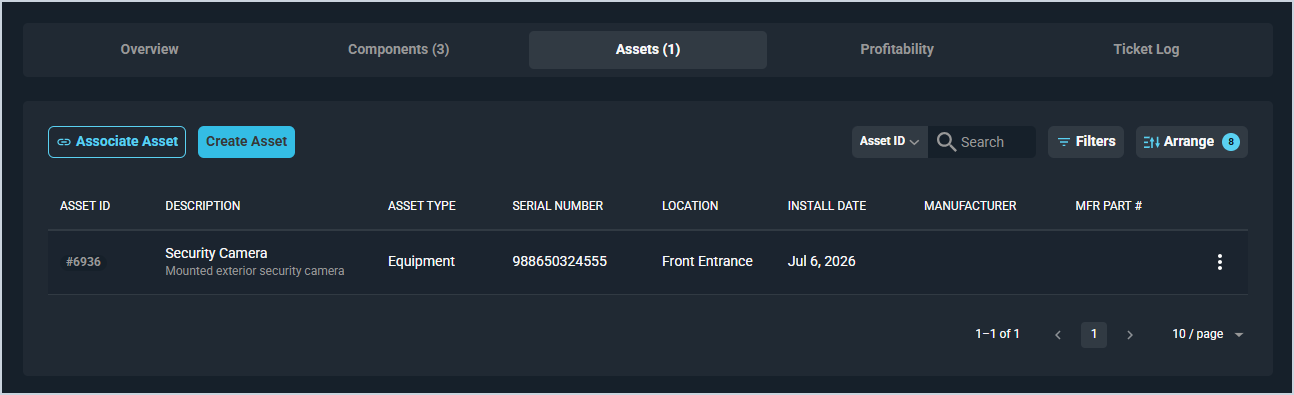
Each column in the assets list is defined below.
| Label | Definition |
|---|---|
| Asset ID | Unique numerical identifier for the asset. |
| Description | Name and description of the asset. |
| Asset Type | Type of the asset, such as Equipment. |
| Serial Number | Serial number of the asset. |
| Location | Location of the asset. |
| Install Date | Date the asset was installed. |
| Manufacturer | Manufacturer of the asset. |
| MFR Part # | Manufacturer part number of the asset. |
The following actions are available on the Assets tab.
- Associate an existing asset with the agreement by clicking Associate Asset.
- Create a new asset and associate it with the agreement by clicking Create Asset.
- Search for a specific asset by entering text in the Search field.
- Filter the list by clicking the Filters button.
- Customize which columns display in the list by clicking the Arrange button. See the Arrange Columns article for more information.
- Sort the list by clicking a column label in the table header.
- Open an asset by clicking its row in the list.
For information on other areas of the agreement details screen, see the following articles.