
View Ticket: SLA Timers
When a ticket is associated with a customer that has an active SLA policy, the SLA Response Timer and SLA Resolution Timer display on the ticket detail view. Each timer shows the time remaining to meet the corresponding SLA target based on the policy assigned to the customer and the priority of the ticket. The name of the applicable SLA policy and its target are shown below each timer for reference.
SLA timers only display on tickets associated with customers that have an active SLA policy assigned. If no timers appear on a ticket, the customer does not have an SLA policy configured. See the System Settings: SLA Policies article for more information on setting up SLA policies.
| Basic information for the ticket and several tabs to manage the ticket display on the main Ticket Details screen. See the View Ticket: Details article for more information. |
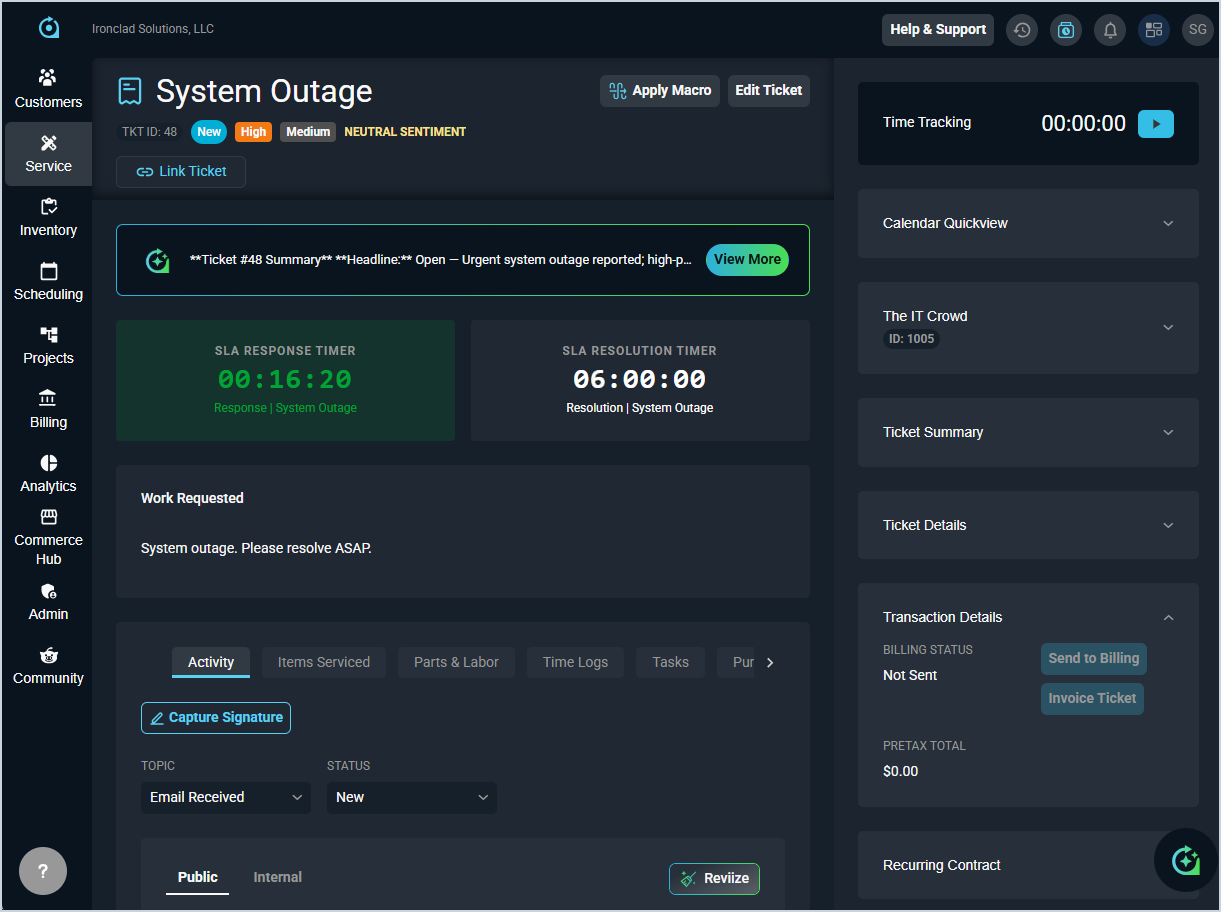
Each field on the ticket stage is defined below. Each section within the stage displays collapsed for easy navigation.
| No. | Label | Definition |
| 1 | SLA Response Timer | Countdown showing the time remaining to provide a first response on the ticket based on the response target defined in the customer's SLA policy. |
| 2 | SLA Resolution Timer | Countdown showing the time remaining to resolve the ticket based on the resolution target defined in the customer's SLA policy. |
The color of each timer indicates its current state.
- Grey: Timer has not started yet.
- Green: Timer is active and counting down within the target window.
- Blue: SLA target has been met and the timer is complete.
- Red: SLA target was not met and the timer is overdue.
Areas on the Ticket Details Screen
For information on other areas of the Ticket Details screen, see the related articles.