
Adjusting Quote Pricing
The Adjust Pricing tool lets you apply a markup or markdown to the price or cost of services and products on a quote. You can adjust by a percentage or a fixed amount, preview the effect on your total price and margin, and then save the changes to the quote. To open it, click the Adjust Pricing button in the Products and Services section of the quote.
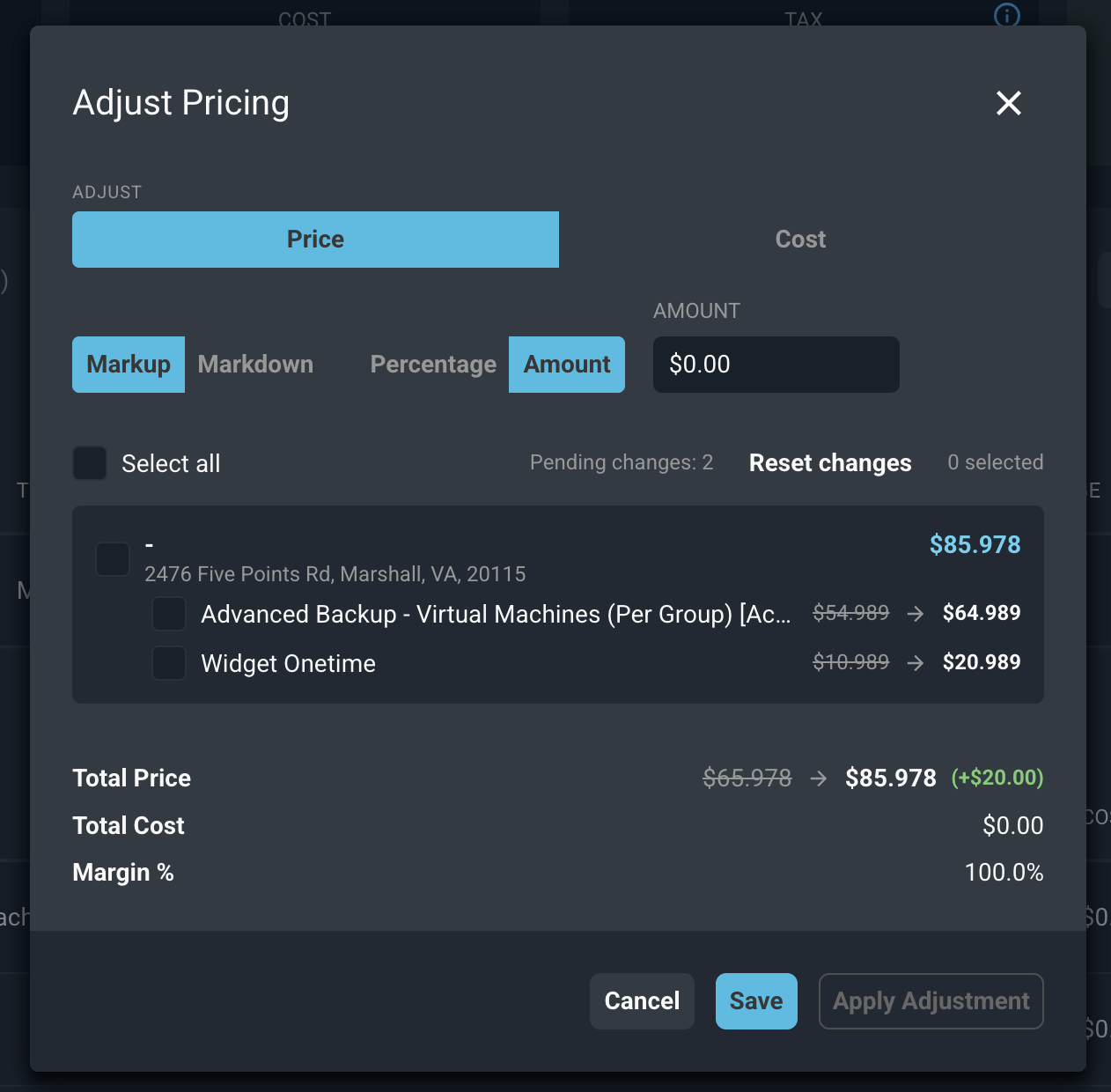
Each field on the Adjust Pricing dialog is defined below.
No. | Label | Definition |
|---|---|---|
1 | Adjust | Toggle that selects whether you are adjusting the Price or the Cost of the selected items. The amounts shown in the list switch to match your selection. |
2 | Markup / Markdown | Toggle that selects whether the adjustment increases (Markup) or decreases (Markdown) the amount. |
3 | Percentage / Amount (toggle) | Toggle that selects whether the adjustment is a percentage of the current amount (Percentage) or a fixed dollar value (Amount). |
4 | Percentage/ Amount (field) | The value of the adjustment. The label of this field changes to match your selection in the Percentage / Amount toggle. |
5 | Select all | Selects every service and product on the quote. The number of selected items appears to the right. |
6 | Services and products list | Lists each service on the quote with its products beneath it. Select a service to select all of its products, or select individual products. When items are selected, the current amount is shown crossed out next to the new amount. |
7 | Pending changes | The number of items with adjustments that have been applied but not yet saved. This appears after you click Apply Adjustment. |
8 | Total Price | The total price of the quote. When an adjustment is previewed or pending, the current total is shown crossed out next to the new total and the amount of the change. |
9 | Total Cost | The total cost of the quote. |
10 | Margin % | The margin percentage for the quote based on the total price and total cost. |
Follow these steps to adjust pricing on a quote.
- Open the quote and click the Adjust Pricing button in the Products and Services section.
- Select Price or Cost to choose what you want to adjust.
- Select Markup or Markdown.
- Select Percentage or Amount, and enter the value in the field.
- Select the services or products you want to adjust, or click Select all. The new amounts and the updated totals appear as a preview.
- Click the Apply Adjustment button to add the adjustment to your pending changes.
- Repeat steps 2 through 6 to make additional adjustments, such as a different amount for other products.
- Click the Save button to save all of your pending changes to the quote.
IMPORTANT: Adjustments are not saved to the quote until you click the Save button. Clicking Apply Adjustment only adds the adjustment to your pending changes. |
These actions are also available on the Adjust Pricing dialog.
- Discard your pending changes by clicking the Reset changes link.
- Close the dialog without saving by clicking the Cancel button or the X.
NOTE: When you use an Amount adjustment, the amount is applied to each selected item. For example, a $10.00 markup on two selected products adds $20.00 to the total price. |
Related Articles
- Understanding Quote Profitability
- View Quote Details
- Adding Services, Products, and Packages to Quotes