
View Purchase Order: Stage
The stage panel on the right side of the purchase order screen allows you to utilize our in-app AI assistant, Ask Revii, and view additional details for the customer and ticket associated with the purchase order.
| Basic information for the purchase order display on the main Purchase Order Details screen. See the View Purchase Order: Details article for more information. |
Whether or not the stage displays on the purchase order screen is controlled by the Show the Stage/Hide the Stage icon in the top toolbar.
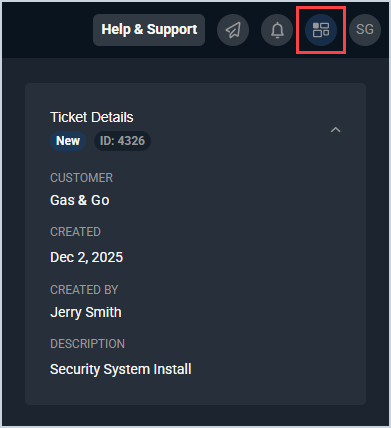
Each field on the purchase order stage is defined below.
| No. | Label | Definition |
| 1 | ID | Numerical identifier for the ticket. |
| 2 | Customer | Name of the customer on the ticket. |
| 3 | Created | Date the ticket was created. |
| 4 | Created By | Name of the rep who created the ticket. |
| 5 | Description | Description of the work being done for the ticket. |
These actions are available on the purchase order stage.
- Collapse or expand the Stage side panel by clicking the Stage icon in the top toolbar.
- Access basic information for the purchase order on the main Purchase Order Details screen. See the View Purchase Order: Details article for more information.