
Deploying Inventory to a Customer
Deploying inventory places a serialized item at a customer’s site while you keep ownership of it. The item stays in your inventory valuation, but it also appears as an asset on the customer’s account, so you can create tickets for it to handle service and maintenance. This is useful for rentals and leases. Deploying is different from selling an item, because a sold item leaves your inventory. You deploy items from the Serial Numbers tab on the Inventory Management screen.
| NOTE: Only serial numbers with an Available status can be deployed. Serial numbers with a Reserved status cannot be deployed. |
Follow these steps to start a deployment.
- Click Inventory in the sidebar menu, select Inventory Management, and click the Serial Numbers tab.
- Find the serial number you want to deploy by selecting a column from the dropdown and entering text in the Search field, or by clicking the Filters button and filtering by Status, Location, Type, Category, or Subcategory.
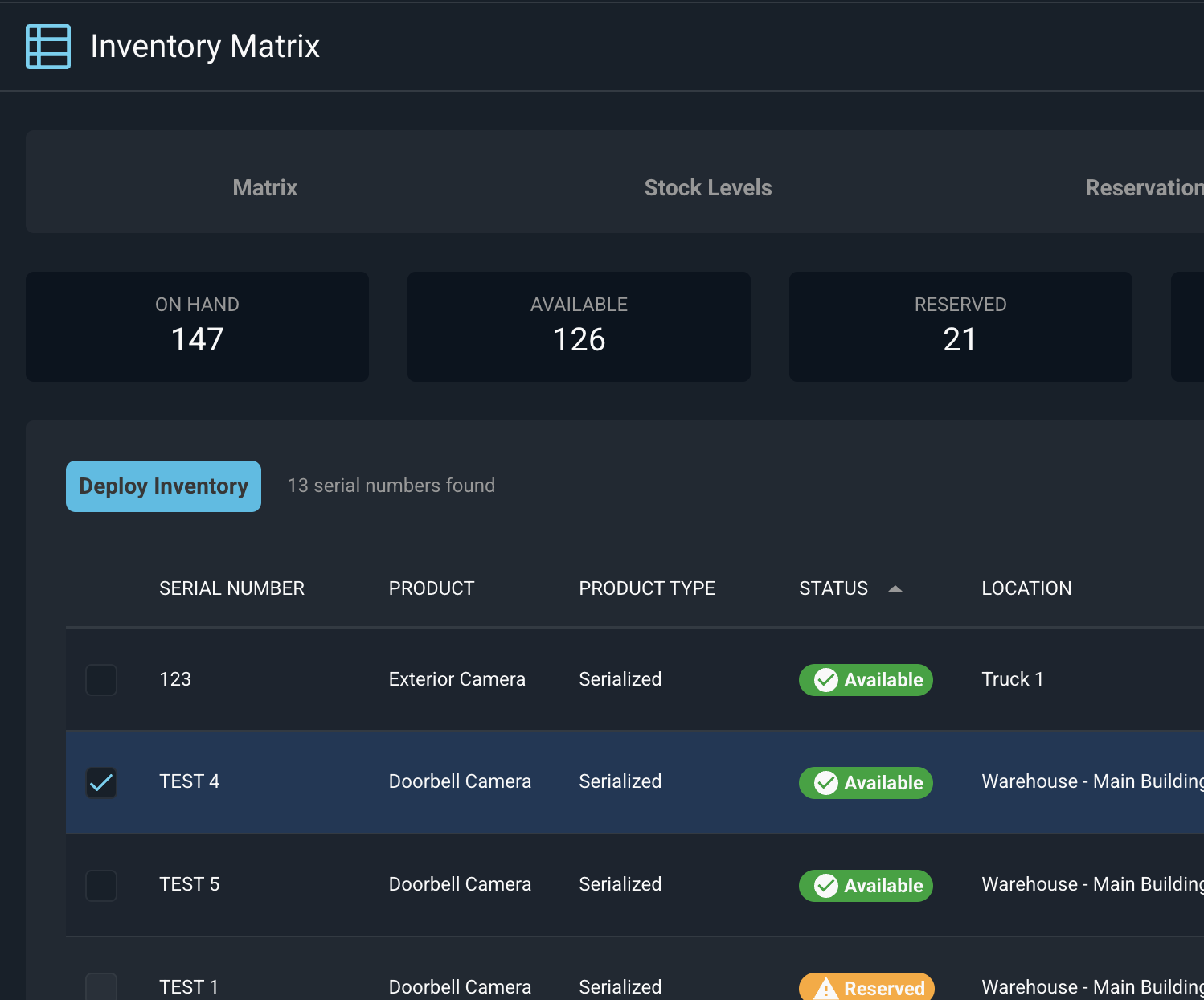
- Click the checkbox at the start of the row for a serial number with an Available status. The Deploy Inventory button becomes available once you check an available serial number. There is no option to select multiples, so deploy one serial number at a time.
- Click the Deploy Inventory button to open the Deploy Inventory window.
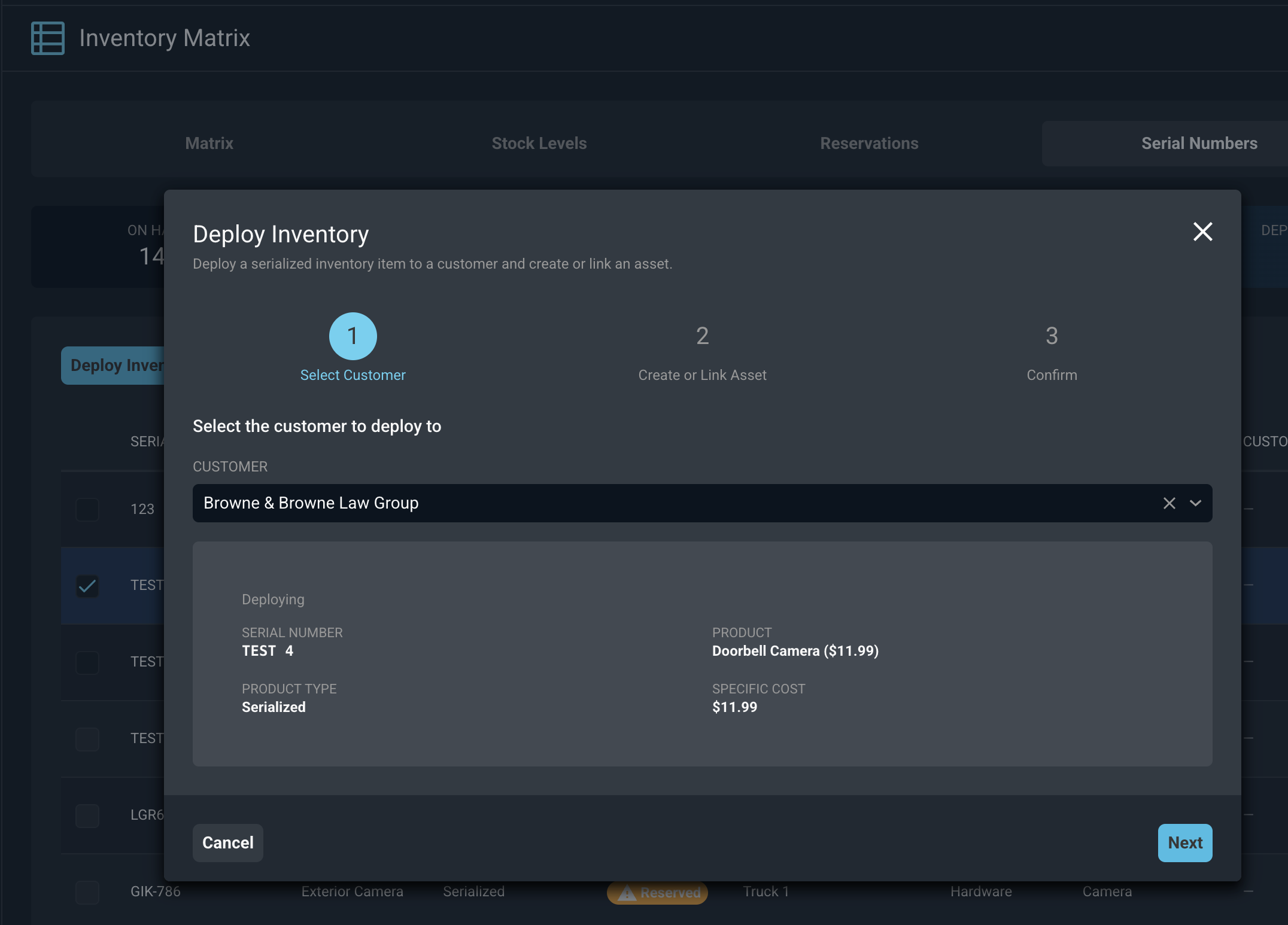
The Deploy Inventory window walks you through three steps. On the Select Customer step, choose where the item is going.
- Search for and select the customer in the Customer field. The Deploying summary shows the serial number you are deploying.
- Click the Next button.
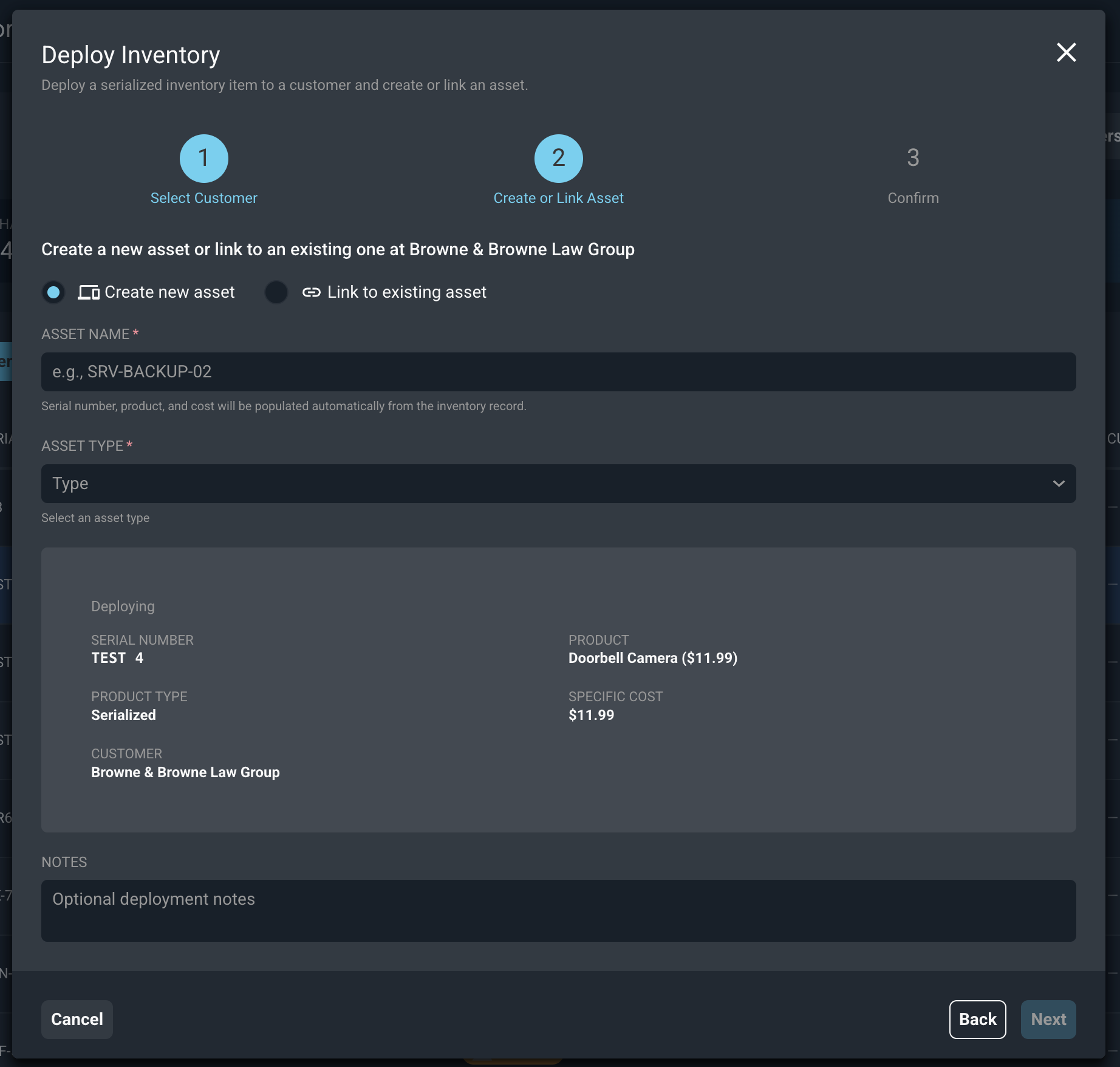
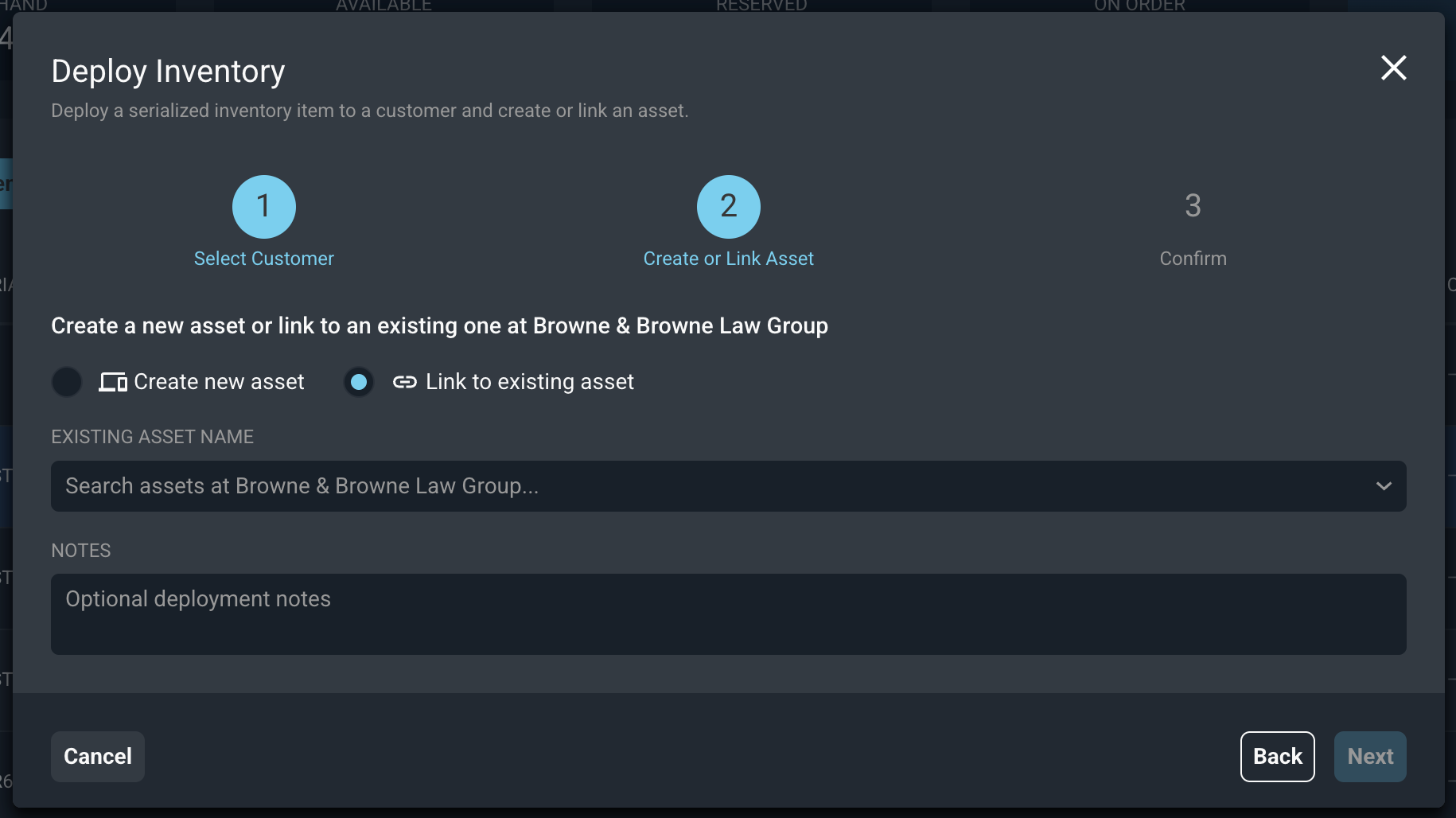
On the Create or Link Asset step, choose whether to create a new asset or link the item to an asset the customer already has.
- Create a new asset by selecting Create new asset, entering an Asset Name, and selecting an Asset Type. The asset type determines which additional fields you can track for the asset.
- Link the item to an asset the customer already has by selecting Link to existing asset and selecting the asset in the Existing Asset Name field. Only assets for the customer you selected are searched. This is helpful when a remote monitoring tool has already created an asset for the item.
- Enter optional details about the deployment in the Notes field.
- Click the Next button to continue, or click Back to change the customer.
On the Confirm step, review the deployment details before you finish.
- Review the summary of the deployment, including the status change from Available to Deployed.
- Complete the deployment by clicking the Deploy button.
- Click Back to change your choices, or click Cancel to close the window without deploying.
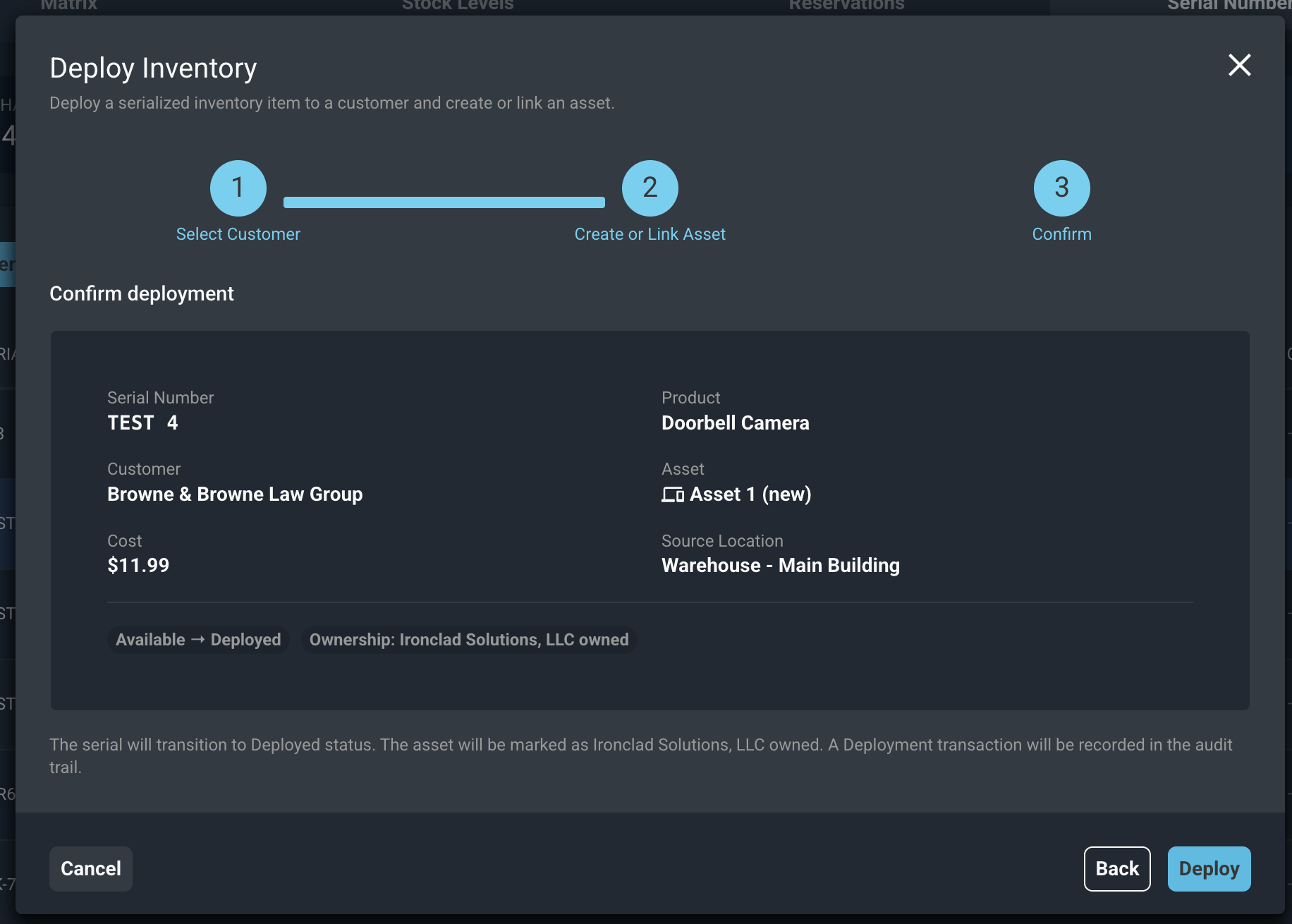
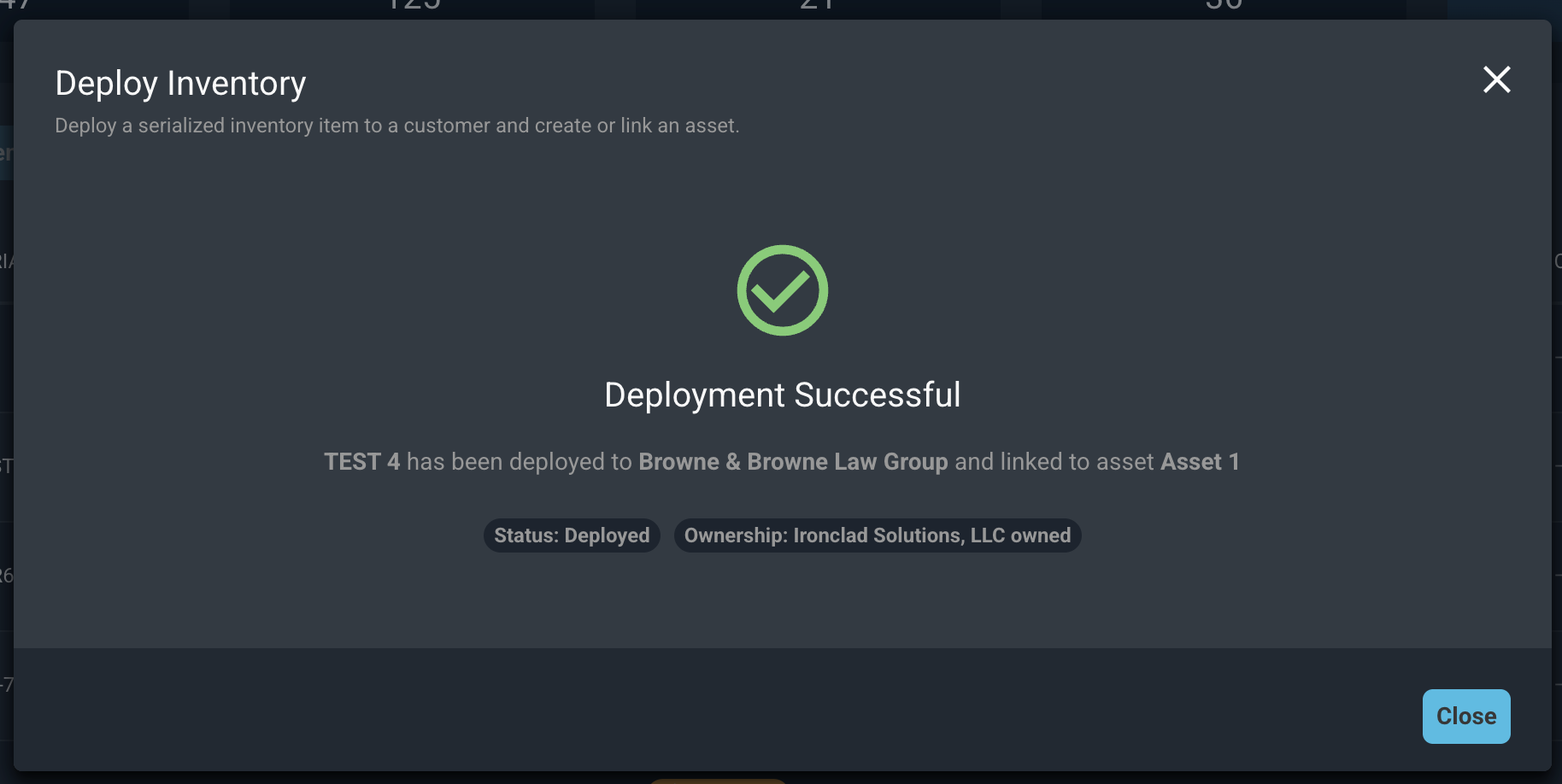
After you click Deploy, the serial number’s Status changes to Deployed, its Location is blank, and its Customer, Asset, and Deployed Date show the deployment details. The item stays in your inventory valuation because you still own it. The deployment is also listed on the asset’s Deployment History tab. See the View Asset: History Tab article for more information.
Each field in the Deploy Inventory window is defined below.
| Label | Definition |
| Customer | Customer the item is being deployed to. |
| Serial Number | Serial number of the item being deployed. |
| Product | Name of the product the serial number belongs to. |
| Product Type | Type for the product. |
| Specific Cost | Cost recorded for the serial number. |
| Asset Name | Name for the new asset. The serial number, product, and cost fill in automatically from the inventory record. This field is required when you create a new asset. |
| Asset Type | Type for the new asset. This field is required when you create a new asset. |
| Existing Asset Name | Asset the customer already has that you want to link the item to. |
| Notes | Optional notes about the deployment. |
| Source Location | Location the item is being deployed from. |
| Ownership | Shows that your company still owns the deployed item, which is why it stays in your inventory valuation. |
For more information about inventory and assets, see the related articles.
Inventory Views: Serial Numbers
View Asset: Details
View Asset: History Tab
Inventory Views: Stock Levels