
Inventory History
The Inventory History screen provides a complete log of inventory actions taken in the system, including adjustments, transfers, cost changes, purchase receipts, and reservations. It offers a detailed audit trail to help you track and review inventory activity over time.
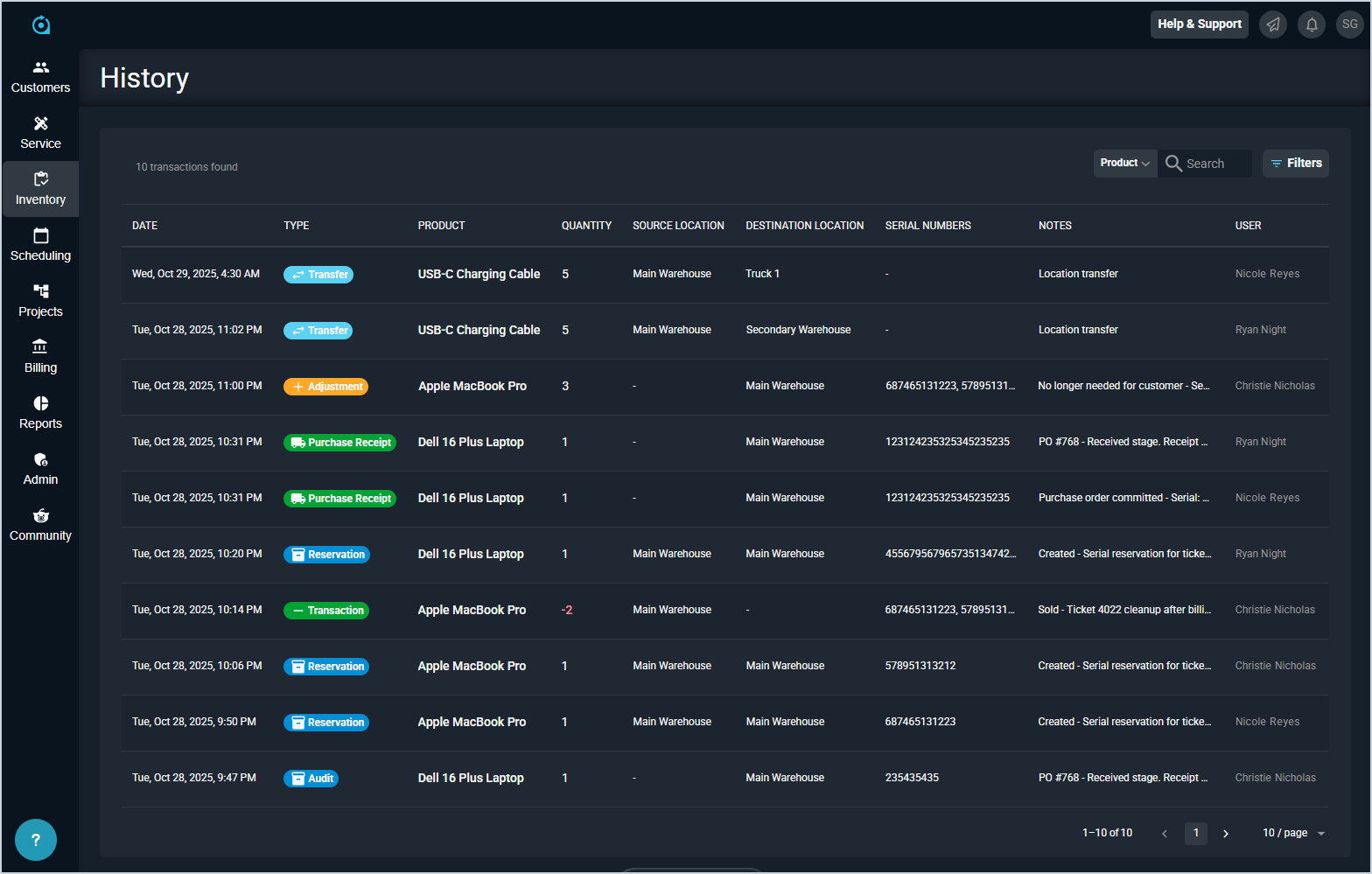
Each field on the Inventory History list view is defined below.
| No. | Label | Definition |
| 1 | Date | Date and time the inventory action was performed. |
| 2 | Type | Type of inventory action performed. Type options include the following. Adjustment: Increasing or decreasing inventory quantities. |
| 3 | Product | Name of the product included in the inventory action. View the full product name by hovering over the product in this column. |
| 3 | Quantity | Quantity of the product included in the inventory action. |
| 4 | Source Location | Location where the product was originally stored. |
| 5 | Destination Location | Location where the product was transferred. |
| 6 | Serial Numbers | Serial number for the product included in the inventory action. |
| 7 | Notes | Notes for the inventory action. Notes are either system-generated or entered by the user at the time the action is taken. View the full text of the note by hovering over the shortened note shown in this column. |
| 8 | User | Name of the user who initiated the inventory action. |
These actions are available on the Inventory History list view.
- Search the records displayed on this view by selecting a column from the dropdown above the grid and entering text in the Search field. The list view updates to display only records matching your search in the column you selected.
- Filter the records displayed on this view by clicking the Filter button above the grid and selecting options from the Types and/or Timeframe dropdowns. The list view updates to display only records matching your filters.
- View the full product name by hovering over the name shown in the Product column.
- View the full text of the note by hovering over the shortened note shown in the Notes column.