
System Settings: System Tables - Product Catalog
The System Tables category on the System Settings screen allows you to configure various data points that can be selected using dropdown menus throughout your database. The Product Catalog tab specifically controls the values available in various dropdowns related to your product catalog throughout the system.
Asset Type
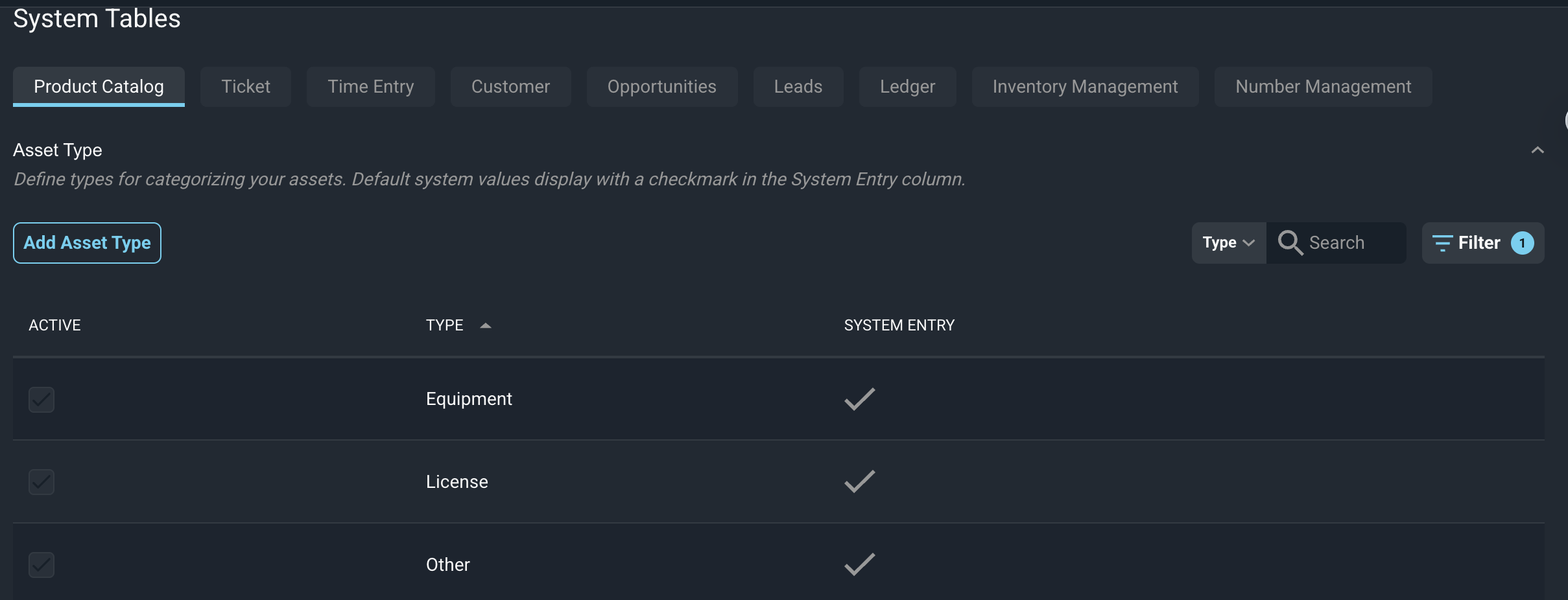
Each field in the Asset Type section is defined below.
| Label | Definition |
| Active | A checkmark indicates that the asset type is active in your instance. |
| Type | Name of the asset type. |
| System Entry | A checkmark indicates that the asset type is a system entry. |
Category
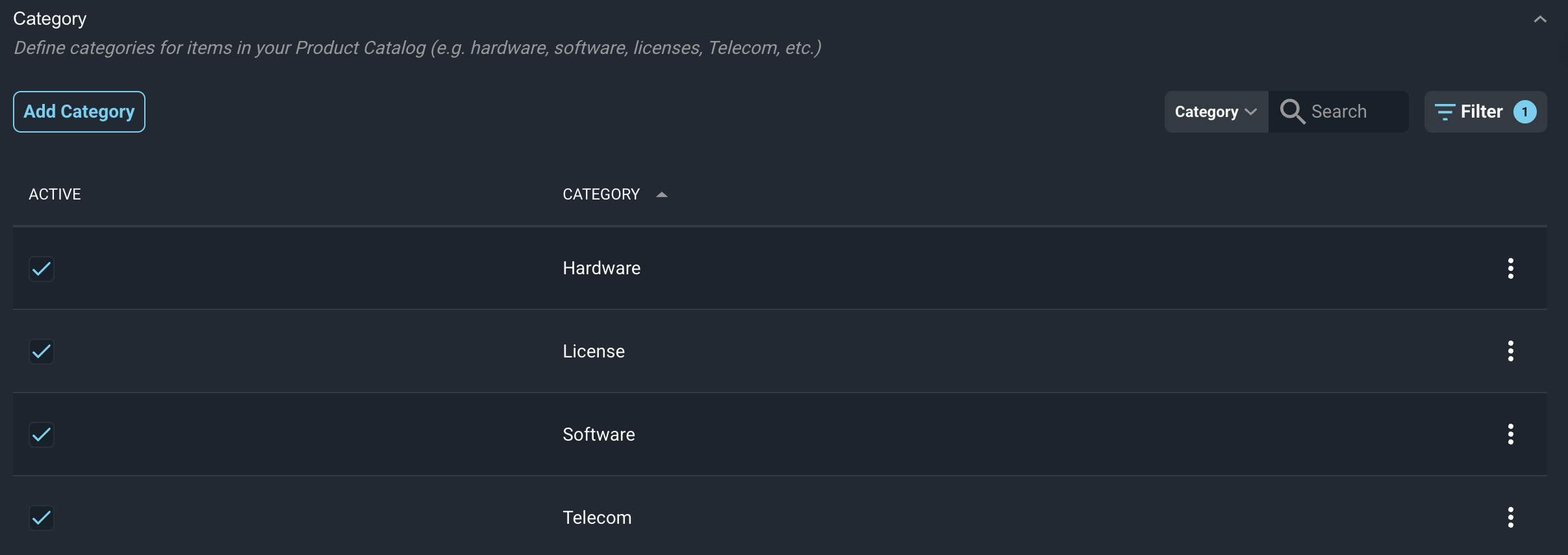
Each field in the Category section is defined below.
| Label | Definition |
| Active | A checkmark indicates that the category is active in your instance. |
| Category | Name of the category. |
Subcategory
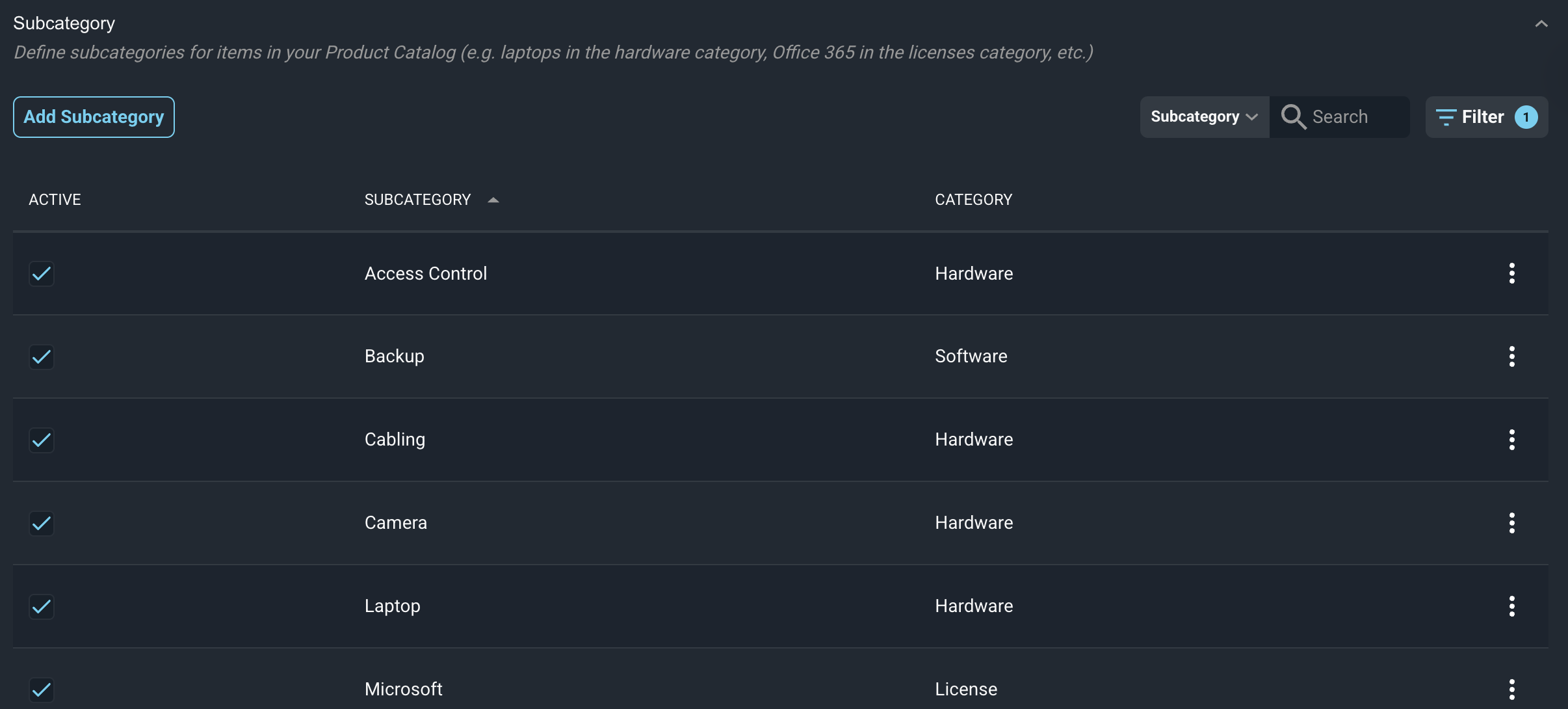
Each field in the Subcategory section is defined below.
| Label | Definition |
| Active | A checkmark indicates that the subcategory is active in your instance. |
| Subcategory | Name of the subcategory. |
| Category | Name of the category where the subcategory belongs. |
Manufacturer
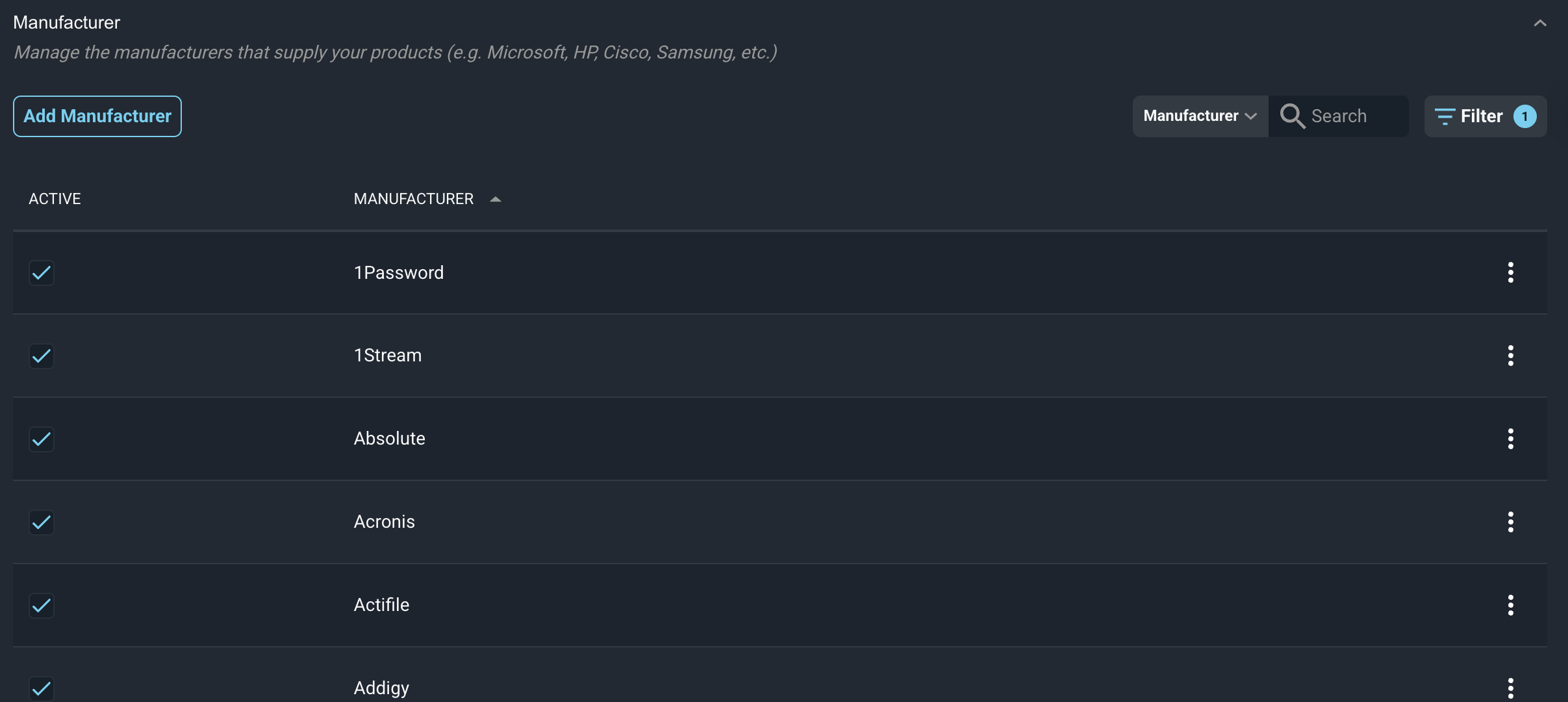
Each field in the Manufacturer section is defined below.
| Label | Definition |
| Active | A checkmark indicates that the manufacturer is active in your instance. |
| Manufacturer | Name of the manufacturer. |
Product Type
The Product Type section allows you to define product types for categorizing the products in your Product Catalog. Deactivating a product type hides it from selection without removing it from existing products.
Product Types can hold the tax classification that gets applied to all products within that product type. You can also override the tax classification at the individual product in the catalog, but if no override on the product exists, this is the tax class that will be applied to charges for all products with this product type.
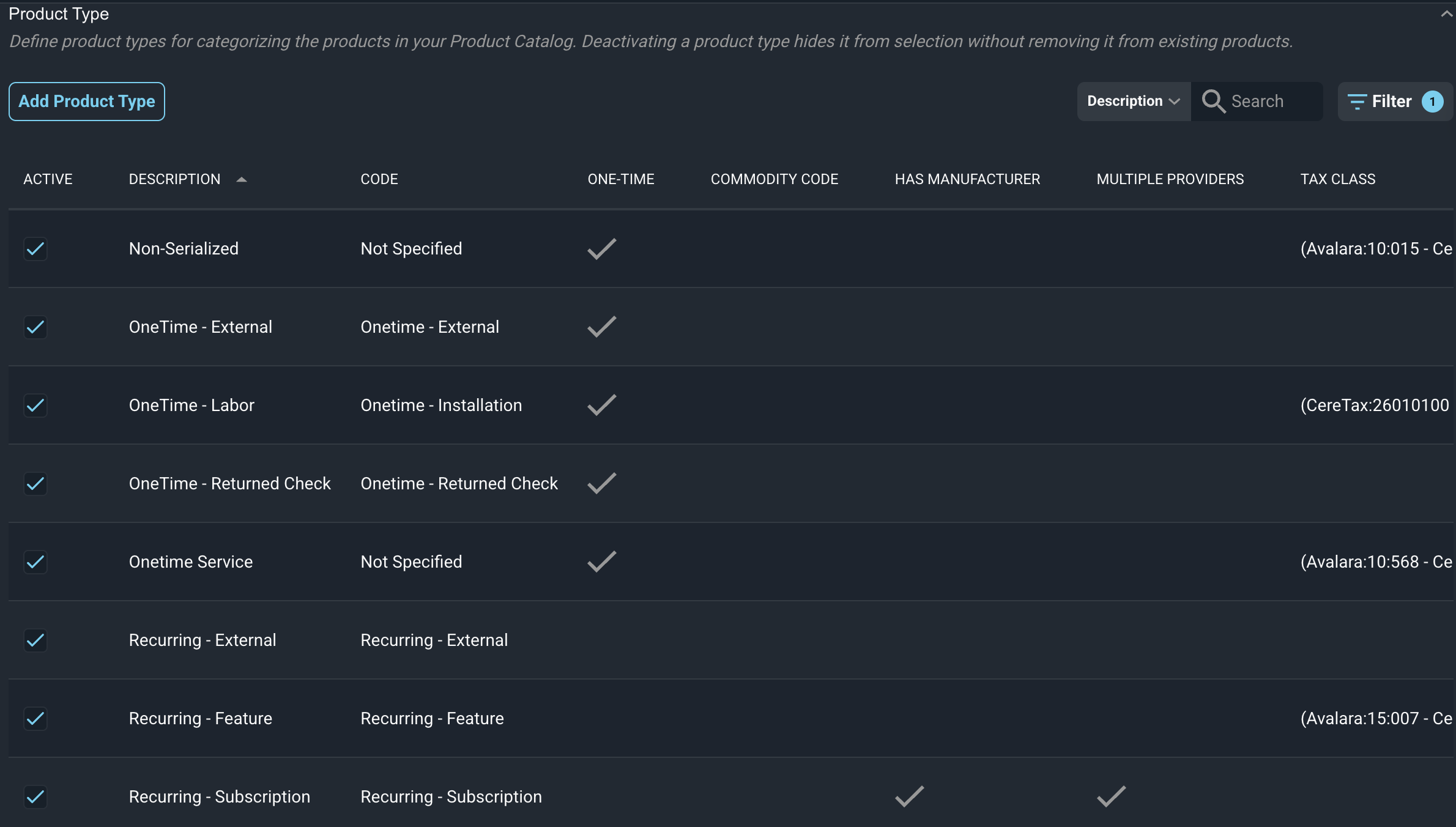
Each field in the Product Type section is defined below.
| Label | Definition |
| Active | A checkmark indicates that the product type is active in your instance. |
| Description | Name of the product type. |
| Code | Code for the product type. |
| One-Time | A checkmark indicates that the product type is used for one-time items and products with a one-time product type will bill once and not be set up to bill on a recurring basis. If this is not checked, the product will bill on a recurring basis. |
| Commodity Code | Tax commodity code assigned to the product type, similar to the G/L code assigned at the individual product level. |
| Has Manufacturer | A checkmark indicates that products of this type have a set manufacturer. |
| Multiple Providers | A checkmark indicates that products of this type can have more than one provider. |
| Tax Class | Tax classification assigned to the product type, including the matching code for each tax engine. |
Provider Type
These can be customized and used if desired.
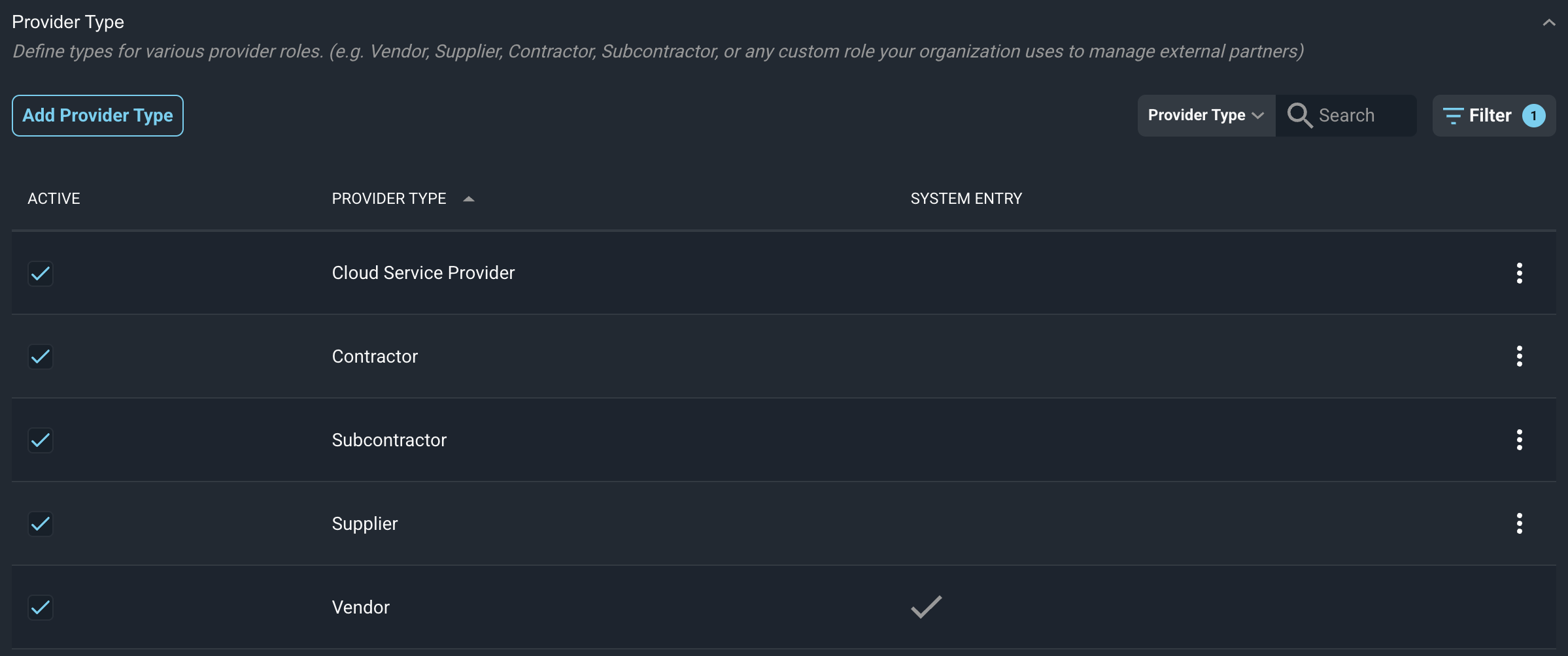
Each field in the Provider Type section is defined below.
| Label | Definition |
| Active | A checkmark indicates that the provider type is active in your instance. |
| Provider Type | Name of the provider type. |
| System Entry | A checkmark indicates that the provider type is a system entry. |
Provider Ship Methods
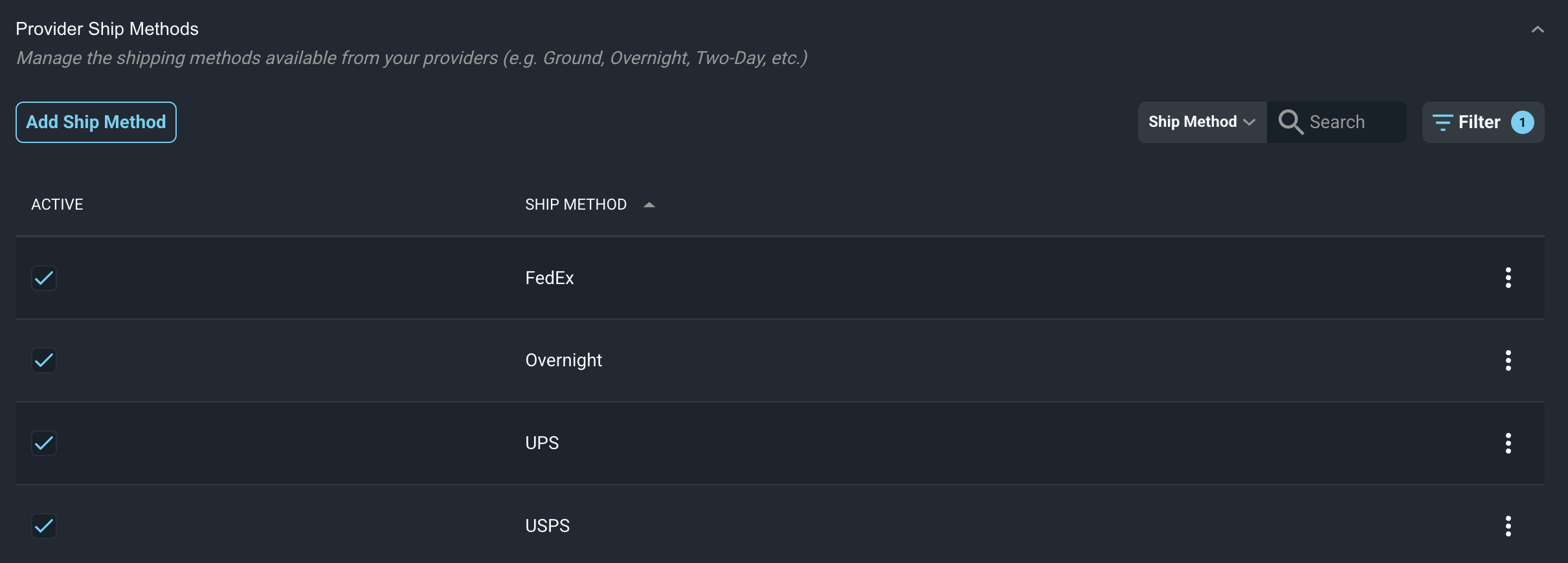
Each field in the Provider Ship Methods section is defined below.
| Label | Definition |
| Active | A checkmark indicates that the provider shipping method is active in your instance. |
| Ship Method | Name of the provider shipping method. |
Available Actions
These actions are available on the Product Catalog tab.
- Enter new items by clicking the Add button in each section, completing the desired fields, and clicking the Save button.
- Edit line items by clicking the ellipsis at the end of the row and selecting Edit from the menu options. Click the Save button at the bottom of the screen once you have finished making changes.
- Delete line items by clicking the ellipsis at the end of the row and selecting Delete from the menu options. NOTE: You cannot delete items if they have been used in your instance. For example, once a product is added to a certain category, that category can no longer be deleted.
- See the System Settings Overview article for more information about the other categories on the System Settings screen.