
Analytics Permissions
Access to the Analytics module is controlled by the permissions in the Report Access category on each role. These permissions decide which dashboards, charts, and datasets a user can see, and what they can build or send. To set them, click Admin in the sidebar menu, select Roles & Permissions, and edit the role. See the Add/Edit Roles article for more information.
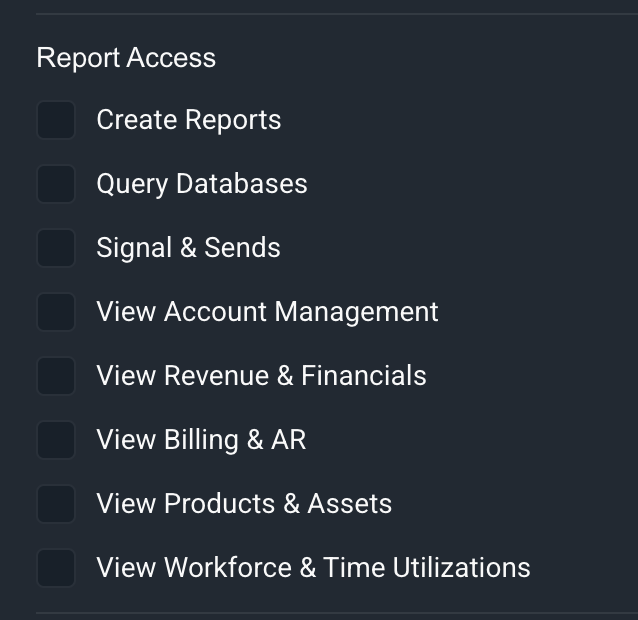
The Report Access permissions work in two groups. The five View permissions give access to dashboards only. The other three permissions build on each other, so each one includes everything the one before it allows. When you select a higher permission, the permissions below it are included automatically.
Each permission in the Report Access category is defined below.
| Label | Definition |
| View Account Management | View dashboards tagged for customer and account management data. Users with only View permissions can see dashboards but cannot open charts, datasets, or SQL Lab. |
| View Revenue & Financials | View dashboards tagged for revenue and financial data. |
| View Billing & AR | View dashboards tagged for billing and accounts receivable data. |
| View Products & Assets | View dashboards tagged for product and asset data. |
| View Workforce & Time Utilizations | View dashboards tagged for technician and time utilization data. Some of these dashboards use row-level security, so each technician sees only their own tickets and time logs. |
| Create Reports | View all published dashboards and charts, and build charts and dashboards from the datasets that already exist. Users with this permission cannot create datasets or query the database. |
| Query Databases | Everything in Create Reports, plus create datasets and write and run queries in SQL Lab. This permission is also required to set up row-level security rules and customer KPI cards in System Settings. |
| Signal & Sends | Everything in Query Databases, plus send data out of Rev.io by email with signals and sends. This is the highest level of Analytics access. |
Each View permission is linked to a dashboard tag. A user with a View permission can see any published dashboard that has the matching tag, including dashboards your team creates. To share a dashboard with these users, add the tag to the dashboard.
| NOTE: If you can't find the Row-Level Security or Customer Page KPI Cards settings, or you can't create a dataset, check that your role includes the Query Databases permission. |
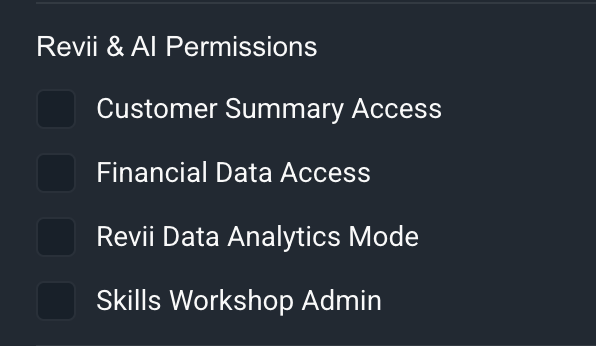
Revii follows these permissions too. If you ask Revii to build something your role doesn't allow, such as a dataset when you only have Create Reports, Revii tells you which permission you need. Revii Data Analytics mode is controlled by the Revii Data Analytics Mode permission in the Revii & AI Permissions category.
For more information about Analytics, see the following articles.
Analytics Module Overview
Available Permissions
System Settings: Analytics