
Add/Edit Expenses
The Add Expense panel allows you to log an expense, such as mileage, parking, or supplies. There are two kinds of expenses.
- Ticket expenses are tied to a ticket. To add one, open the ticket, click the Expenses tab, and click Add Expense. Ticket expenses can be billable to the customer.
- Admin expenses are not tied to a ticket. To add one, click Service in the sidebar menu and select Add Expense, or click Add Expense on the Expenses list view.
The Code list shows only the expense codes for that kind of expense. Expense codes are set up in System Settings. See the System Settings: System Tables - Expenses article for more information.
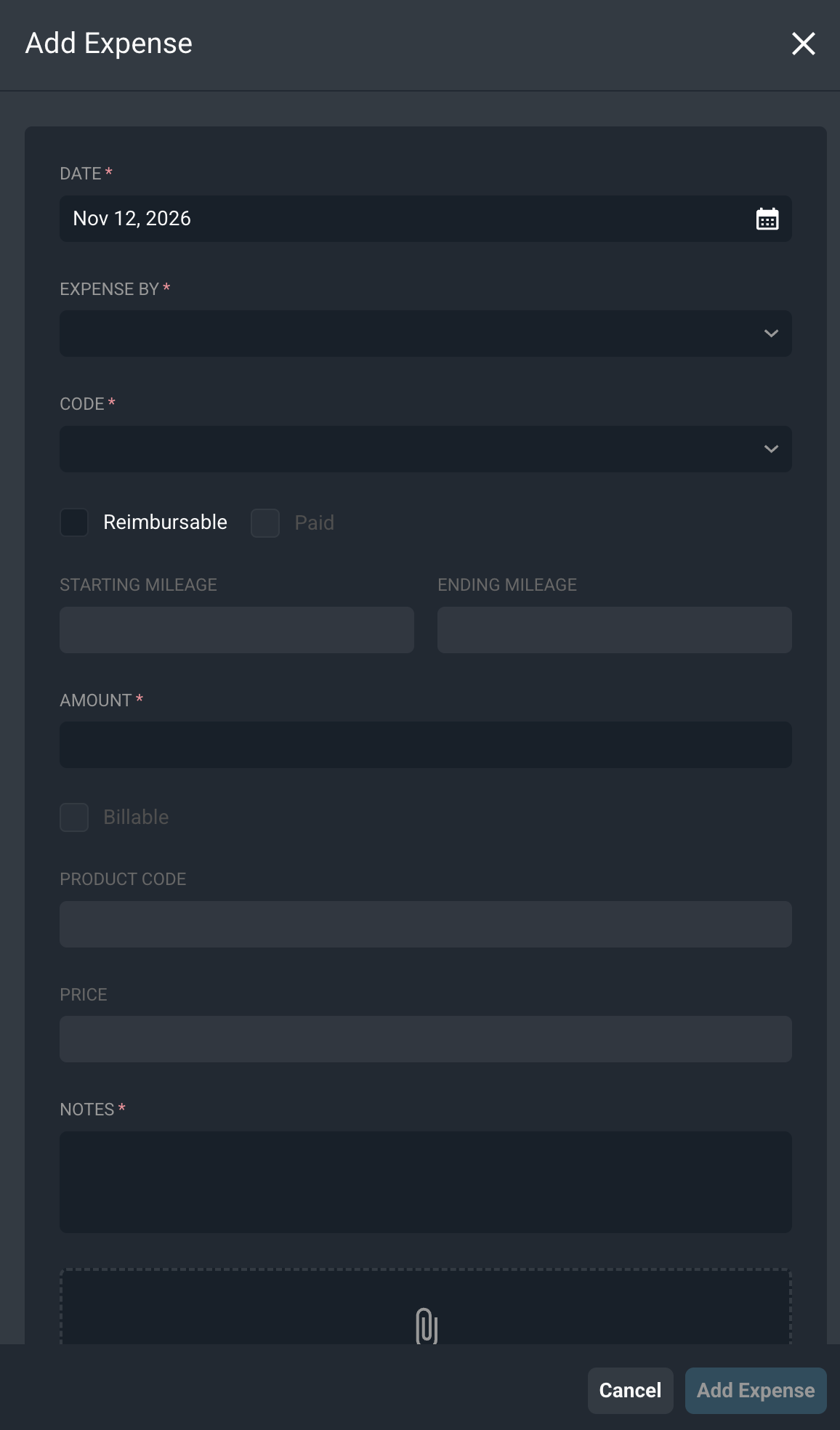
| Label | Definition |
| Date | Date of the expense. This field defaults to today's date. |
| Expense By | User who incurred the expense. |
| Code | Expense code for the expense. The code fills in the billing details and controls whether mileage is tracked. |
| Reimbursable | Check this option if the user who incurred the expense should be paid back. |
| Paid | Check this option to mark a reimbursable expense as paid. This option will only display if you have the Mark Expense Paid permission enabled. |
| Starting Mileage | Odometer reading at the start of the trip. This field is required for codes that track mileage. |
| Ending Mileage | Odometer reading at the end of the trip. This field is required for codes that track mileage. |
| Amount | Cost of the expense. For codes that track mileage, the amount is calculated from the total miles and the mileage rate. |
| Billable | Check this option to bill the expense to the customer. This option defaults from the expense code and is available on ticket expenses. |
| Product Code | Product catalog item used for the charge. This field fills in from the expense code. |
| Price | Amount charged to the customer, including the markup set on the expense code. This field is calculated for you. |
| Notes | Notes about the expense. For codes that track mileage, the total mileage is added to the notes for you. |
| Attachments | Receipts or other files for the expense. Drag and drop files into the box or click click to browse to select files. Files can be up to 10 MB. |
| NOTE: For codes that track mileage, the Amount and Price are calculated for you. For example, 60 miles at $0.67 per mile is an amount of $40.20, and a 20% markup sets the price to $48.24. |
Click Add Expense to save the expense, or click Cancel to close the panel without saving. When a billable expense is saved on a ticket, a line item is added to the ticket's Parts & Labor tab.
To edit an expense, open the ticket's Expenses tab, click the ellipsis at the end of the expense's row, and select Edit. You can also click Edit Expense at the end of the expense's row on the Parts & Labor tab.
For more information about expenses, see the following articles.
Ticket Details: Expenses Tab
Expenses List View
System Settings: System Tables - Expenses