
Create/Edit Print Profiles
The New Print Profile screen allows you to set up how printed invoices are delivered. A print profile sets the file format for printed invoices and can send the files to an FTP site automatically, such as for an outside print vendor. To open it, click Admin in the sidebar menu, select System Settings, click Billing Config, select the Print Profiles tab, and click New Print Profile.
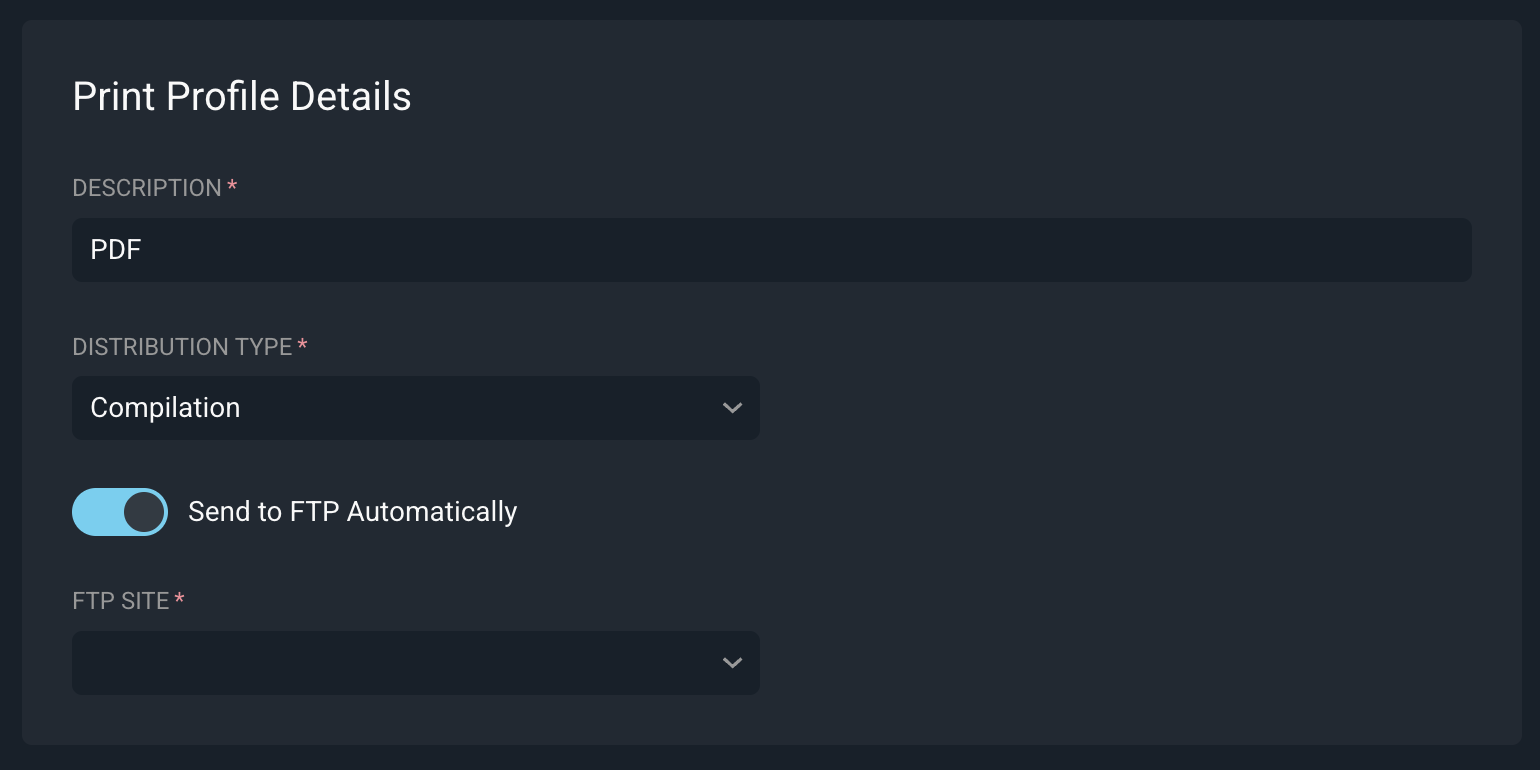
Each field on the New Print Profile screen is defined below.
| Label | Definition |
| Description | Description of the print profile. |
| Distribution Type | File format used when invoices are printed. Options include ZIP, Compilation, and XML. |
| Send to FTP Automatically | Turn this option on to send print files to an FTP site automatically. |
| FTP Site | FTP site that print files are sent to. This field displays when Send to FTP Automatically is turned on. |
Each Distribution Type option is defined below.
| Label | Definition |
| ZIP | Creates a ZIP file of the printed invoices. The ZIP file will contain one PDF per invoice. |
| Compilation | Creates one PDF file that contains all of the printed invoices. |
| XML | Creates a data file of the printed invoices. |
Click Save Print Profile to save the print profile, or click Cancel to discard your changes.
After you save the print profile, assign it to a bill profile using the Print Profile field in the bill profile's Settings section. See the Create/Edit Bill Profiles article for more information.
For more information about printing invoices, see the following articles.
Invoice Management: Print Invoices
System Settings: Billing Config
Create/Edit Bill Profiles