Sending Proposals to Recipients
Before sending a proposal, make sure all recipients and signers have been configured. See the Adding Proposal Recipients article for more information. Once all fields are complete and you have reviewed the proposal for accuracy, click the Send to Recipients button at the top of the proposal editor to email the document to the signers.
Sending a Proposal
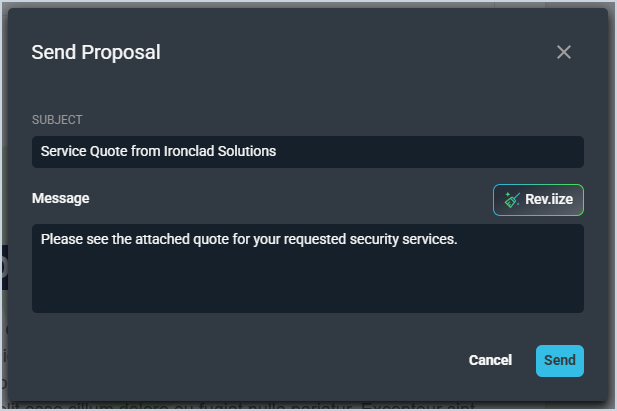
From the Send Proposal window, you can enter a Subject and Message for the email. The Subject you enter here displays as the subject line on the email your customer receives. The Message you enter here displays in the body of the email, along with a link to access and sign the proposal.
You can also take advantage of our in-app AI tool, Reviize, to craft the perfect message for your proposal recipients. Once you've finished drafting your message to send with the proposal, click the Send button.
Receiving a Quote via Email
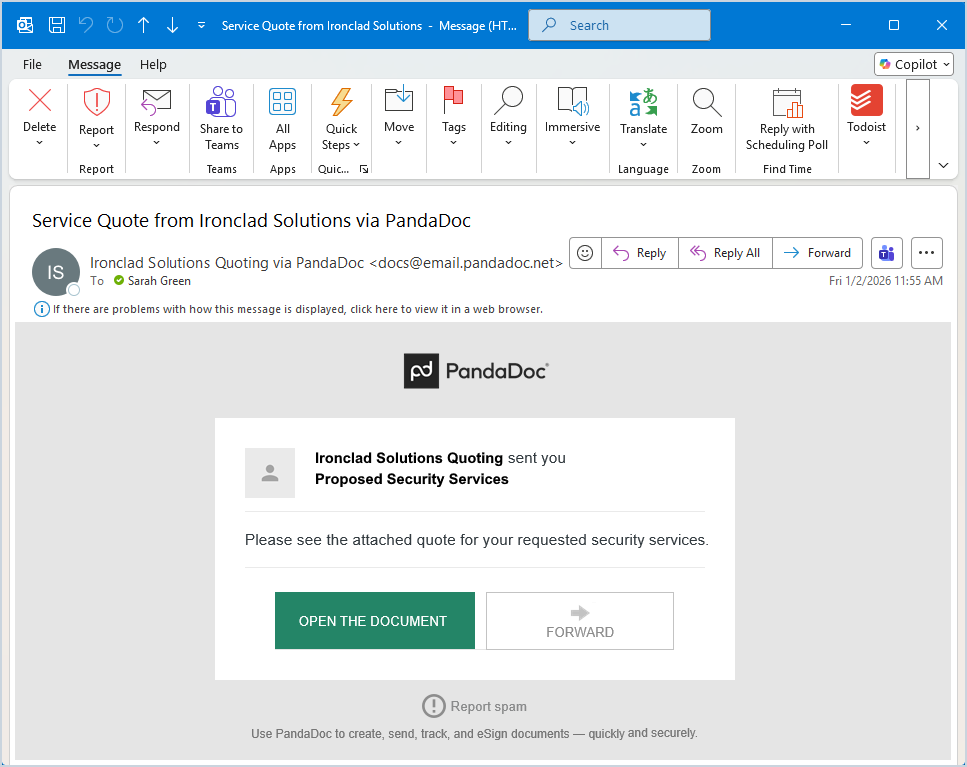
Your recipients will receive an email with the link to access your proposal. Information in the email displays as follows.
- The Subject shows the Subject entered on the Send Proposal window with "via PandaDoc" added at the end.
- The "from" name shows your company name from your Rev.io URL followed by "Quoting via PandaDoc".
(e.g. A Rev.io URL of ironcladsolutions.psarev.io shows Ironclad Solutions Quoting via PandaDoc as the "from" name) - The "from" address shows as <docs@email.pandadoc.net> because the email is sent automatically through our integration.
- The body of the email shows the following.
- A statement saying [Company] sent you [Proposal Name from Rev.io].
- The Message entered on the Send Proposal window in Rev.io.
- A button to Open the Document so the recipient can review and sign the proposal.
- A button to Forward the document to additional reviewers.
Reviewing and Signing a Proposal
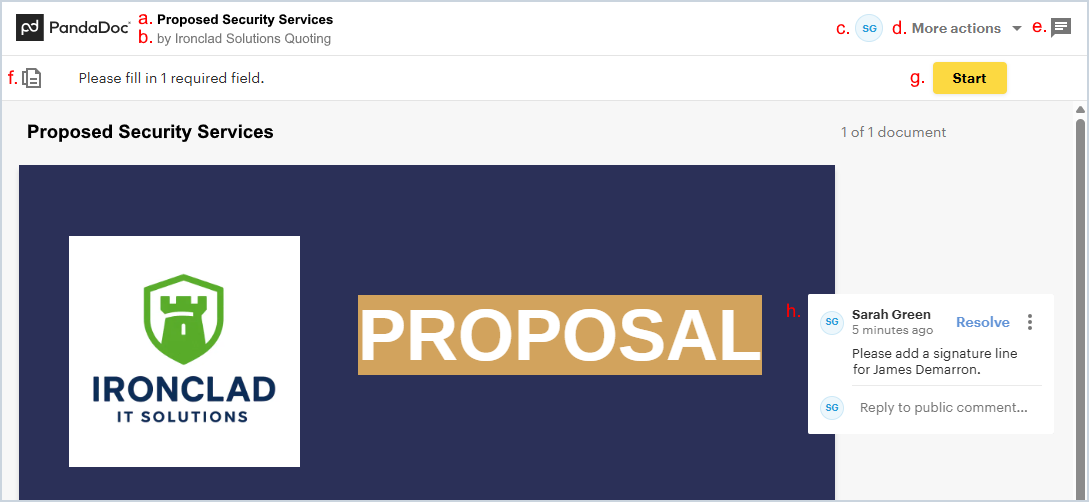
Clicking the Open the Document button in the proposal email opens the proposal in a new browser tab, where recipients can scroll through and sign if they agree to the proposed services. The elements on the screen display as follows.
- Name of the proposal in Rev.io
- Name of your company as shown in your Rev.io URL
- Initials of the signer viewing the proposal
- Menu with the following additional options
- Change Language. Change the language of the proposal viewer.
NOTE: This option does not change the language in the proposal itself.
- Resolved suggestions. View the resolved suggestions on the proposal.
- Forward. Forward the proposal to additional recipients.
- Download. Download the proposal as a .PDF file.
- Print. Print the proposal.
- Cookie preferences. Adjust cookie preferences for the proposal viewer.
- Decline. Decline the proposal.
See the Declining a Proposal section below for more information. - Chat function. This option is currently not supported by Rev.io.
- Click to open a side panel showing the pages included in the proposal.
- Click to access the fields assigned to the recipient and begin signing the proposal.
- Click anywhere in the proposal to leave a comment/suggestion.
| NOTE: Once a quote is in a Completed Status (signed by all signers), the system creates a new ticket with all one-time products on the quote and a new recurring service with all recurring products on the quote. See the View Ticket Details and Customer Profile: Billing Section - Recurring Services Tab articles for more information. |
Declining a Proposal
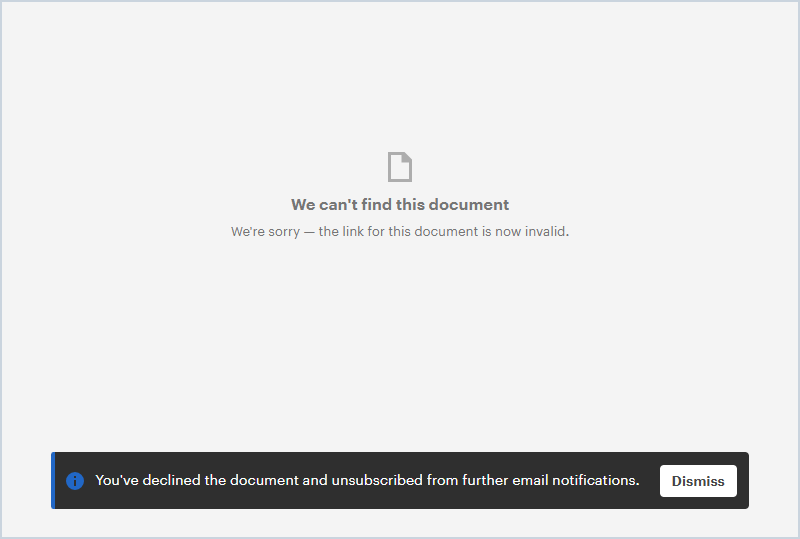
Recipients can select the More actions menu at the top of the screen and click Decline to decline the proposal. Clicking the Decline option opens a window, allowing the recipient to select a reason for declining the proposal and add a message, if desired.
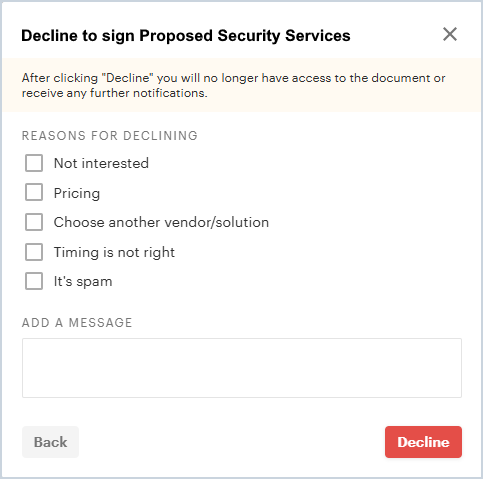
If the recipient clicks the Decline button, they will no longer have access to the proposal and will be automatically unsubscribed from email notifications for the proposal. Because the recipient no longer has access to the proposal, the screen displays an error message.