
View Lead Details
The lead details screen displays information about a lead and provides tools for actively managing your sales efforts toward closing the deal. The lead record persists after conversion to a customer for historical reference.
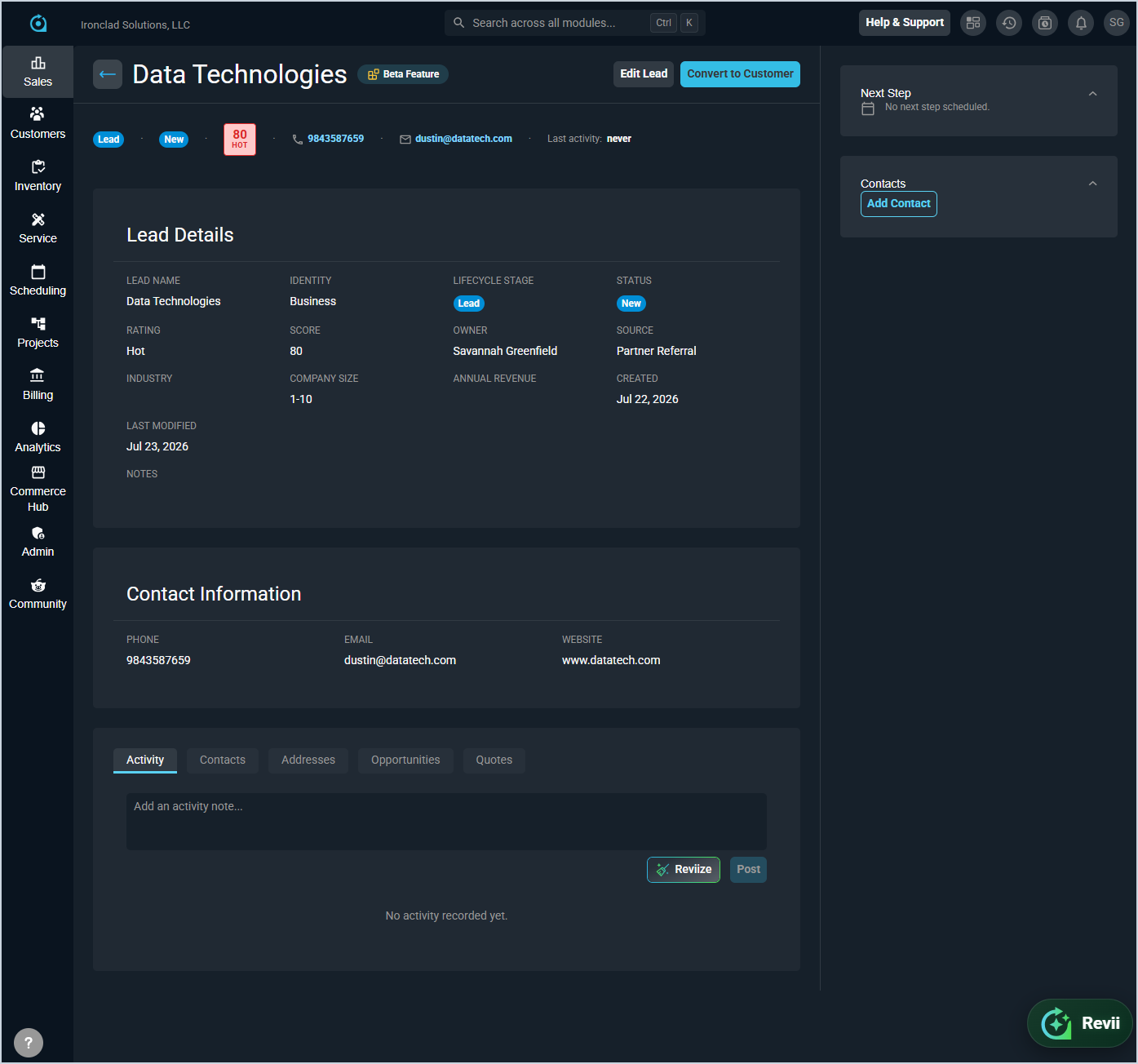
Header
The header bar at the top of the lead details screen displays the lead's lifecycle stage, status, rating score, primary contact, phone, email, and last activity date.
The following actions are available from the header.
- Edit the lead by clicking Edit Lead.
- Convert the lead to a customer by clicking Convert to Customer. See the Convert Lead to Customer article for more information.
- Return to the lead list by clicking the back arrow.
Lead Details Section
The Lead Details section displays core information about the lead.
Each field in the Lead Details section is defined below.
| No. | Label | Definition |
|---|---|---|
| 1 | Lead Name | Name of the lead. This is the only required field to create a lead. |
| 2 | Identity | Indicates whether the lead is a Business or Residential prospect. |
| 3 | Lifecycle Stage | Current lifecycle stage of the lead, such as Lead or Customer. |
| 4 | Status | Current status of the lead, such as New or Working. |
| 5 | Rating | Indicates the lead's engagement level, such as Hot, Warm, or Cold. |
| 6 | Score | Numerical score representing the likelihood that the lead will close. |
| 7 | Owner | User assigned as the owner of this lead. |
| 8 | Source | Source from which the lead originated, such as Inbound Website. Lead sources are configured in System Tables. |
| 9 | Industry | Industry of the lead. |
| 10 | Company Size | Size of the lead's company. |
| 11 | Annual Revenue | Annual revenue of the lead's company. |
| 12 | Created | Date the lead record was created. |
| 13 | Last Modified | Date the lead record was last modified. |
| 14 | Notes | Additional context or notes about the lead. |
Contact Information Section
The Contact Information section displays the lead's primary contact details.
| No. | Label | Definition |
|---|---|---|
| 15 | Phone | Primary phone number for the lead. |
| 16 | Primary email address for the lead. | |
| 17 | Website | Website for the lead. |
Tabs
The following tabs display at the bottom of the lead details screen.
- Activity - Displays activity notes recorded against the lead. Enter text in the activity note field and click Post to add a new note. Activity notes transfer to the customer record if the lead is converted.
- Contacts - Displays contacts associated with the lead. This tab functions similarly to the contacts tab on a customer record. See the Customer Profile: Overview Section - Contacts Tab article for more information.
- Addresses - Displays addresses associated with the lead. This tab functions similarly to the addresses tab on a customer record. See the Customer Profile: Overview Section - Addresses Tab article for more information.
- Opportunities - Displays opportunities created against the lead. This tab functions similarly to the opportunities tab on a customer record. See the View Opportunity Details article for more information.
- Quotes - Displays quotes created against the lead. This tab functions similarly to the quotes tab on a customer record. See the View Quote Details article for more information.
Stage Panel
The stage panel on the right side of the lead details screen displays the lead's Next Step and Lead Contacts. The following actions are available from the stage panel.
- Add a contact to the lead by clicking Add Contact in the Contacts section.
- Email or call a contact directly using the icons next to their name.
Areas on the Lead Details Screen
For information on other areas of the lead details screen, see the related articles.