
Quick Actions: Add Charges
The New Action button at the top of the Customer Profile screen opens the Quick Actions menu, allowing you to create payments, charges, credits, and invoices on the customer account. This menu is accessible from every tab on the Customer Profile screen and allows you to manage essential account functions quickly and efficiently. Clicking the Add Charge option displays the New Charge section where you can enter details to apply a charge to the customer's account.
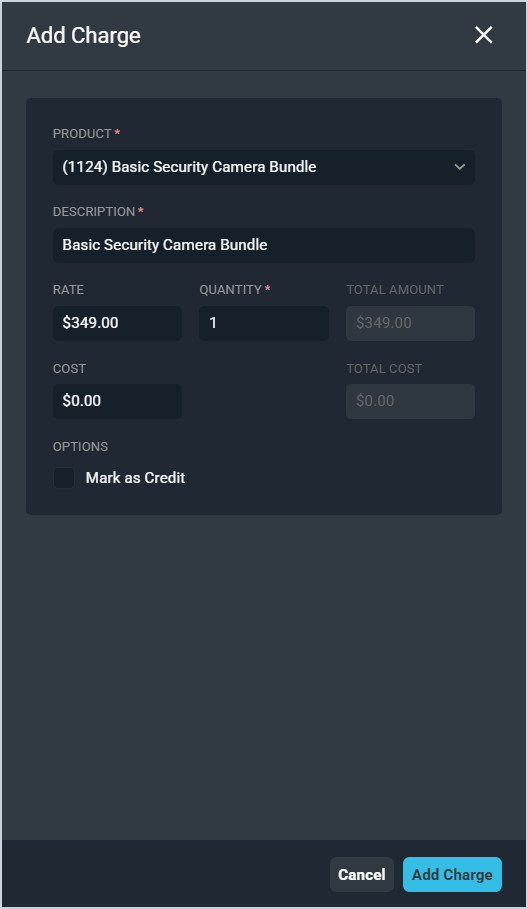
Each field in the New Charge section is defined below.
| No. | Label | Definition |
| 1 | Product | Name of the product being charged to the customer's account. |
| 2 | Description | Description of the product being charged to the customer's account. The Description is automatically copied from the Product you selected, but you can modify it as needed. |
| 3 | Rate | Amount in dollars and cents of the product price being charged to the customer's account. |
| 4 | Quantity | Quantity of the product being charged to the customer's account. |
| 5 | Total Amount | Total amount being charged to the customer, calculated as Rate x Quantity. |
| 6 | Cost | Amount in dollars and cents of the cost for the product being charged to the customer's account. |
| 7 | Total Cost | Total cost for the product being charged to the customer, calculated as Cost x Quantity. |
| 8 | Mark as Credit | Click to credit the product to the customer account instead of charging it. |