
How To Guide: Assigning Roles and Groups to Users
1. Let's learn how to assign roles/groups!
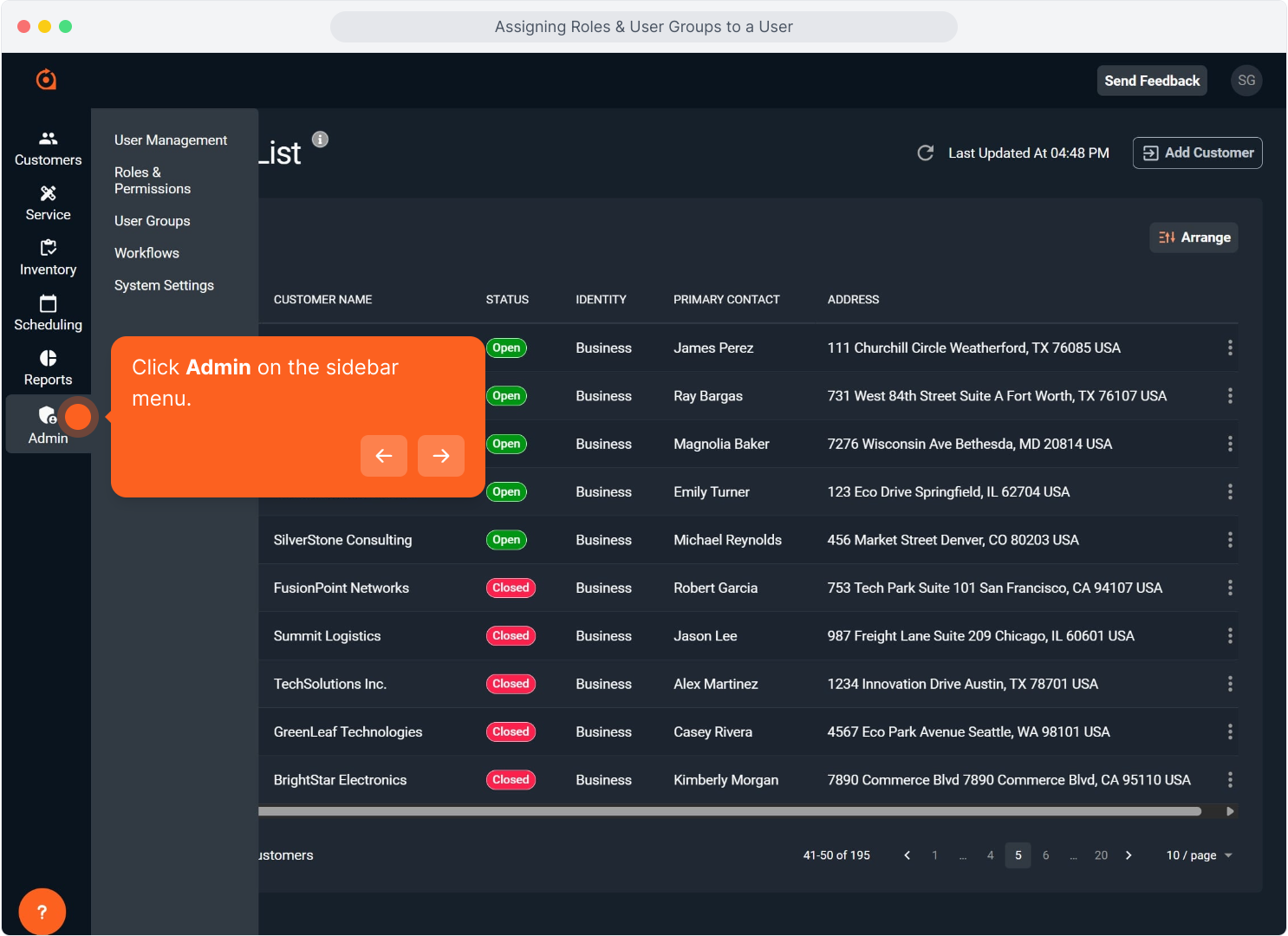
2. Click Admin on the sidebar menu.
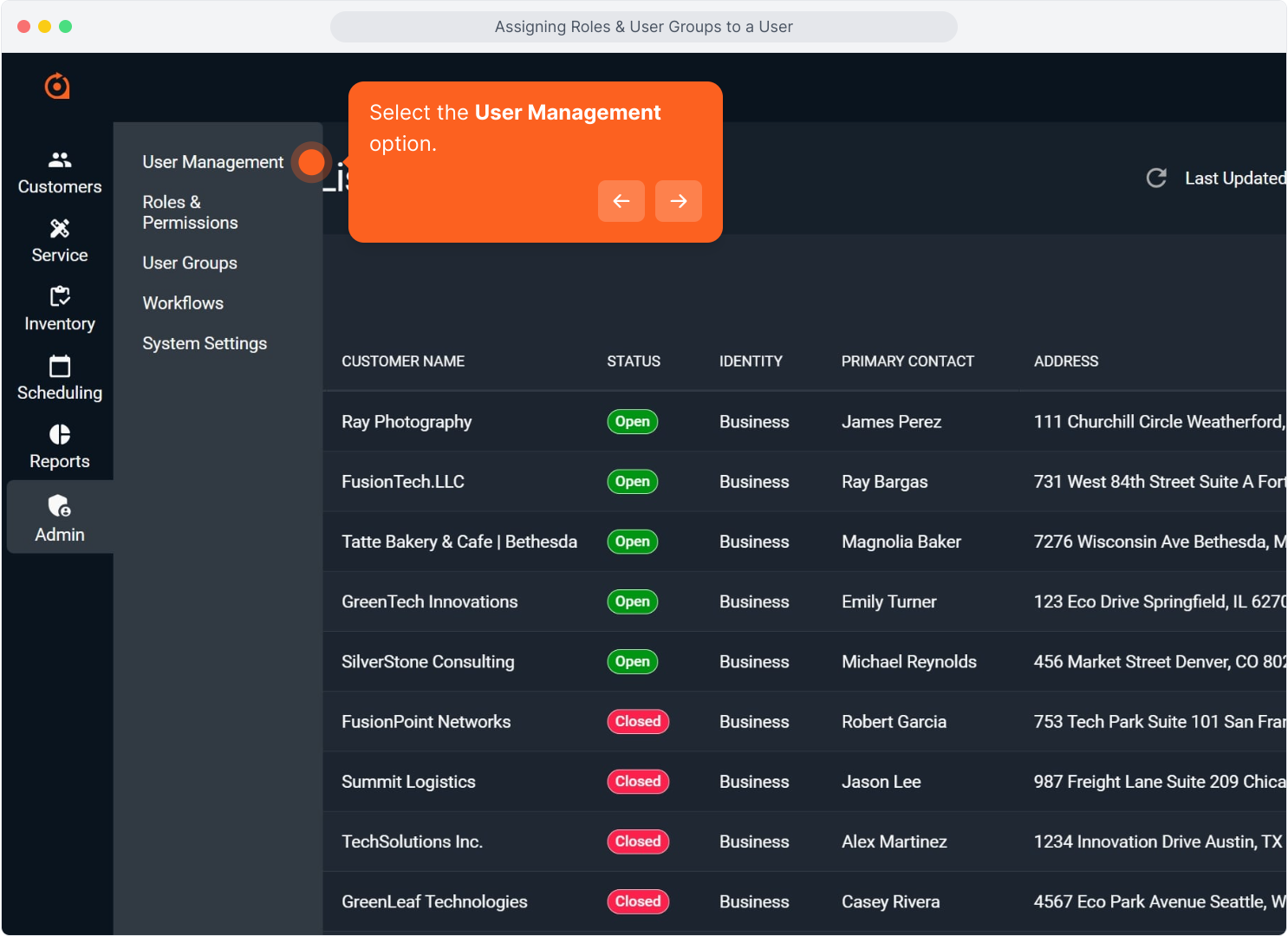
3. Select the User Management option.
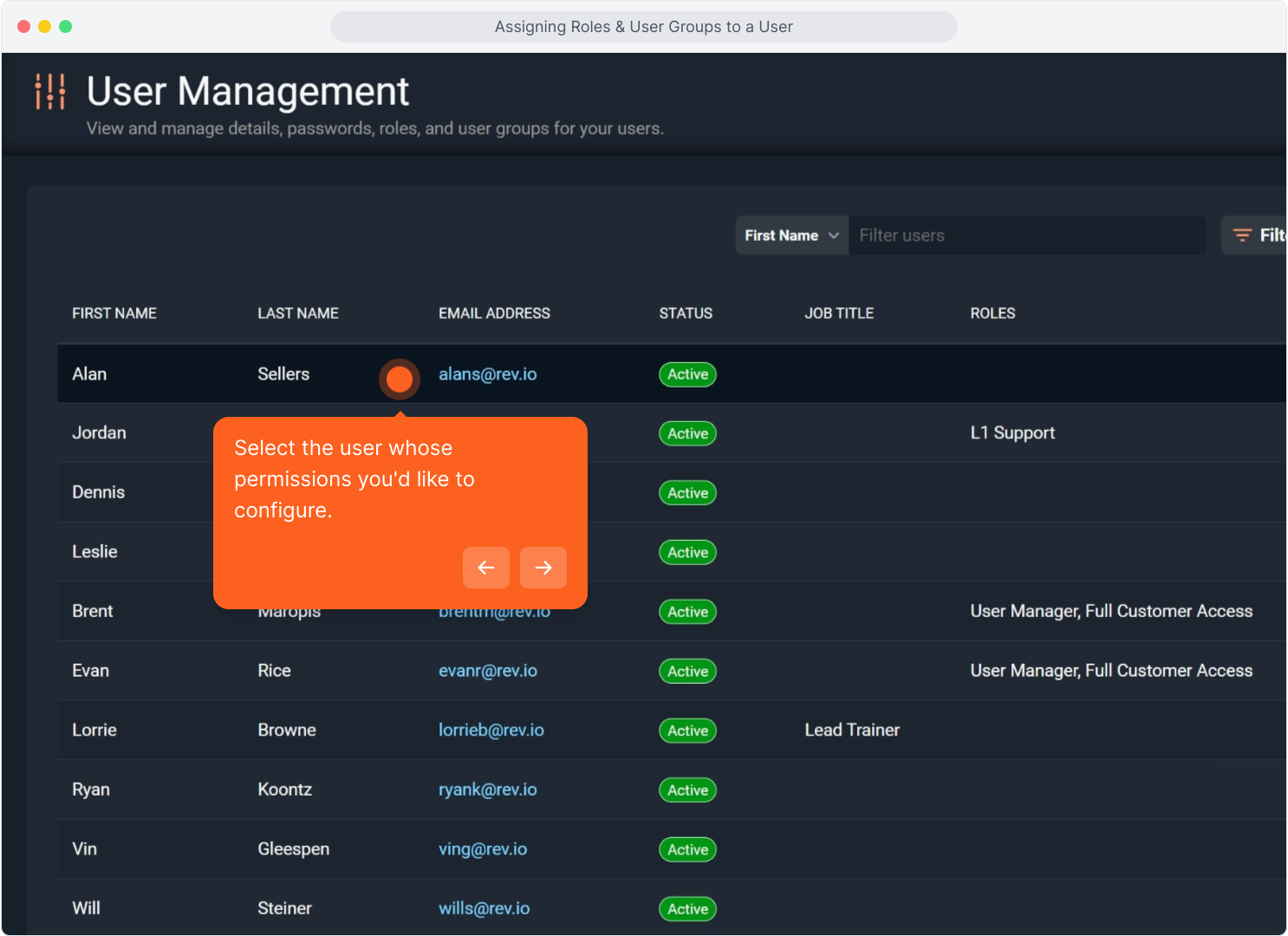
4. Select the user whose permissions you'd like to configure.
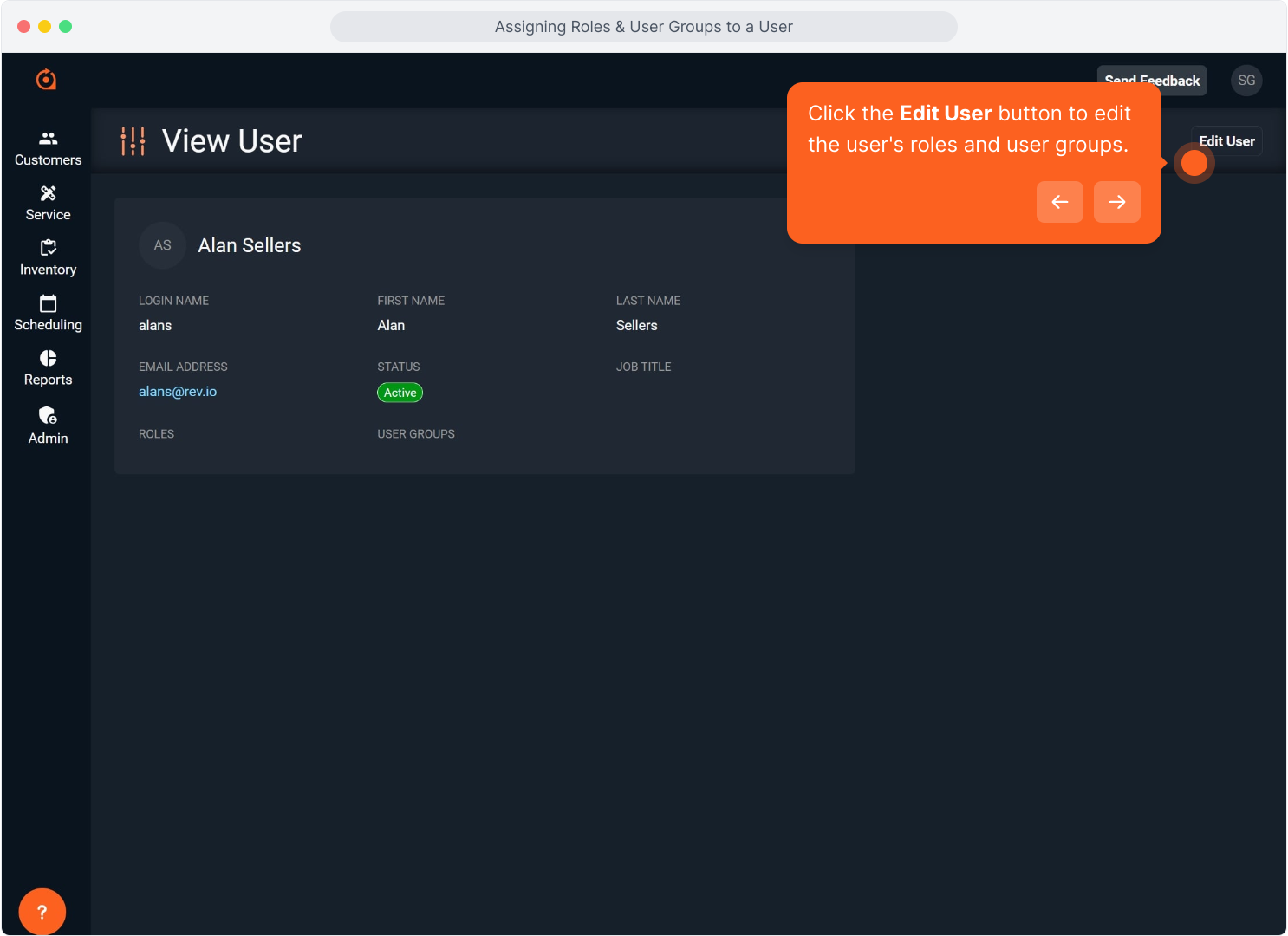
5. Click the Edit User button to edit the user's roles and user groups.
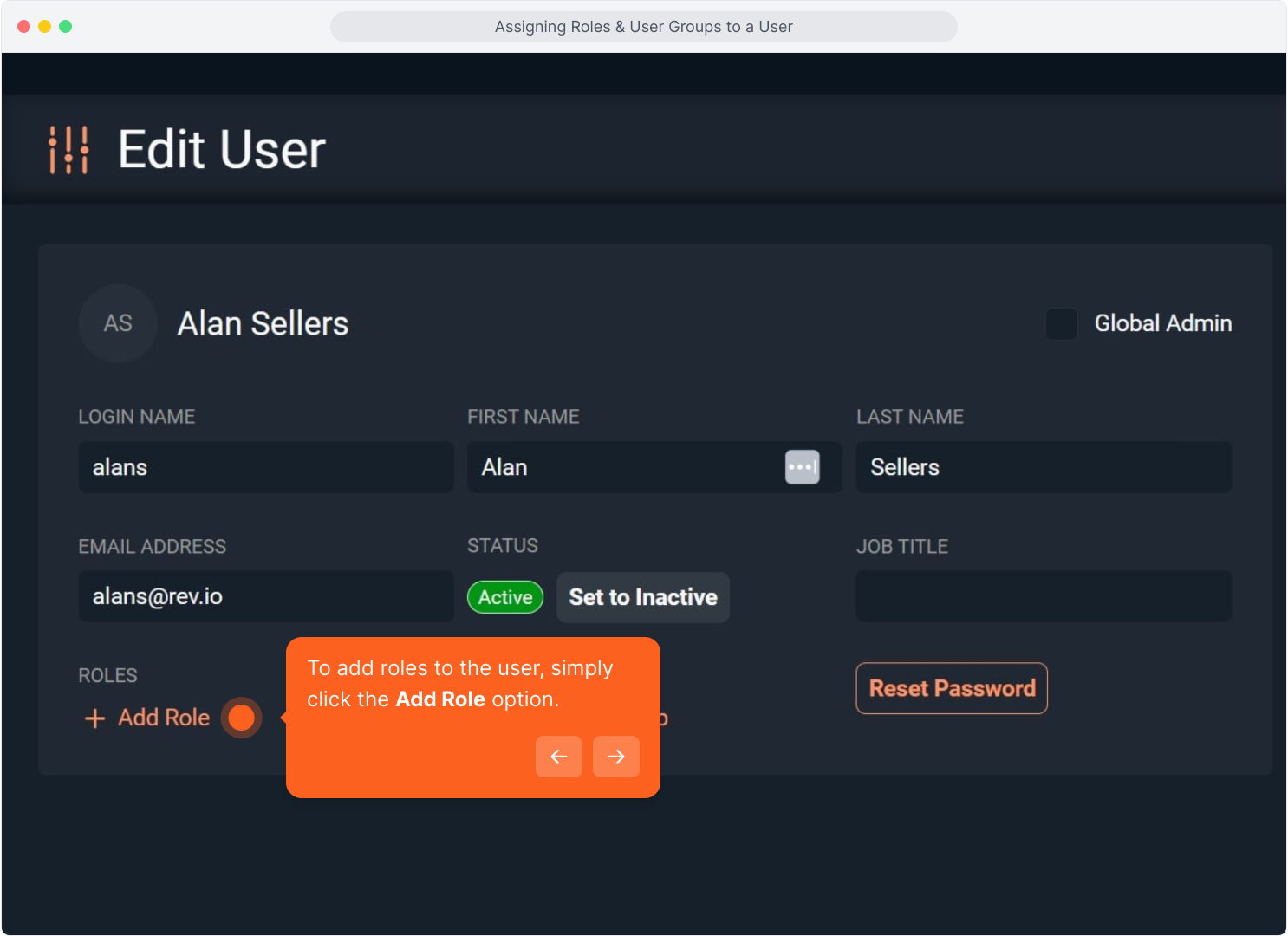
6. To add roles to the user, simply click the Add Role option.
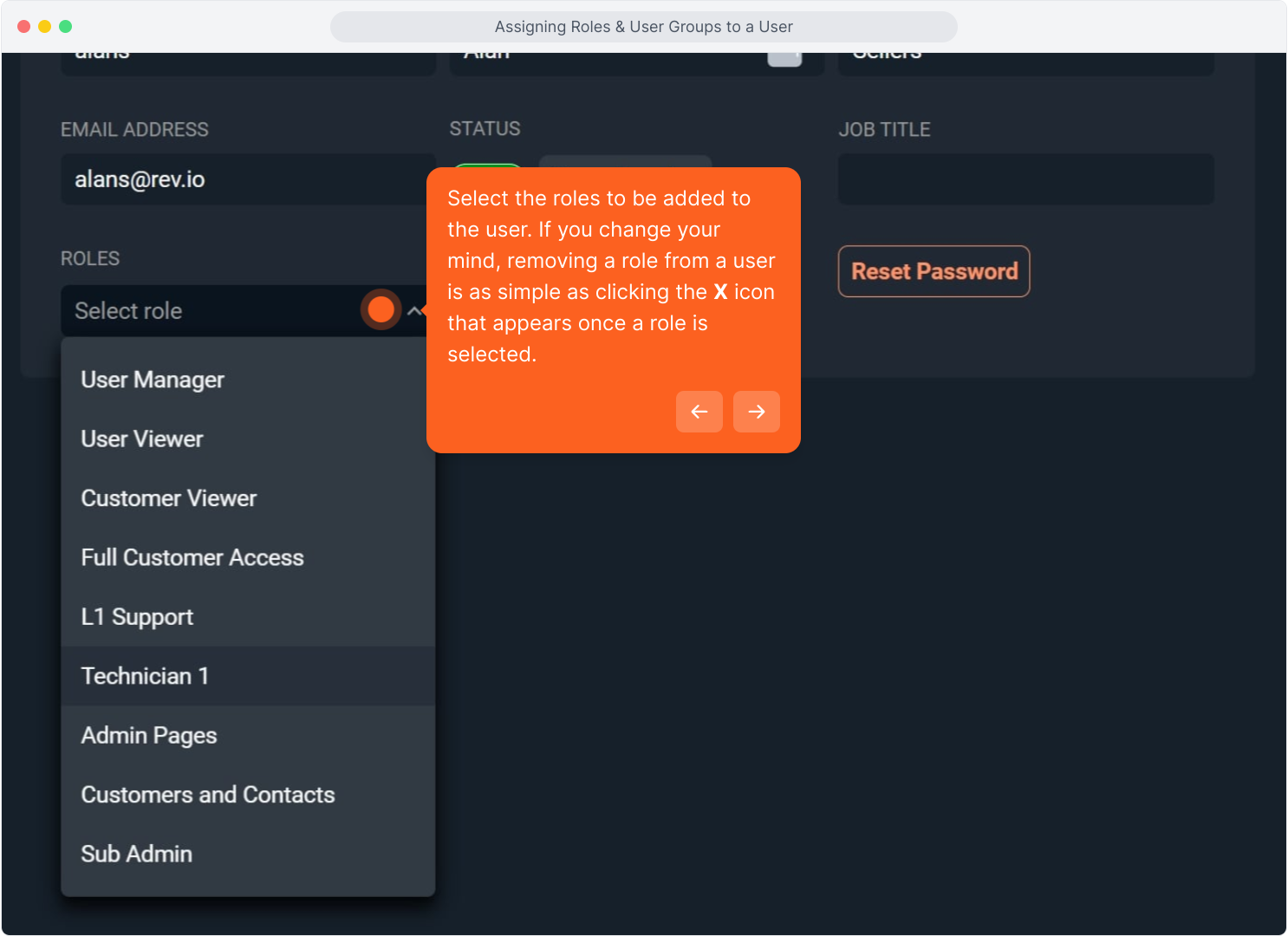
7. Select the roles to be added to the user. If you change your mind, removing a role from a user is as simple as clicking the X icon that appears once a role is selected.
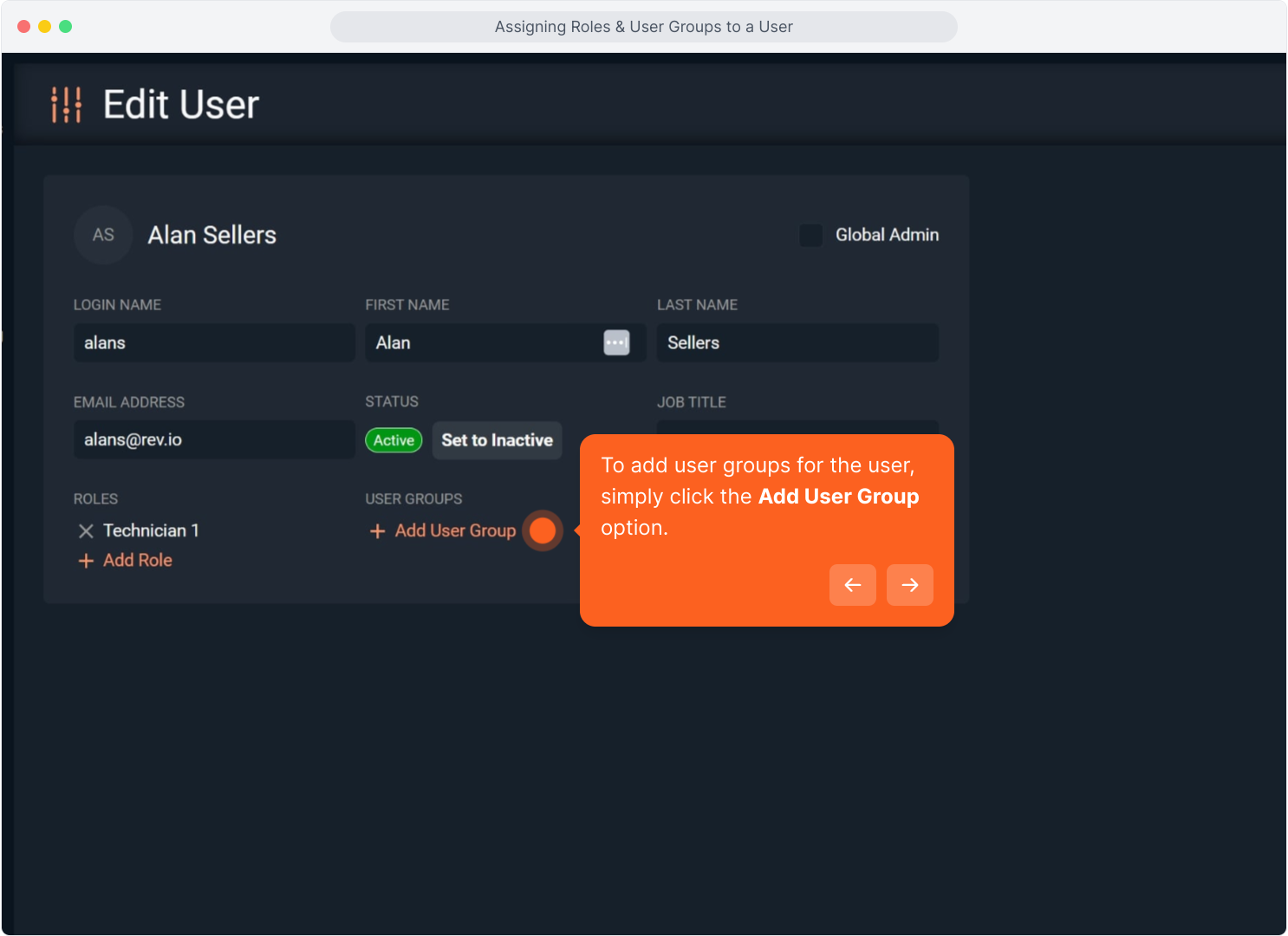
8. To add user groups for the user, simply click the Add User Group option.
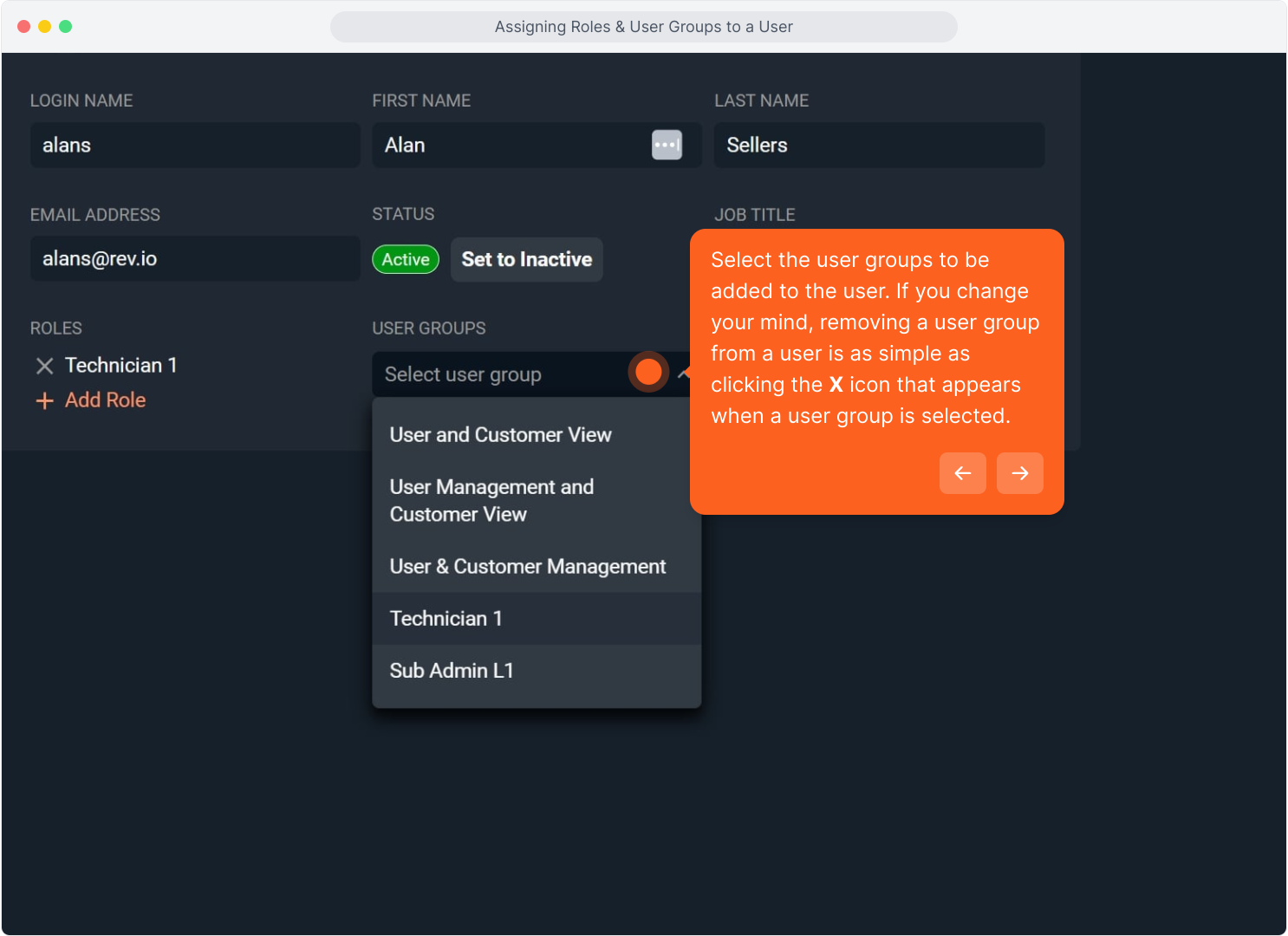
9. Select the user groups to be added to the user. If you change your mind, removing a user group from a user is as simple as clicking the X icon that appears when a user group is selected.
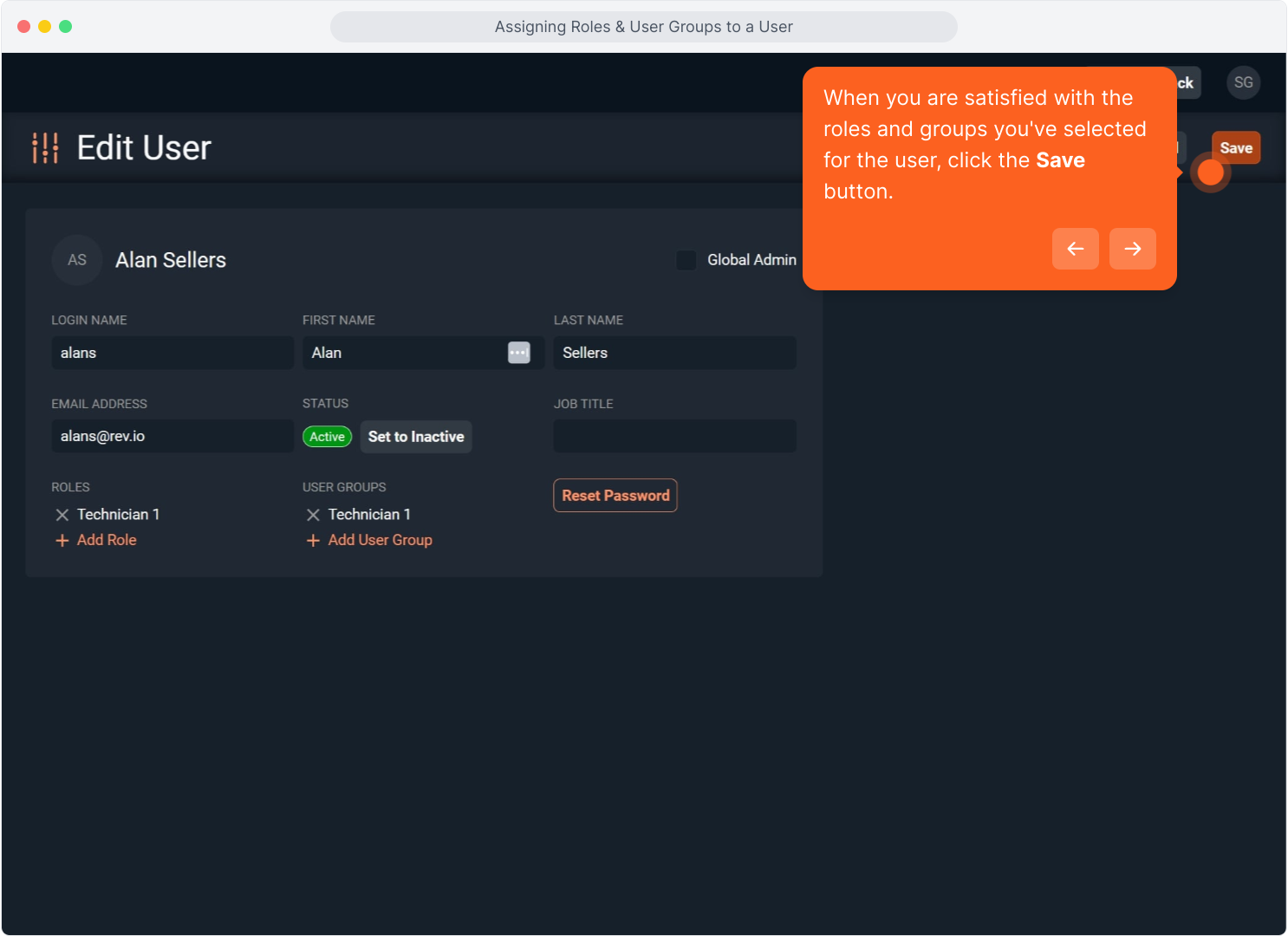
10. When you are satisfied with the roles and groups you've selected for the user, click the Save button.
11. Congrats! That's all there is to assigning roles and user groups to your users!