
HubSpot Integration: Prerequisites
The HubSpot integration differs from most other integrations offered in Rev.io as it requires some significant preconfiguration in both HubSpot and Rev.io before the integration can be set up in your Rev.io environment. Complete the following prerequisites before configuring the HubSpot integration in your Rev.io instance.
When you are finished with the prerequisite steps below and are ready to configure the HubSpot integration for your environment, see the HubSpot Integration: Configuration article.
HubSpot Requirements
To support the HubSpot integration, you will need to complete the following configuration steps in HubSpot.
- Create custom properties
- Select lifecycle stages
- Verify customer addresses
- Copy app info from developer portal
Create Custom Properties
You must create one or more custom properties to ensure customer and contact data syncs correctly to Rev.io.
- Customer Identity Type
Create a custom property called Customer Identity Type with dropdown values of Business and Residential. This field is used to determine how customer records are categorized during synchronization. - Company Email (required for business customers)
If you manage business clients, create a custom property called Company Email to support syncing business records.
NOTE: Creating or editing properties in HubSpot requires the Edit property settings permission.
Create Customer Identity Type Property
- In HubSpot, click Settings > Data Management > Properties.
- Click the Select an object dropdown and select Company properties.
- Click Create property.
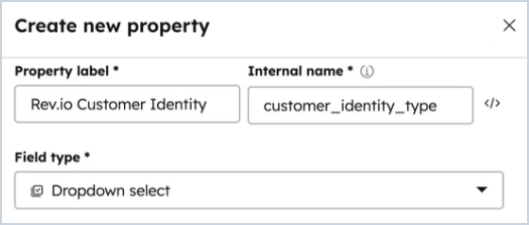
- In the right panel, enter a custom name for your property in the Property label field.
i.e. Rev.io Customer Identity - Click the </> icon to the right of the field label to access the internal name.
- Enter customer_identity_type as the Internal Name for the property.
- Select Dropdown select from the Field type option.
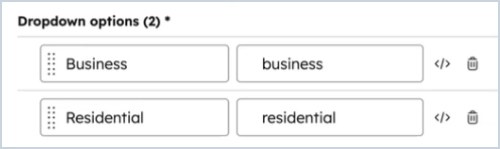
- In the Dropdown options section, enter Business and Residential for the labels.
- Click the </> icon to the right of the field labels to access the internal names.
- Enter business and residential as the internal names for the options.
- Click Create.
- Add this custom property to display on your customers and in your customer creation process in HubSpot.
Create Company Email Property
- In HubSpot, click Settings > Data Management > Properties.
- Click the Select an object dropdown and select Company properties.
- Click Create property.
- In the right panel, enter a custom name for your property in the Property label field.
i.e. Rev.io Billing Email - Click the </> icon to the right of the field label to access the internal name.
- Enter billing_email as the Internal Name for the property.
- Select Single line text from the Field type option.
- Click Create.
- Add this custom property to display on your customers and in your customer creation process in HubSpot.
For more information, see HubSpot's documentation to Create and edit properties.
| IMPORTANT: For each company in HubSpot, you must select Business or Residential from the Customer Identity Type dropdown. For Business customers, you must enter a billing email in the Billing Email field. |
Select Lifecycle Stages
You must determine which HubSpot records should sync to Rev.io based on Lifecycle Stage.
- In HubSpot, click Settings > Data Management > Properties.
- Click the Select an object dropdown and select Contact properties (or Company properties).
- Locate and open the Lifecycle Stage property to view options/automation and usage.
- HubSpot includes default lifecycle stages such as Subscriber, Lead, MQL, SQL, Opportunity, Customer, Evangelist, and Other. Select the lifecycle stages that should trigger the sync of customer and contact data into Rev.io.
NOTE: You may also define custom lifecycle stages if your organization uses a unique customer journey. Custom lifecycle stages are an admin-only feature in HubSpot.
Verify Customer Addresses
If your companies in HubSpot do not have addresses populated, they will be synced to Rev.io with a sample address. If you want to avoid updating addresses in both HubSpot and Rev.io, verify that address information is populated in HubSpot prior to configuring the integration.
Copy App Info from Developer Portal
During the configuration for the HubSpot integration, you will need to access your App ID, Client ID, and Client Secret for the Rev.io app in the HubSpot Developer Portal. Additionally, you will need to copy your Developer API Key for your HubSpot instance.
Copy App ID, Client ID, and Client Secret
- Sign into the HubSpot Developer Portal.
- Navigate to Apps in the top navigation bar.
- Click Create app and add Rev.io as an app, or select your existing Rev.io app to edit.
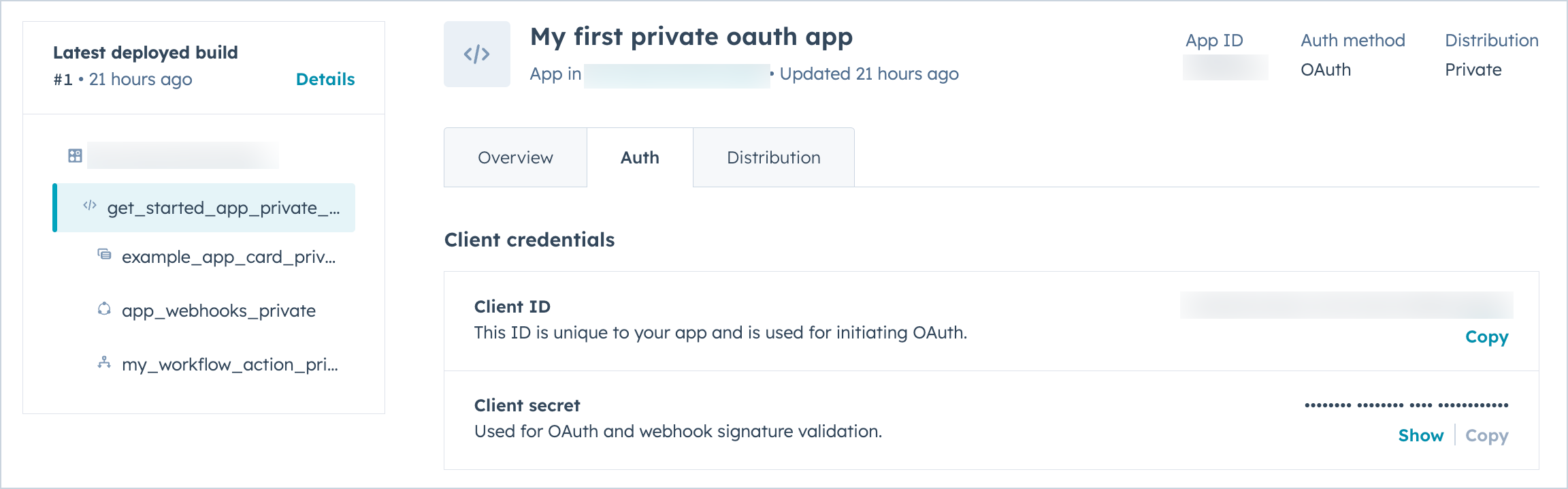
- Click the Auth tab.
- Copy the App ID, Client ID, and Client Secret.
For additional information, see HubSpot's documentation to Manage apps in HubSpot.
Copy Developer API Key
NOTE: You must have Super Admin Permissions to access your account's API key.
- In your HubSpot account, navigate to Development.
- Click Keys and select Developer API key.
For additional information, see HubSpot's documentation to Manage keys.
Rev.io Requirements
Before enabling the HubSpot integration, you must configure default bill profile(s) in Rev.io.
- If your customers are strictly Business or Residential, configure a default bill profile that matches the applicable customer type.
- If you support both Business and Residential customers, you must create a default bill profile for each.
NOTE: If no default Bill Profile is configured, Rev.io will use the first bill profile created in the database by default.