
Invoice Management: Print Invoices
The Print Invoices tab on the Invoice Management screen is your print queue. Invoices for customers who receive printed invoices display here until they are printed. To open it, click Billing in the sidebar menu, select Invoice Management, and click the Print Invoices tab.
Invoices are added to the print queue when the customer's bill profile has a print profile assigned and the bill method includes Print or Both. See the Create/Edit Bill Profiles and Create/Edit Print Profiles articles for more information.
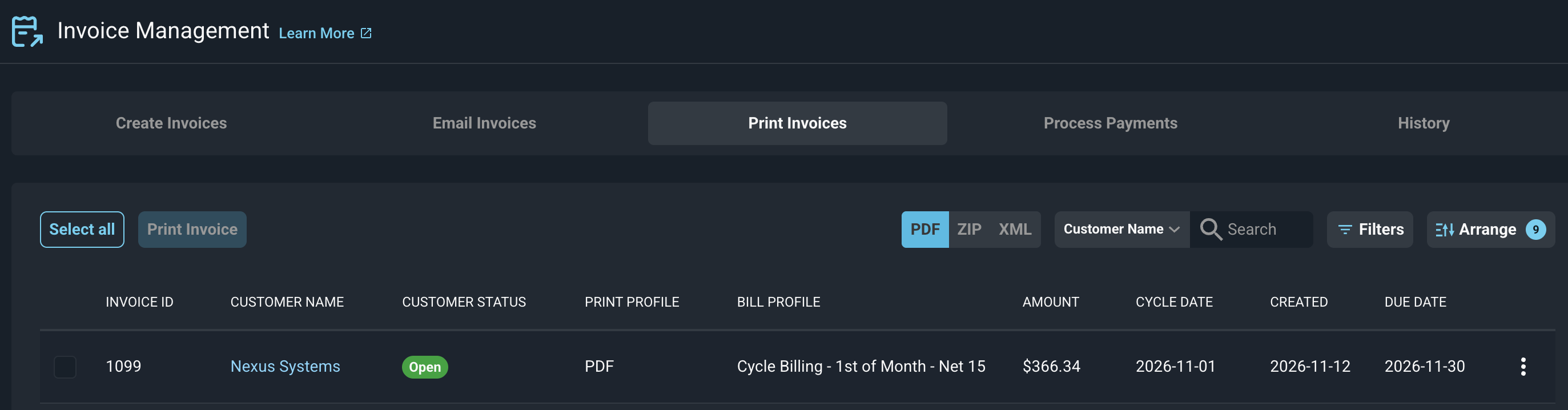
Each column on the Print Invoices tab is defined below.
| Label | Definition |
| Invoice ID | Numerical identifier for the invoice. |
| Customer Name | Name of the customer the invoice belongs to. |
| Customer Status | Status of the customer account. |
| Print Profile | Print profile assigned to the customer's bill profile. |
| Bill Profile | Bill profile assigned to the customer. |
| Amount | Total amount of the invoice. |
| Cycle Date | Billing cycle date for the invoice. |
| Created | Date the invoice was created. |
| Due Date | Date the invoice is due. |
Use the PDF, ZIP, and XML buttons at the top of the list to show invoices by print style. The print style comes from the distribution type on the print profile. PDF shows invoices on print profiles with the Compilation distribution type.
Follow these steps to print invoices.
- Click the PDF, ZIP, or XML button to show the invoices you want to print.
- Select the invoices to print, or click Select all.
- Click the Print Invoice button.
The selected invoices are printed as one batch and are removed from the print queue. For PDF, all of the selected invoices are combined into one file. You can download the batch at any time from the Batches tab on the History tab. See the Invoice Management: History article for more information.
To print an invoice again, add it back to the print queue. To print a single invoice without the queue, open the invoice and print it, or download it from the customer's profile.
These actions are available on the Print Invoices tab.
- Search the invoices by selecting a column from the dropdown and entering text in the Search field.
- Filter the invoices by clicking the Filters button.
- Customize which columns display and the order in which they display by clicking the Arrange button. See the Arrange Columns article for more information.
- Sort the results in the table by clicking the column label in the table header.
| NOTE: Invoices can also be printed automatically. To do this, set Print Invoices to Automatically on the General tab in the Billing Config category. See the System Settings: Billing Config article for more information. |
For more information about Invoice Management, see the following articles.
Invoice Management: Create Invoices
Invoice Management: Email Invoices
Invoice Management: History
Create/Edit Print Profiles