
QuickBooks Desktop Web Connector: Creating Customers and Items in QuickBooks
When QuickBooks is missing a customer or item, Rev.io can create it for you, so you don't have to build it by hand in QuickBooks. Nothing is created until you approve it. To open a connection, click Admin, then Bulk Tools, click Set up on the QuickBooks Desktop Web Connector card, and click the connection name.
One-time setup
Complete the following on your connection before you create items.
- Default expense account: On the Overview tab, use the Default expense account card to choose the QuickBooks account that the purchase side of every created item posts to, and click Save. Only expense and cost of goods sold accounts from the last sync can be chosen. Items can't be created until this is set.

- GL to GL Mapping tab: This is recommended. It fills in each new item's income account from the product's GL code.
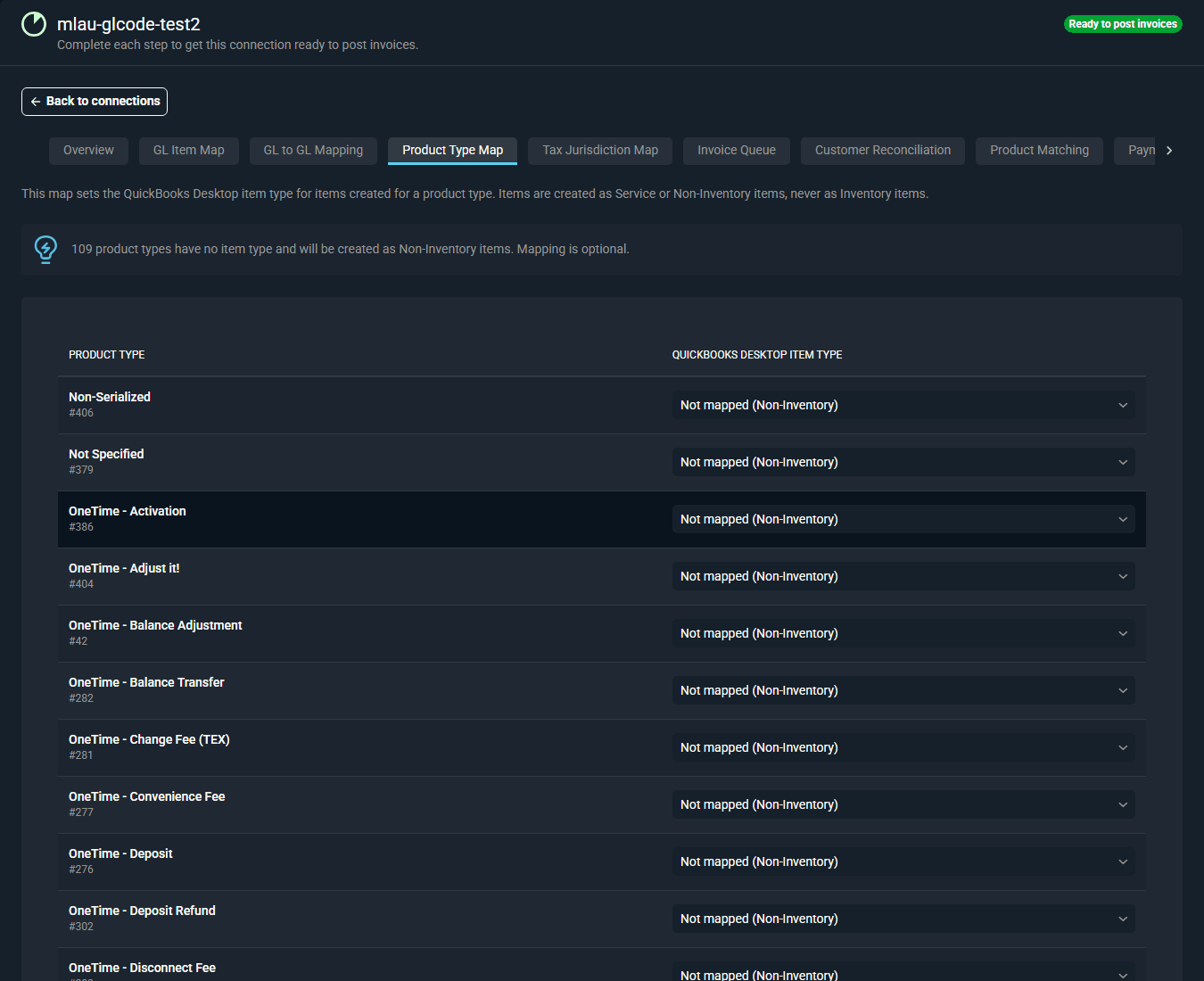
- Product Type Map tab: This is optional. It maps each Rev.io product type to a QuickBooks item type, Service or Non-Inventory. Product types with no mapping are created as Non-Inventory items. Items are never created as Inventory items.
Create a customer or item
Follow these steps to create a record in QuickBooks.
- On the Customer Reconciliation tab, find an unmatched customer, or on the Product Matching tab, find a product that needs an item. Click Create in QuickBooks.
- Review the Create in QuickBooks window. It opens already filled in and checked against your QuickBooks data. Names are shortened to fit QuickBooks limits, customers include their billing and shipping addresses, and items include their type, income account, expense account, and sales tax code. Nothing is written yet.
- Fix anything in a red Fix these before approving box, since these block approval. Check anything in a yellow Review before approving box.
- Click Approve. The record is created on the next Web Connector sync and linked automatically, so your invoices use it from then on.
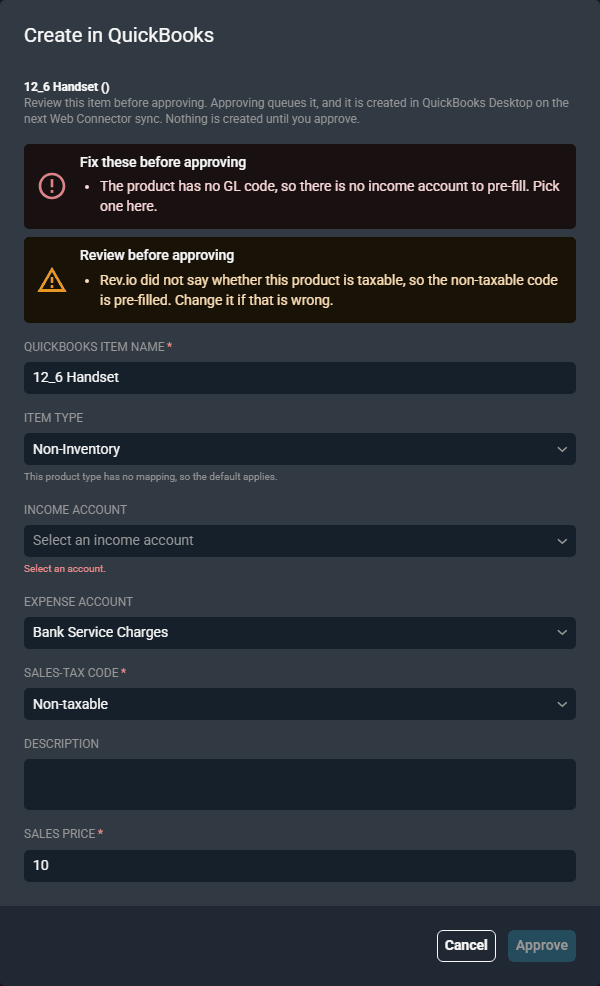
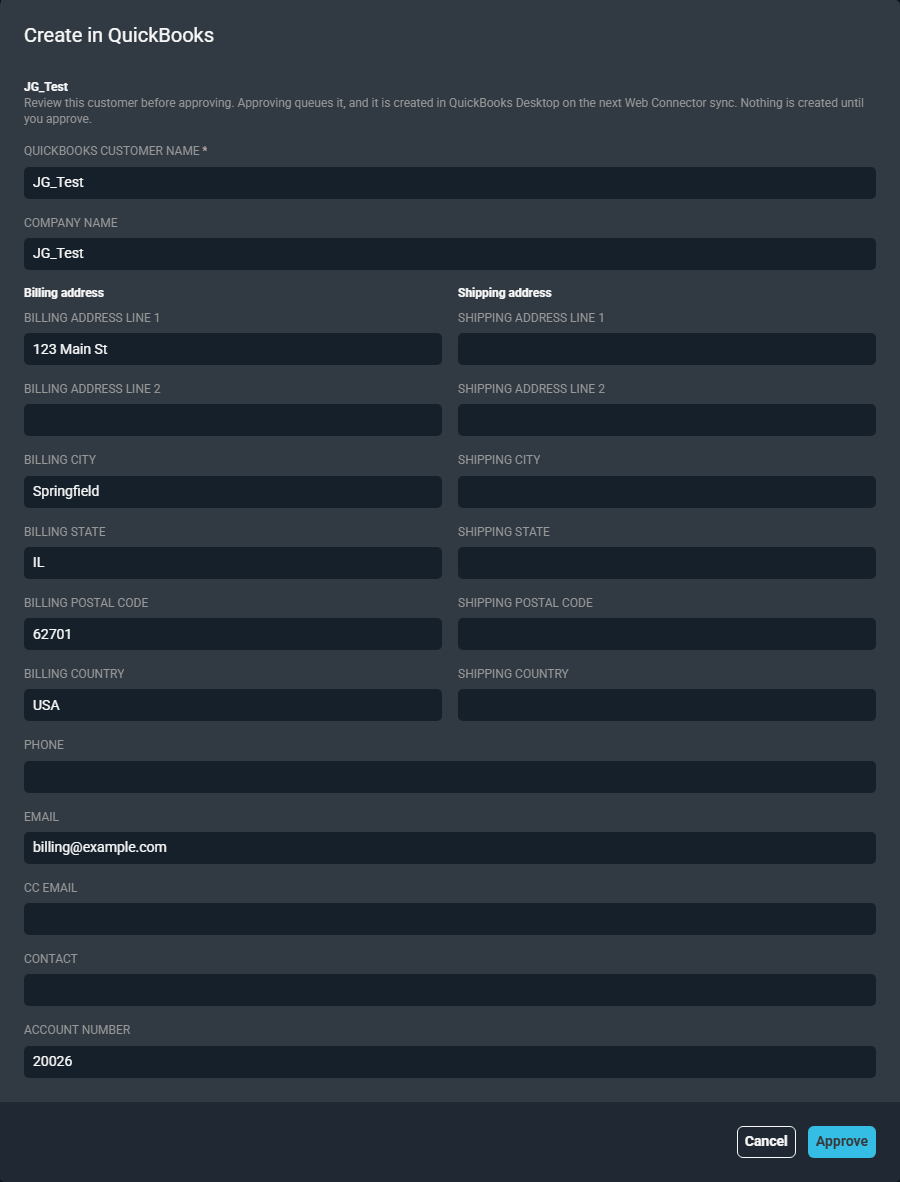
| NOTE: Setting up many products at once? Use Approve all. The window lists every record with its proposed name, type, accounts, and tax code. Clear the ones you don't want and approve the rest in one click. One record with a problem never blocks the others. |
If an active QuickBooks customer already has exactly the same name, Rev.io blocks the create so you don't end up with a duplicate. Link the existing customer on the Customer Reconciliation tab instead.
Track created records
The Create Queue tab lists every customer, item, and vendor you approved, with the date it was queued, the date it was created in QuickBooks, and its status. Use Filter by status and Filter by type to narrow the list.
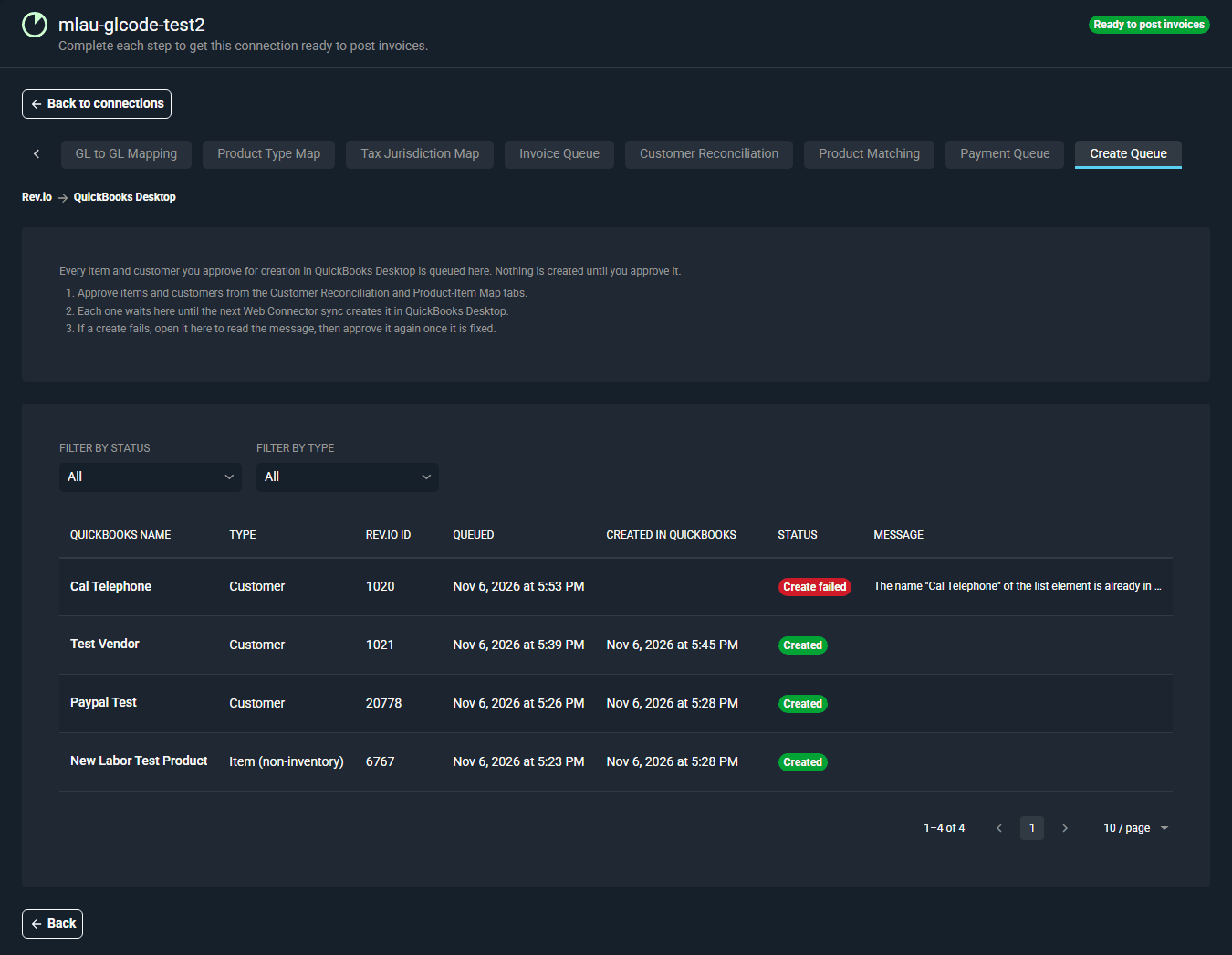
If a create fails, it shows Create failed with the message from QuickBooks, and it is never retried on its own. Click the row to open Create details, read the message, and fix the cause. Then click Retry to go back to the right tab and approve it again. A sync never creates duplicates.
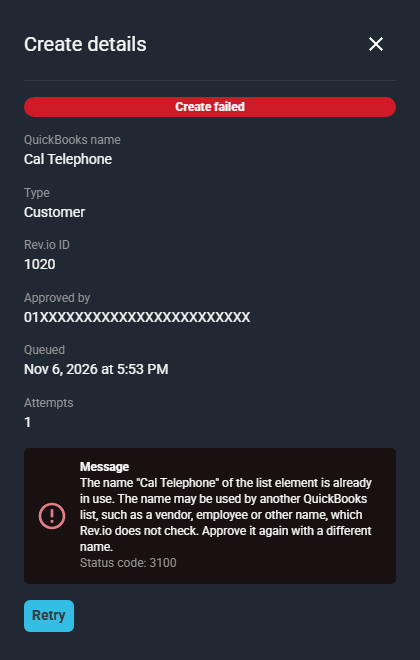
| NOTE: A failed create with a name already in use means another QuickBooks list, such as vendors or employees, already has that name. Approve it again with a different name. |
See the following articles for more information.
QuickBooks Desktop Web Connector: Mapping Items, Customers, and Tax
QuickBooks Desktop Web Connector: Sending Purchase Orders
QuickBooks Desktop Web Connector: Troubleshooting