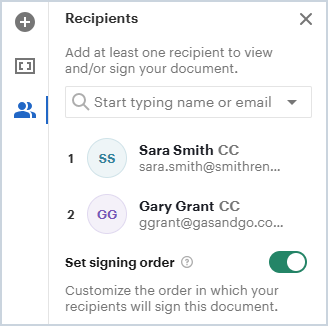
Adding Proposal Recipients
Clicking the Send to Recipients button on the proposal editor allows you to send the proposal to your customer for signing. The user creating the proposal is automatically added as a recipient for verification purposes, but can be removed if they are not the appropriate recipient. Each signer will need to be added as a recipient to receive the proposal from Rev.io.
To add recipients, access the Recipients panel by clicking the Roles icon on the right side of the proposal editor.
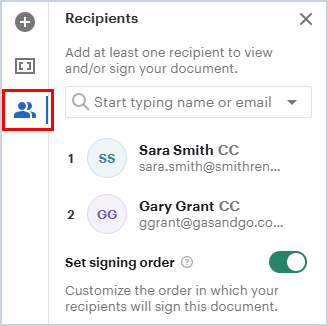
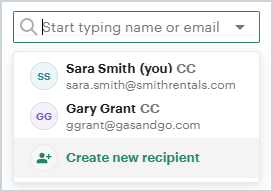
If you have already sent a proposal to a specific recipient before, simply search their name or email in the dropdown and select them from the list. If you are sending a proposal to someone for the first time, click in the dropdown field and select the Create New Recipient option.
The Create New Recipient window displays, allowing you to enter various fields for the recipient.
| NOTE: Email is a required field. You must enter an Email for the recipient or the system will be unable to send the proposal. |
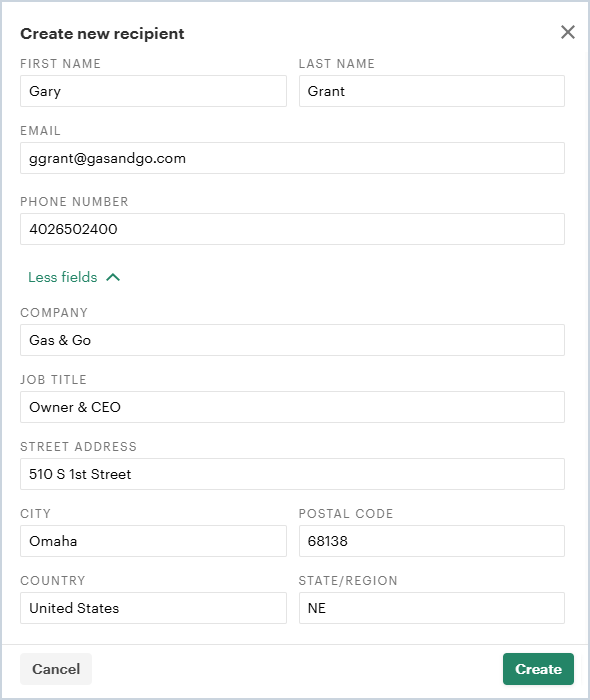
Click the Create button to create the recipient. Newly created recipients are automatically added to the proposal.
Assigning Signature Blocks
To send the document to your recipients, all Signature and Date fields in the proposal must be assigned. Click each Signature and Date field throughout the proposal and select the Assign option to choose a signer. If needed, you can also enable Set Signing Order in the side panel to control the order in which the document is sent to recipients by dragging and dropping signers into the desired sequence.