
How To Guide: Reserving Inventory for a Ticket
1. Introduction
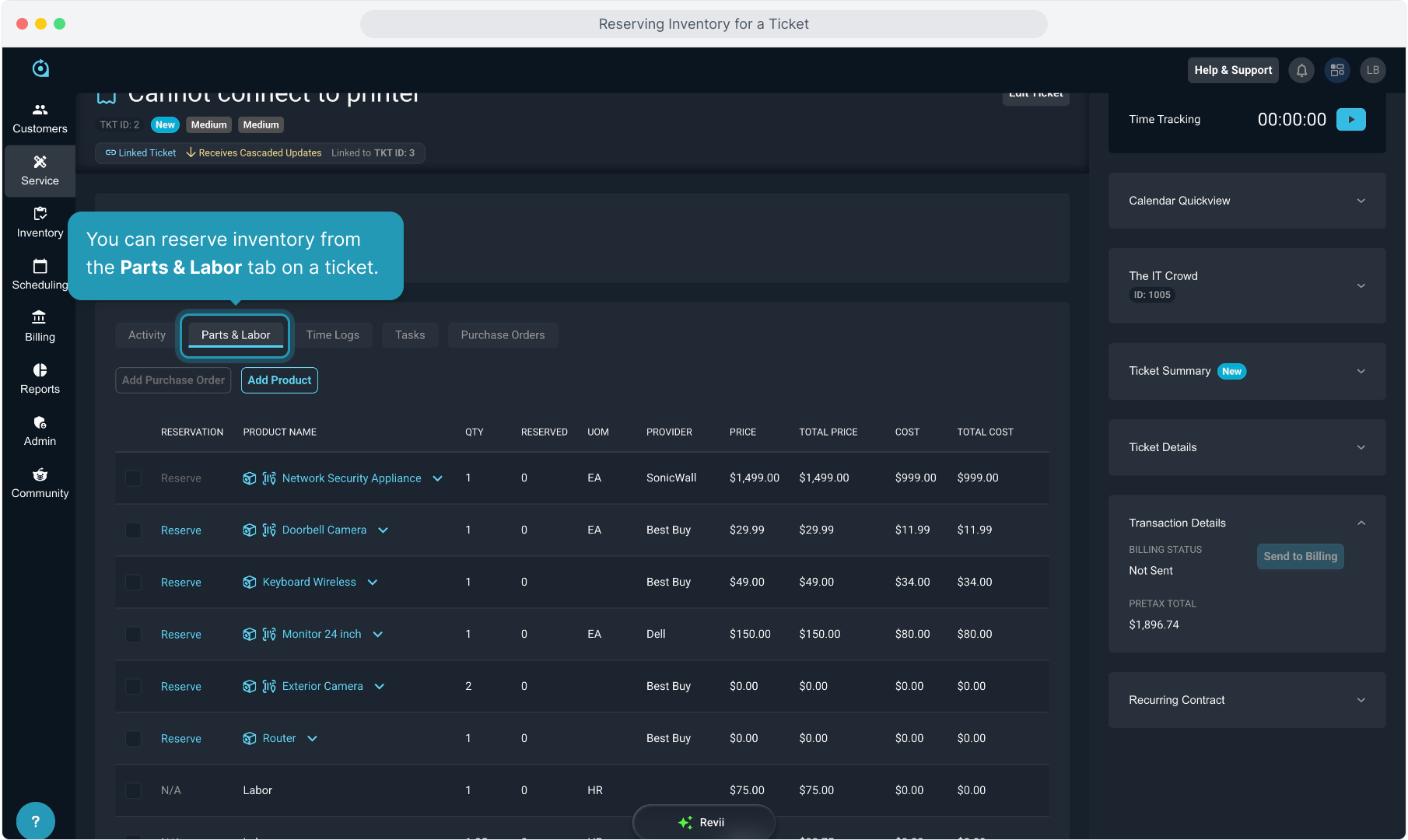
2. You can reserve inventory from the Parts & Labor tab on a ticket.
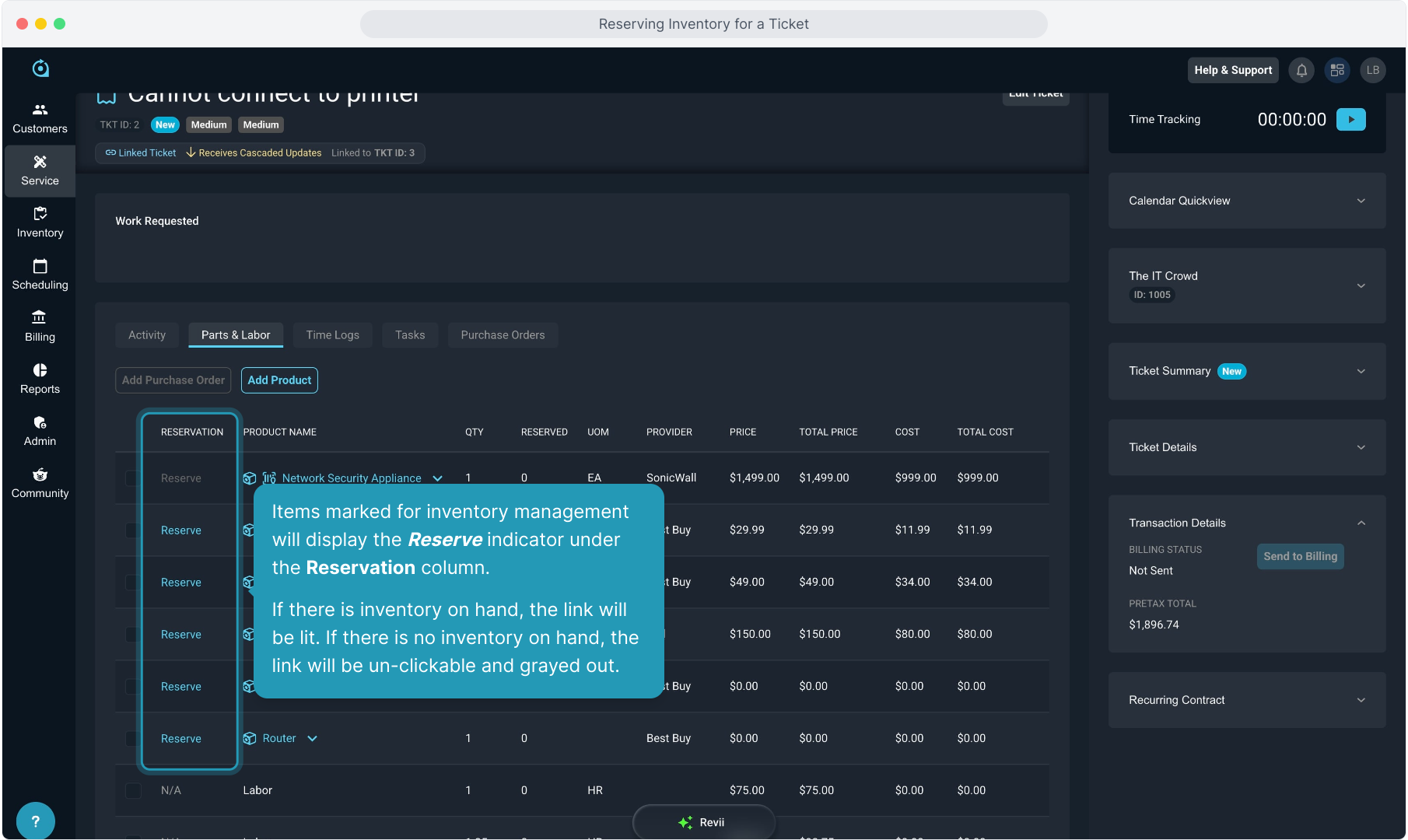
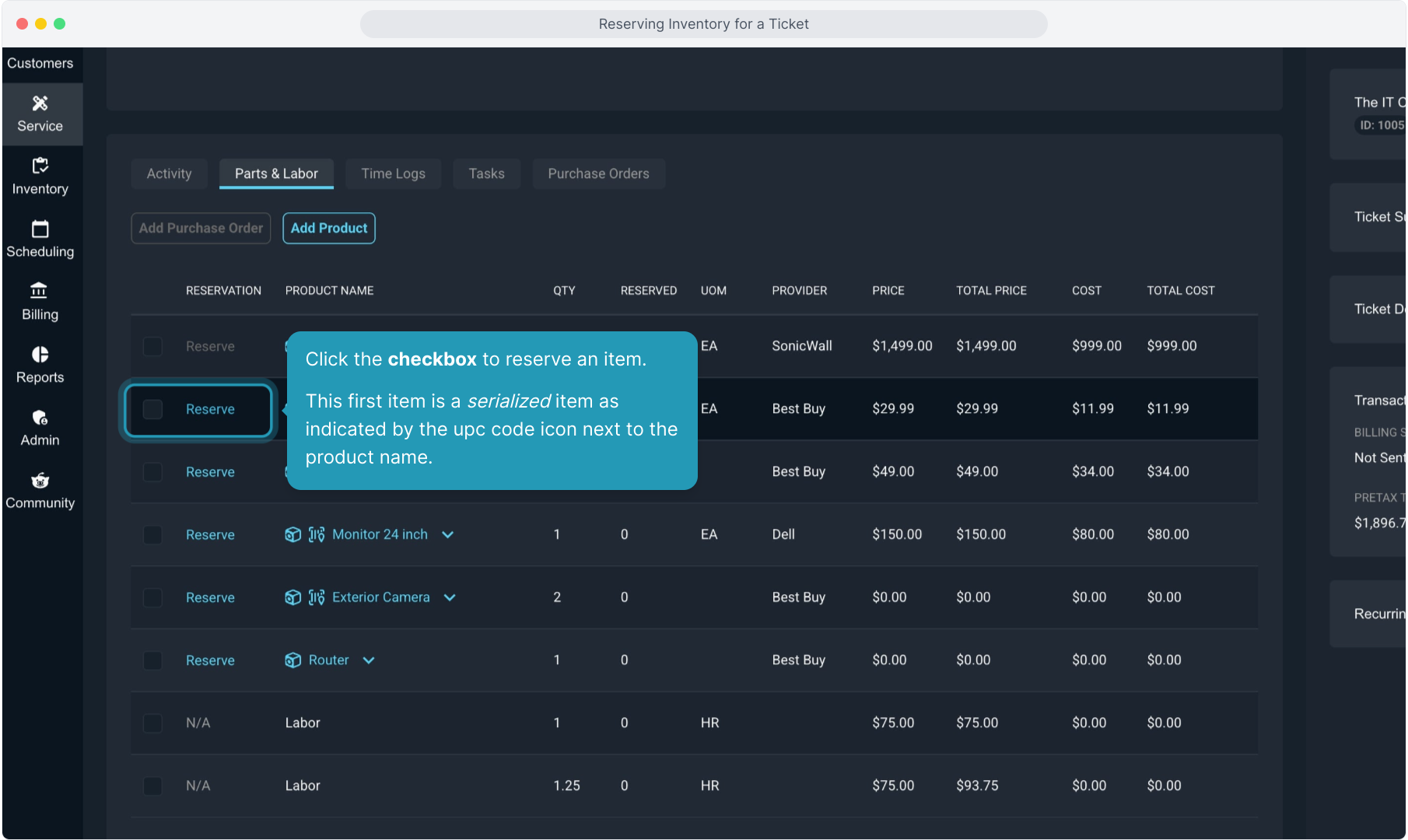
3. Items marked for inventory management will display the Reserve indicator under the Reservation column.
If there is inventory on hand, the link will be lit. If there is no inventory on hand, the link will be un-clickable and grayed out.
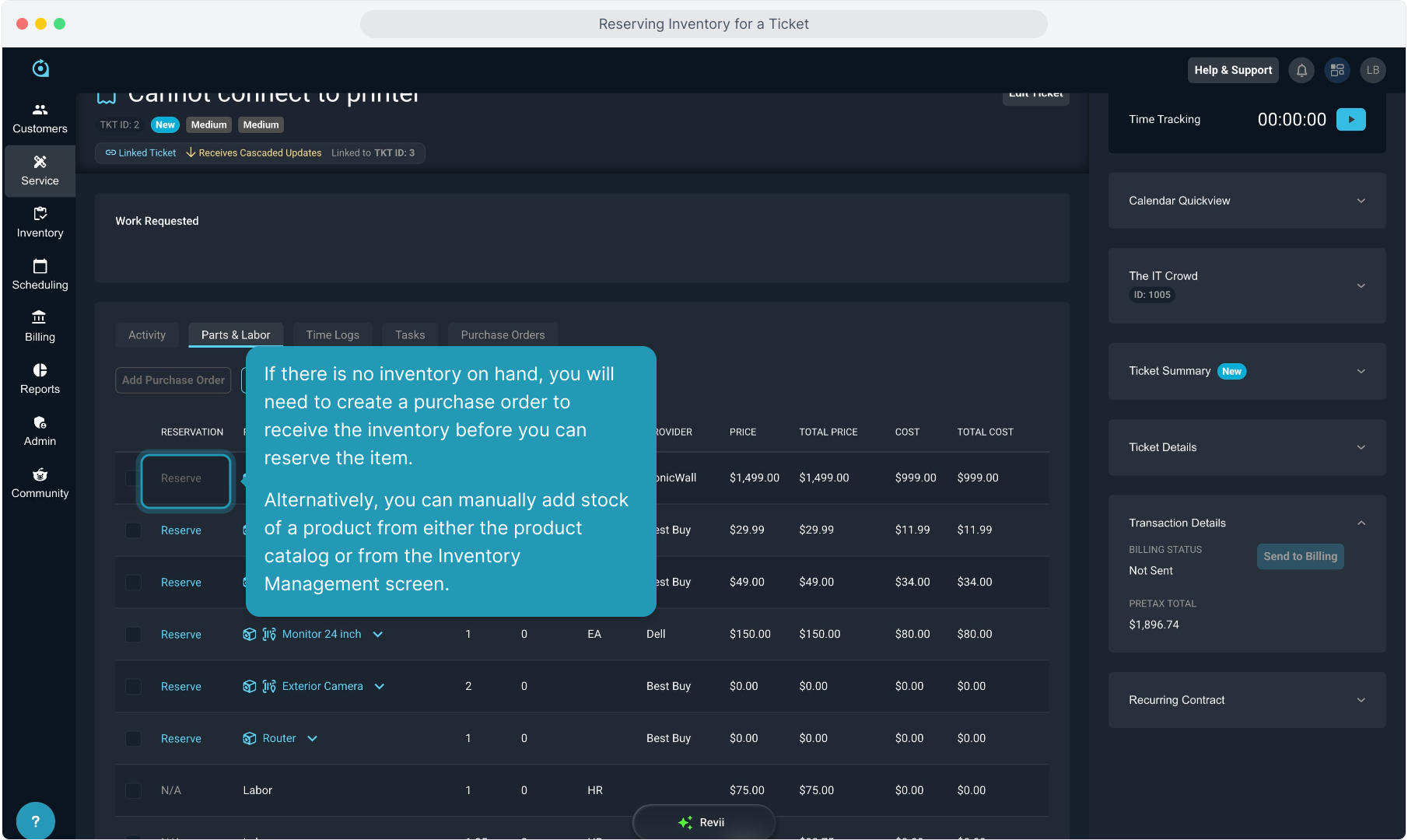
4. If there is no inventory on hand, you will need to create a purchase order to receive the inventory before you can reserve the item.
Alternatively, you can manually add stock of a product from either the product catalog or from the Inventory Management screen.
5. Click the checkbox to reserve an item.
This first item is a serialized item as indicated by the upc code icon next to the product name.
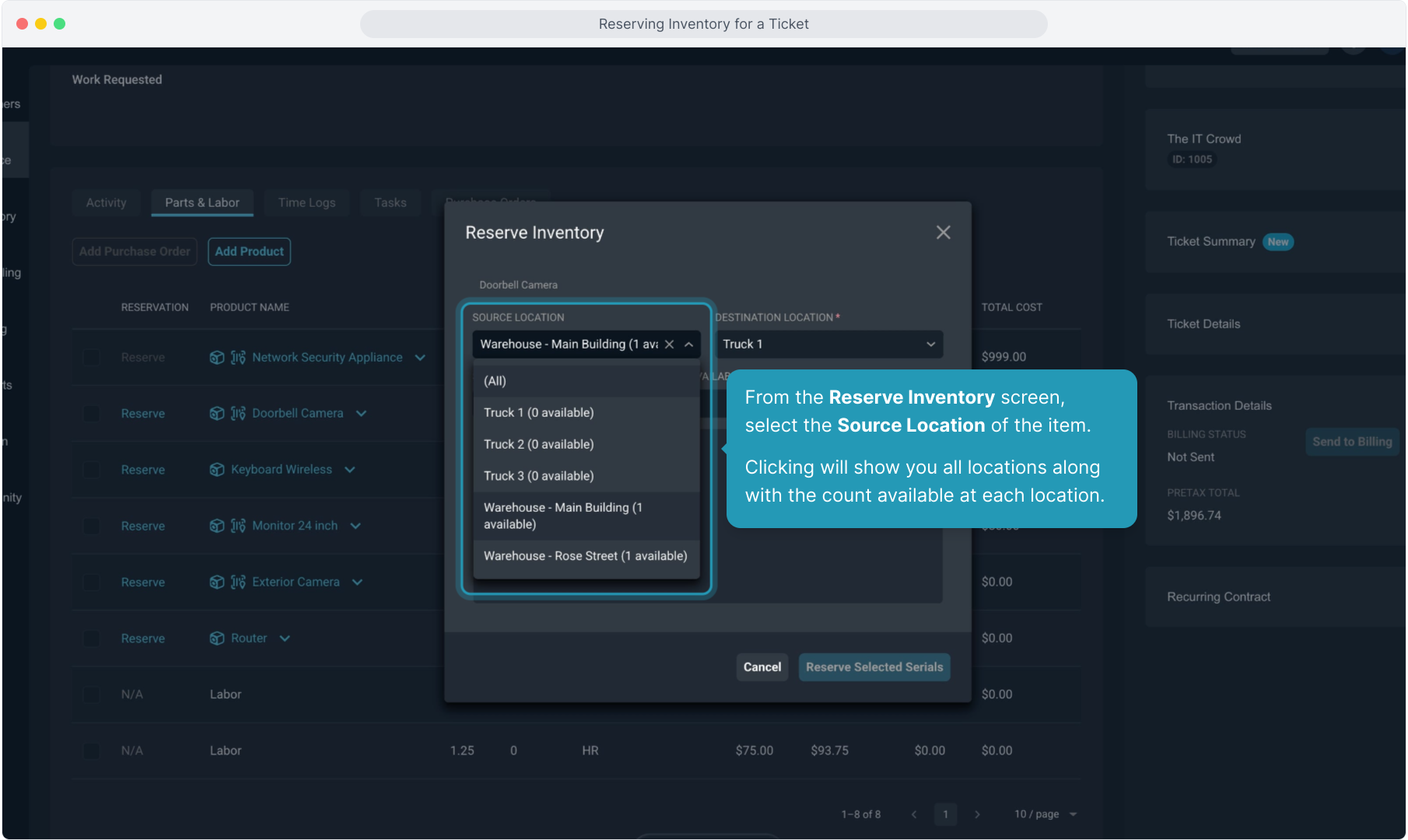
6. From the Reserve Inventory screen, select the Source Location of the item.
Clicking will show you all locations along with the count available at each location.
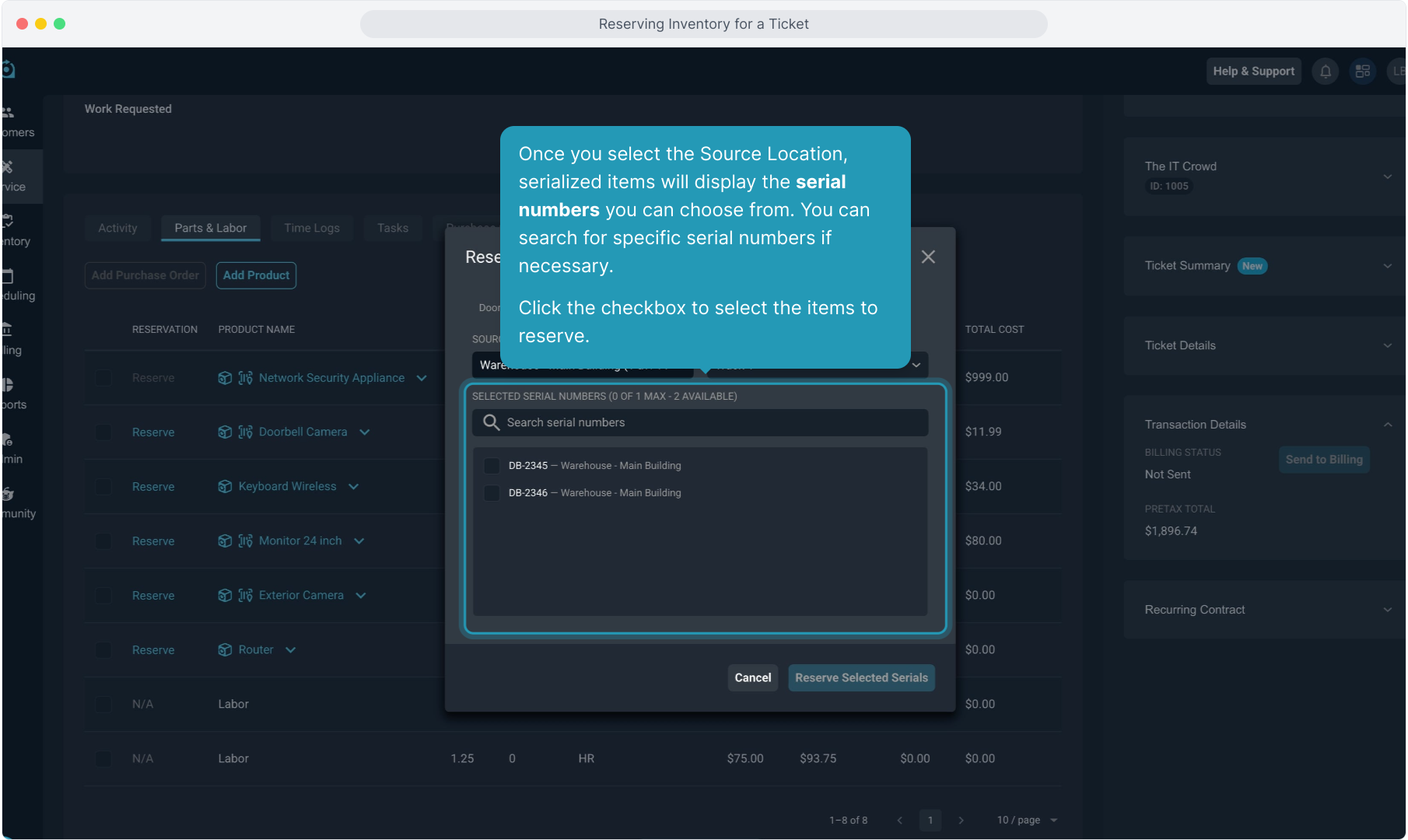
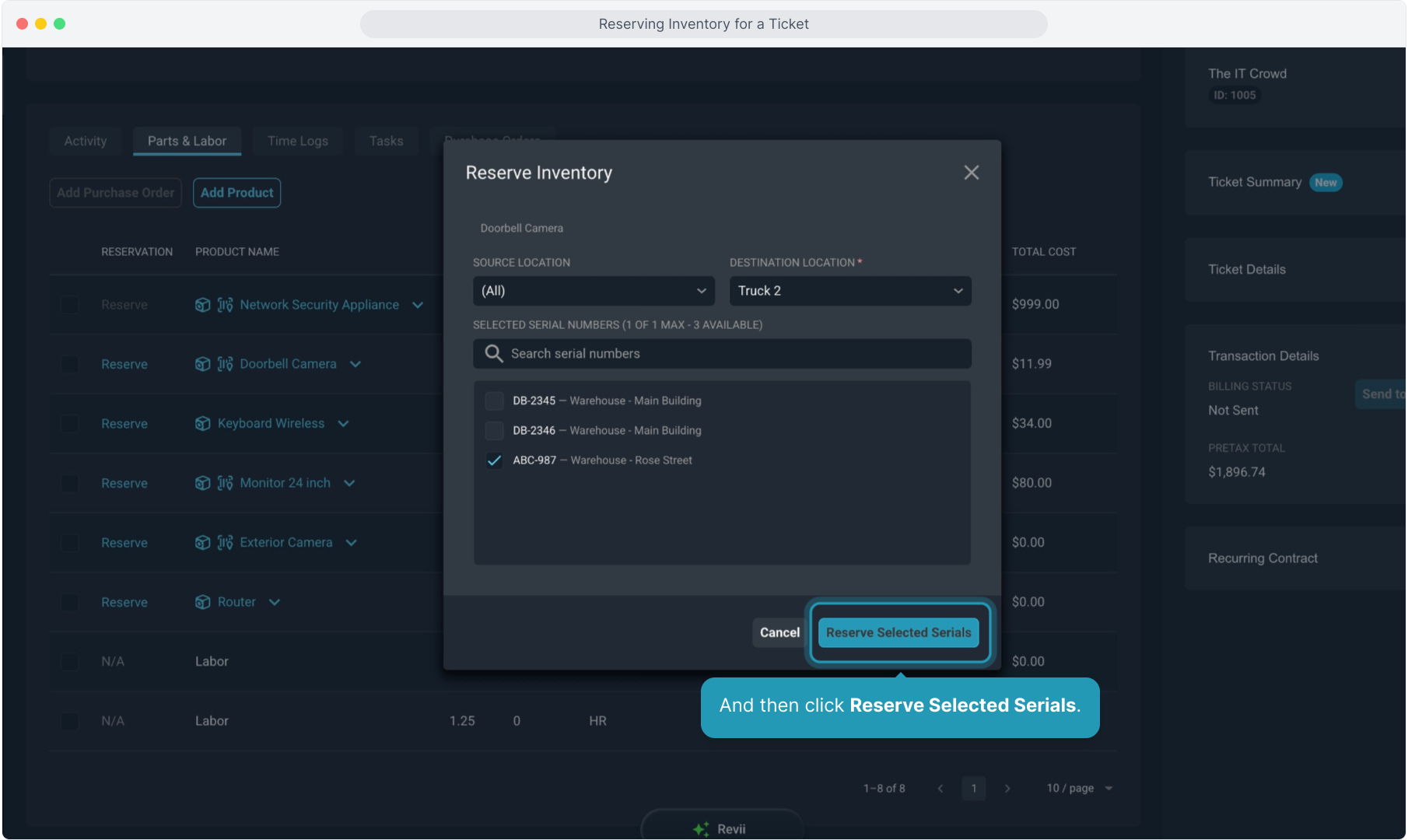
7. Once you select the Source Location, serialized items will display the serial numbers you can choose from. You can search for specific serial numbers if necessary.
Click the checkbox to select the items to reserve.
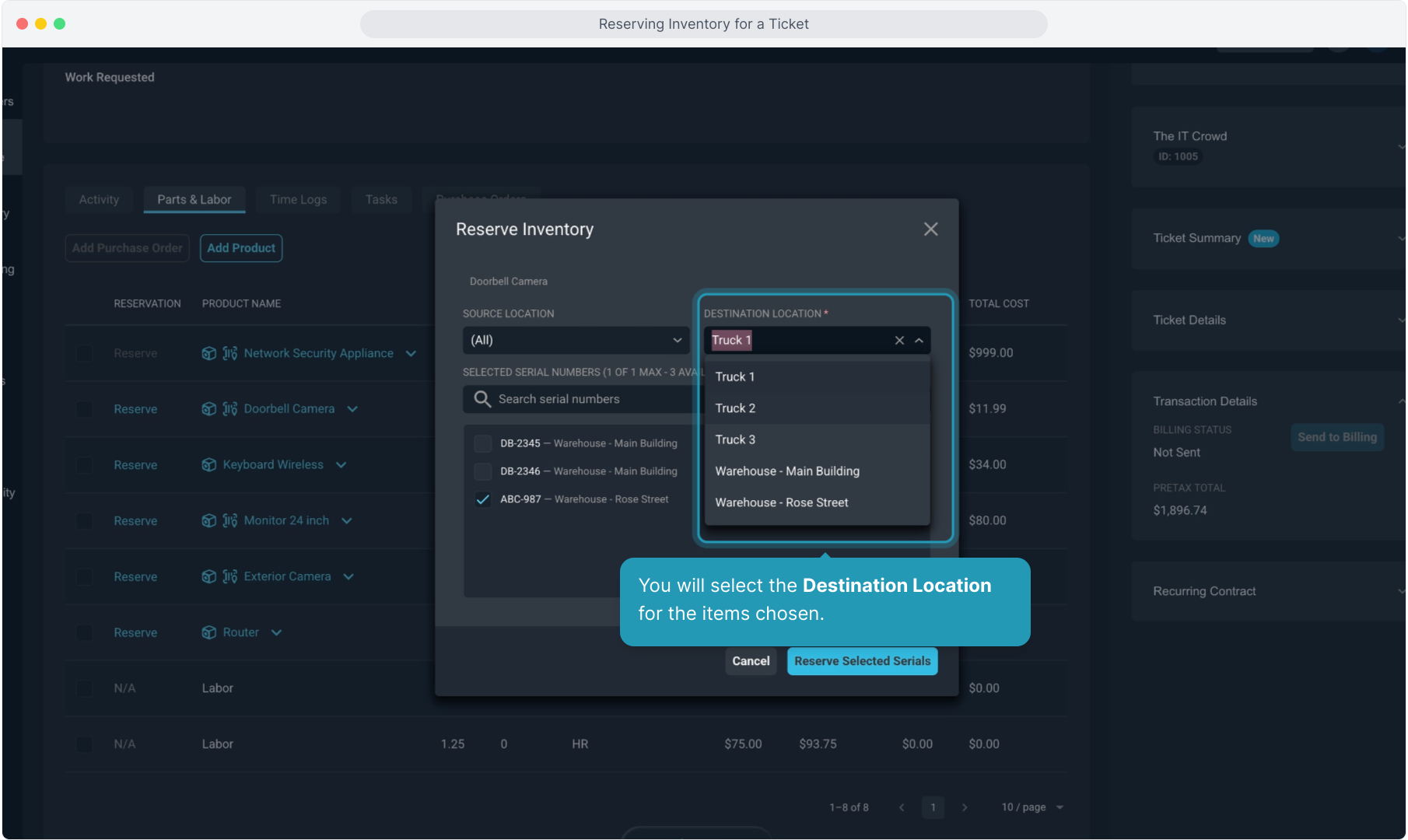
8. You will select the Destination Location for the items chosen.
9. And then click Reserve Selected Serials.
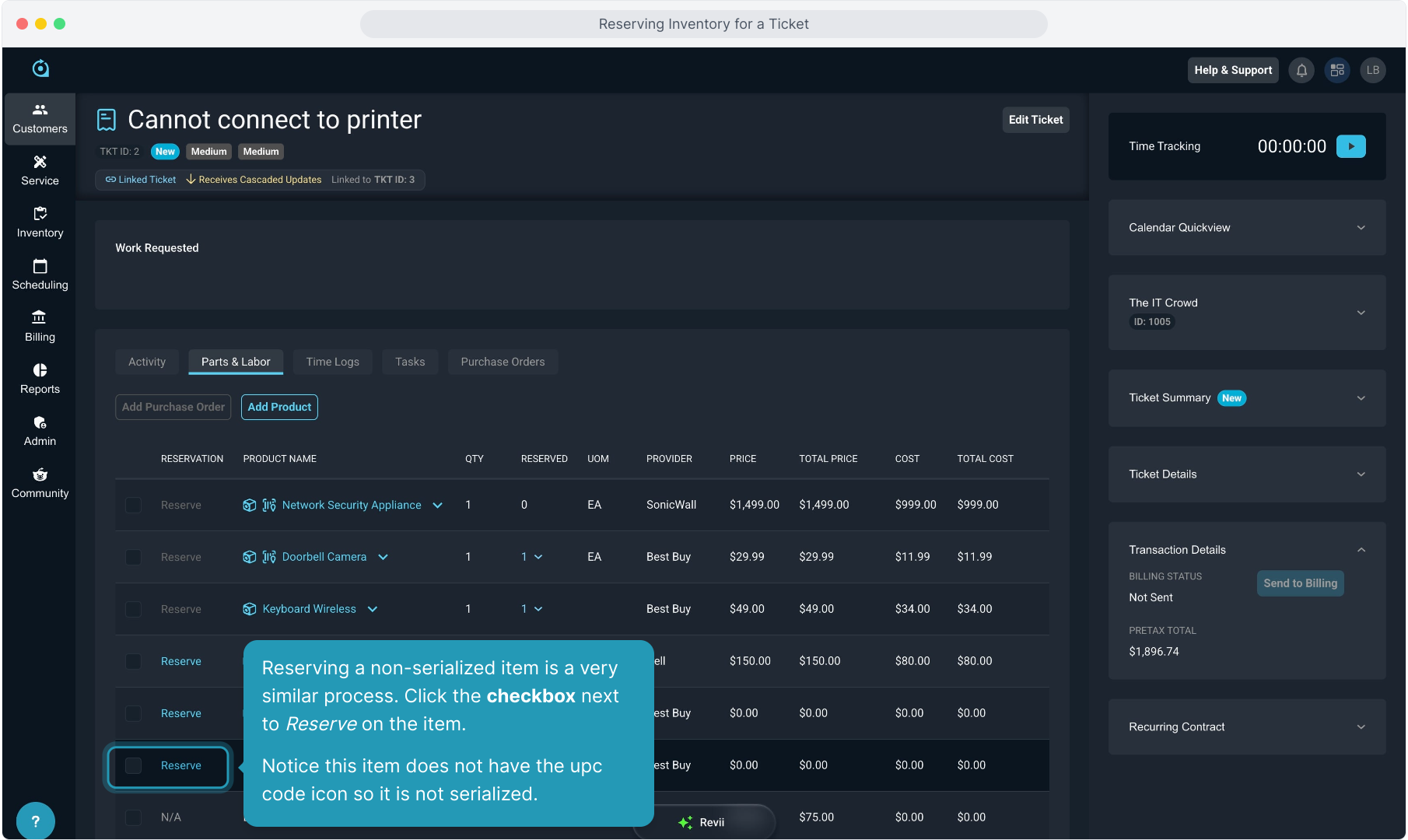
10. Reserving a non-serialized item is a very similar process. Click the checkbox next to Reserve on the item.
Notice this item does not have the upc code icon so it is not serialized.
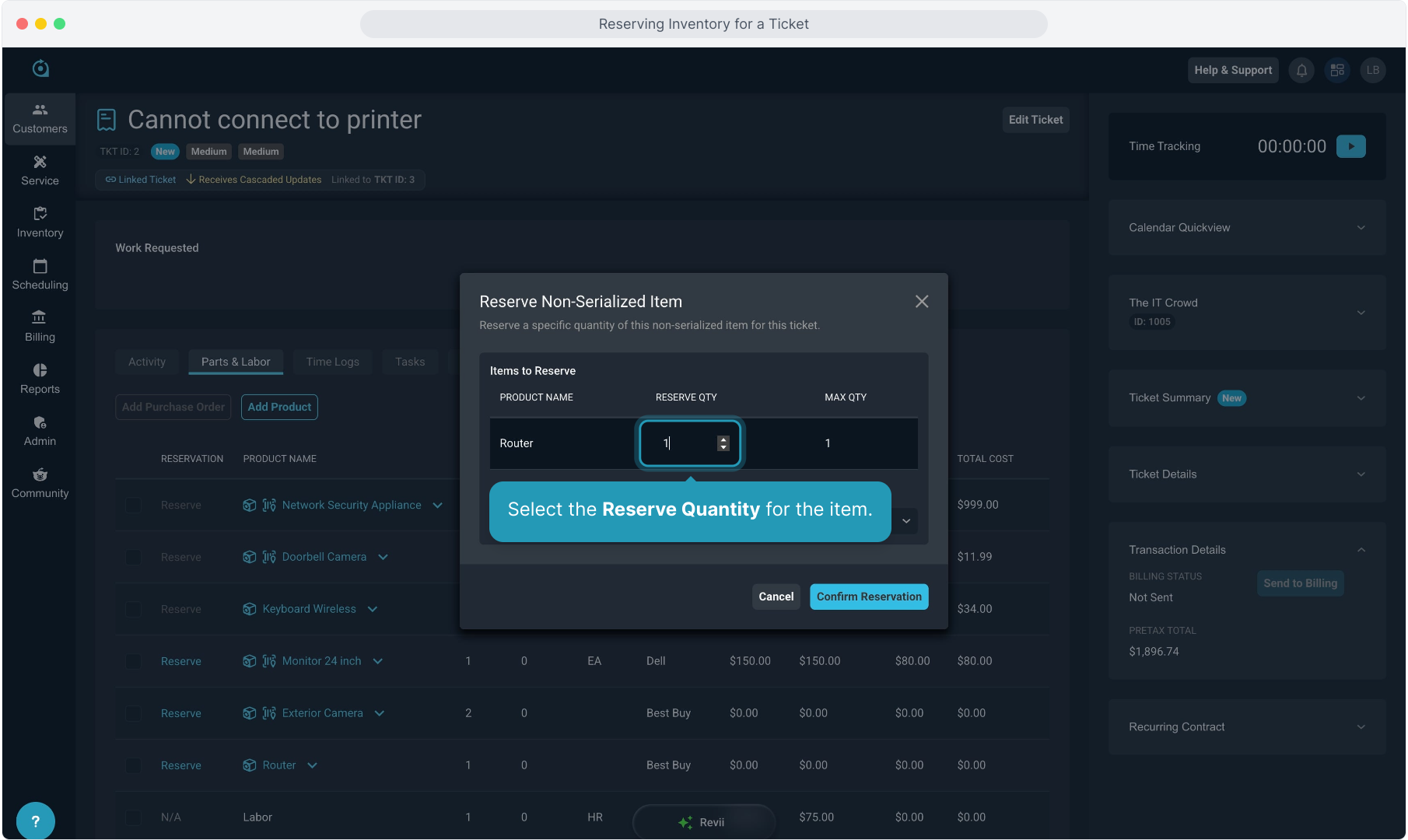
11. Select the Reserve Quantity for the item.
12. Again you will select the Source Location, making note of how many are available at each location.
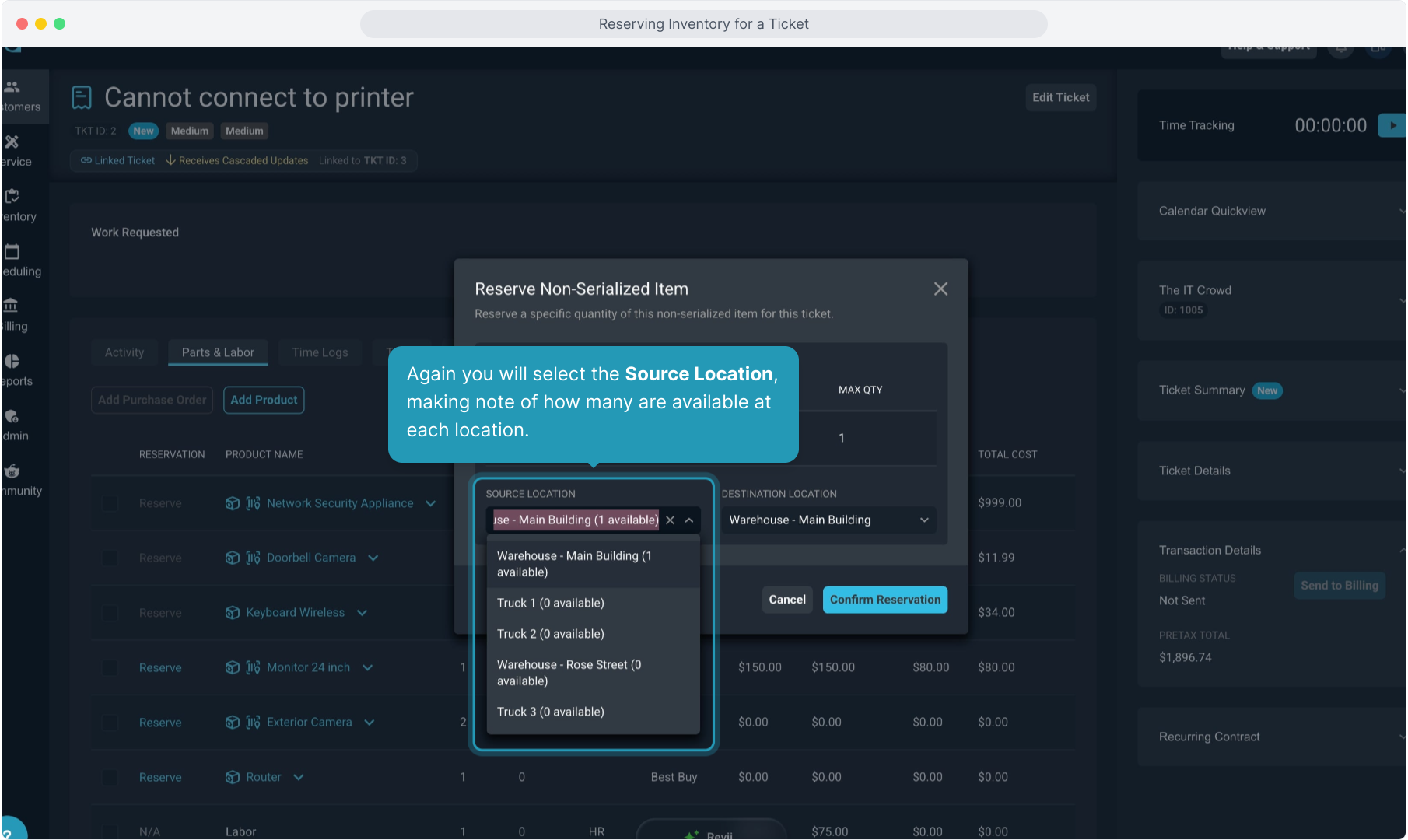
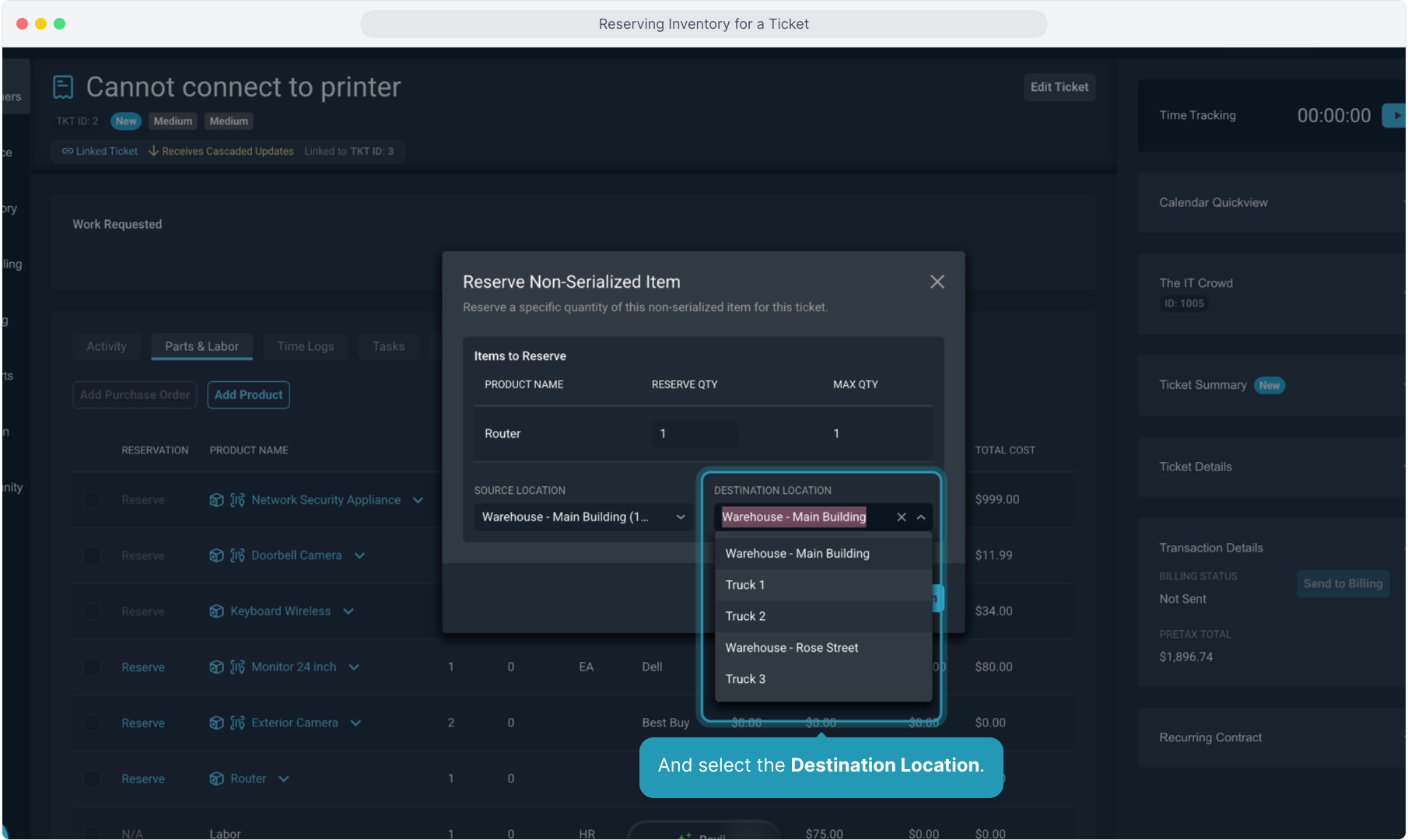
13. And select the Destination Location.
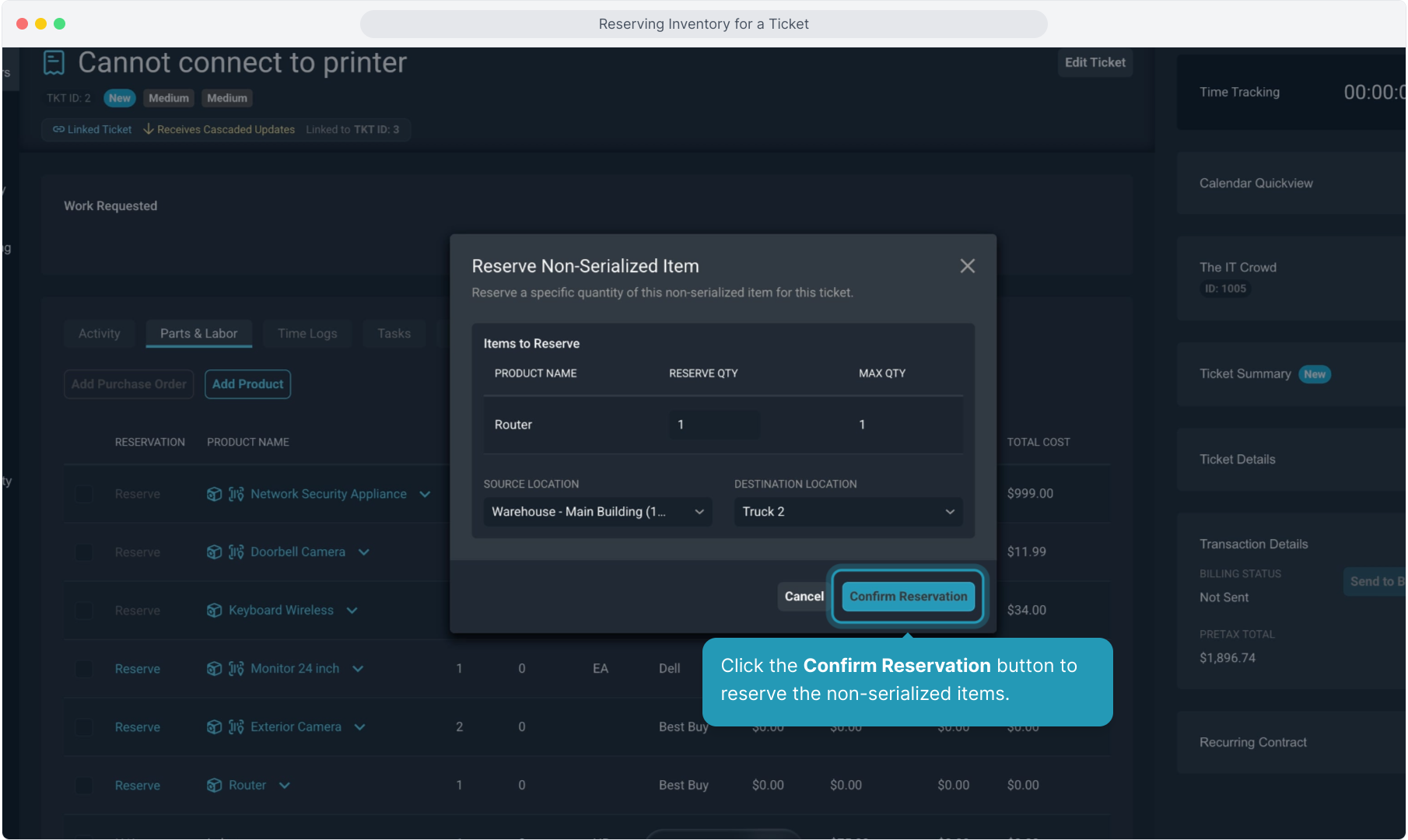
14. Click the Confirm Reservation button to reserve the non-serialized items.
15. Any items that have counts in the Reserved column can be opened by clicking the down arrow to view details of the reservation.
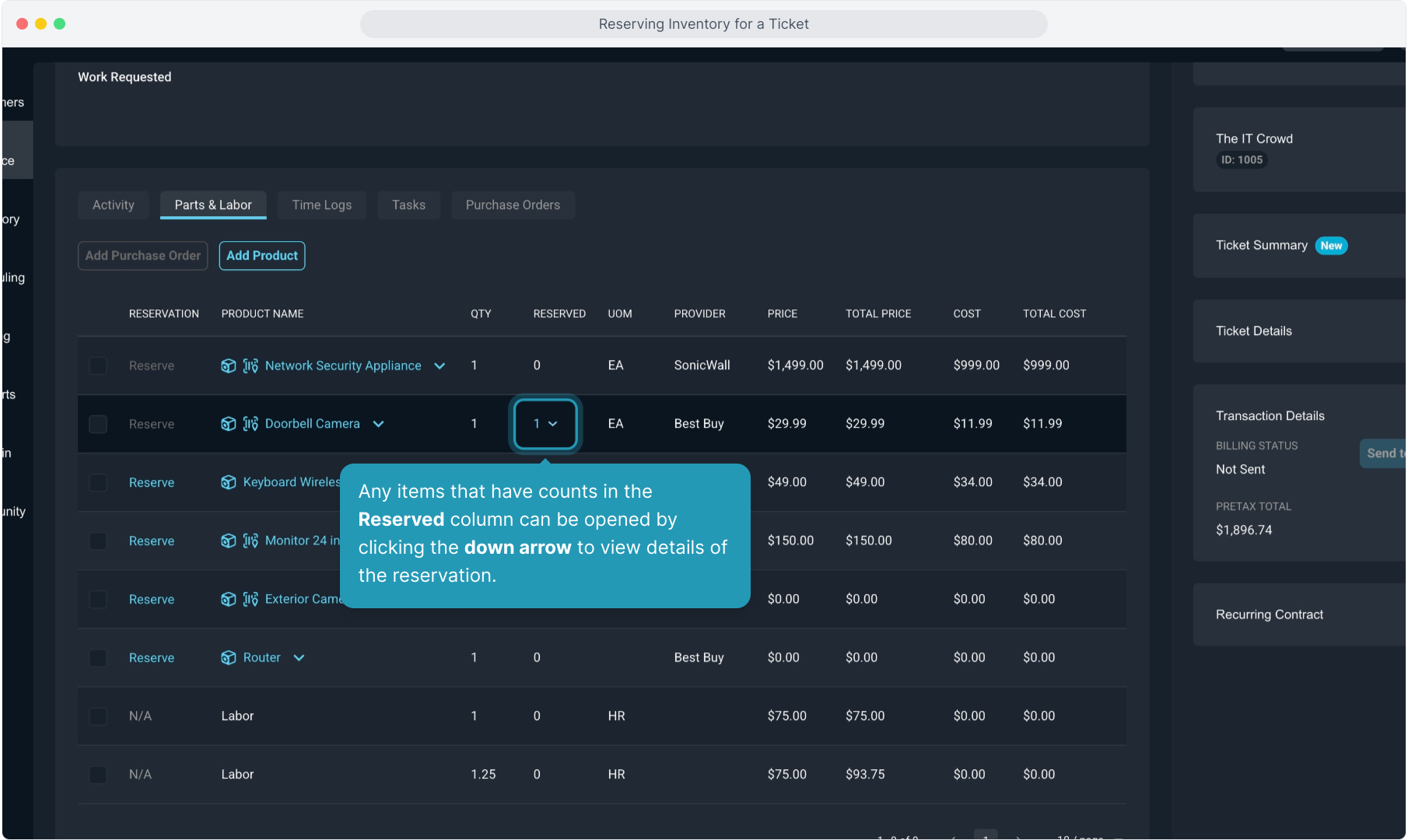
16. Details will display about the reserved item, including the Source and Destination Locations, as well as serial numbers if it is a serialized item.
To remove the reservation, click the trash can icon.

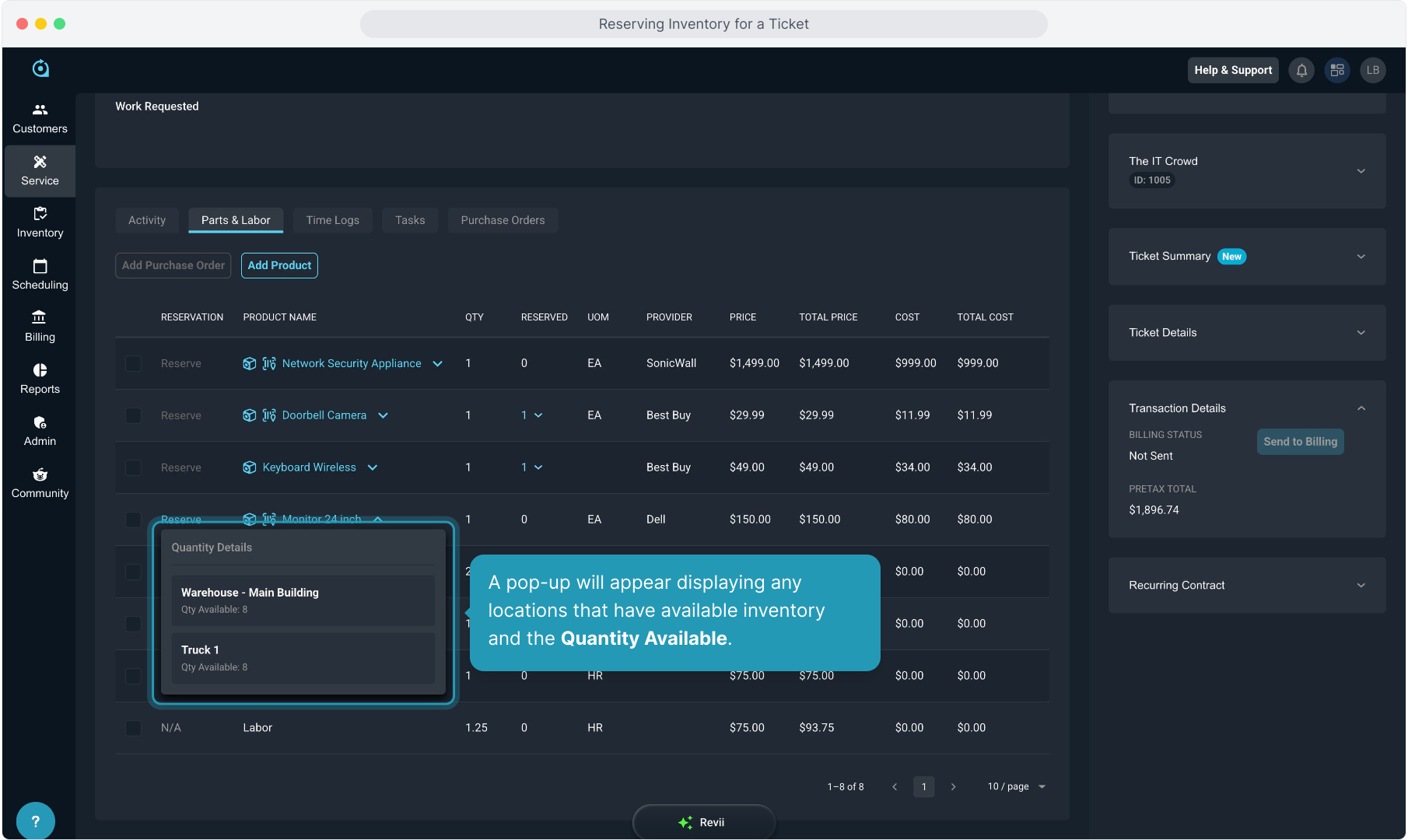
17. To view available inventory on any item on the screen, you can click the down arrow on the product.
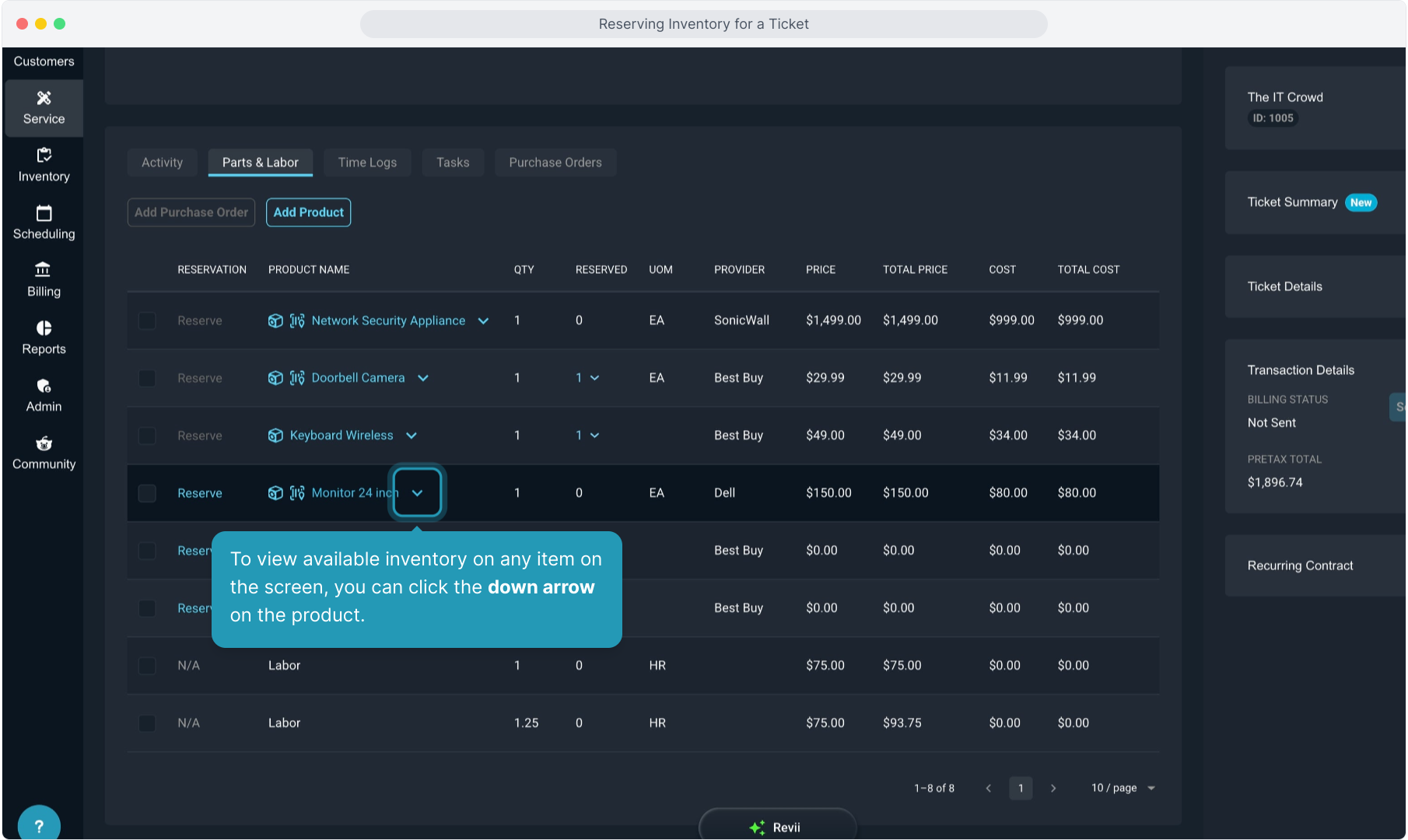
18. A pop-up will appear displaying any locations that have available inventory and the Quantity Available.
19. To view all existing reservations globally across your system, you'll navigate to the Inventory Management screen from the Inventory main menu item. From there, select the Reservations option.
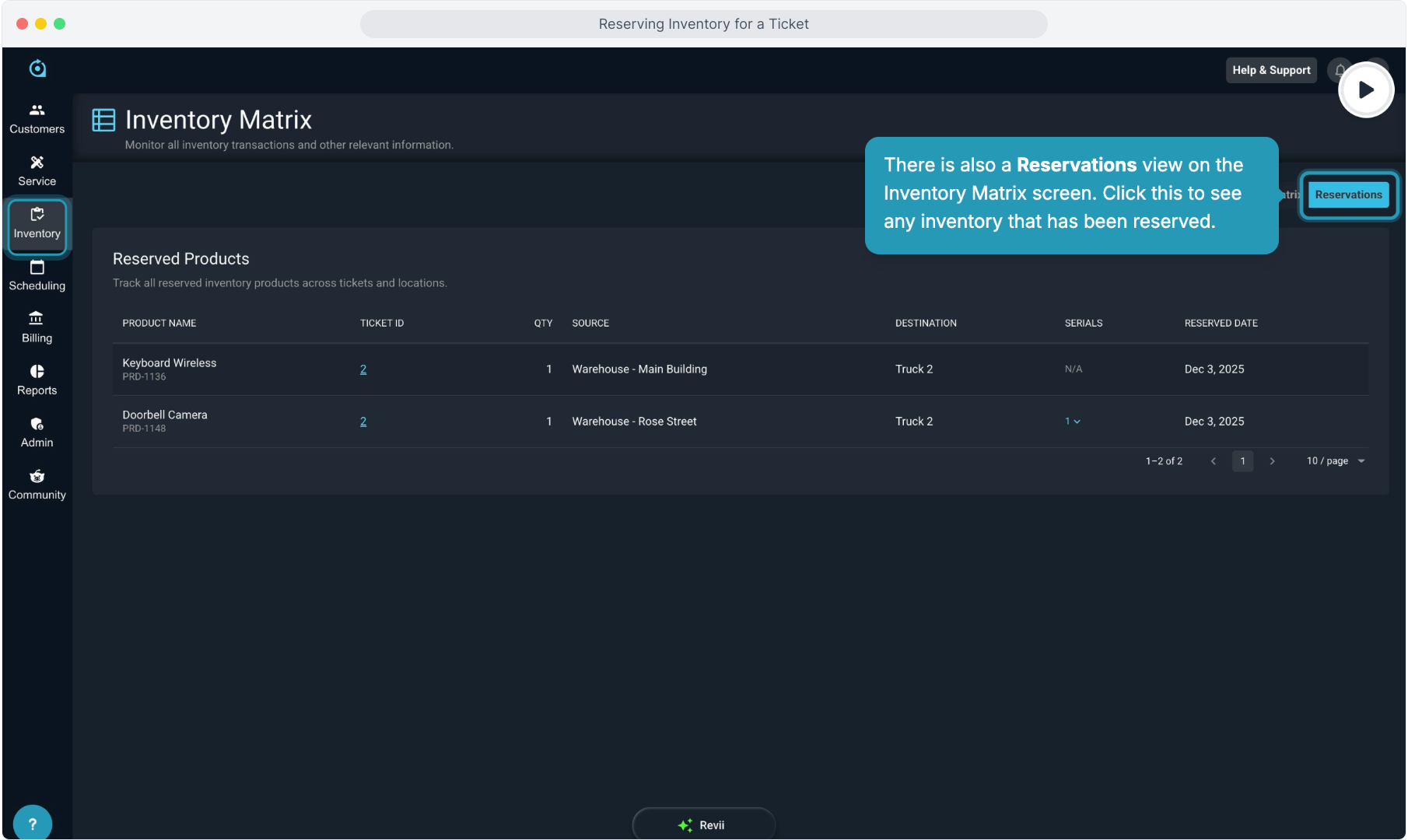
20. You'll see details about the product, the corresponding ticket ID, and the location information. This screen displays both serialized and non-serialized items, but for serialized items you can click the down arrow on the quantity shown in the Serials column to display the exact serial numbers reserved.
