How To Guide: Quoting a Customer with No Recurring Services
1. Introduction
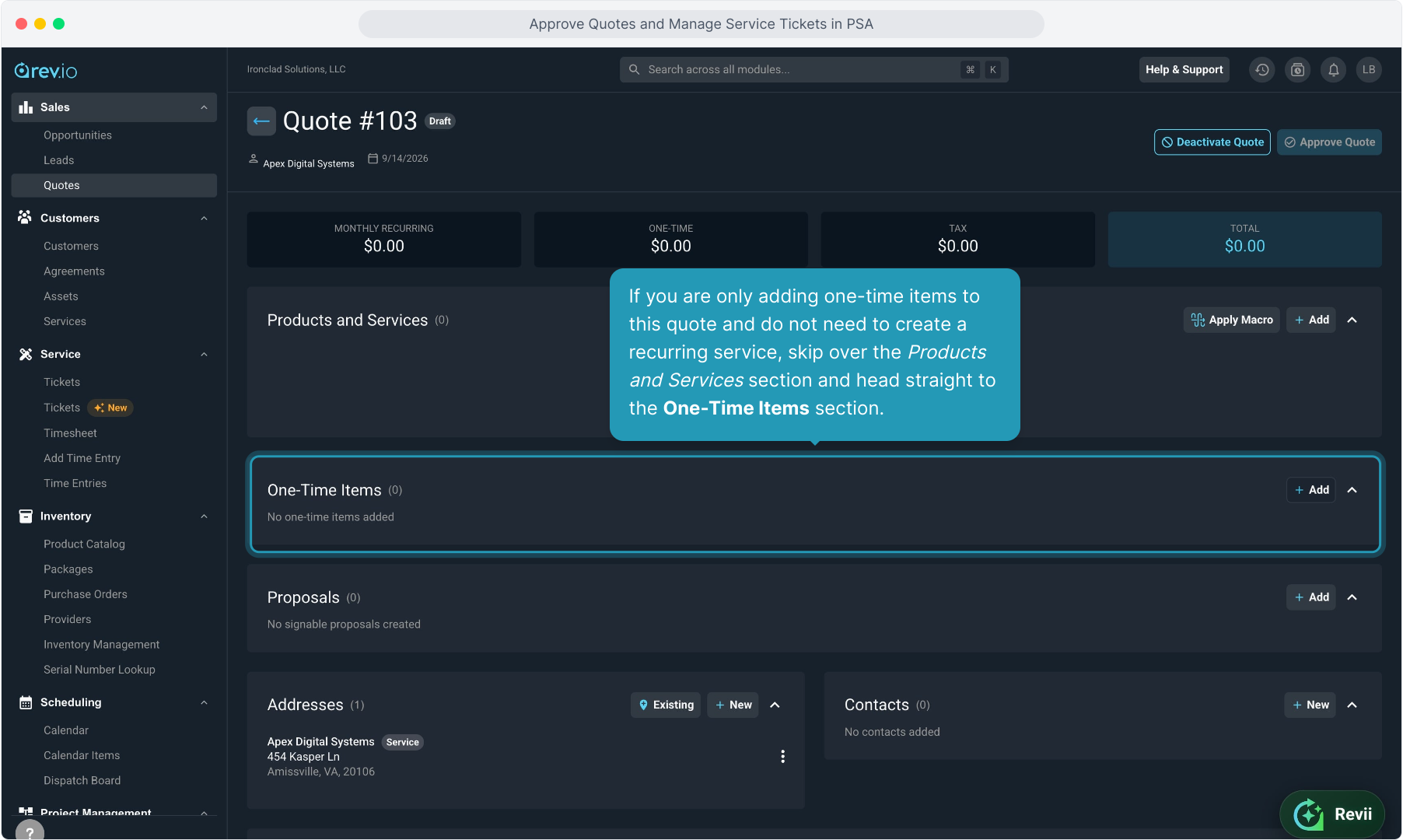
2. If you are only adding one-time items to this quote and do not need to create a recurring service, skip over the Products and Services section and head straight to the One-Time Items section.
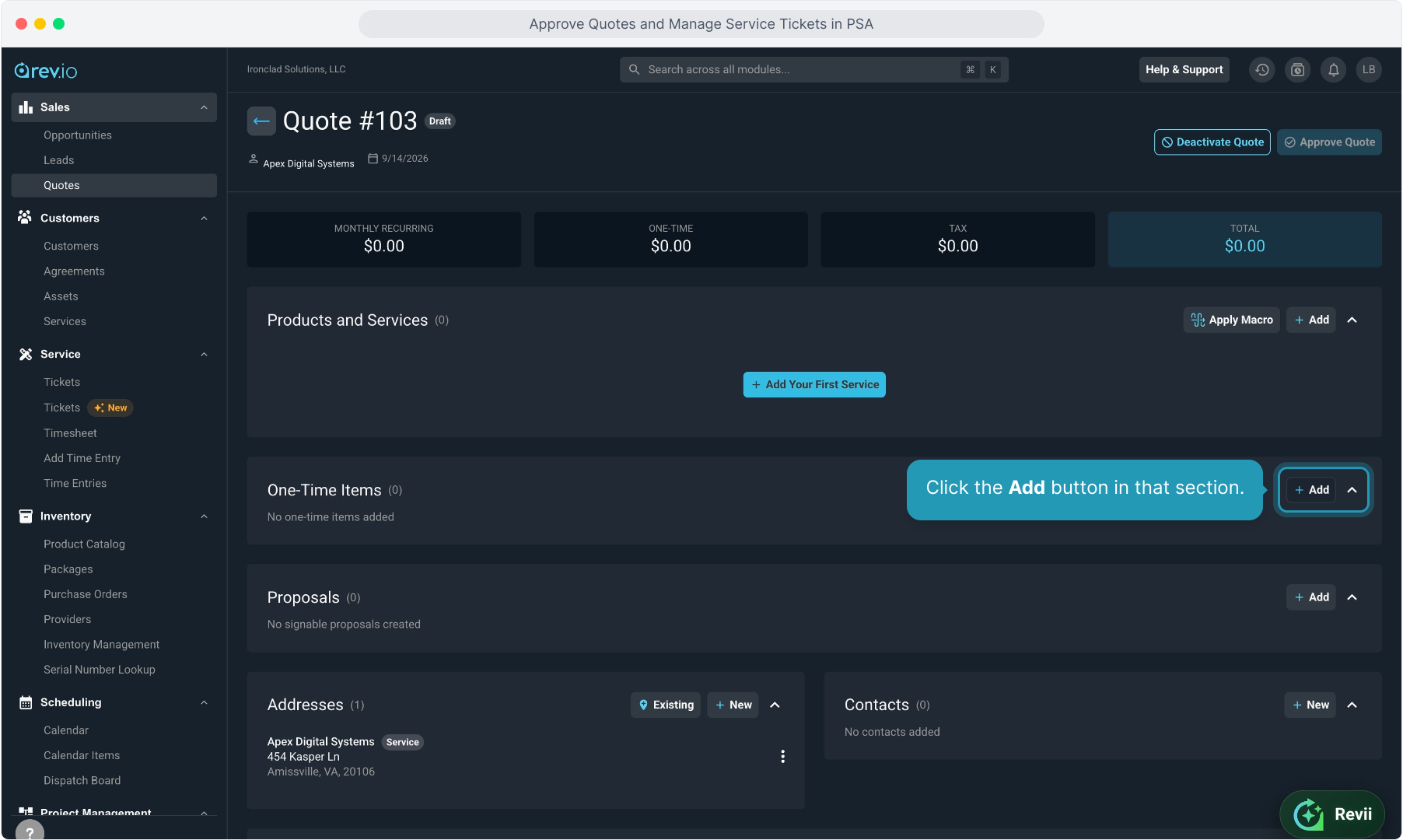
3. Click the Add button in that section.
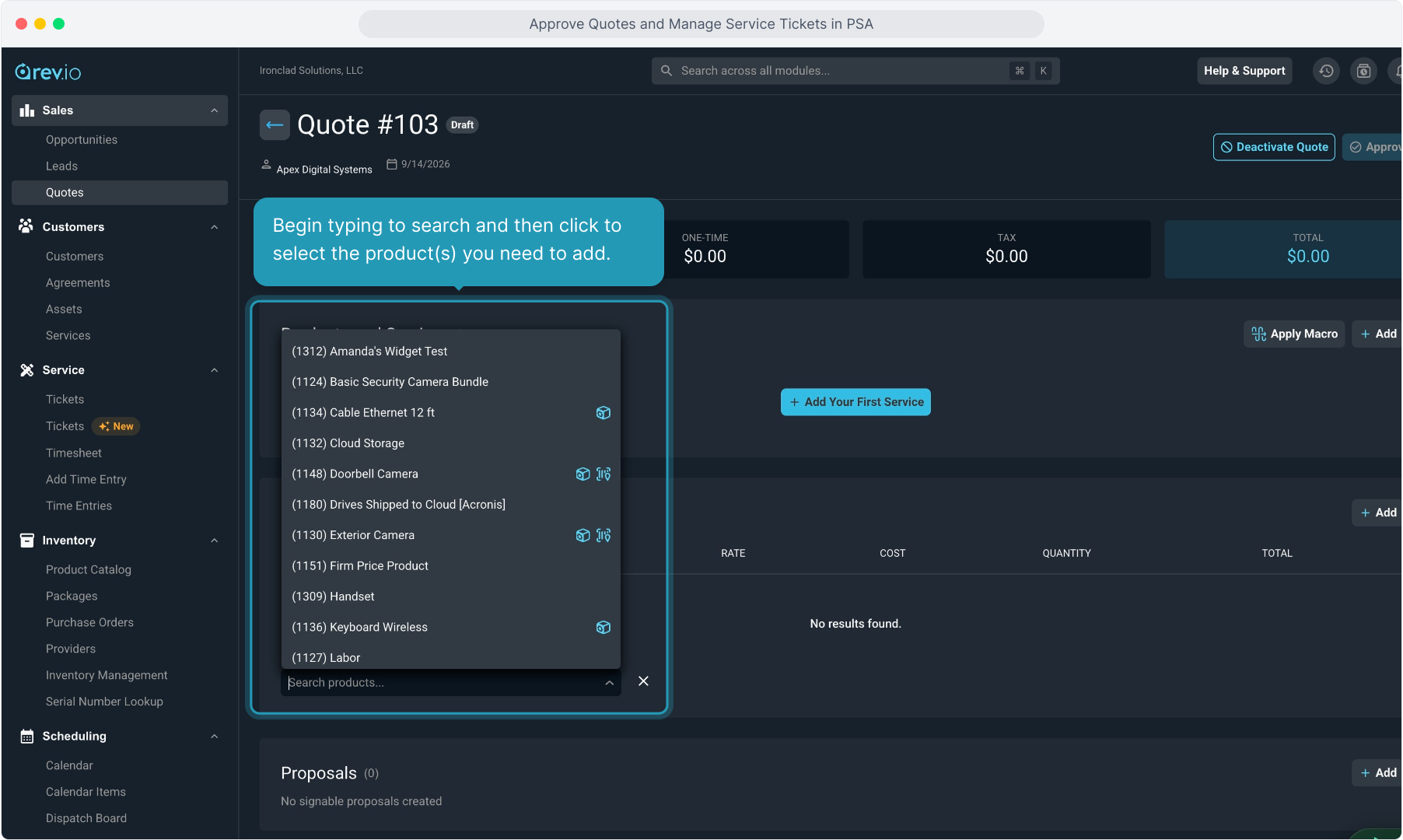
4. Begin typing to search and then click to select the product(s) you need to add.
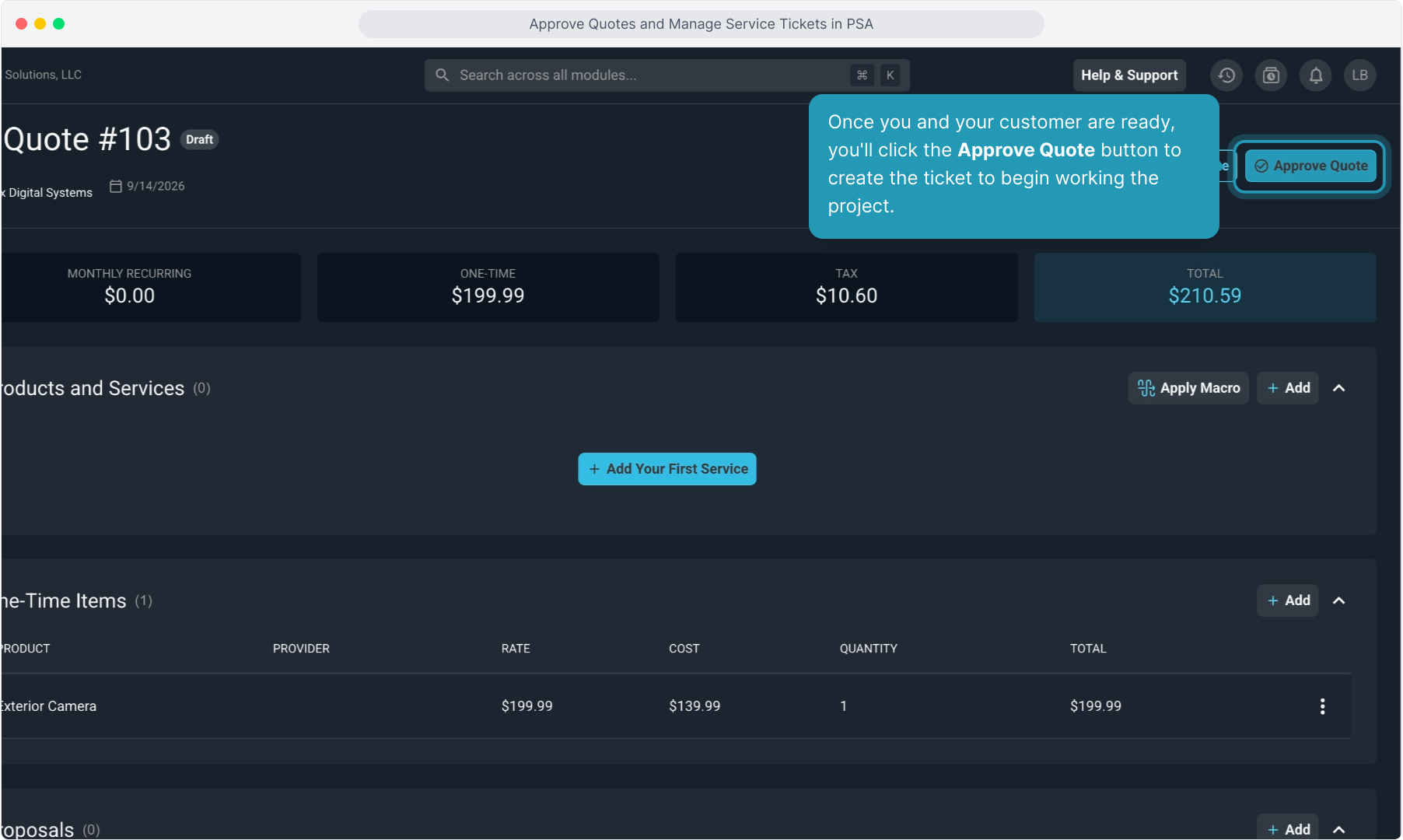
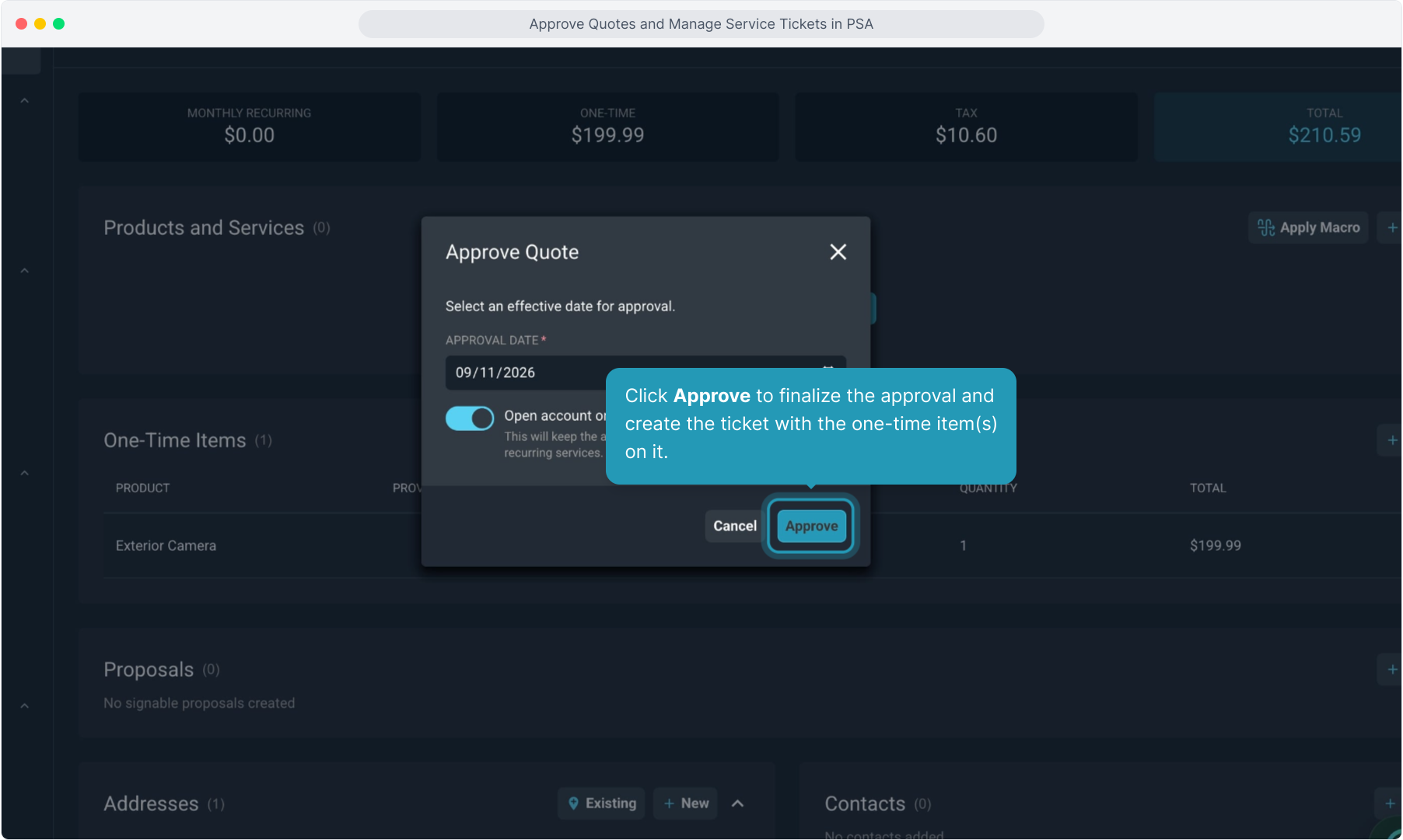
5. Once you and your customer are ready, you'll click the Approve Quote button to create the ticket to begin working the project.
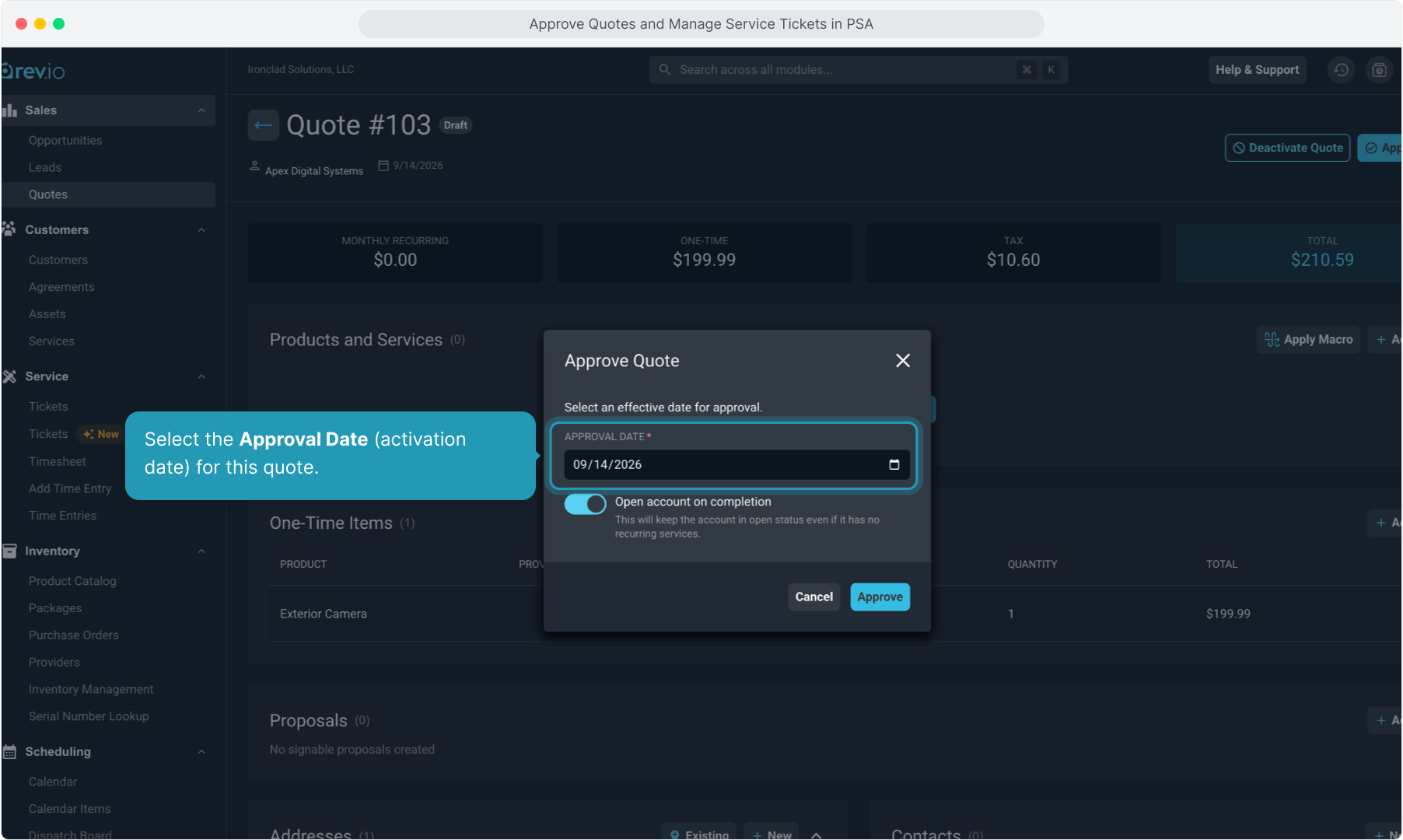
6. Select the Approval Date (activation date) for this quote.
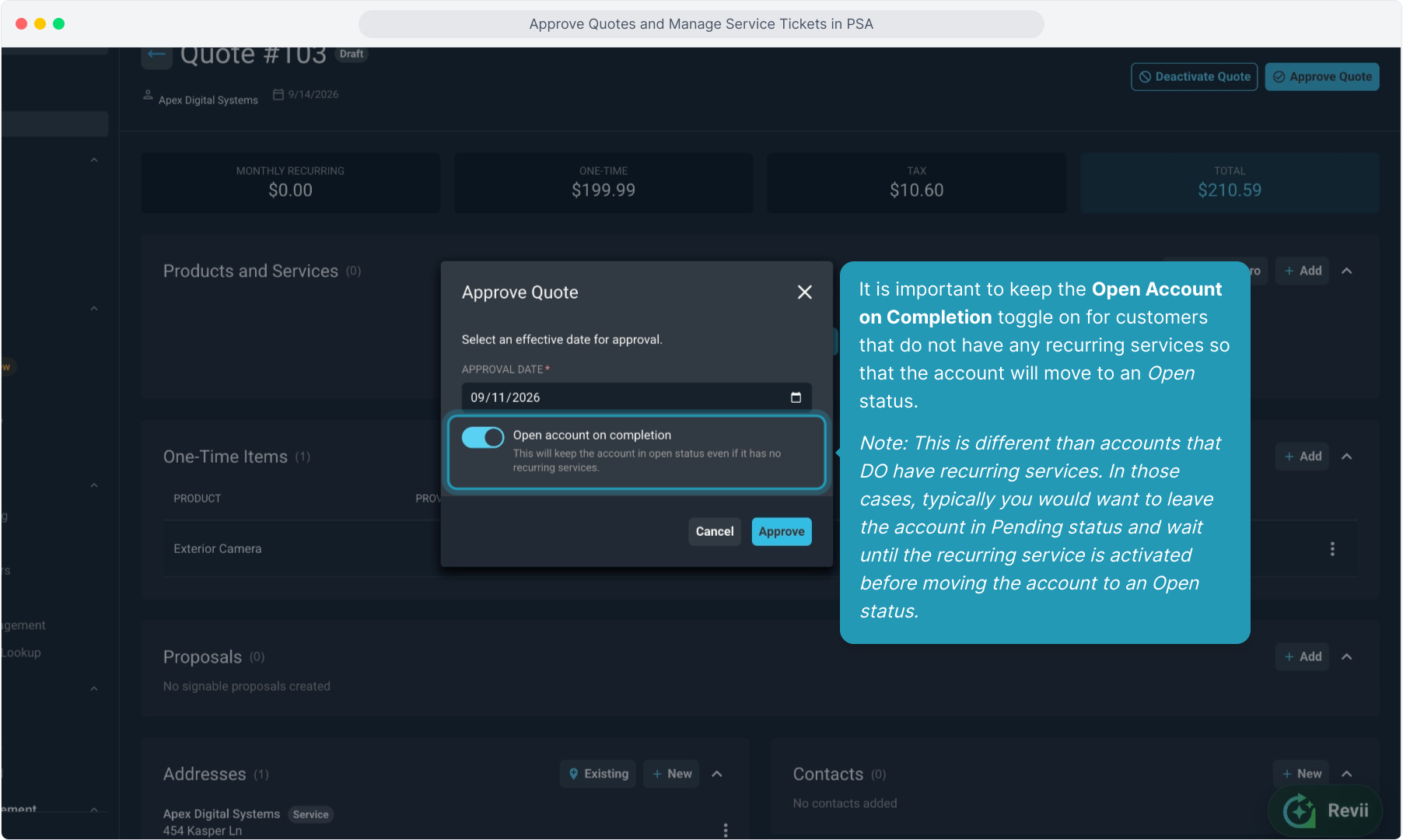
7. It is important to keep the Open Account on Completion toggle on for customers that do not have any recurring services so that the account will move to an Open status.
Note: This is different than accounts that DO have recurring services. In those cases, typically you would want to leave the account in Pending status and wait until the recurring service is activated before moving the account to an Open status.
8. Click Approve to finalize the approval and create the ticket with the one-time item(s) on it.
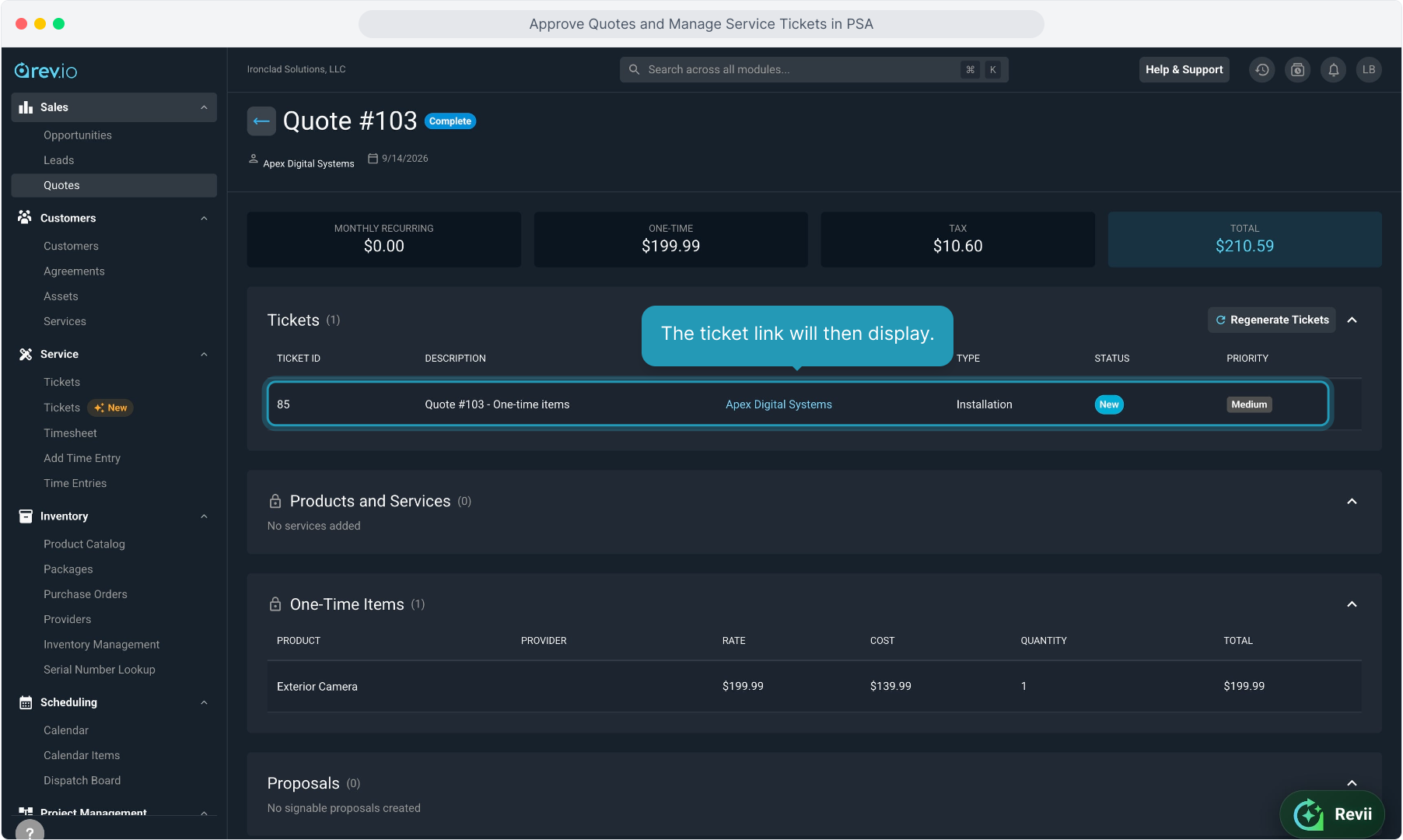
9. The ticket link will then display.
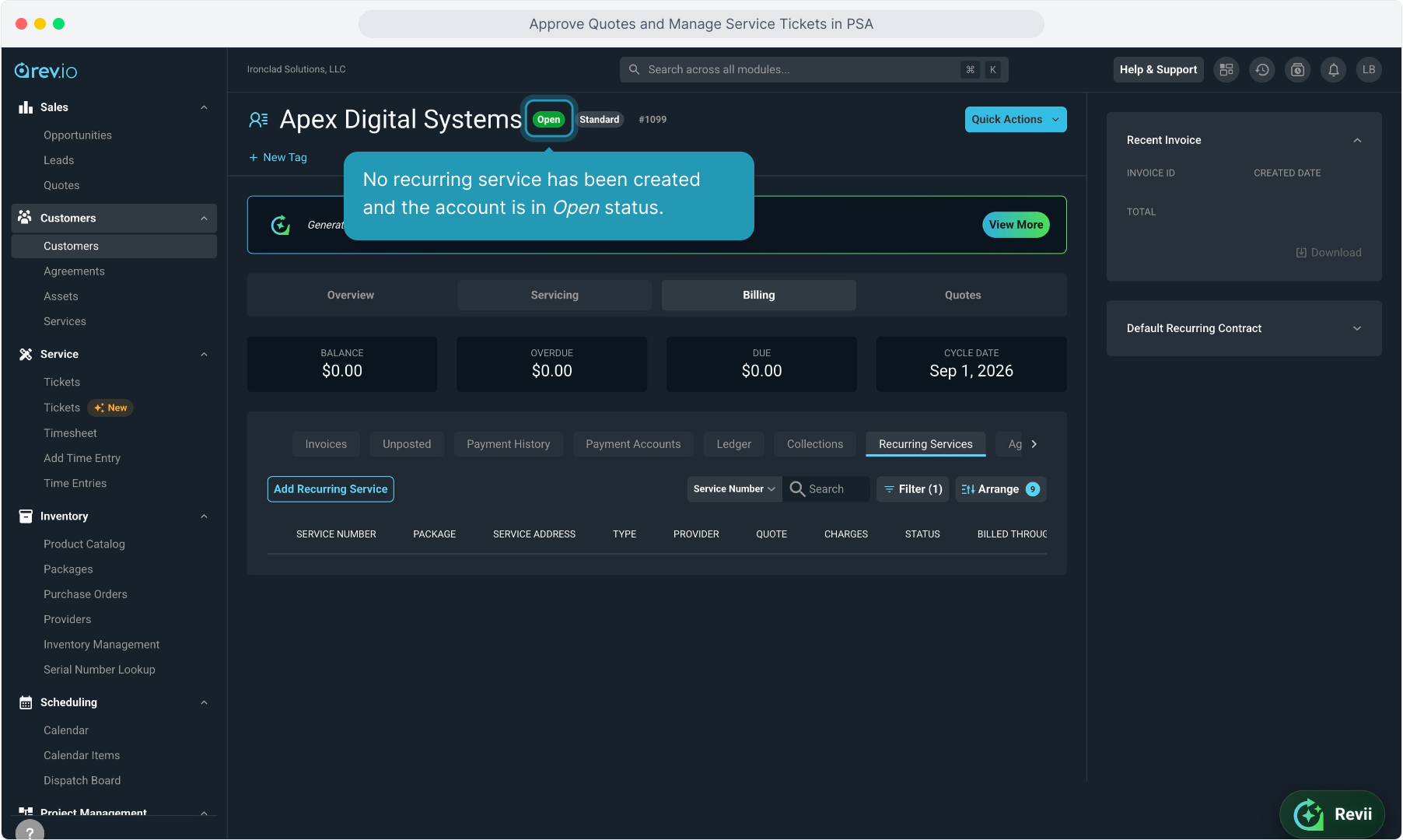
10. No recurring service has been created and the account is in Open status.
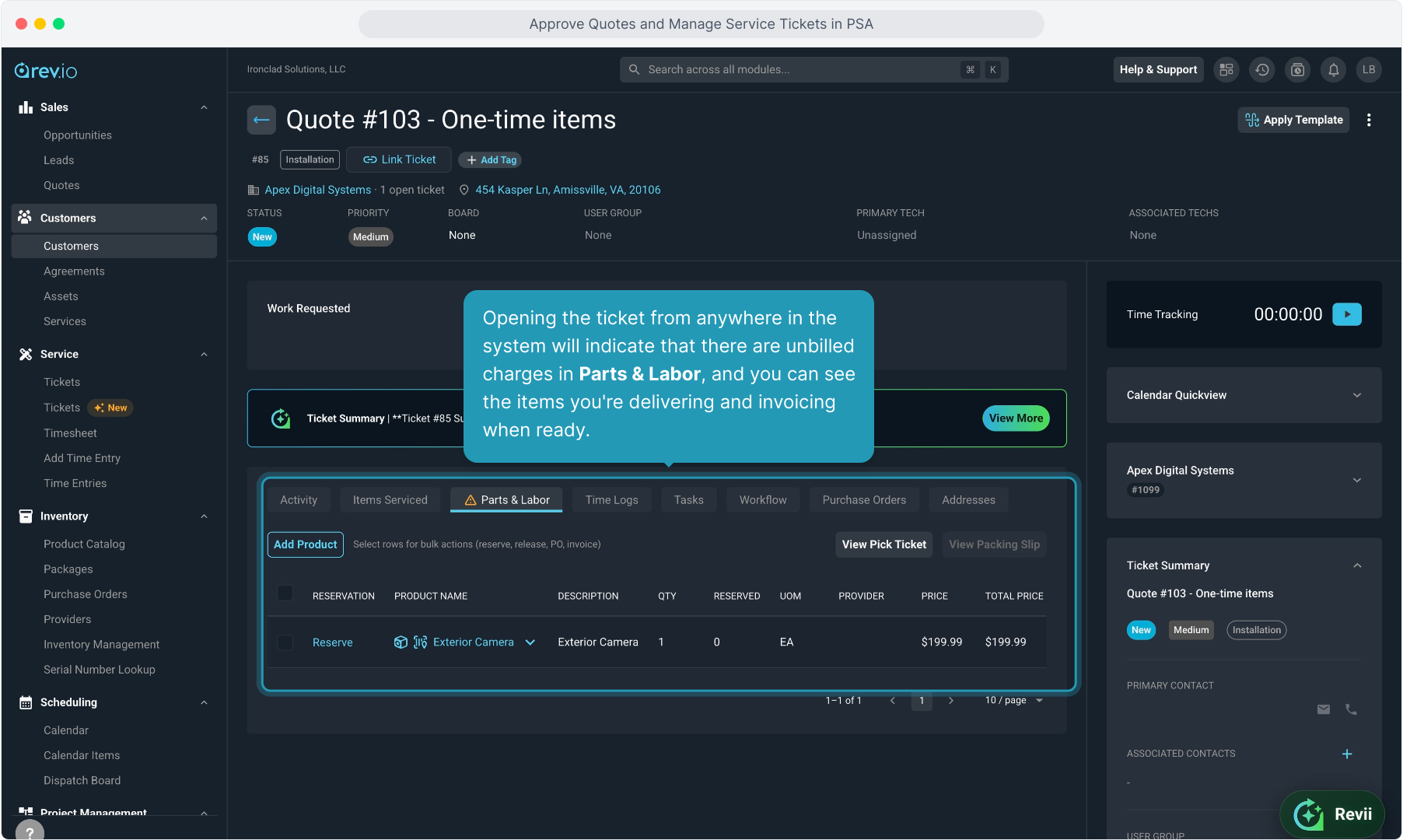
11. Opening the ticket from anywhere in the system will indicate that there are unbilled charges in Parts & Labor, and you can see the items you're delivering and invoicing when ready.