
Project Details: Overview Tab
The Overview tab provides a high-level snapshot of the project, displaying the project description, milestones, phases, and activity in one place. This view helps you quickly understand the project’s purpose and structure without navigating into individual tasks or tickets. It’s designed to give clear context and visibility into how the project is organized from start to finish.
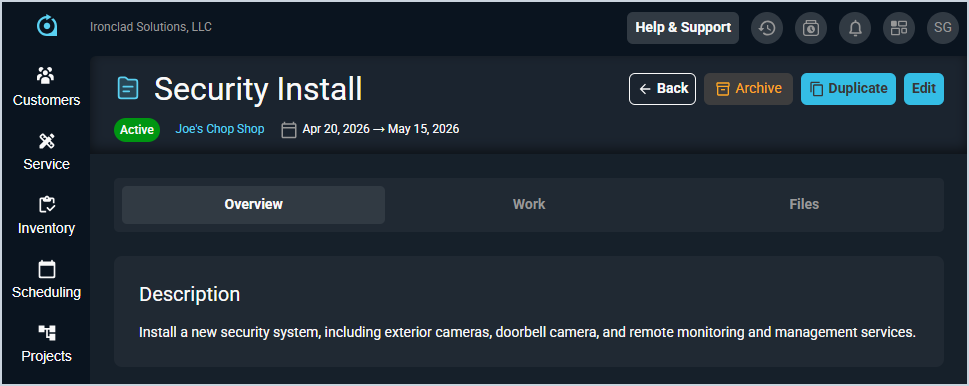
Description
The Description section displays the project description entered when creating or editing the project.
Milestones
The Milestones section displays all milestones associated with the project, organized into active and completed milestones.
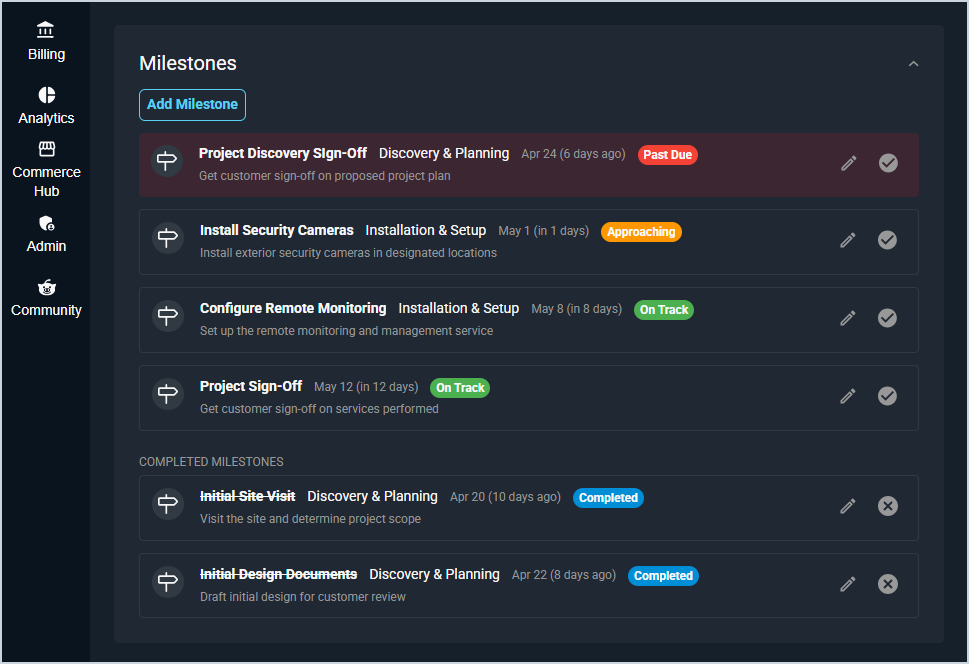
Each field in the Milestones section is defined below.
| No. | Label | Definition |
| 1 | <Milestone Name> | Name of the milestone. |
| 2 | <Phase> | The phase the milestone is associated with. |
| 3 | <Due Date> | The due date of the milestone and the number of days until or since that date. |
| 4 | <Status Badge> | Color-coded badge indicating the current milestone status. Green indicates On Track, orange indicates Approaching, red indicates Past Due, and blue indicates Completed. |
Phases
The Phases section displays all phases associated with the project, including their status, duration, and progress toward task and ticket completion.
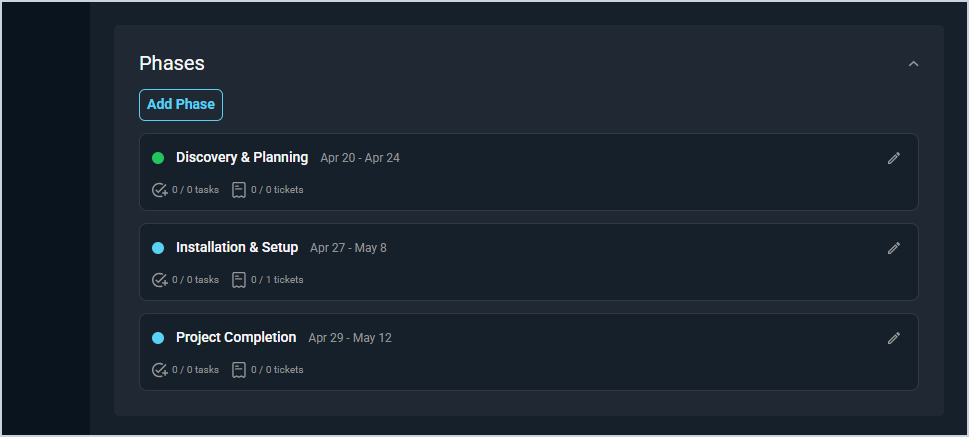
Each field in the Phases section is defined below.
| No. | Label | Definition |
| 5 | <Status> | Colored circle indicating the Status of the phase. Blue indicates Active, green indicates Completed, orange indicates On Hold, and grey indicates Planned. |
| 6 | <Phase Name> | Name of the phase. |
| 7 | <Duration> | Duration of the phase in the format of Start Date to End Date. |
| 8 | <Progress> | Number of hours completed for the phase compared to the number of Planned Hours entered for the phase. |
| 9 | Tasks | Number of tasks completed for the phase compared to the number of tasks created for the phase. |
| 10 | Tickets | Number of tickets completed for the phase compared to the number of tickets created for the phase. |
Activity Feed
The Activity Feed section displays a chronological log of all project activity, automatically capturing events from tickets, tasks, milestones, and team members without requiring manual updates.
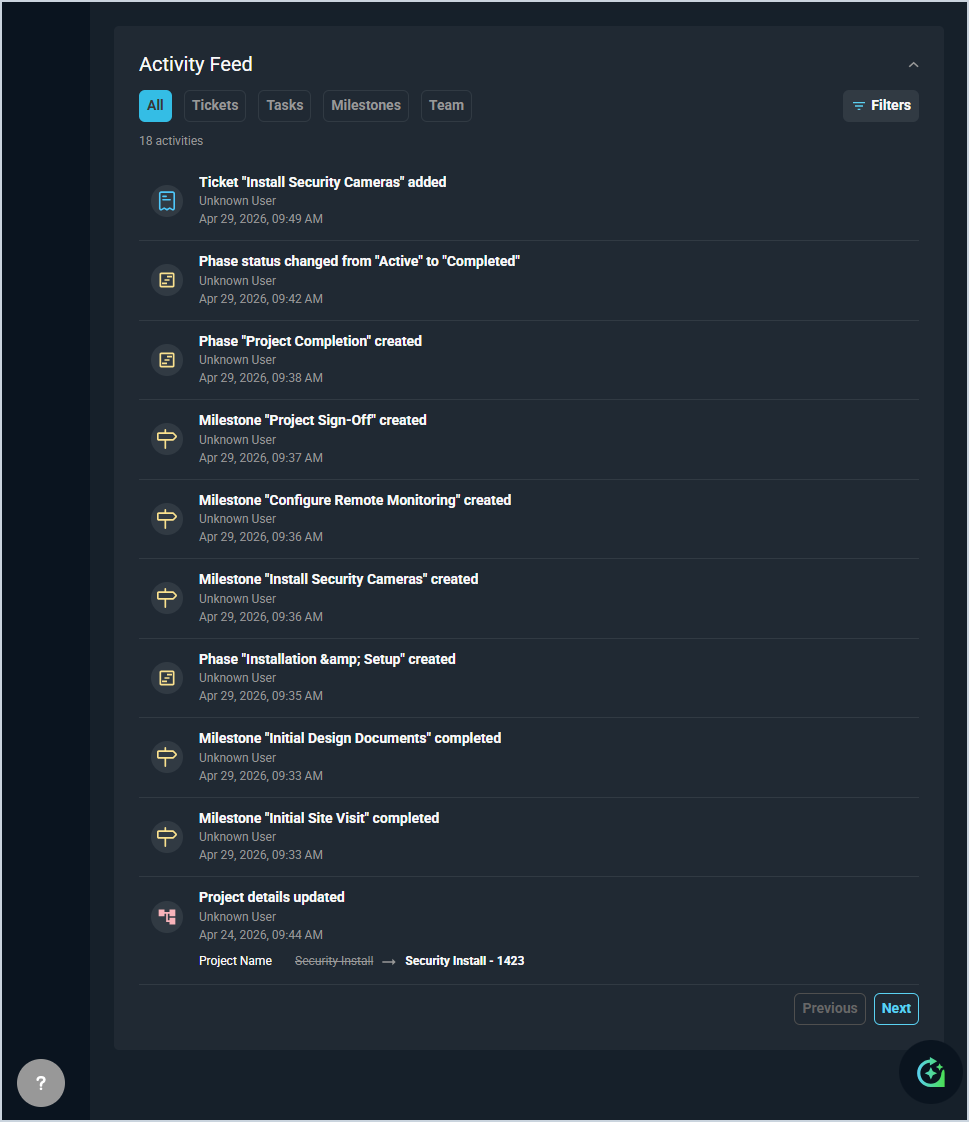
Each field in the Activity Feed section is defined below.
| No. | Label | Definition |
| 11 | <Tab Filters | Five filter tabs that control which category of activity is displayed: All, Tickets, Tasks, Milestones, and Team. All shows every event type in a single chronological list. |
| 12 | <Activity count> | Number of activity entries matching the currently selected tab filter, displayed below the tab bar. |
| 13 | <Icon> | Icon indicating the type of activity entry, such as a ticket, task, or milestone. |
| 14 | <Event Description> | Description of the activity event, such as a ticket being added, a phase status changing, or a milestone being created or completed. Update entries display the previous value followed by the new value. |
| 15 | <User> | Name of the user who performed the action. |
| 16 | <Timestamp> | Date and time the action was performed. |
Available Actions
These actions are available on the Overview tab.
- Add a new milestone by clicking the Add Milestone button. See the Add/Edit Project Milestones article for more information.
- Mark a milestone as complete by clicking the checkmark icon on the milestone row.
- Edit a milestone by clicking the pencil icon on the milestone row. See the Add/Edit Project Milestones article for more information.
- Add a new phase by clicking the Add Phase button. See the Add/Edit Project Phases article for more information.
- Edit a phase by clicking the pencil icon on the phase row. See the Add/Edit Project Phases article for more information.
- Filter activity feed entries by performer and date range by clicking the Filters button in the Activity Feed section. Select a team member from the Performed By dropdown and/or a Date Range to narrow the results, then click Save.
- Reset all active feed filters by clicking Reset in the Filters panel.
Areas on the Project Details Screen
For information on the other areas of the Project Details screen, see the related articles.