
Bulk Product Update: Overview
The Bulk Product Update tool allows you to update multiple existing products in your Rev.io catalog at once by uploading a CSV or Excel file. This is useful when making changes to a large number of products and eliminates the need to update them one at a time. The Bulk Product Update tool is accessible from Admin > Bulk Tools > Bulk Product Update.
The update process runs through four steps: Upload File, Validate, Review, and Results.
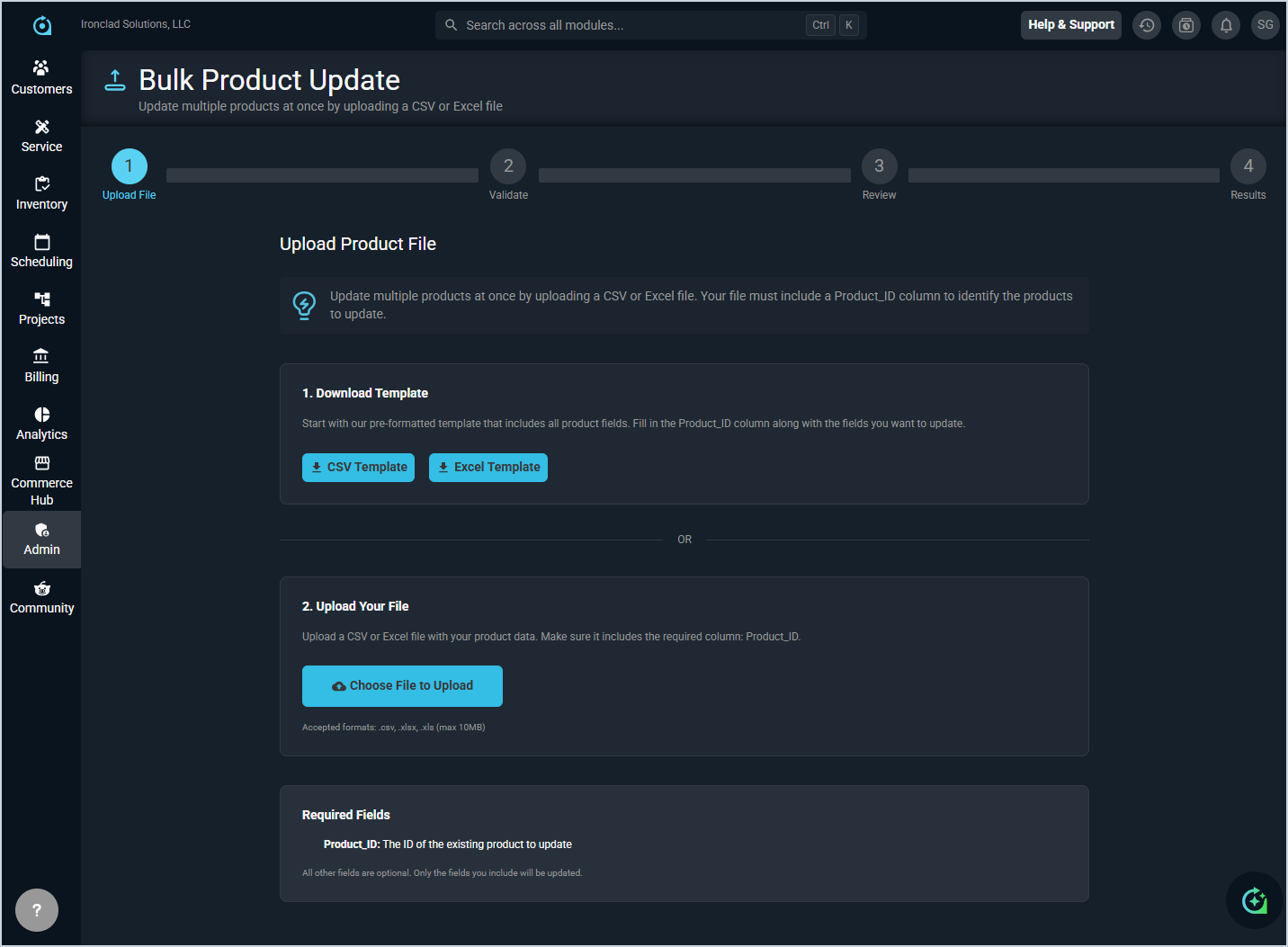
Step 1: Upload File
In the Upload File step, prepare and upload your product file. You can either download a pre-formatted template and fill it out, or upload your own file as long as it includes the required column.
- Download a pre-formatted template by clicking the CSV Template or Excel Template button. The template includes all available product fields. Fill in the Product_ID column along with the fields you want to update.
- Upload your completed file by clicking the Choose File to Upload button. Accepted formats are .csv, .xlsx, and .xls with a maximum file size of 10MB.
Your file must include the following required column.
- Product_ID: The ID of the existing product to update.
All other fields are optional. Only the fields you include in your file will be updated.
Step 2: Validate
In the Validate step, Rev.io checks your file for errors and confirms that all required fields are present and correctly formatted before the update runs.
Step 3: Review
In the Review step, you can review the records that will be updated before committing to the import.
Step 4: Results
The Results step displays the outcome of the update, including the number of records successfully updated and any records that failed. See the Bulk Operation History: Overview article for more information on reviewing past update results.