
Assigning Telephone Numbers to Recurring Services
You can assign telephone numbers from your number groups to a customer's recurring service. Assigned numbers are listed with the service under Associated DIDs, and you can add or remove them at any time.
Follow these steps to assign numbers to a recurring service.
- Open the customer's profile.
- Click the Billing section.
- Click the Recurring Services tab.
- Locate the service and click the dropdown arrow to expand its product information.
- Review the Associated DIDs section, which shows the total number of numbers assigned to the service.
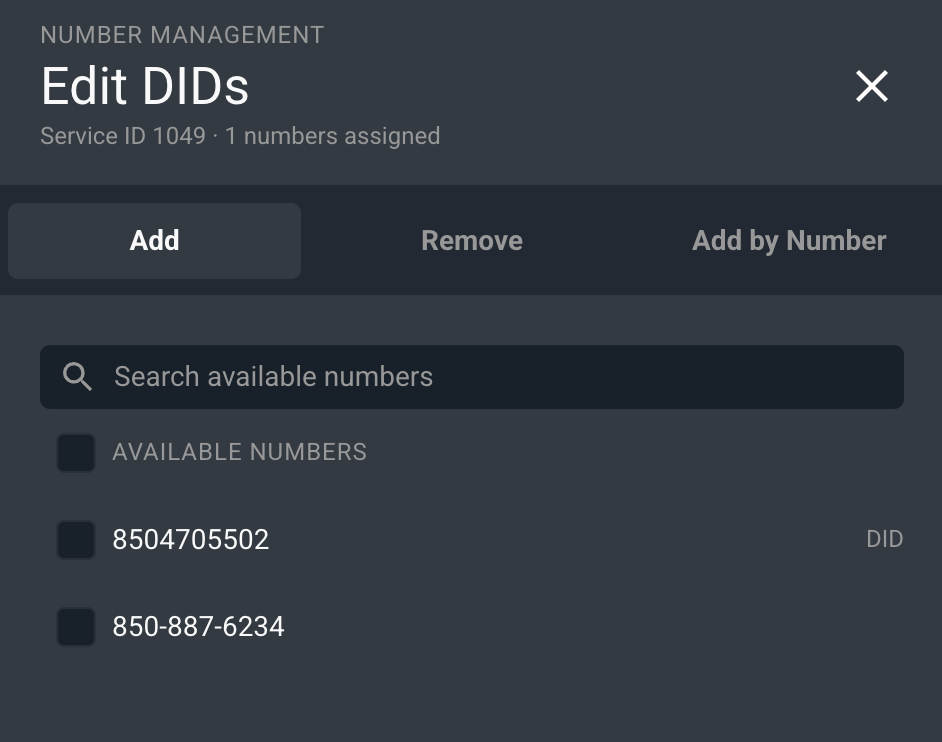
- Click the Edit button. NOTE: You may have to scroll over on the screen in that area to reveal the Edit button. The number management modal opens and you have tabs at the top to Add (from inventory), Remove, or Add by Number.
- Assign numbers in one of the following ways.
- Click the Add tab and then elect one or more numbers from the list of available numbers held in inventory and assign them.
- Click the Add by Number tab to add a single number or a range of numbers if you are ordering and receiving numbers from providers as needed.
- Save your changes by clicking the Assign Numbers button.
Removing numbers from an account requires you to either make the number available or unavailable when you remove it. Follow these steps to remove numbers from a recurring service.
- Follow steps 1 through 6 above to open the Associated DIDs editor.
- Click the Remove tab and select the number(s) you want to remove.
- Click the Remove Numbers button.
- Select whether the number should be Returned to Available or Marked Unavailable at this point in time.
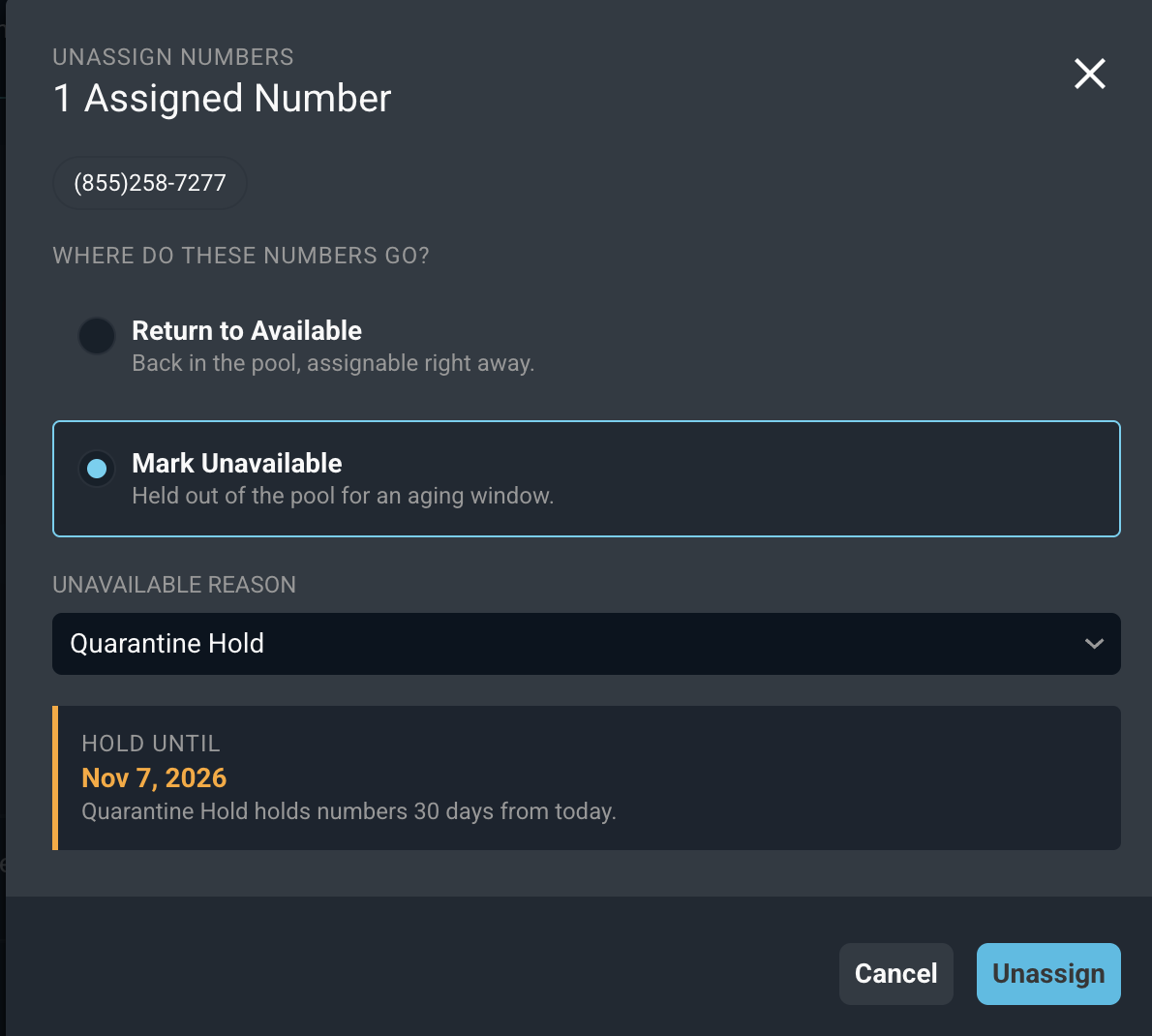
If you select Unavailable, you must select an Unavailable Reason from your custom list. See the article System Settings: System Tables - Number Management for more information on setting up unavailable reasons.
Related Articles
- Number Management: Overview
- Number Management: Group Details
- Customer Profile: Billing Section - Recurring Services Tab
- Add/Edit Recurring Services
- System Settings: System Tables - Number Management