
SQL Lab: Query Editor
Clicking SQL Lab in the Analytics module opens the query editor, where you can write and run T-SQL queries directly against your Rev.io data. SQL Lab is divided into three main areas.
| NOTE: The SQL Lab requires the Query Databases permission. If you do not see SQL Lab in your navigation menu, contact your administrator to request access. |
The left panel contains the Connection bar, where the Database and Schema selectors let you choose which data source you are querying. A table schema reference is also available here, allowing you to browse the columns and data types for any table in the selected schema. The center panel is the query editor, where you write your T-SQL. The editor supports syntax highlighting, auto-complete for table and column names, keyboard shortcuts, and multi-tab query sessions. The bottom panel is the Results panel, where results appear after you run a query. You can sort, scroll, and export the result set directly from this panel, and switch between the Results, Query History, and table schema tabs.
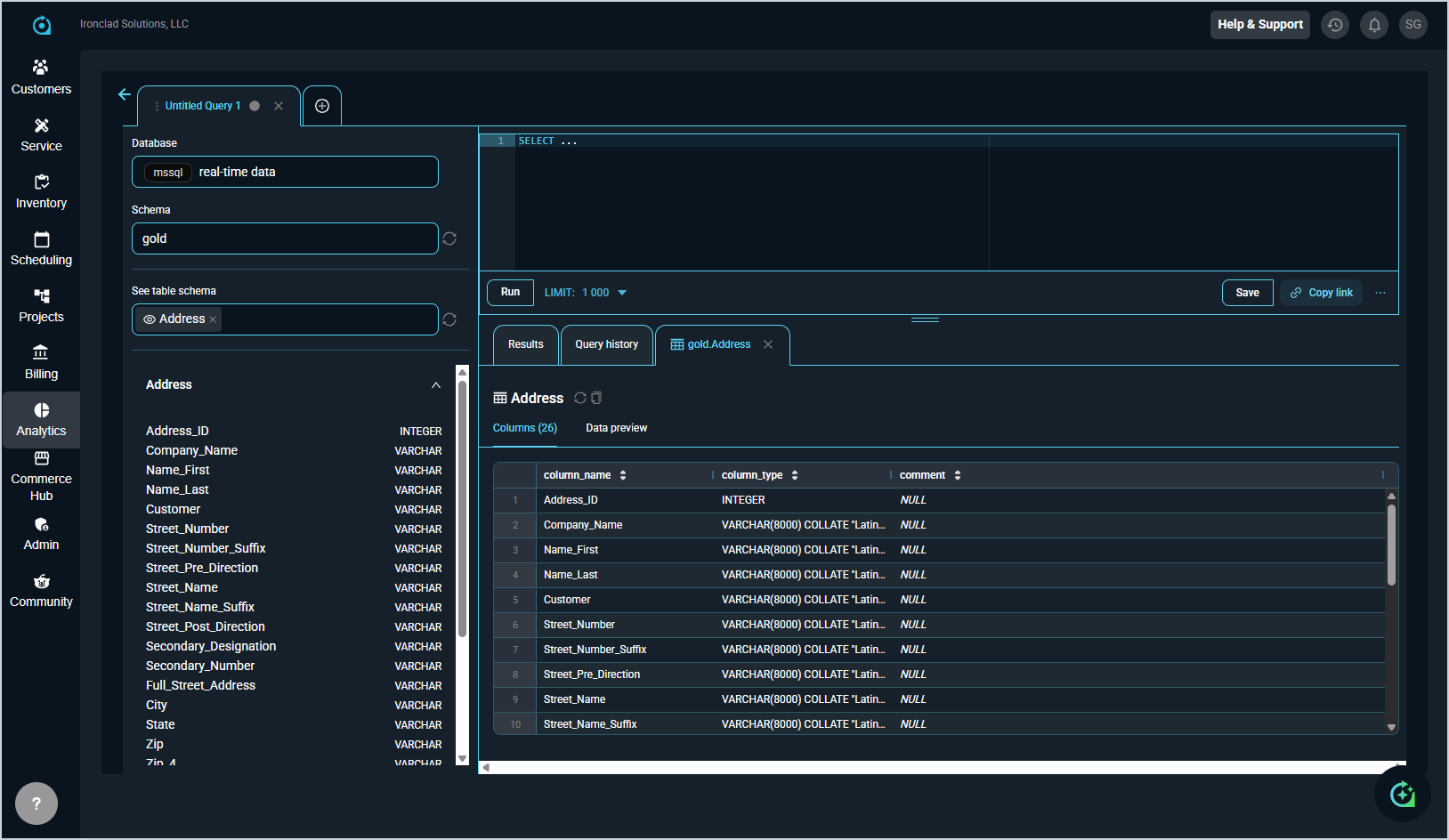
To run a query in SQL Lab, complete the following steps.
- Select the Database and Schema from the drop-downs at the top of the left panel. Always confirm you have selected the correct database before running a query.
- Click in the query editor and type or paste your T-SQL query.
- Press Ctrl+Enter (Windows) or Cmd+Enter (Mac) to run the query, or click Run. Results appear in the panel below.
- Use the Limit drop-down to cap the number of rows returned. The default limit is 1,000 rows.
- Click Download to Results to export the full result set as a CSV file.
- Click Save to save the query for future reuse. See the SQL Lab: Saved Queries article for more information.
The following keyboard shortcuts are available in the query editor.
| Shortcut | Action |
| Ctrl+Enter / Cmd+Enter | Run the current query |
| Ctrl+S / Cmd+S | Save the current query |
| Ctrl+Z / Cmd+Z | Undo last edit |
| Ctrl+F / Cmd+F | Find and replace text in the editor |
| Ctrl+A / Cmd+A | Select all query text |
| Alt+Shift+F | Format and auto-indent SQL |