NOTE: An authorized user account is required to run this integration. To support better security and audit visibility, we recommend creating a dedicated "service account" user. When configuring this integration, sign in using the service account rather than your personal user account to ensure that audit logs reflect the service account running the integration instead of the user who originally installed it.
Complete the steps below to configure the Datto integration.
NOTE: Before starting the configuration steps below, be sure you have completed the required prerequisite steps. See the Datto RMM Integration: Prerequisites article for more information.
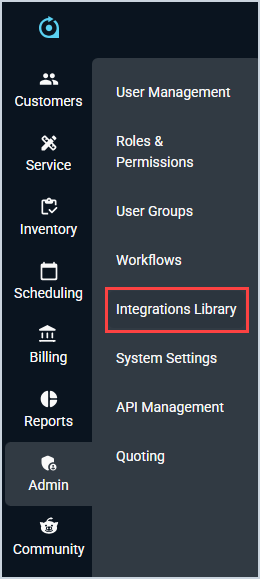
Click Admin on the sidebar menu and select Integrations Library.
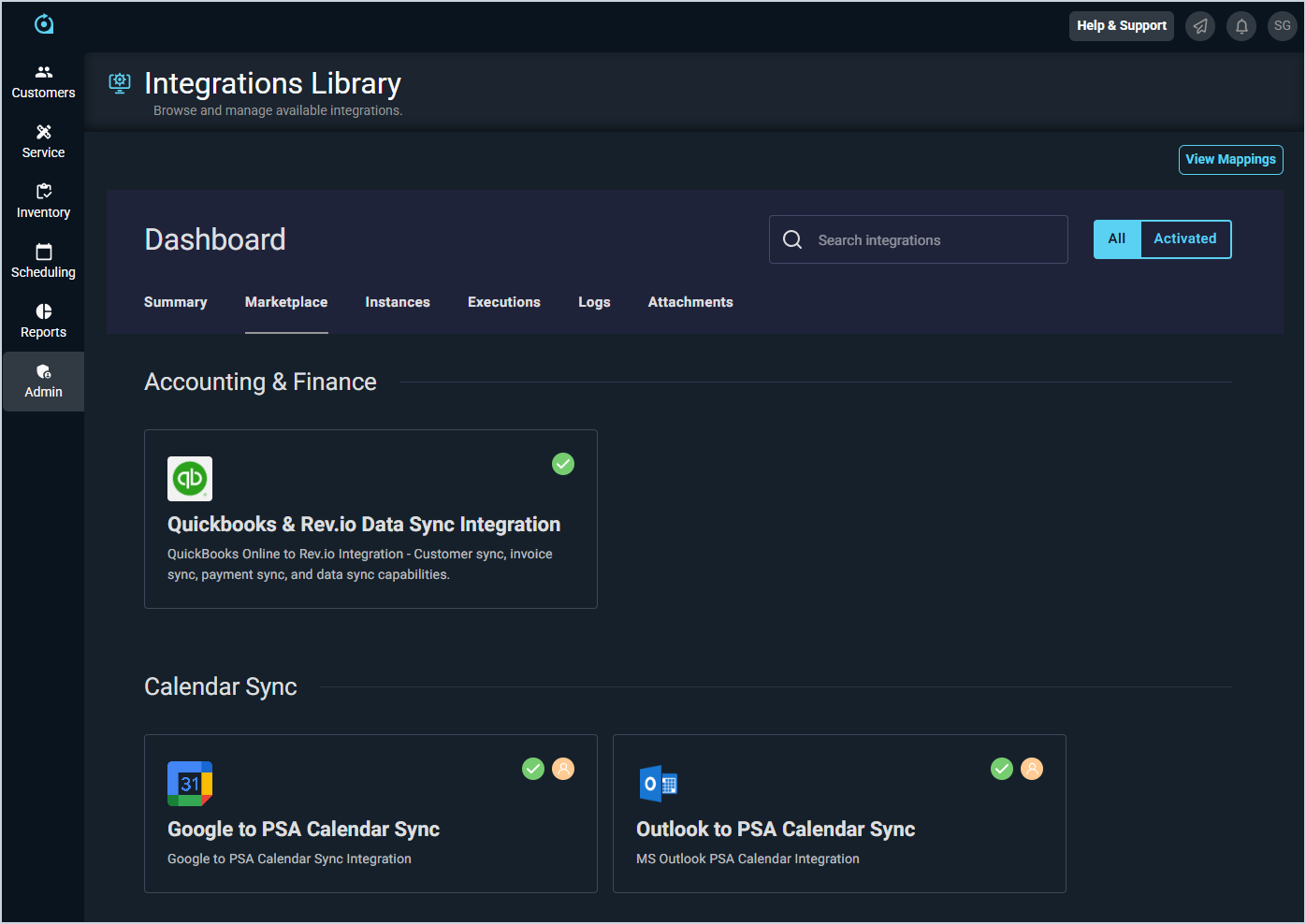
Click the Marketplace tab.
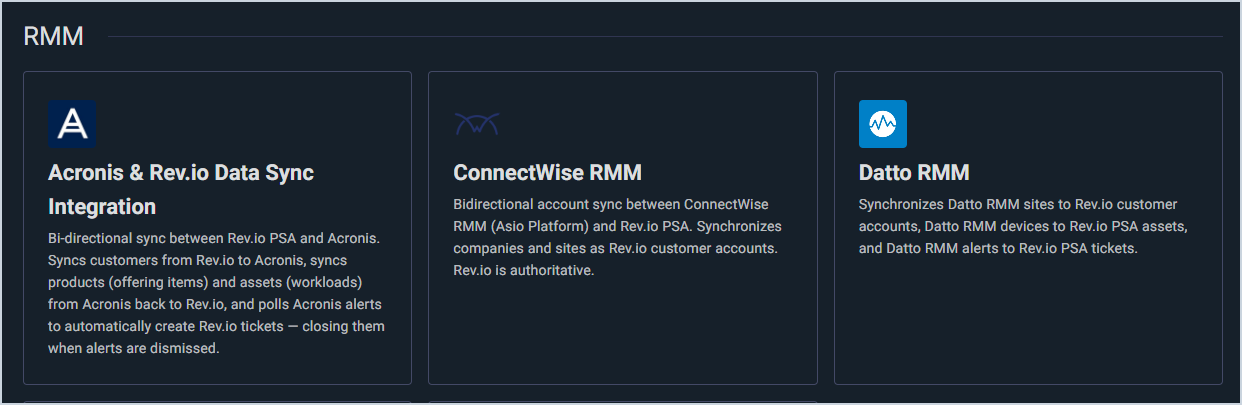
Locate and select the Datto RMM Integration in the RMM section.
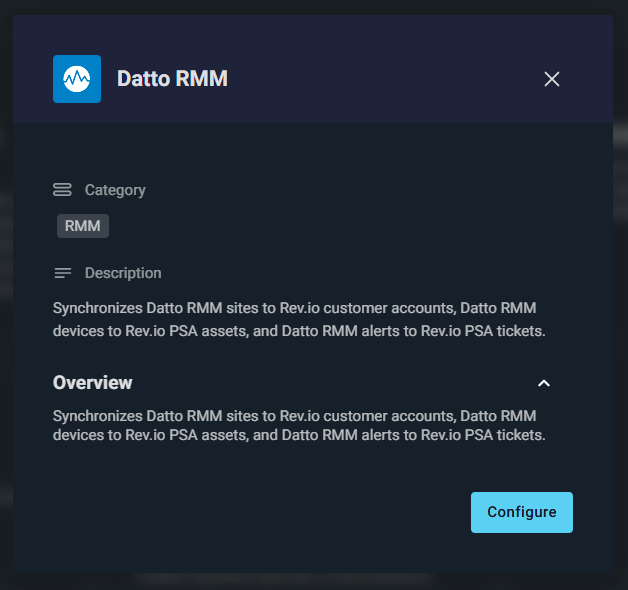
Click the Configure button.
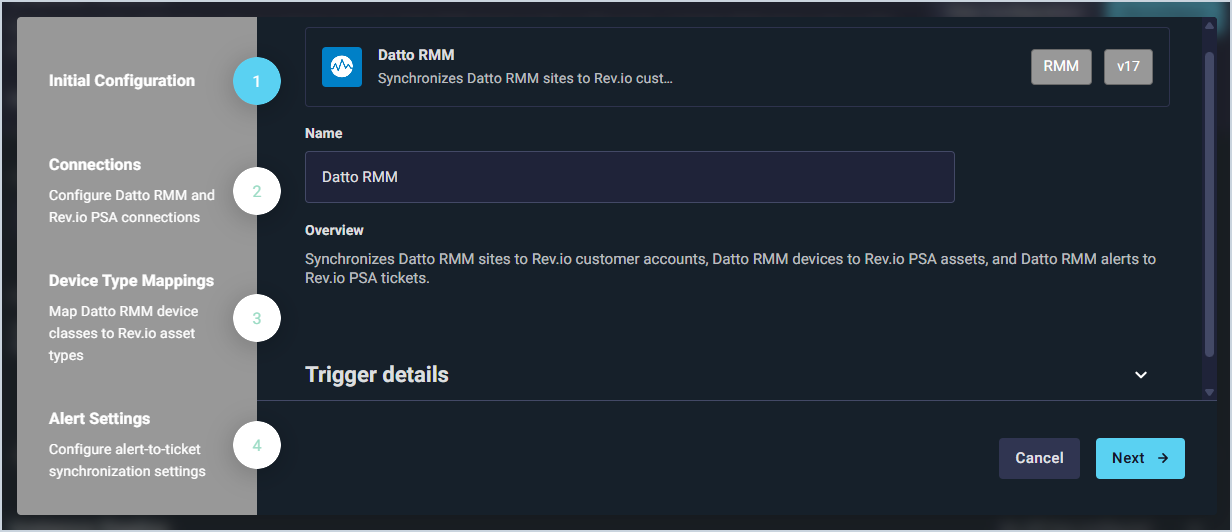
The Initial Configuration section is automatically populated. Click the Next button.
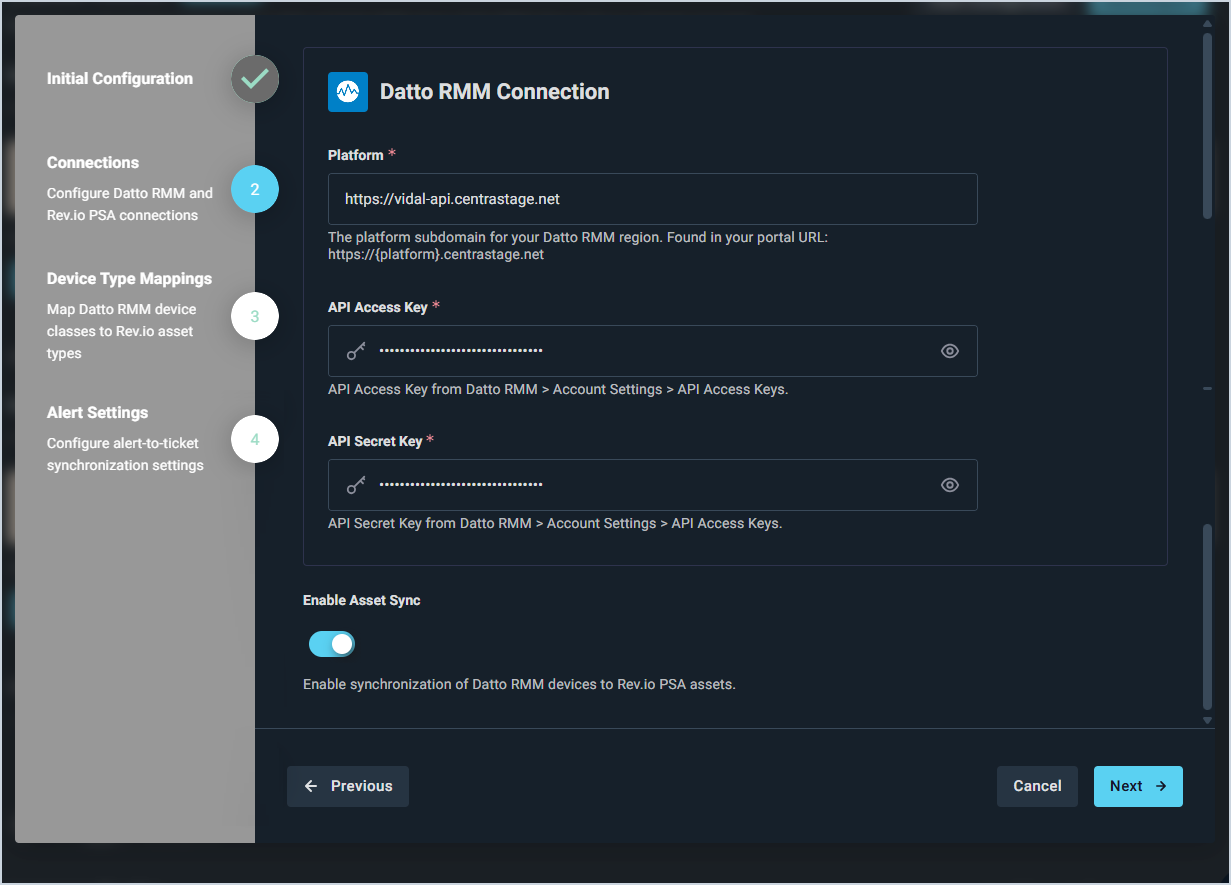
In the Connections section, the Rev.io connection is pre-populated for your environment. In the Datto RMM Connection section, enter the following credentials you gathered during the prerequisites:
Platform: the platform subdomain for your Datto RMM region, such as https://vidal-api.centrastage.net.
API Access Key: found in Datto RMM under Account Settings > API Access Keys.
API Secret Key: found in Datto RMM under Account Settings > API Access Keys.
Toggle Enable Asset Sync on to sync Datto RMM devices to Rev.io assets. Disable this if you only want to sync sites to customer accounts and not devices to assets. Click the Next button.
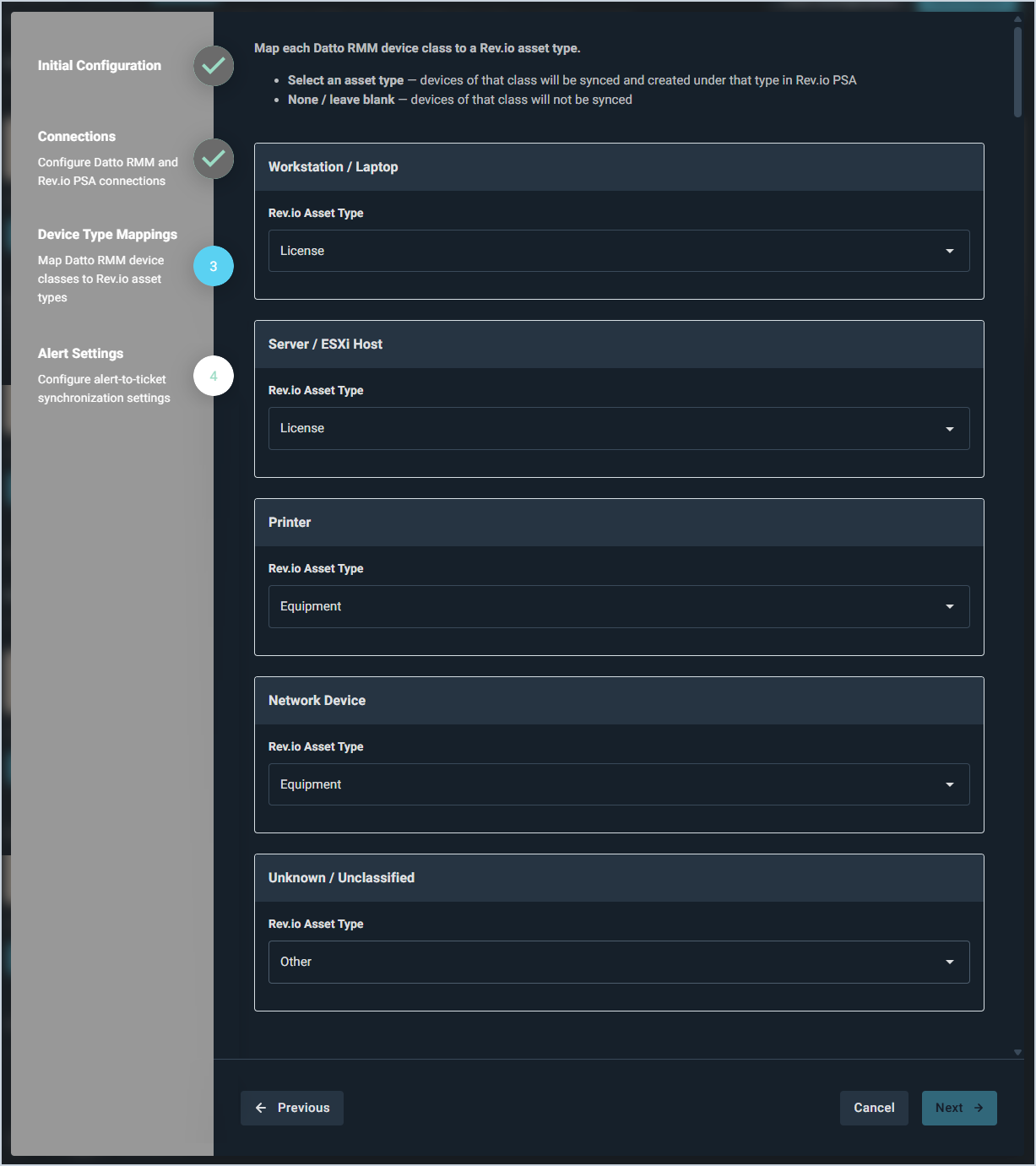
In the Device Type Mappings section, map each Datto RMM device class to the Rev.io asset type it should be created under and click Next. The following device classes are available:
Workstation / Laptop: agent-managed Windows and macOS workstations and laptops. Datto also reports physical and virtual Windows and Linux servers under this class.
Server / ESXi Host: VMware ESXi virtualization hosts.
Printer: networked and local printers.
Network Device: switches, routers, firewalls, access points, and other network infrastructure.
Unknown/Unclassified: devices Datto could not classify. Select an asset type to sync these devices, or leave it blank to skip them.
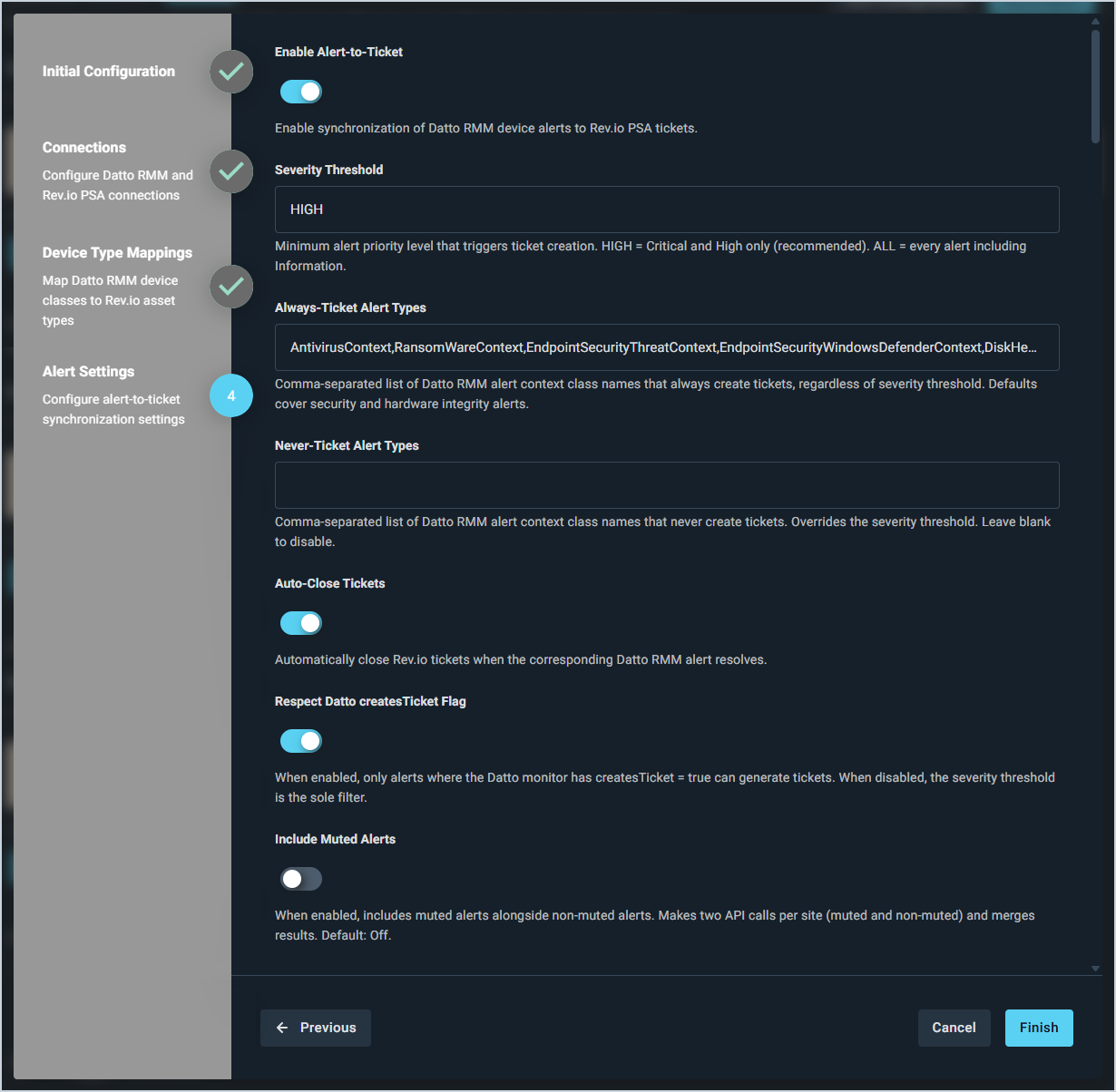
In the Alert Settings section, configure the following alert-to-ticket synchronization settings and click Finish:
Enable Alert-to-Ticket: when enabled, Datto RMM device alerts are automatically synced to Rev.io as tickets.
Severity Threshold: minimum alert priority level that triggers ticket creation. HIGH creates tickets for Critical and High alerts only (recommended). ALL creates tickets for every alert including Information.
Always-Ticket Alert Types: comma-separated list of Datto RMM alert context class names that always create tickets, regardless of the severity threshold. Defaults cover security and hardware integrity alerts.
Never-Ticket Alert Types: comma-separated list of Datto RMM alert context class names that never create tickets. Overrides the severity threshold. Leave blank to disable.
Auto-Close Tickets: when enabled, Rev.io tickets are automatically closed when the corresponding Datto RMM alert resolves.
Respect Datto createsTicket Flag: when enabled, only alerts where the Datto monitor has createsTicket = true can generate tickets. When disabled, the severity threshold is the sole filter.
Include Muted Alerts: when enabled, muted alerts are included alongside non-muted alerts. Makes two API calls per site and merges the results. Disabled by default.
The integration will prepare to sync your information. Do not leave this page while the sync is running. If you need to work on something in the system while the integration syncs, open Rev.io in another tab. See the Integrations Library: Data Sync & Mapping article for more information about mapping your data for Datto.