
Datasets List View
The Datasets screen in the Analytics module is your central library for all data sources available in your system. Each dataset connects directly to a table or view in your Rev.io database and serves as the foundation for the charts and dashboards you build. We've included a library of ready-made datasets so you can start building charts right away.
NOTE: If you have the Create Reports permission, you can see all datasets and create new virtual datasets. If you only have View permissions, you can see datasets matching your assigned data categories.
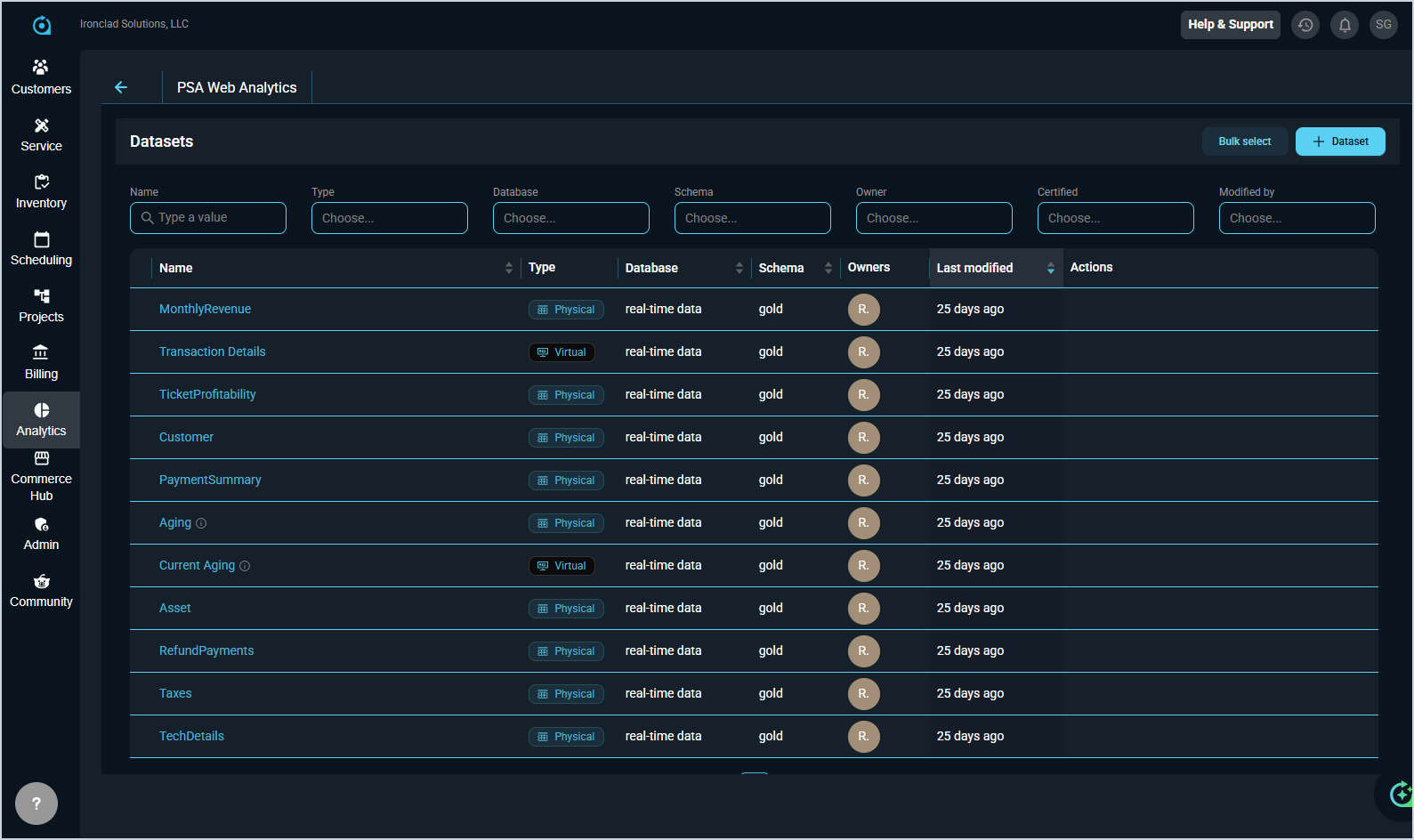
Each field on the Datasets list view is defined below.
| No. | Label | Definition |
| 1 | Name | Name of the dataset. |
| 2 | Type | Indicates whether the dataset is Physical, meaning it maps directly to a table in your database, or Virtual, meaning it is built from a custom query. |
| 3 | Database | The database the dataset pulls data from. |
| 4 | Schema | The schema within the database where the dataset is located. |
| 5 | Owners | Owner of the dataset. Rev.io is the owner of all datasets that come prepopulated in the system. |
| 6 | Last Modified | Time period when the dataset was last modified. |
| 7 | Actions | Hover over the Actions column for a particular dataset row to access available actions for that dataset. |
These actions are available on the Datasets list view.
- Click Bulk Select to enable selecting multiple datasets to perform bulk actions.
- Add a new virtual dataset by clicking + Dataset in the upper right corner. See the Add/Edit Datasets article for more information.
- Filter the datasets displayed on this screen by entering text or selecting specific options in any of the filters above the list. The list updates to display datasets matching your filters. NOTE: When entering text in a filter, you must click out of the filter or press the Enter key on your keyboard for the results to update.
- Sort the results in the table by clicking the column label in the table header.
- View the dataset details by clicking the dataset Name. See the View Dataset Details article for more information.
- Delete the dataset by hovering over the Actions column and clicking the Delete icon.
- Export the dataset by hovering over the Actions column and clicking the Export icon.
- Edit the dataset by hovering over the Actions column and clicking the Edit icon.