
NinjaOne Integration: Configuration
| NOTE: An authorized user account is required to run this integration. To support better security and audit visibility, we recommend creating a dedicated “service account” user. When configuring this integration, sign in using the service account rather than your personal user account to ensure that audit logs reflect the service account running the integration instead of the user who originally installed it. |
Complete the steps below to configure the NinjaOne integration.
| NOTE: Before starting the configuration steps below, be sure you have completed the required prerequisite steps. See the NinjaOne Integration: Prerequisites article for more information. |
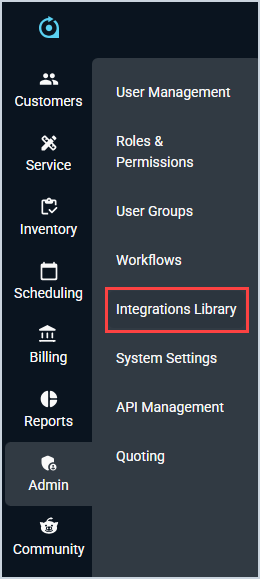
- Click Admin on the sidebar menu and select Integrations Library.
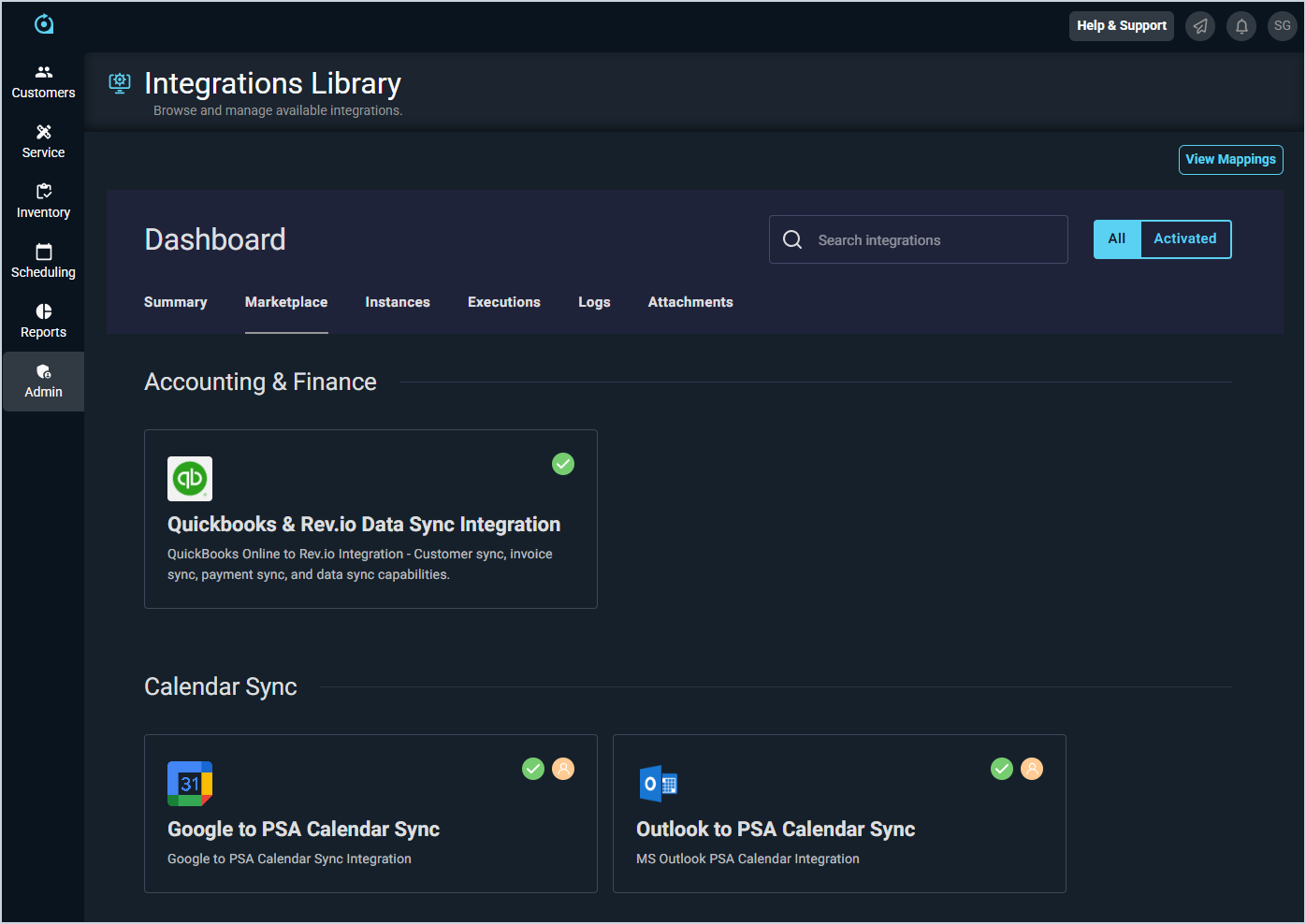
- Click the Marketplace tab.
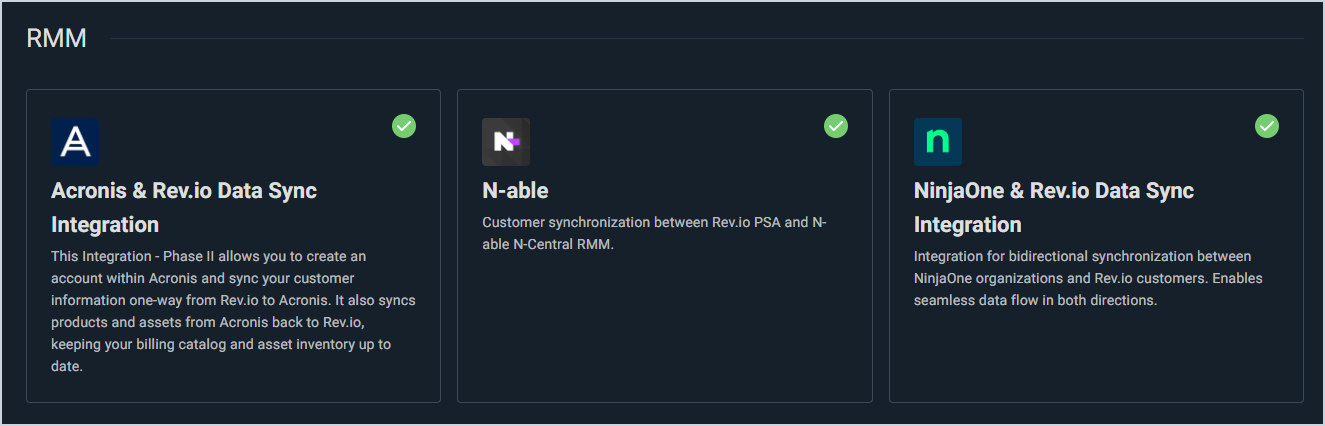
- Locate and select the NinjaOne & Rev.io Data Sync Integration in the RMM section.
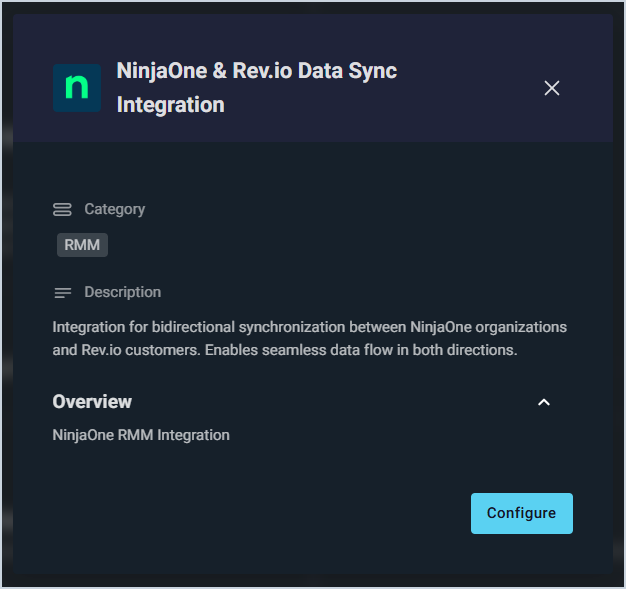
- Click the Configure button.
- The Initial Configuration section is automatically populated. Click the Next button.
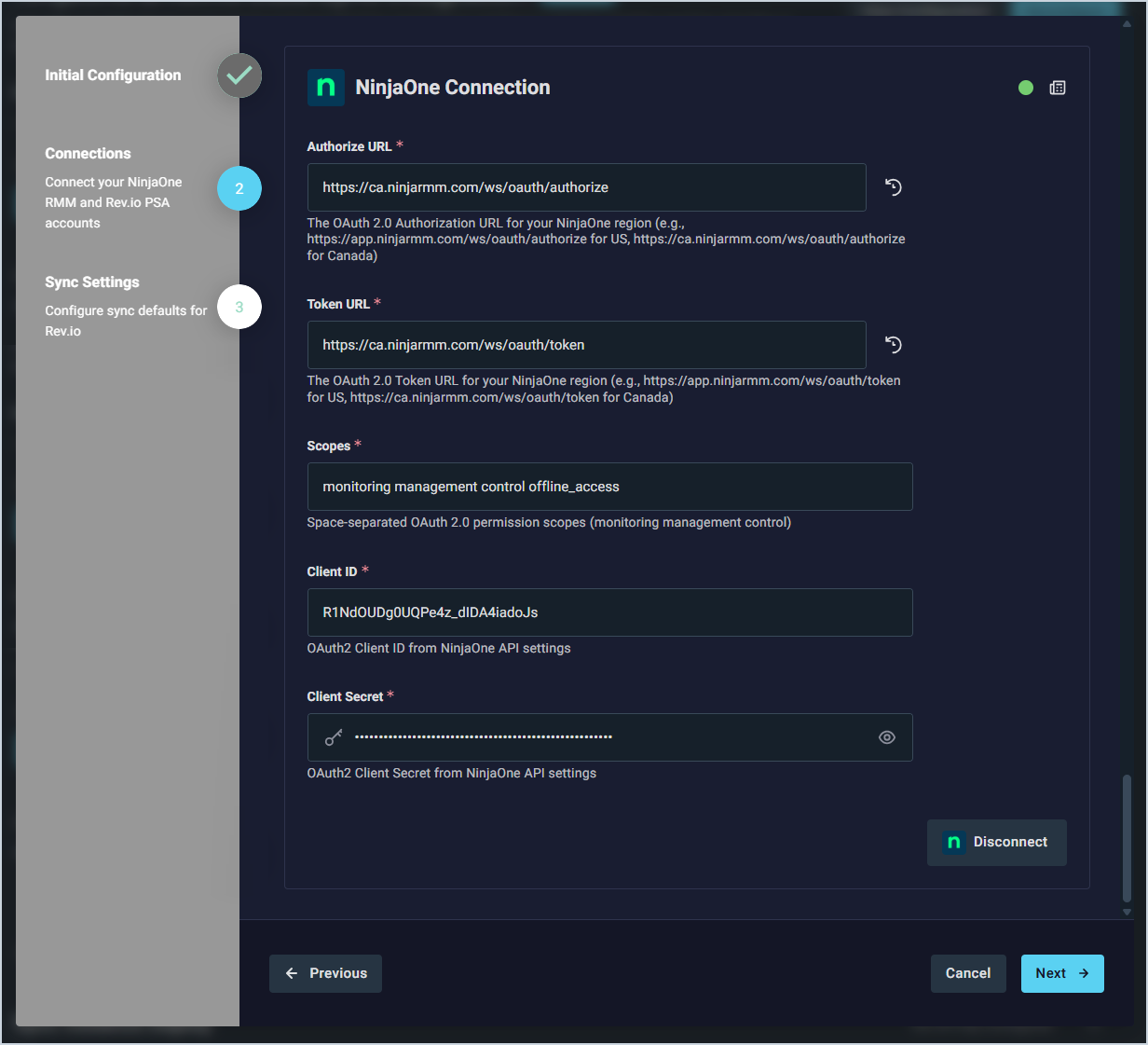
- In the NinjaOne Connection section, the Authorize URL, Token URL, and Scopes will be automatically populated. Enter your Client ID and Client Secret from NinjaOne and click the Connect button.
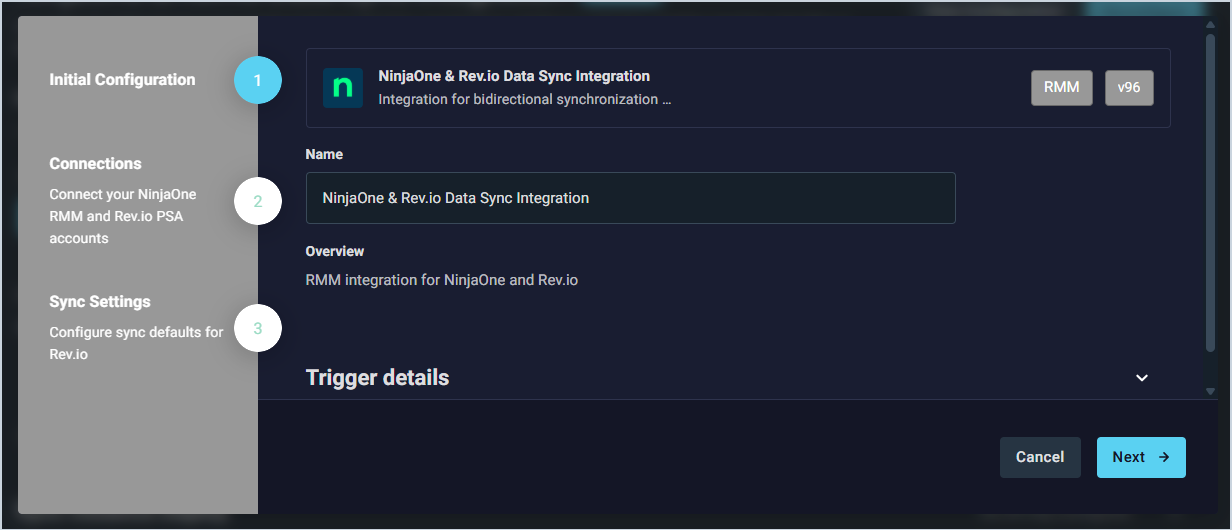
| NOTE: You must keep monitoring management control offline_access populated in the Scopes field as this is what allows us to refresh the token with NinjaOne. |
- Once you have successfully connected, click the Next button.
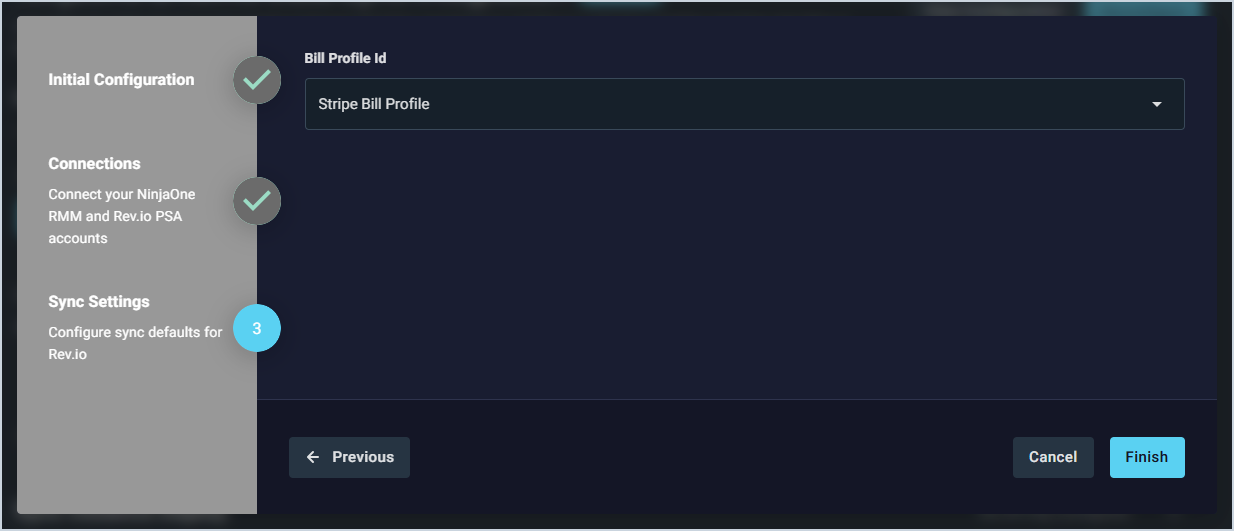
- Select the Bill Profile ID you want to use for new customer accounts. Then, click the Finish button.
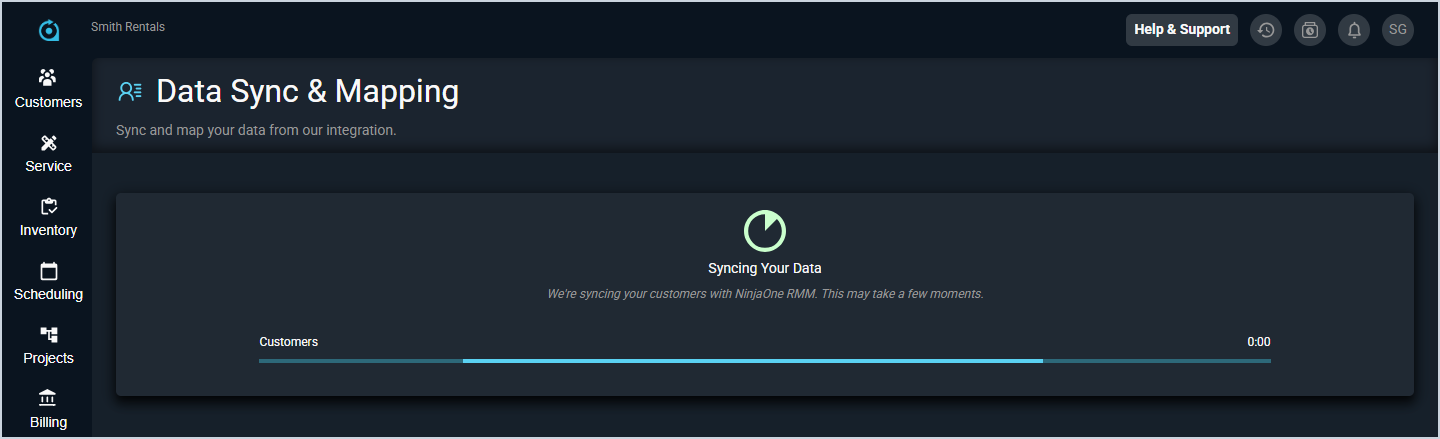
- The integration will prepare to sync your customers. Do not leave this page while the sync is running. If you need to work on something in the system while the integration syncs, open Rev.io in another tab.
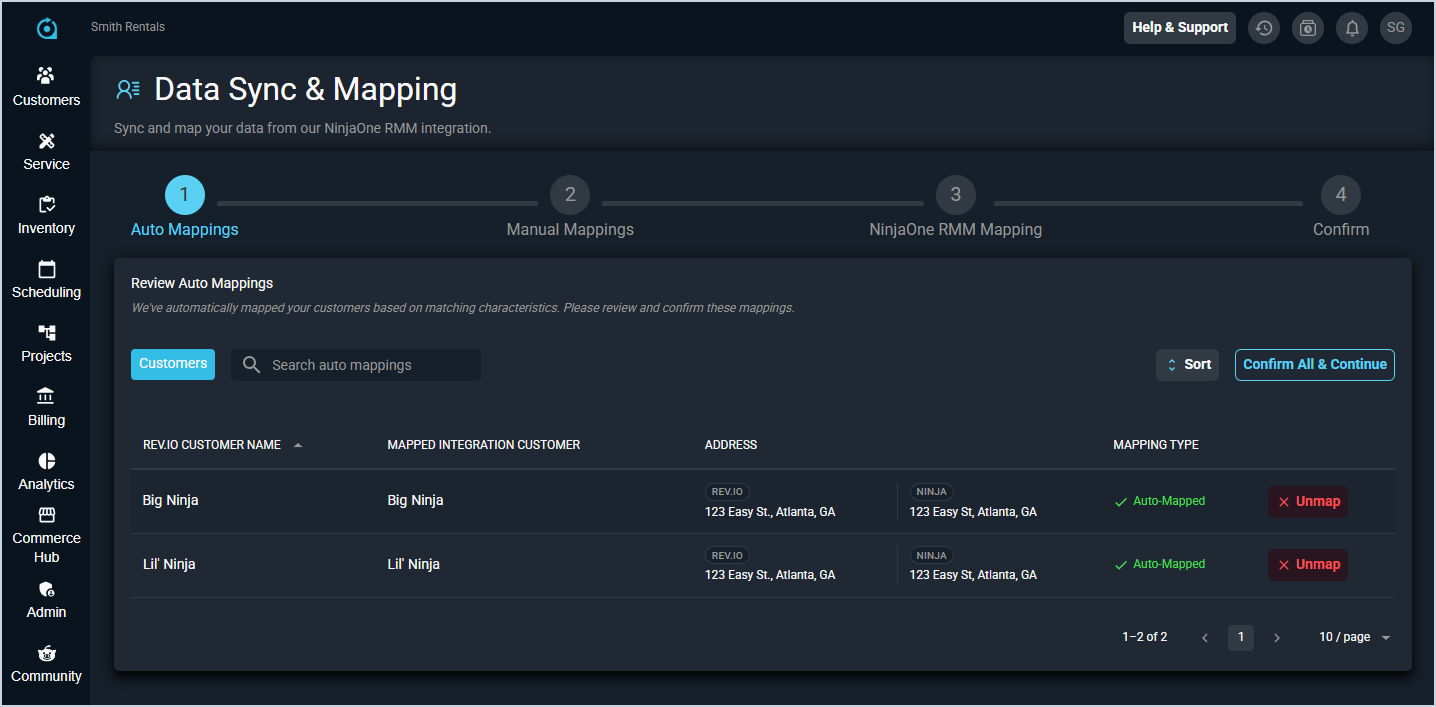
- Complete the process to sync your data with NinjaOne. See the Integrations Library: Data Sync & Mapping article for more information about mapping your customers for NinjaOne.
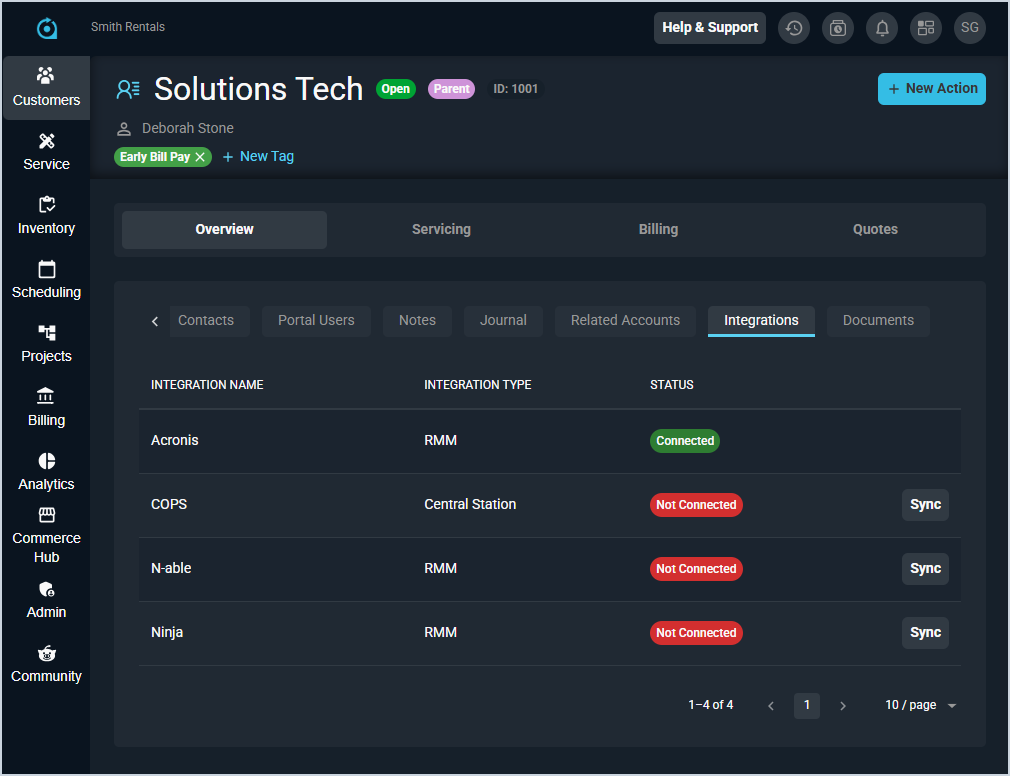
- To sync new customers with NinjaOne, open the Integrations tab on the customer profile screen and click the Sync button for the Ninja integration. To deactivate a customer's NinjaOne sync, you'll need to remove the sync manually from both Rev.io and NinjaOne.
NinjaOne alert tickets can be placed on a board of your choice. Open Sync Settings for the integration and complete the fields below.
Each field in Sync Settings for NinjaOne alert tickets is defined below.
| Label | Definition |
| Alert Ticket Board | Name of the board where new NinjaOne alert tickets are placed. The board must already exist in Rev.io and be visible to the user who installed the integration. |
| Alert Ticket Type | Type applied to new NinjaOne alert tickets. The default is RMM Alert. |