Configuring Billing Email Notification Workflows
Workflow notifications in Rev.io can be configured to customize the message when emailed pdf invoices are sent out. There is a fallback mechanism in place so that if you do not configure a billing invoice notification in the workflow area, a standard email message will go out when you email your invoices.
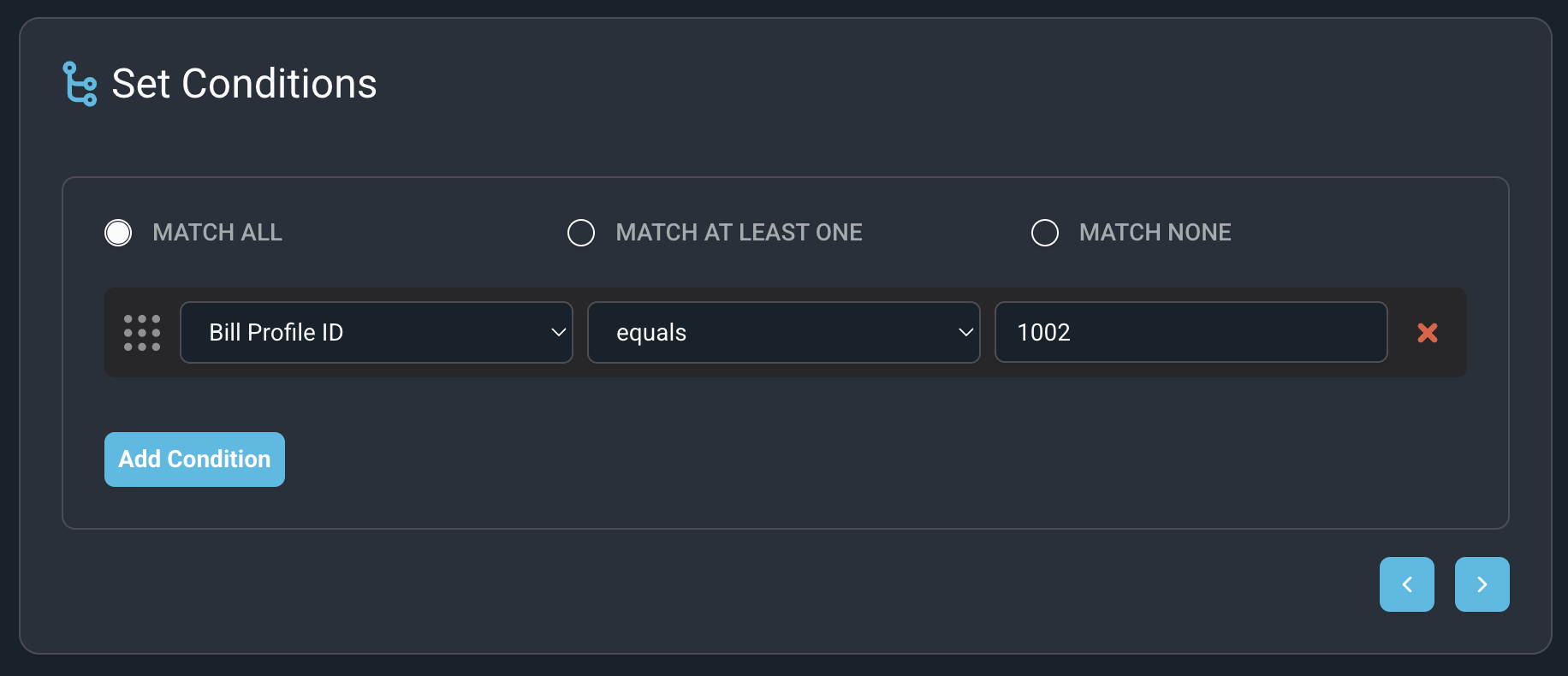
You can create a single billing invoice notification, or you can create different notifications for different segments of your customers, tied to the segments via the bill profile.
| IMPORTANT: If you choose to create more than one billing invoice notification, you MUST assign each notification to a bill profile in the Conditions step via the Bill Profile ID. Failing to do so will result in your customers receiving multiple versions of the invoice notification. |
Billing Triggering Events
When creating a workflow notification, select the Invoice Notification triggering event from the Triggering Event dropdown in the Name & Triggering Event step.
| No. | Label | Definition |
| 1 | Invoice Notification | Triggered when an invoice on an account configured for emailed invoices is sent. |
Recommended Use
- Use to customize the email language that is sent out to customers when an invoice is emailed.
- Use to create separate emails for different customer segments if necessary (see note above).
Billing Email Tokens Available
When customizing the Subject Line or the Body of the message, tokens are available for you to customize the message going out. Select from the following tokens available.
| No. | Label | Definition |
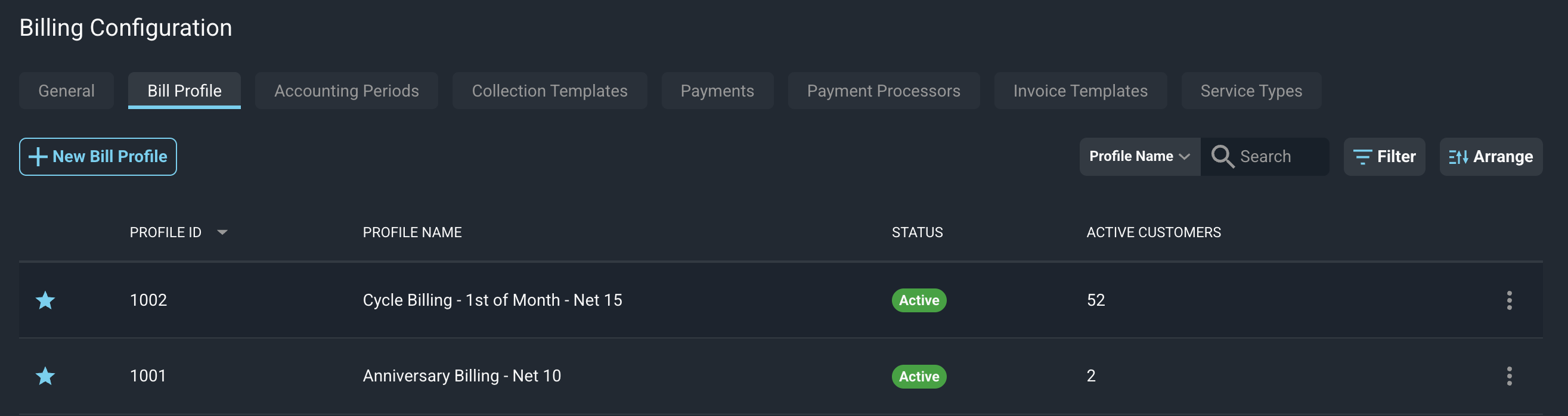
| 1 | Bill Profile ID | The ID of the bill profile, found under Admin > System Settings > Billing Config > Bill Profile tab |
| 2 | Billing Address City | City of the configured billing address for the account |
| 3 | Billing Address Line 1 | Line 1 of the configured billing address for the account |
| 4 | Billing Address Line 2 | Line 2 of the configured billing address for the account |
| 5 | Billing Address Name | The name of the configured billing address for the account |
| 6 | Billing Address State | State of the configured billing address for the account |
| 7 | Billing Address Zip | Zip code of the configured billing address for the account |
| 8 | Customer Account Number | If in use, the custom account number manually assigned to the customer account |
| 9 | Customer Email | The email address listed on the customer account |
| 10 | Customer ID | The system-generated customer ID of the account |
| 11 | Customer Name | Customer name |
| 12 | Due Date | The date due on the invoice |
| 13 | Invoice Date | The date of the invoice |
| 14 | Invoice Number | The ID number of the invoice |
| 15 | Invoice Total | The total amount of the invoice |
| 16 | New Charges Due | The new charges of the invoice only, excluding any previous or past due charges |
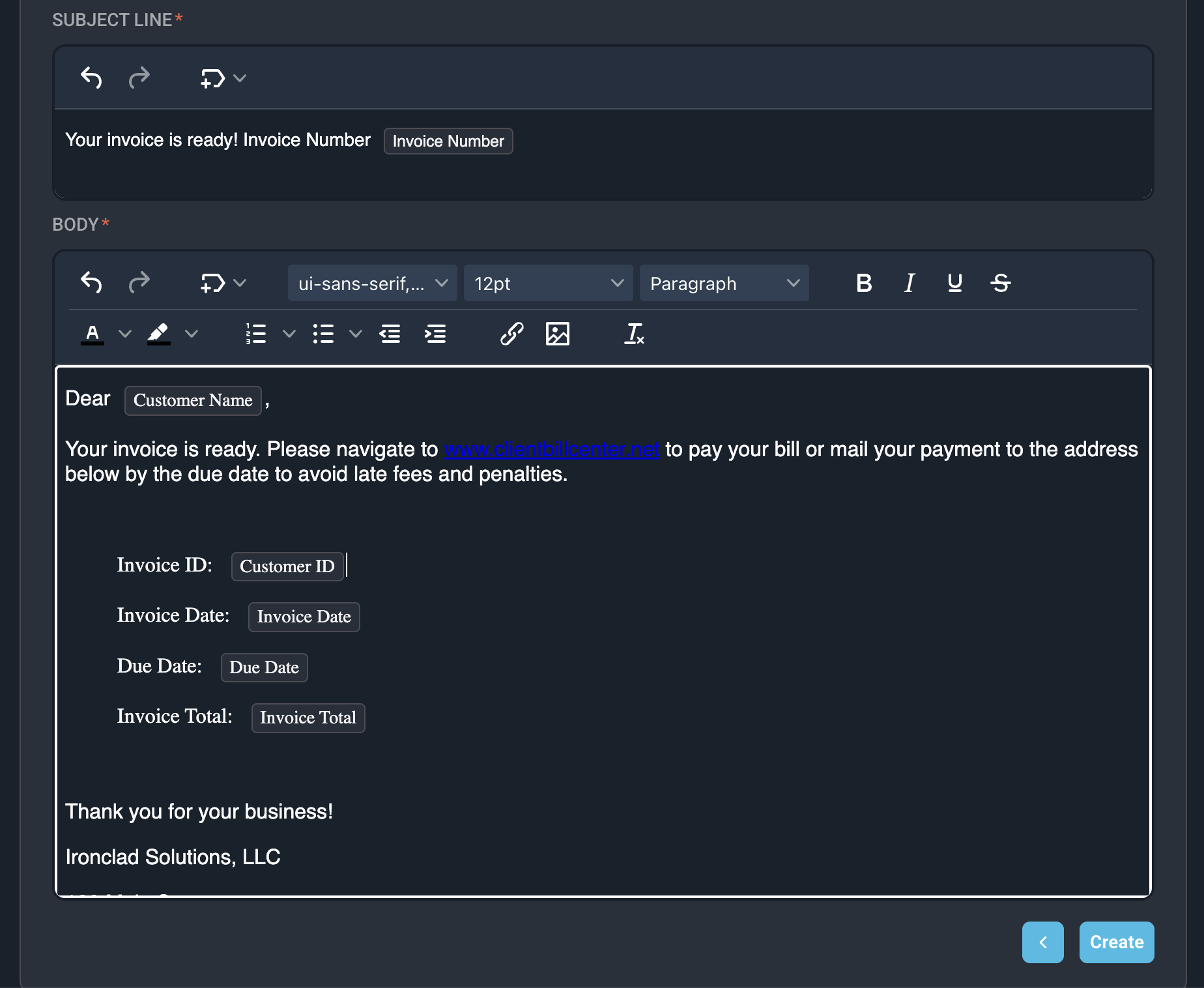
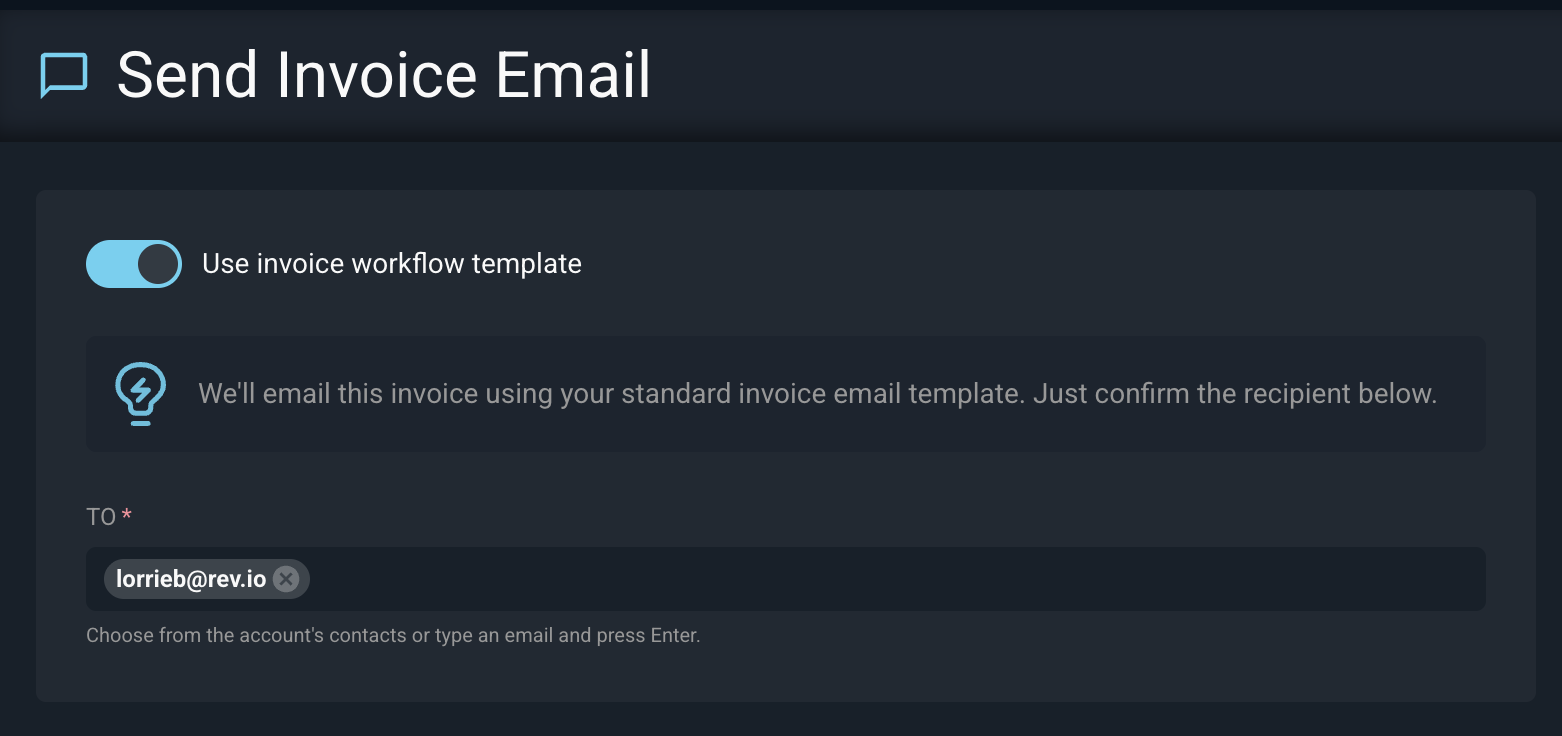
Once a workflow billing email notification is enabled, anytime you send out automated or manual emailed invoices, the system will default to the workflow version that applies. If you choose to email out individual invoices at any time, the system will default to the workflow invoice email, but you can slide the Use Invoice Workflow Template option off to be able to manually create your own verbiage for that particular email.
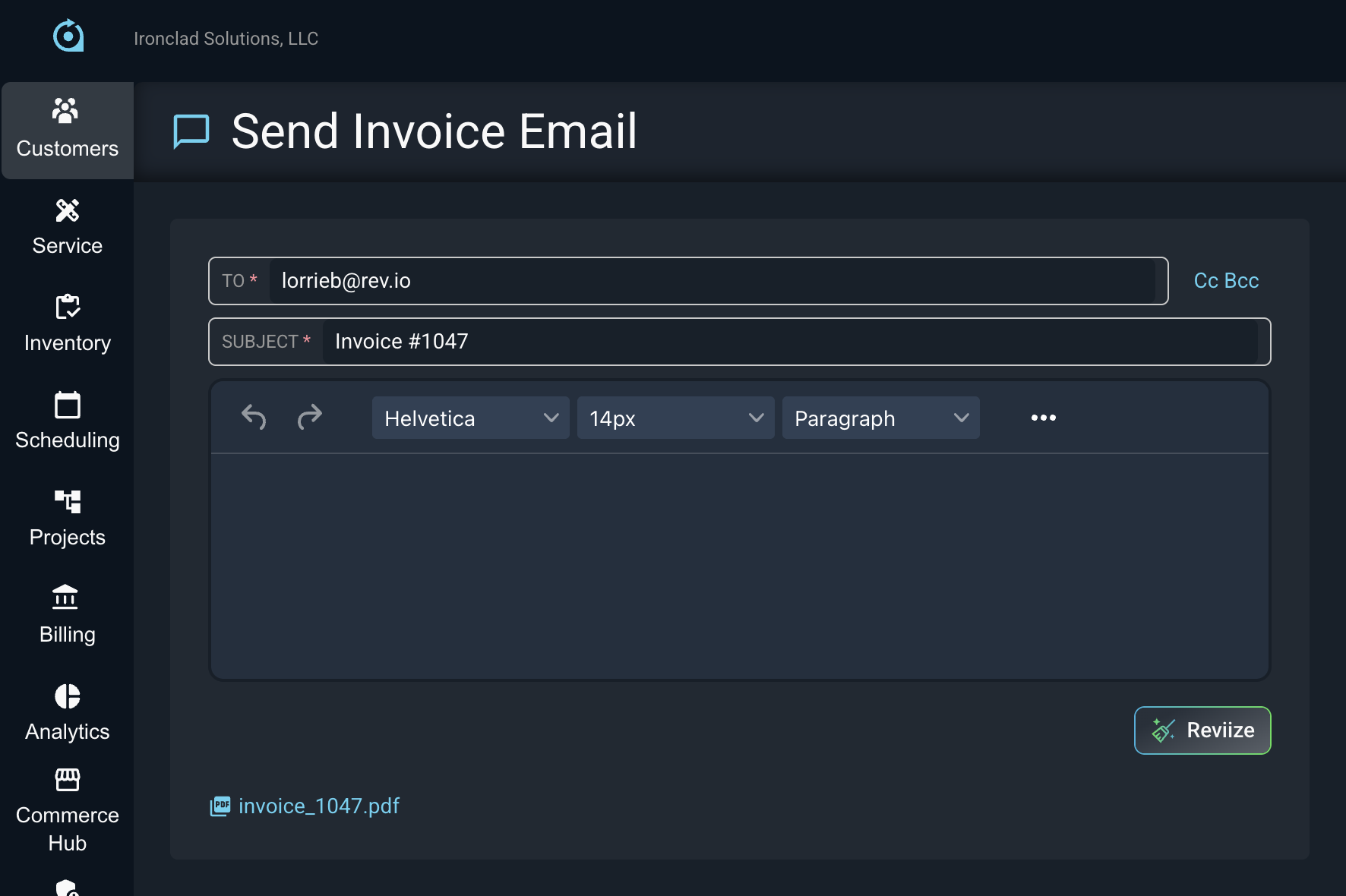
Accounts without Billing Email Notifications Configured
If you have not configured a workflow notification for billing invoices, when you use the 3 dot icon to email an individual bill to a customer, the Subject line will pre-populate with the Invoice ID, but the Body of the message will be blank. You will need to type in some text before you send the email to your customer. The pdf file of the invoice will be included with the email.
When sending out invoices in bulk via the invoice management tool, the bulk emailed invoices will go out with the standard default generic email template that comes pre-configured in Rev.io if no workflow email is configured.
Using Multiple Billing Email Notifications
If using multiple different billing email notifications for different groups of customers, each one MUST have the Bill Profile ID configured in the Conditions step of the notification. If you do not specify a Bill Profile ID for each one, your customers will receive duplicate emails for each of the different notifications.
The Bill Profile ID can be found on the under Admin menu by selecting System Settings and then Billing Config and clicking on the Bill Profile tab.