How To Guide: Opportunity Management
1. Introduction
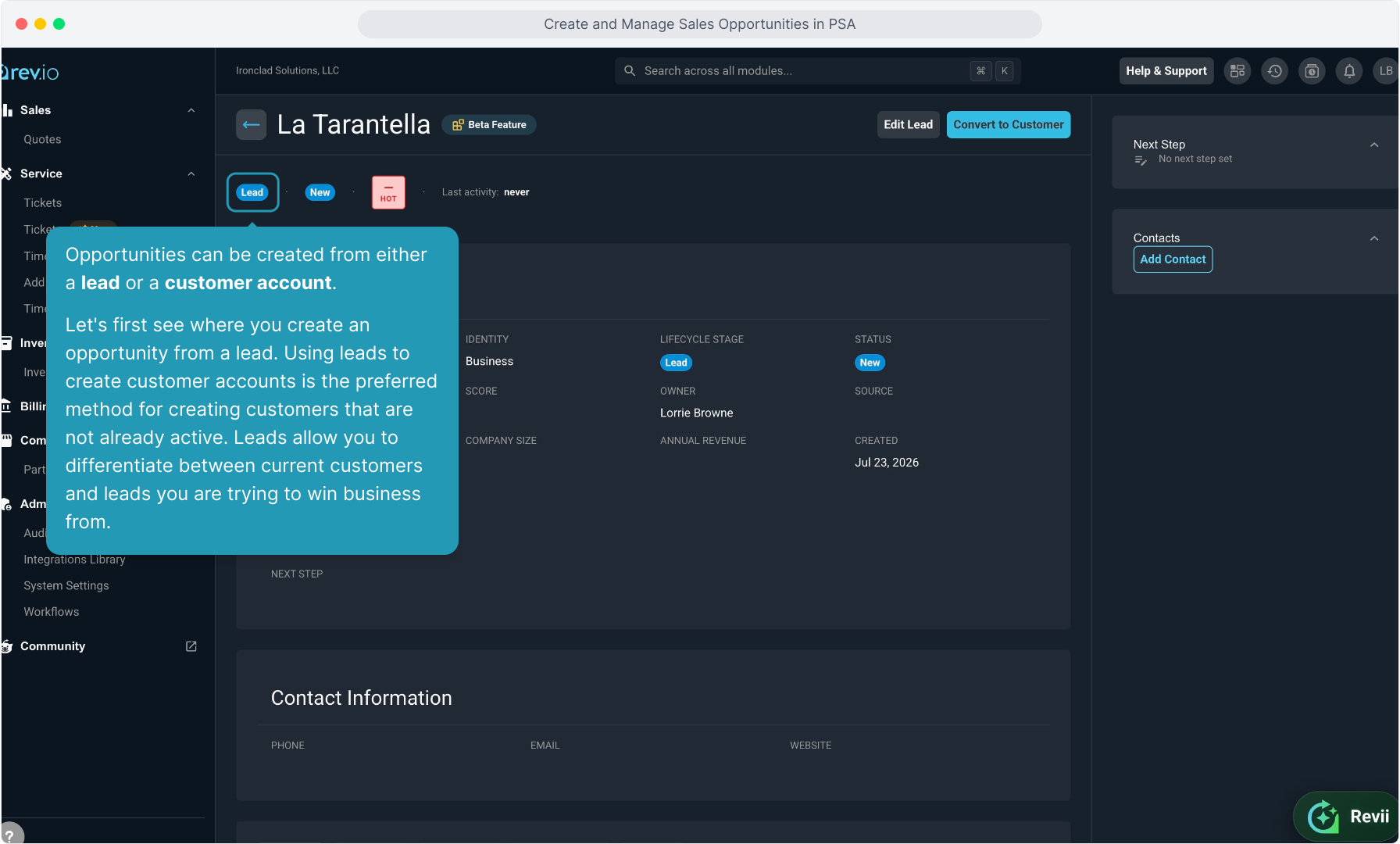
2. Opportunities can be created from either a lead or a customer account.
Let's first see where you create an opportunity from a lead. Using leads to create customer accounts is the preferred method for creating customers that are not already active. Leads allow you to differentiate between current customers and leads you are trying to win business from.
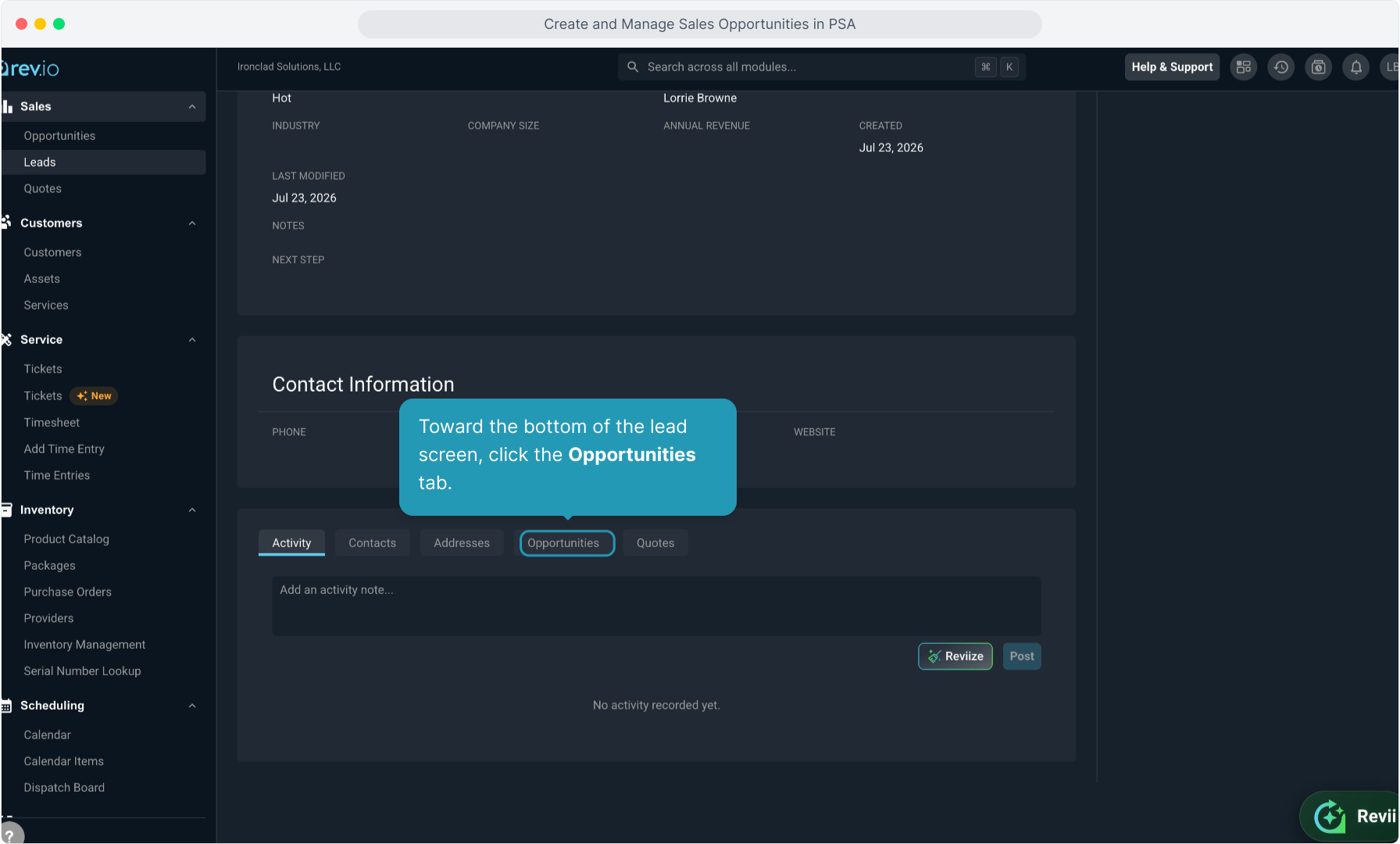
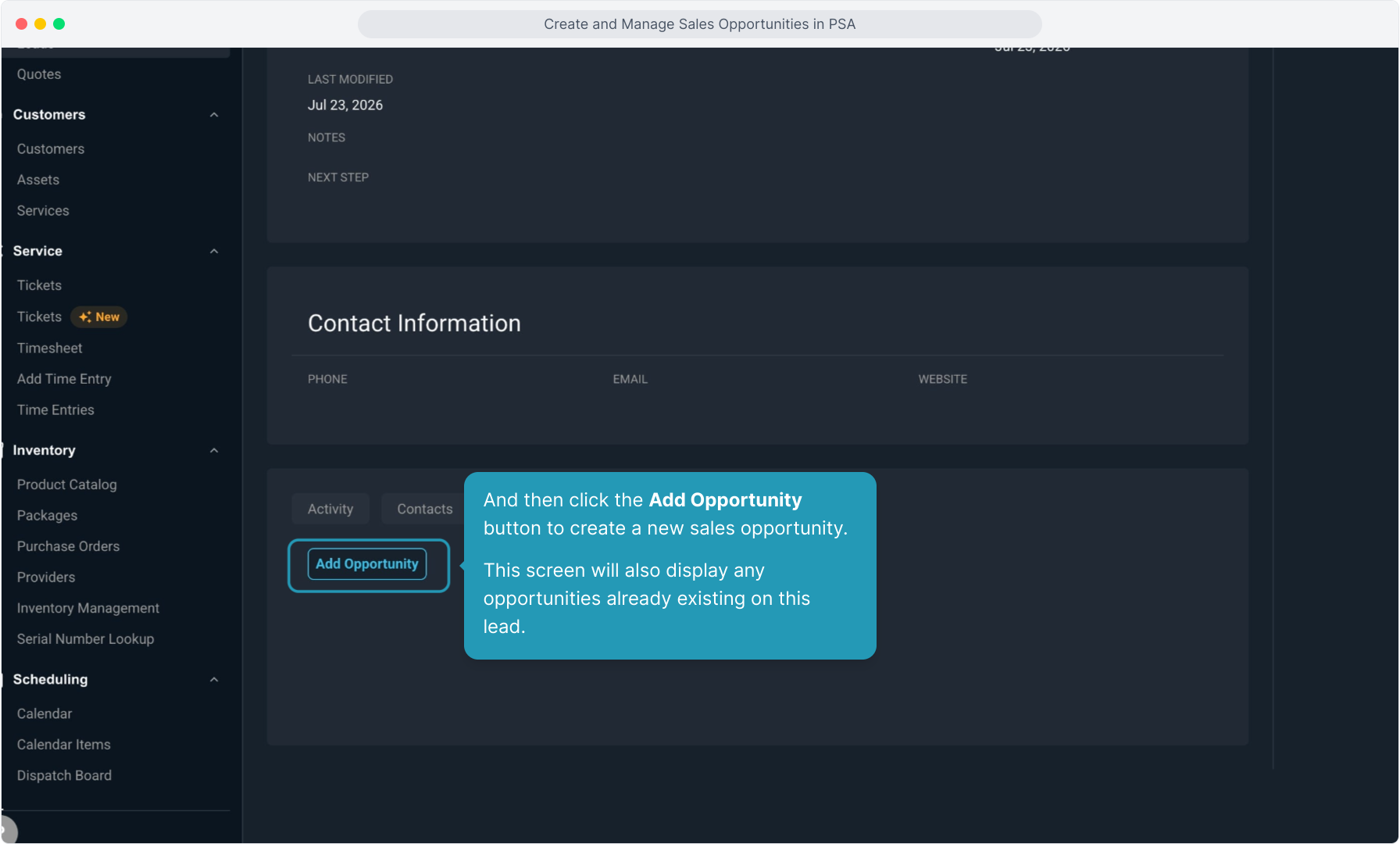
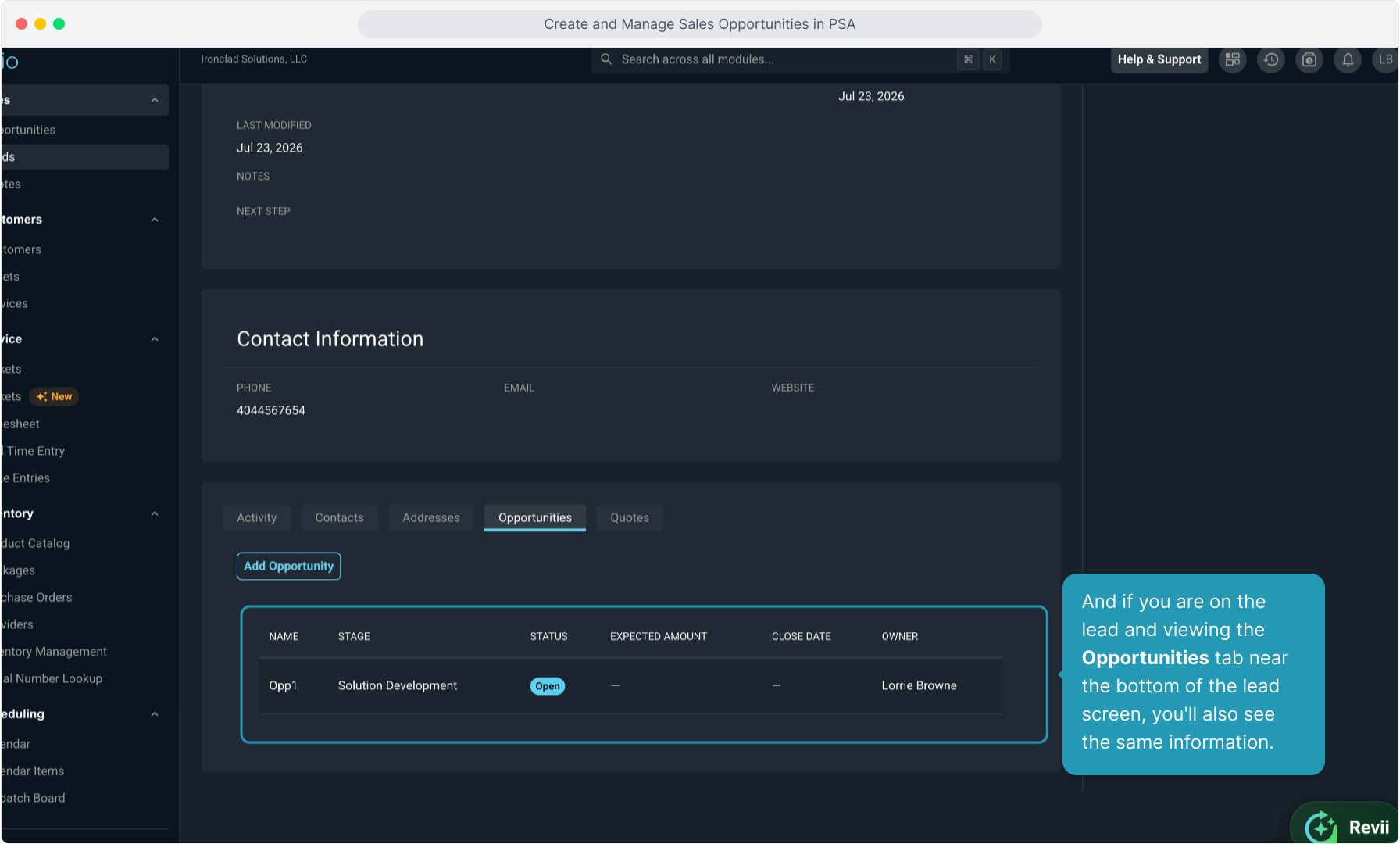
3. Toward the bottom of the lead screen, click the Opportunities tab.
4. And then click the Add Opportunity button to create a new sales opportunity.
This screen will also display any opportunities already existing on this lead.
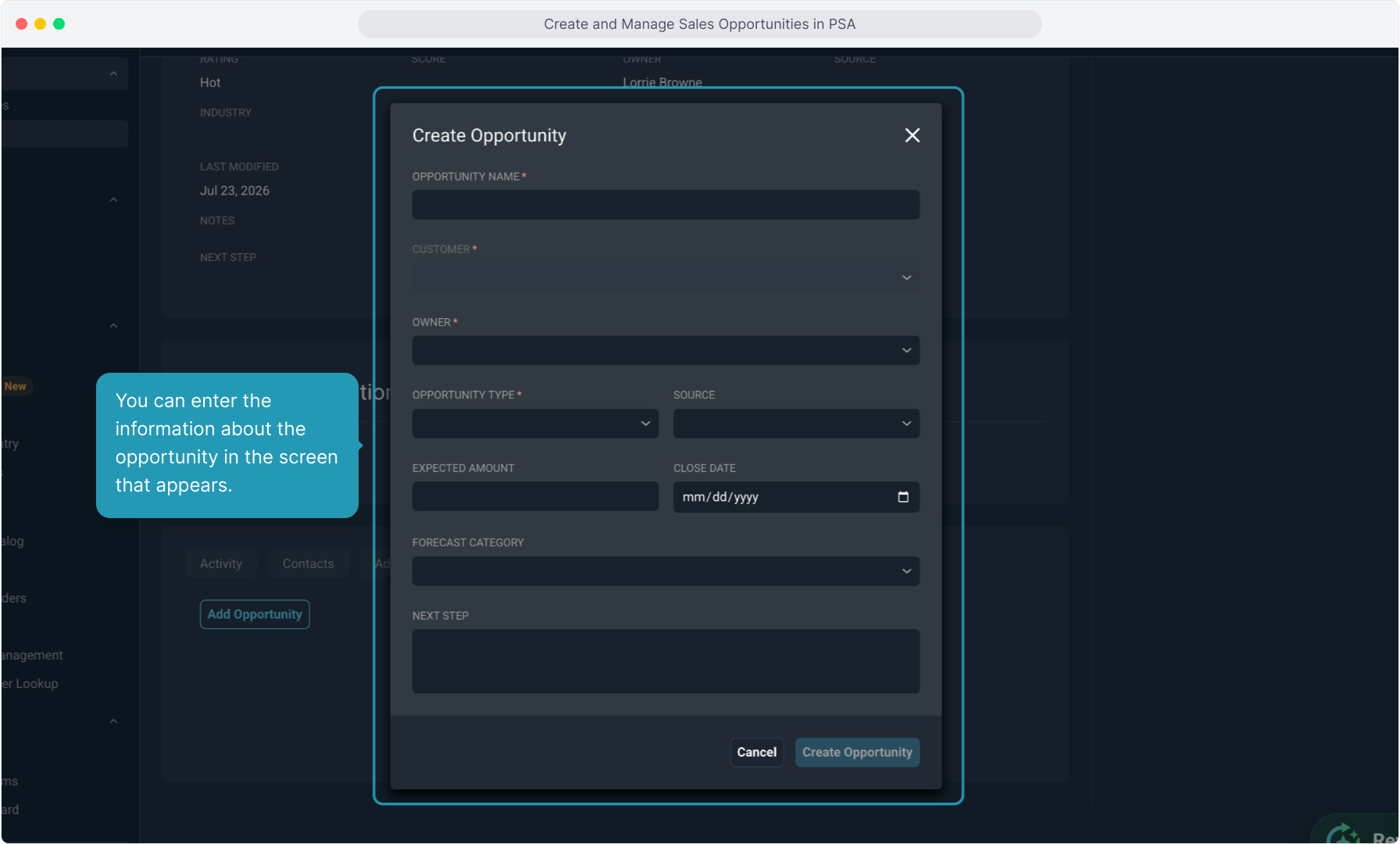
5. You can enter the information about the opportunity in the screen that appears.
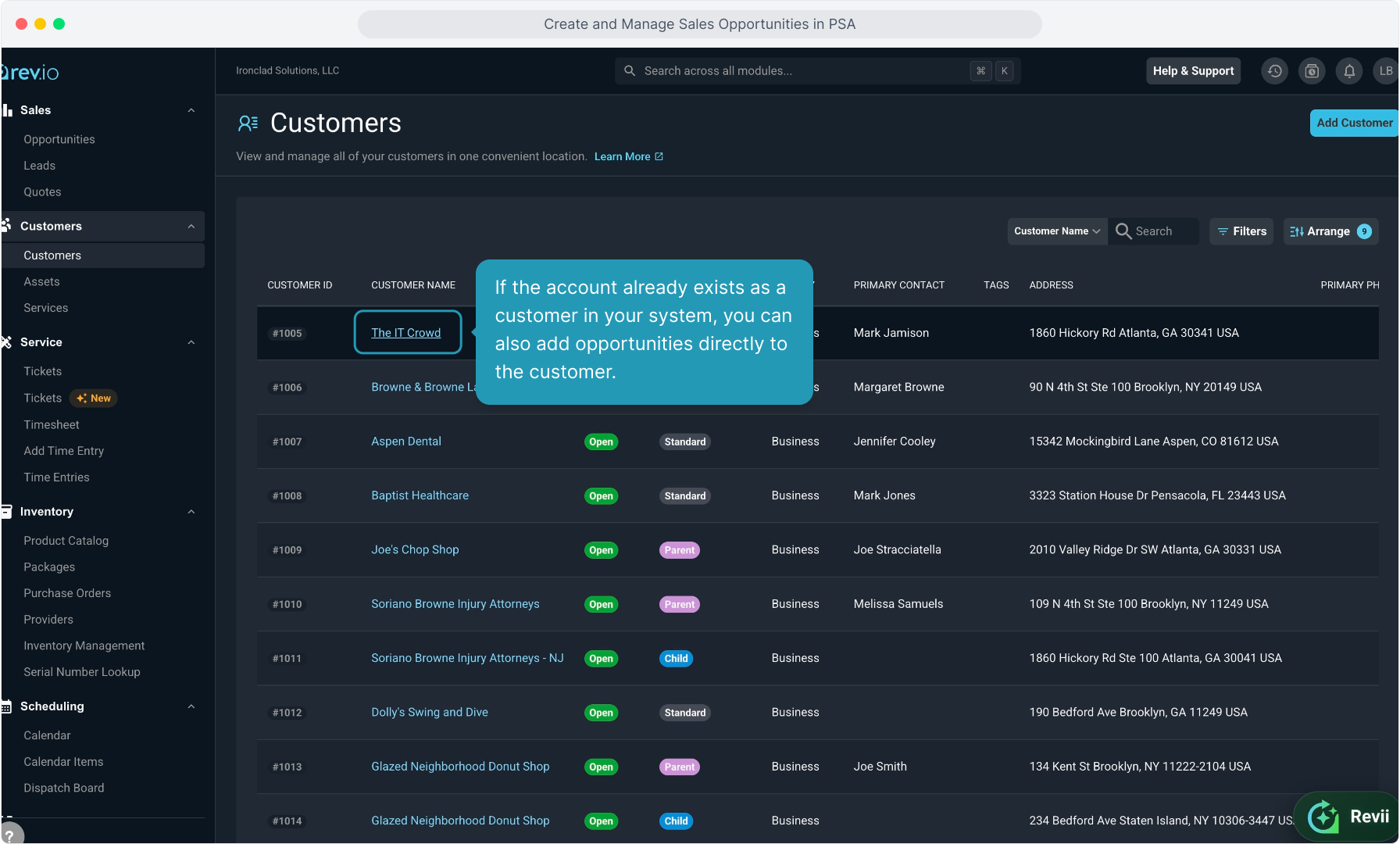
6. If the account already exists as a customer in your system, you can also add opportunities directly to the customer.
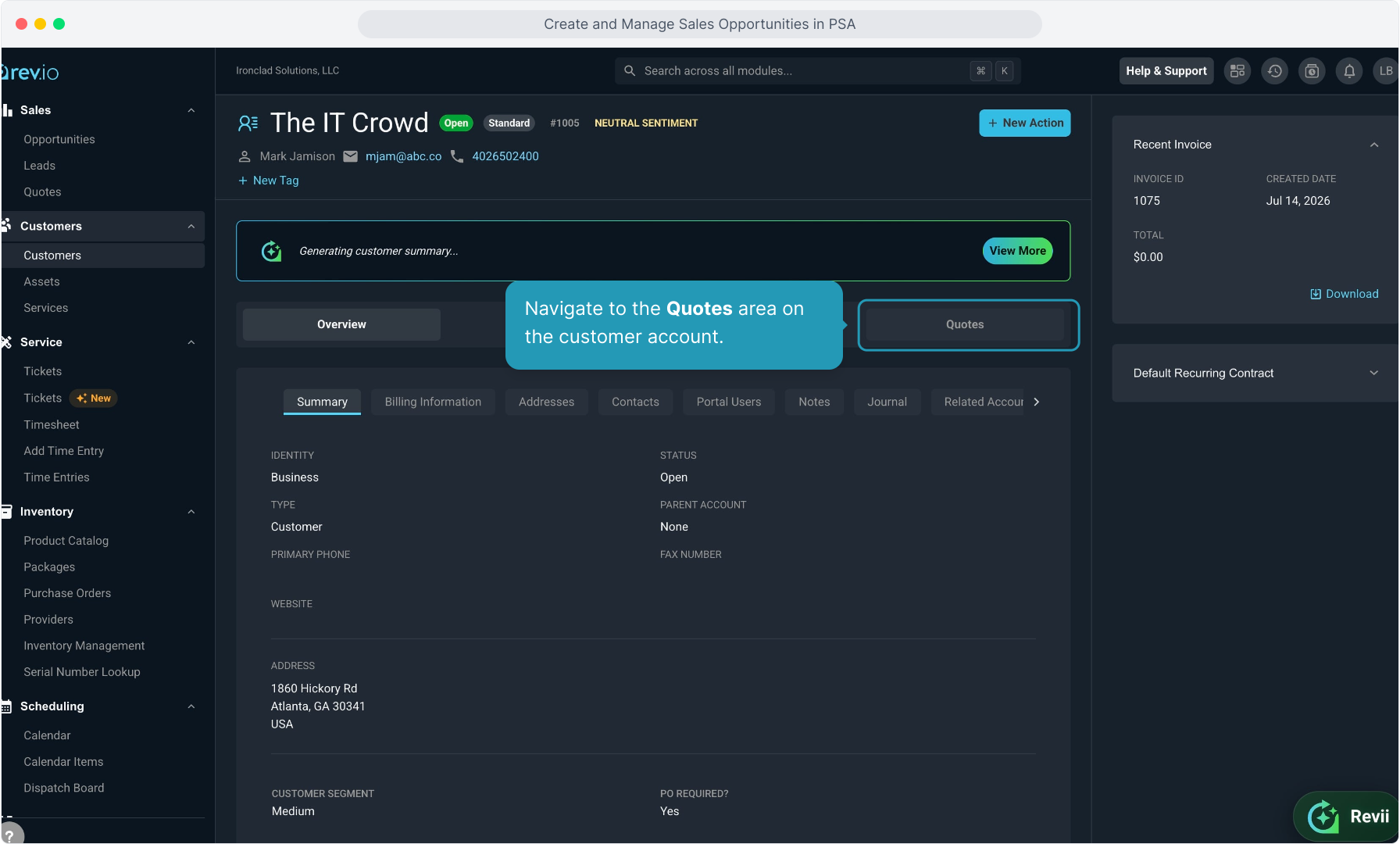
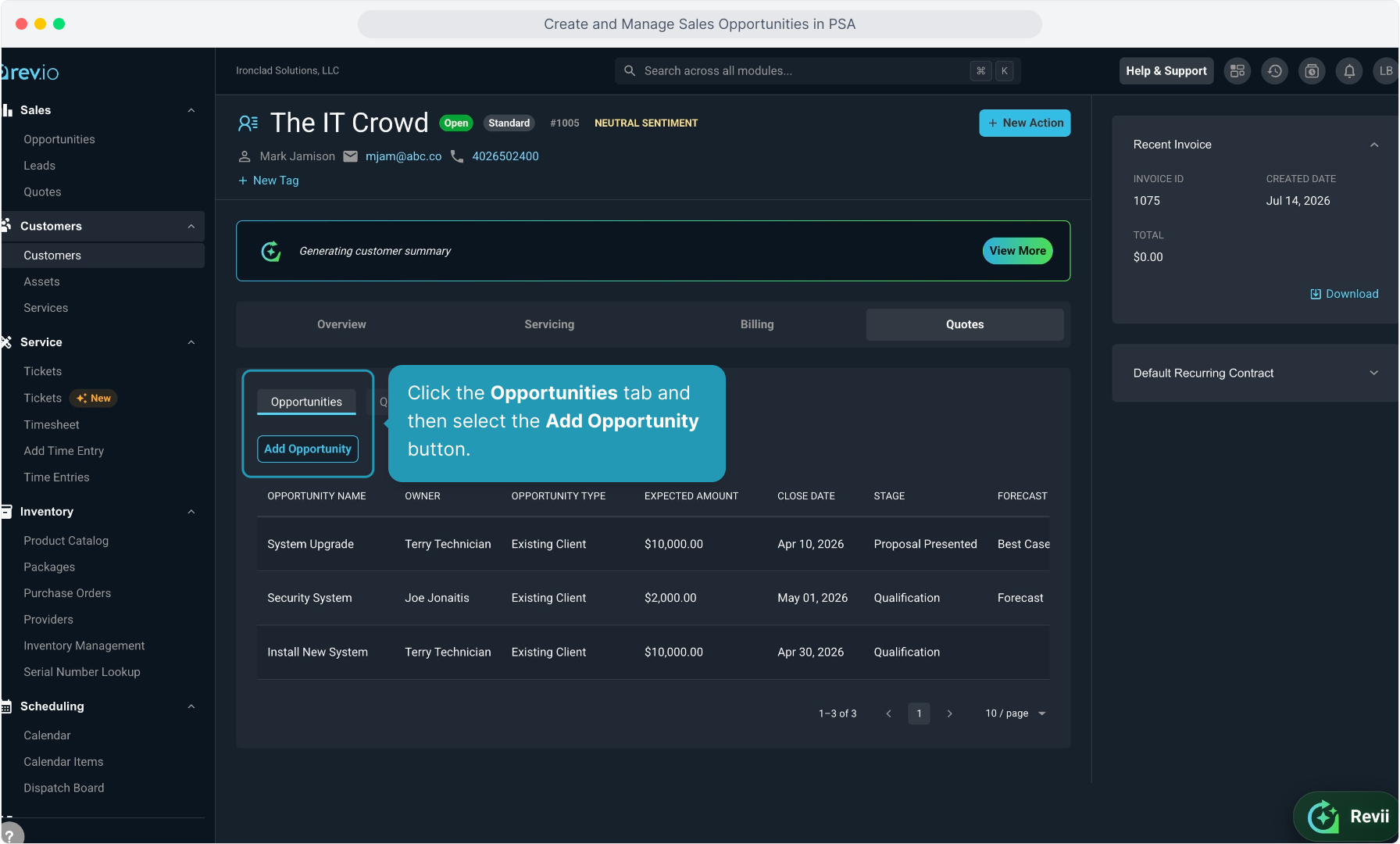
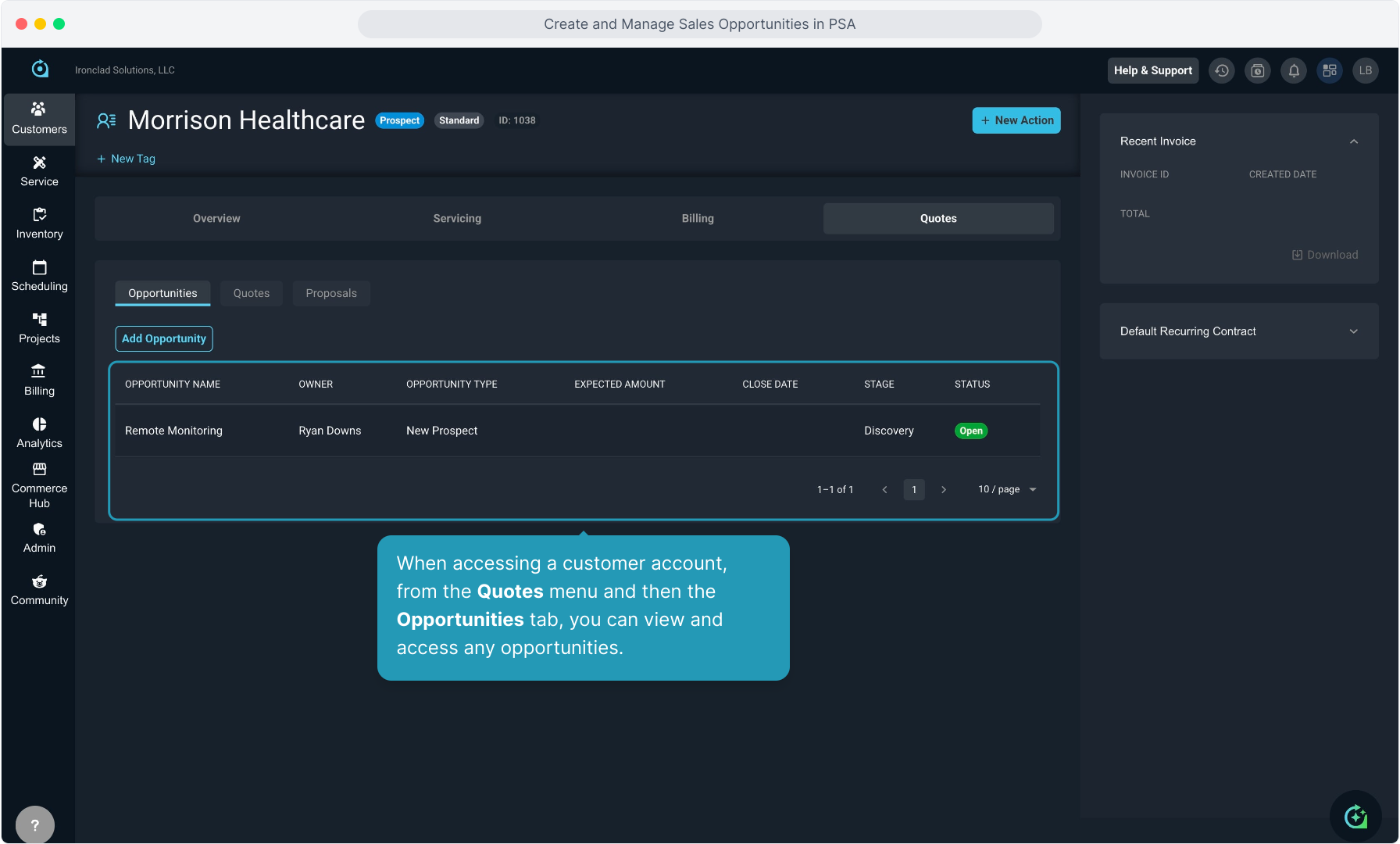
7. Navigate to the Quotes area on the customer account.
8. Click the Opportunities tab and then select the Add Opportunity button.
9. The same screen for creating an opportunity will appear here, allowing you to create the opportunity from either the lead or the existing customer account.
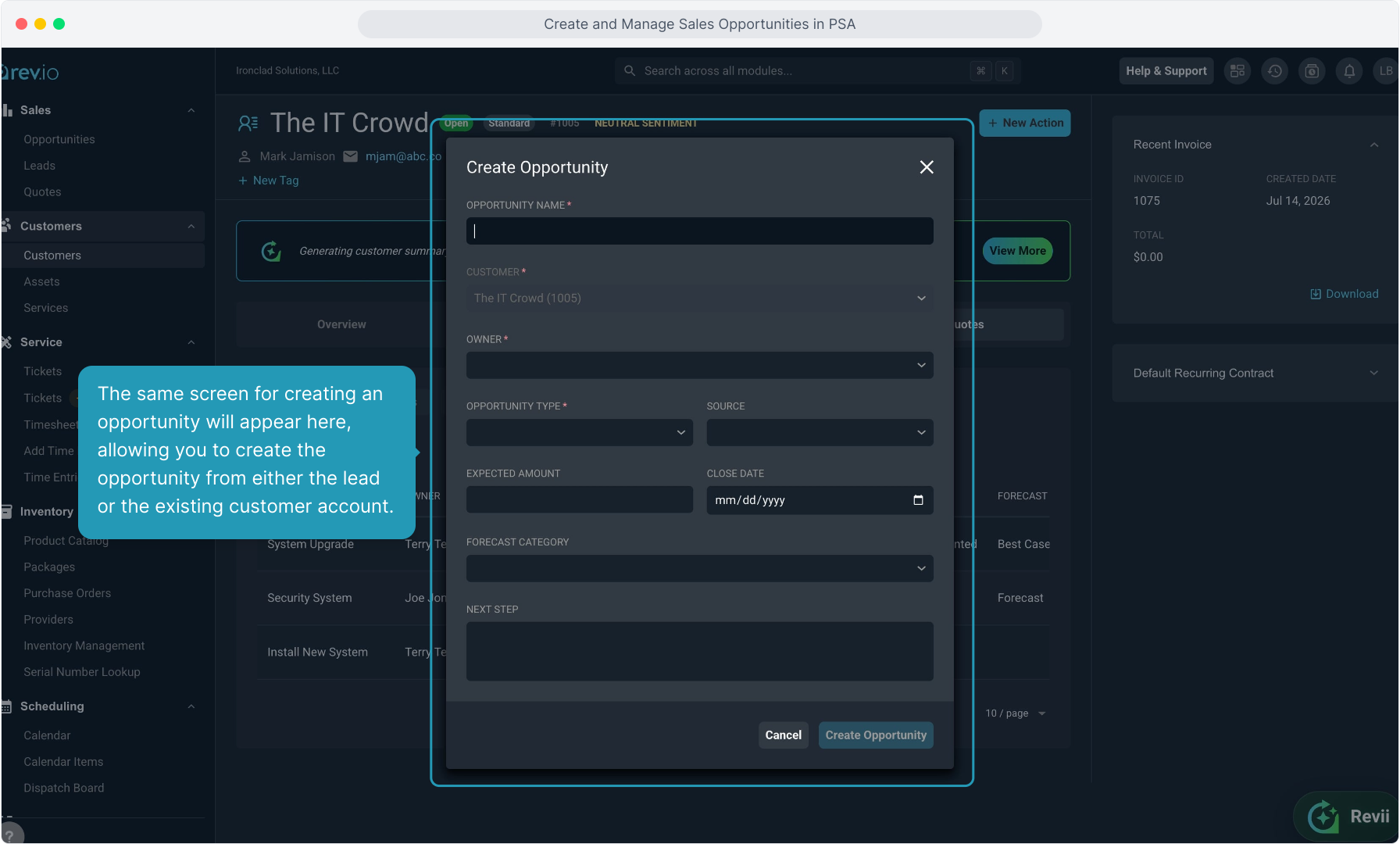
10. Give this opportunity a name.
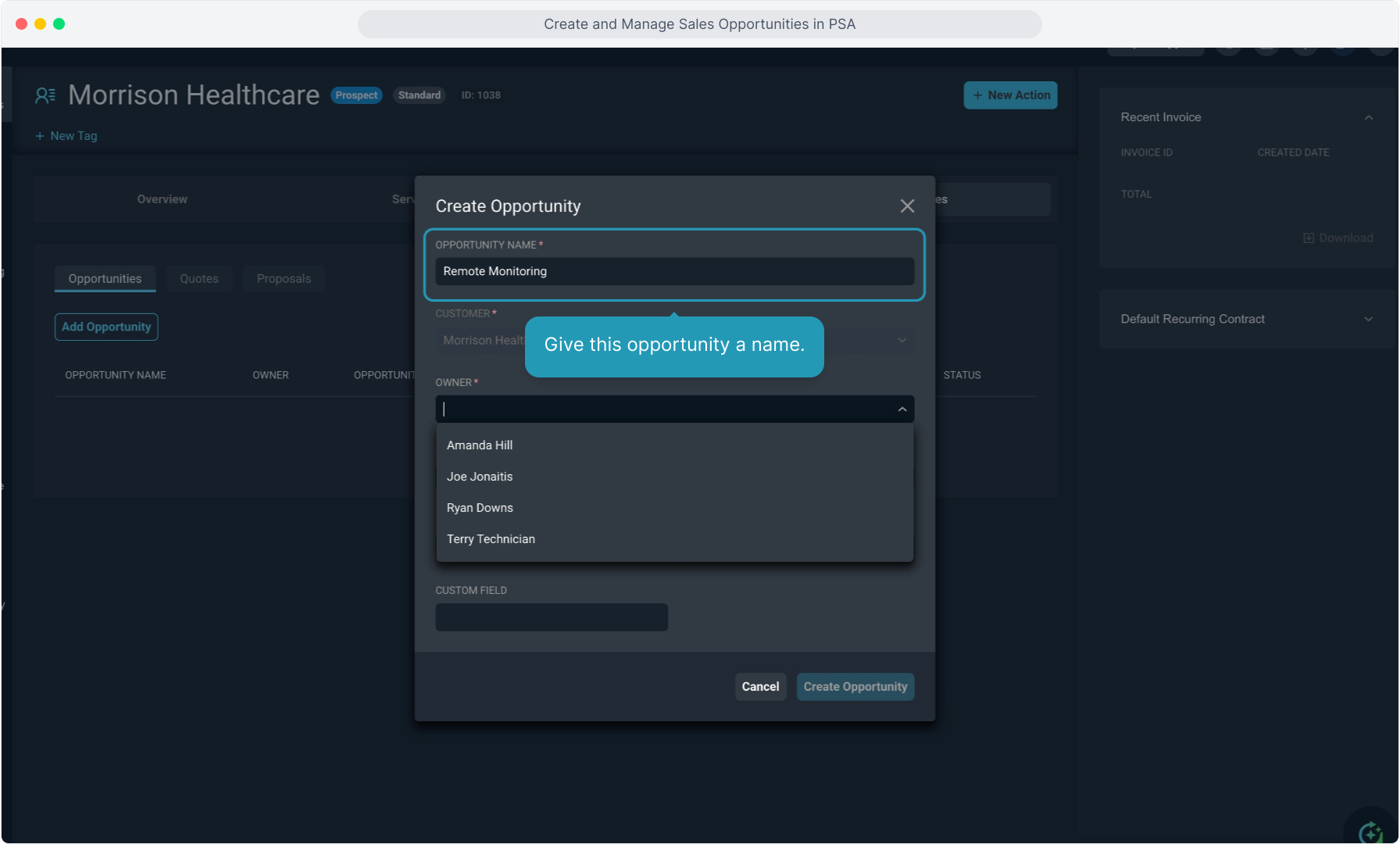
11. Select the salesperson as the opportunity Owner from the dropdown list.
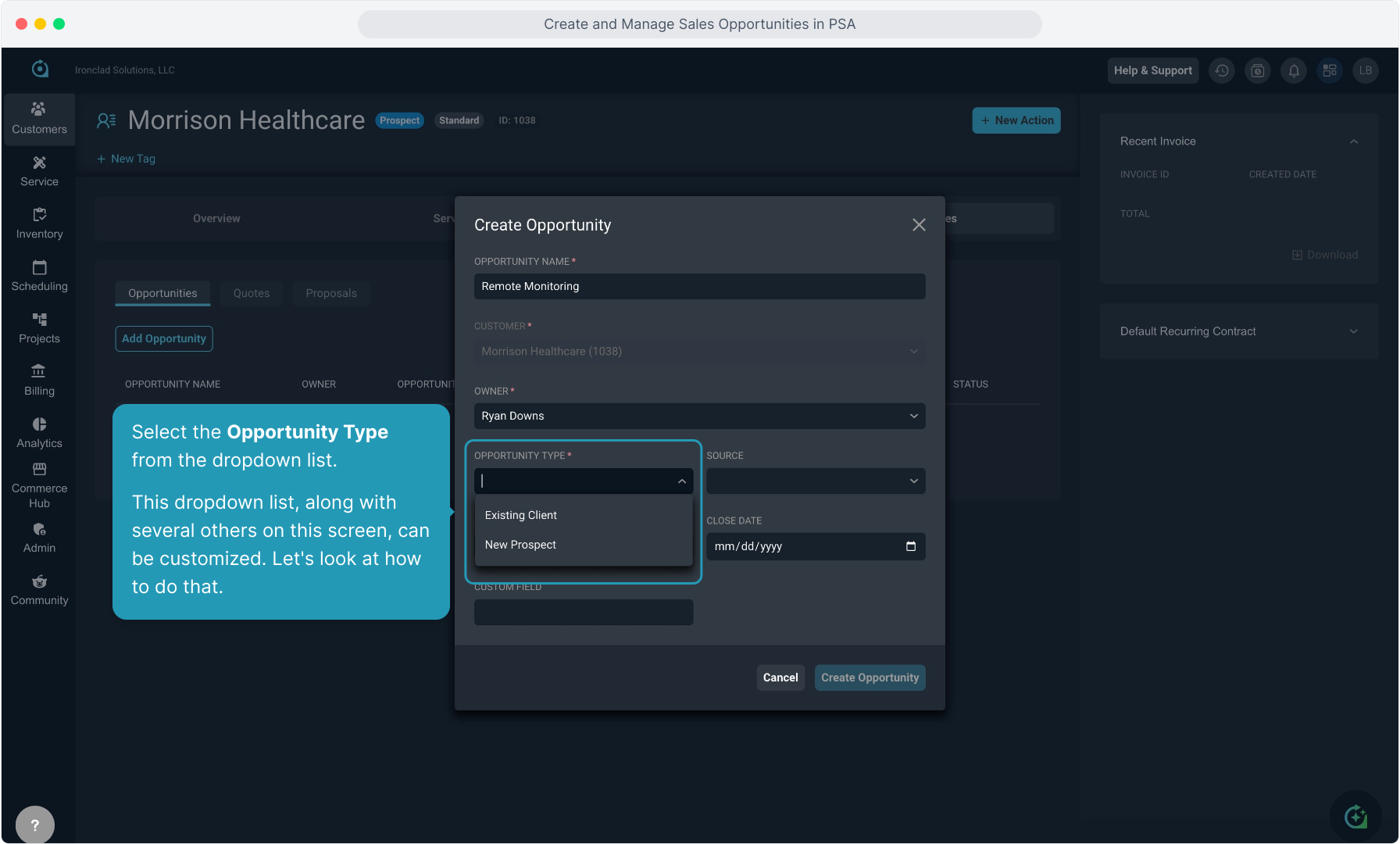
12. Select the Opportunity Type from the dropdown list.
This dropdown list, along with several others on this screen, can be customized. Let's look at how to do that.
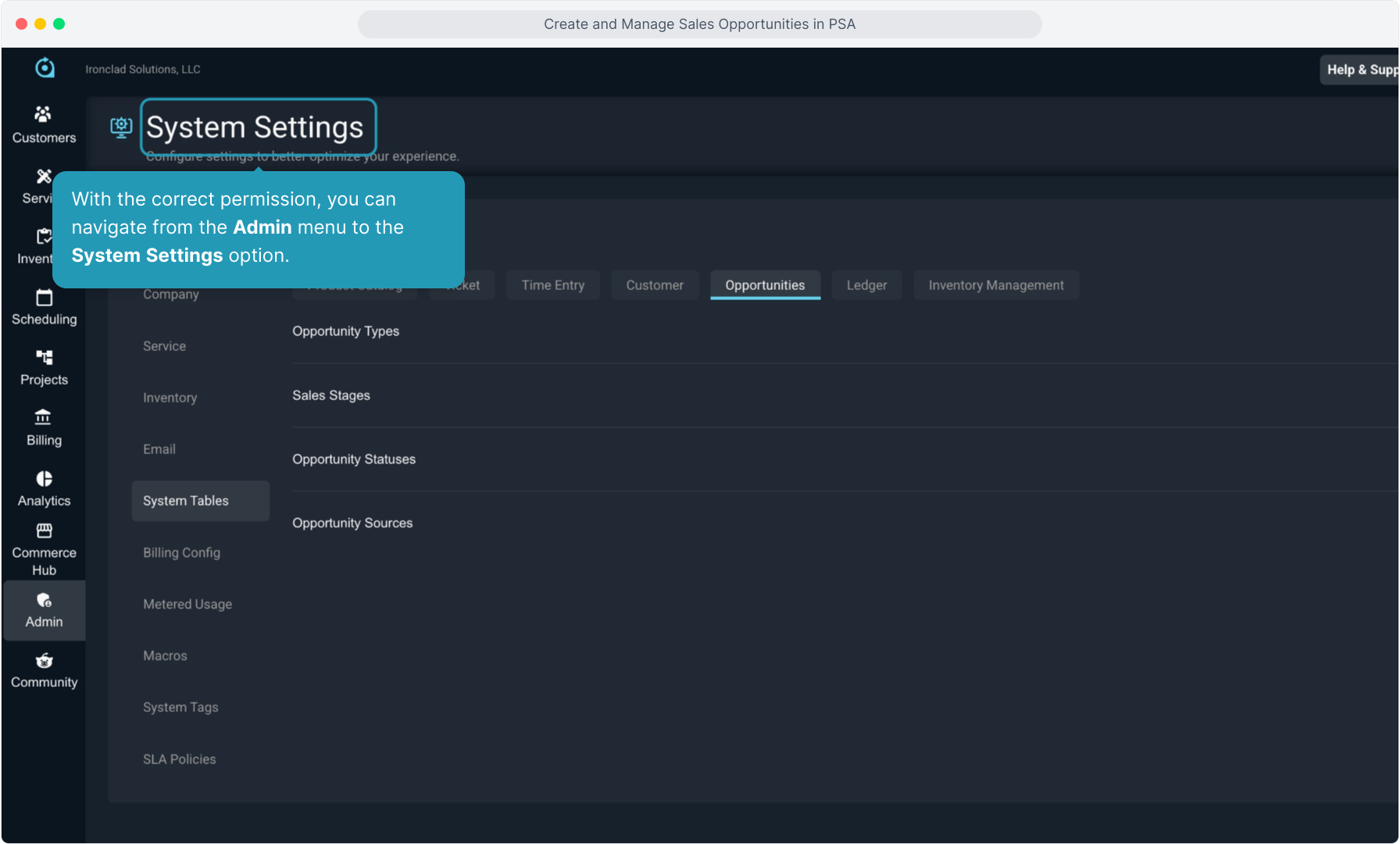
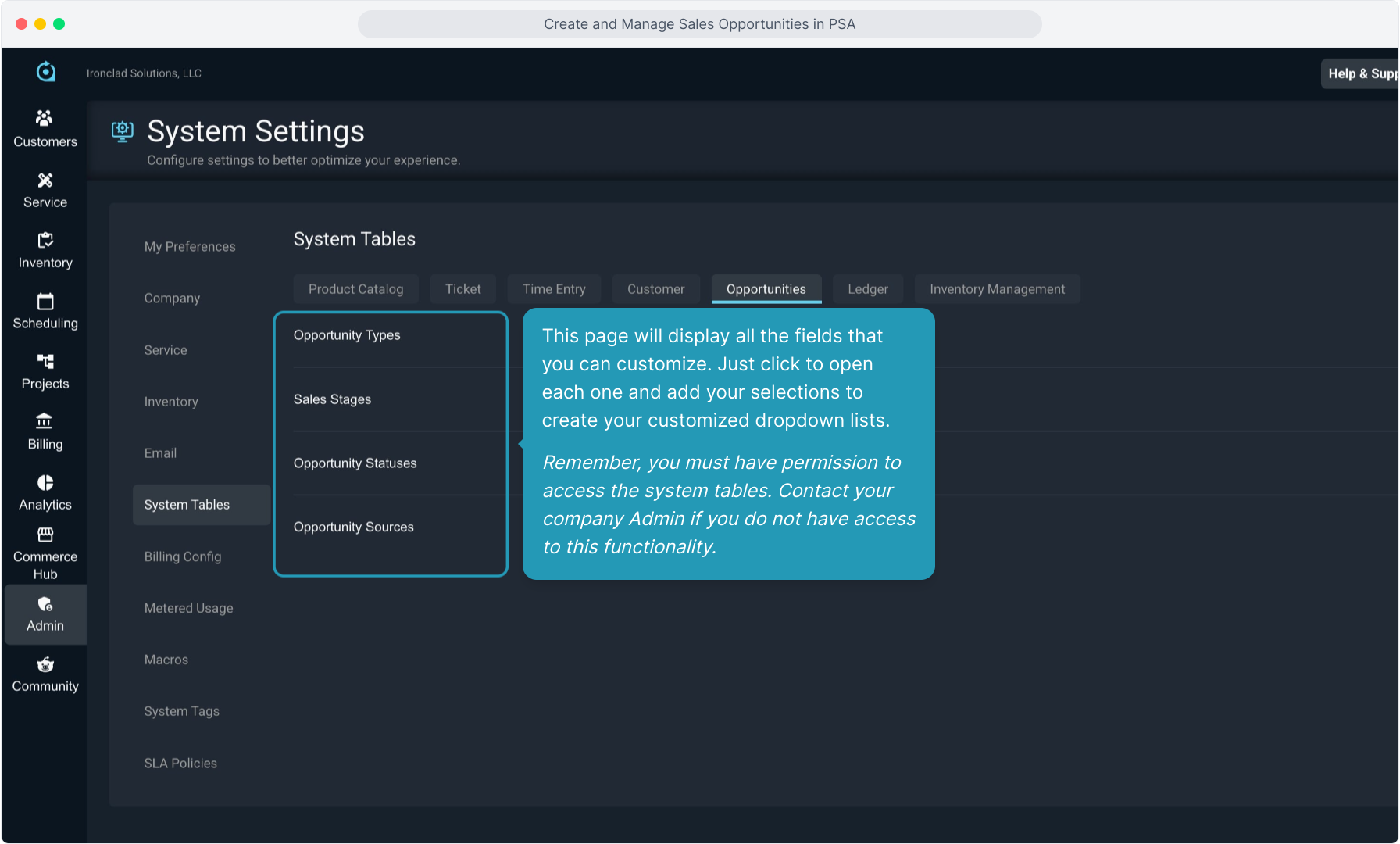
13. With the correct permission, you can navigate from the Admin menu to the System Settings option.
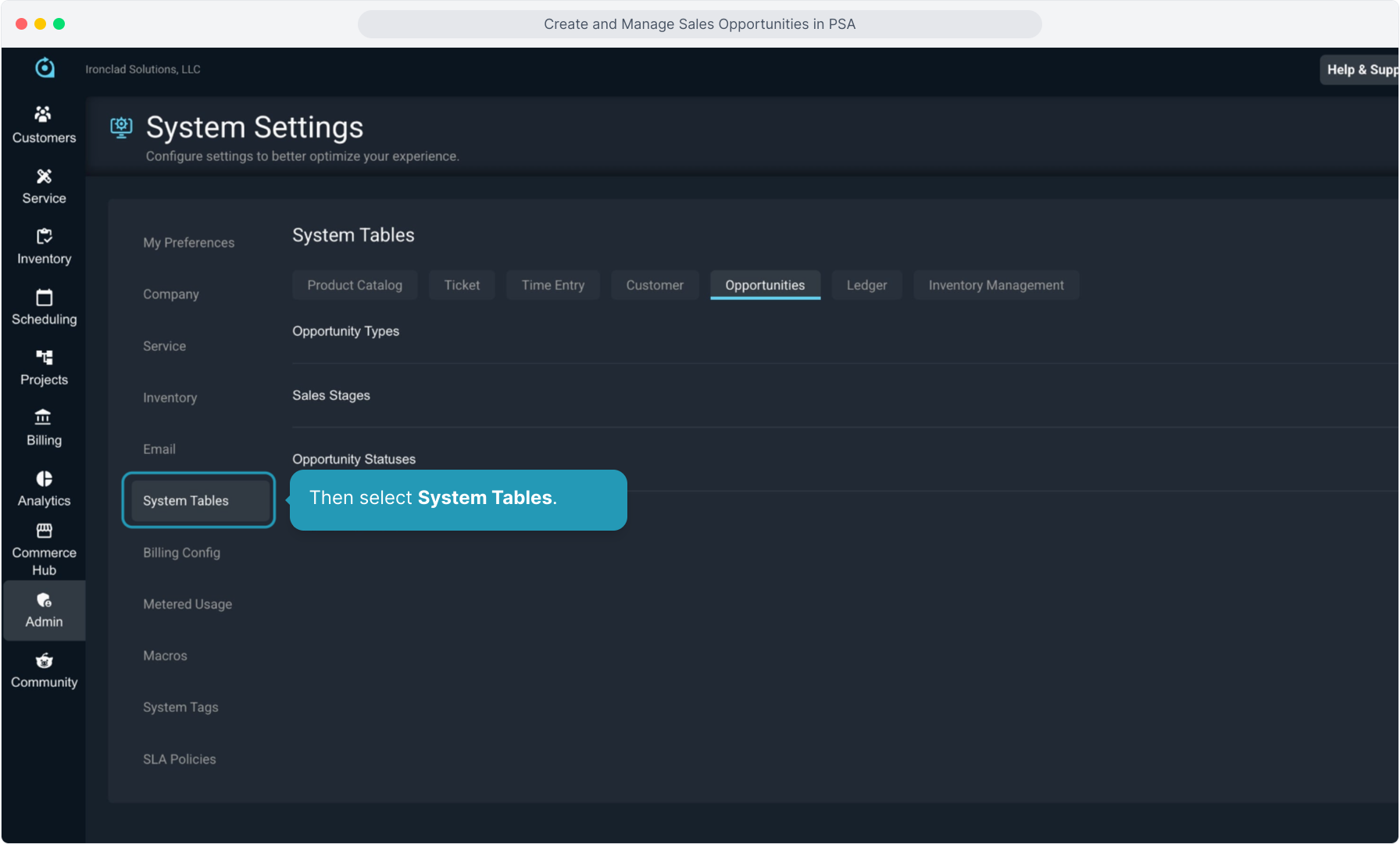
14. Then select System Tables.
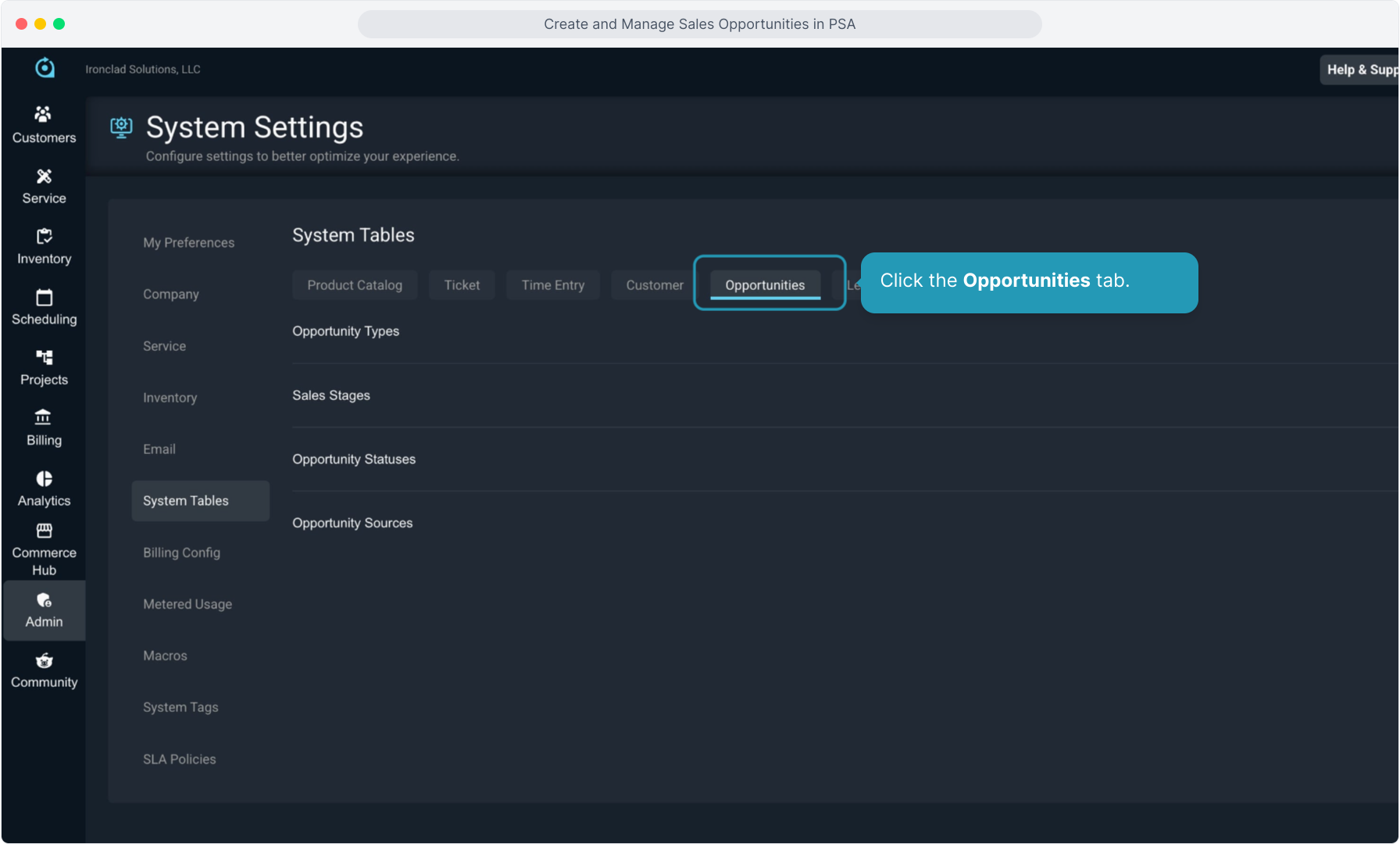
15. Click the Opportunities tab.
16. This page will display all the fields that you can customize. Just click to open each one and add your selections to create your customized dropdown lists.
Remember, you must have permission to access the system tables. Contact your company Admin if you do not have access to this functionality.
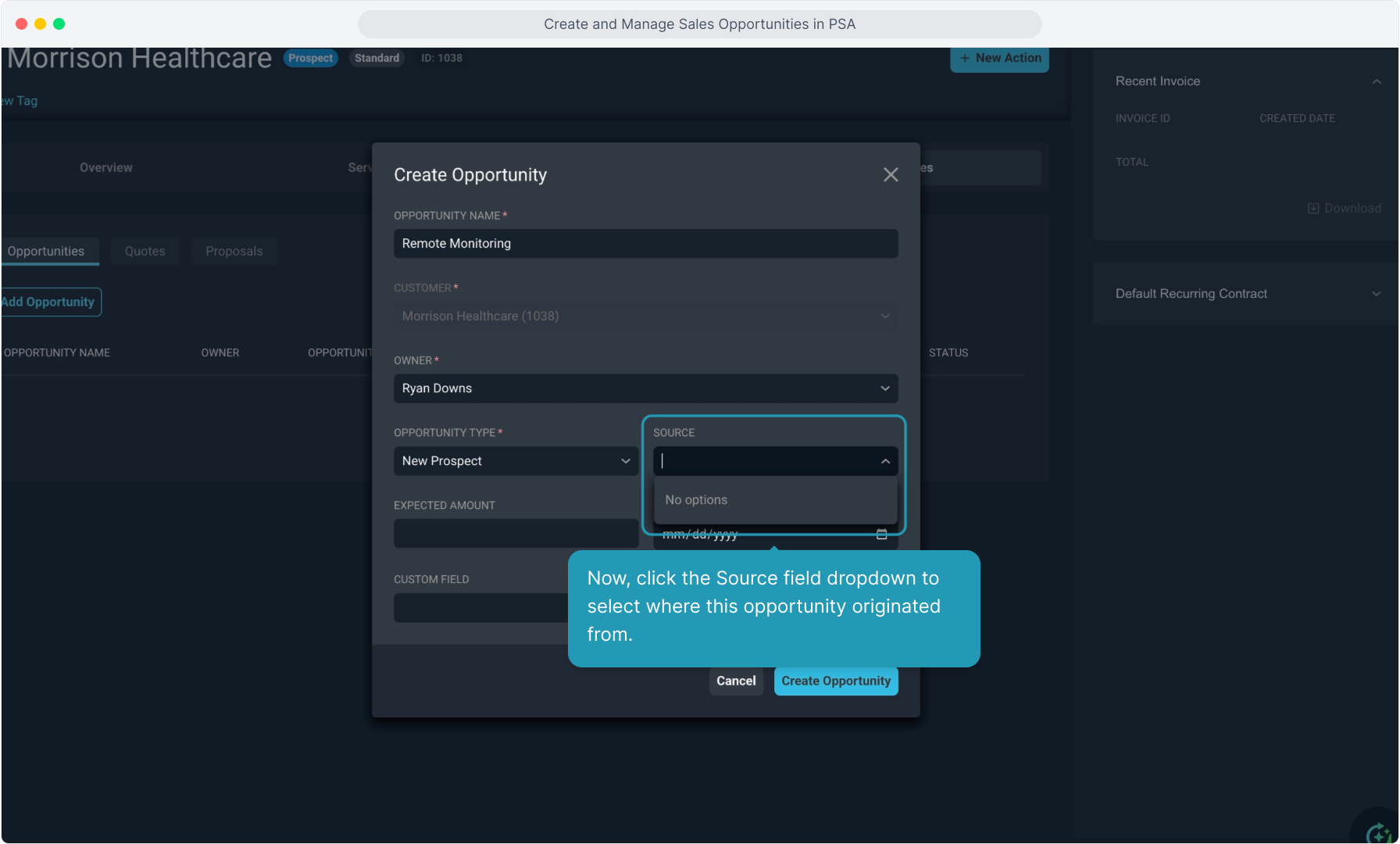
17. Now, click the Source field dropdown to select where this opportunity originated from.
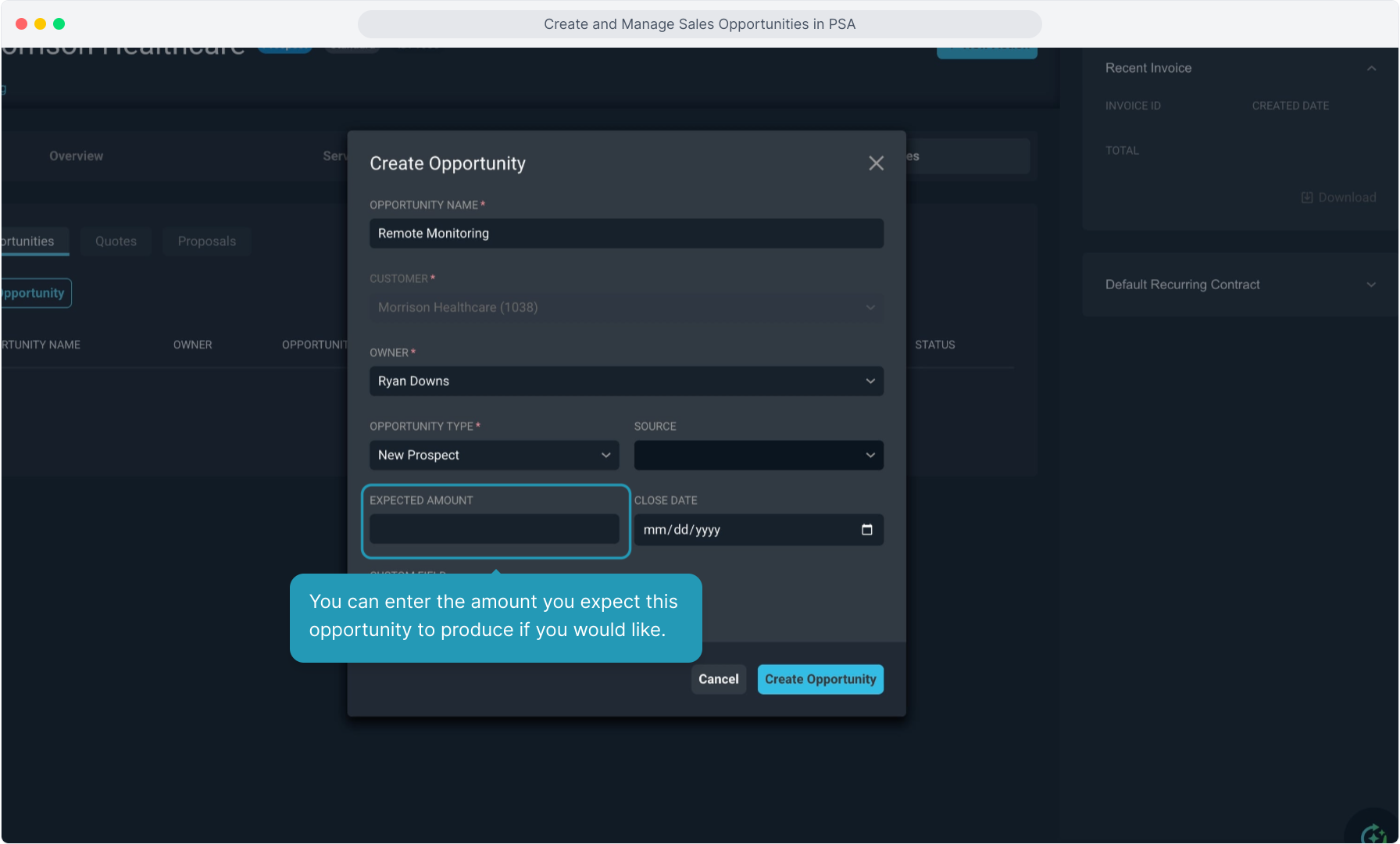
18. You can enter the amount you expect this opportunity to produce if you would like.
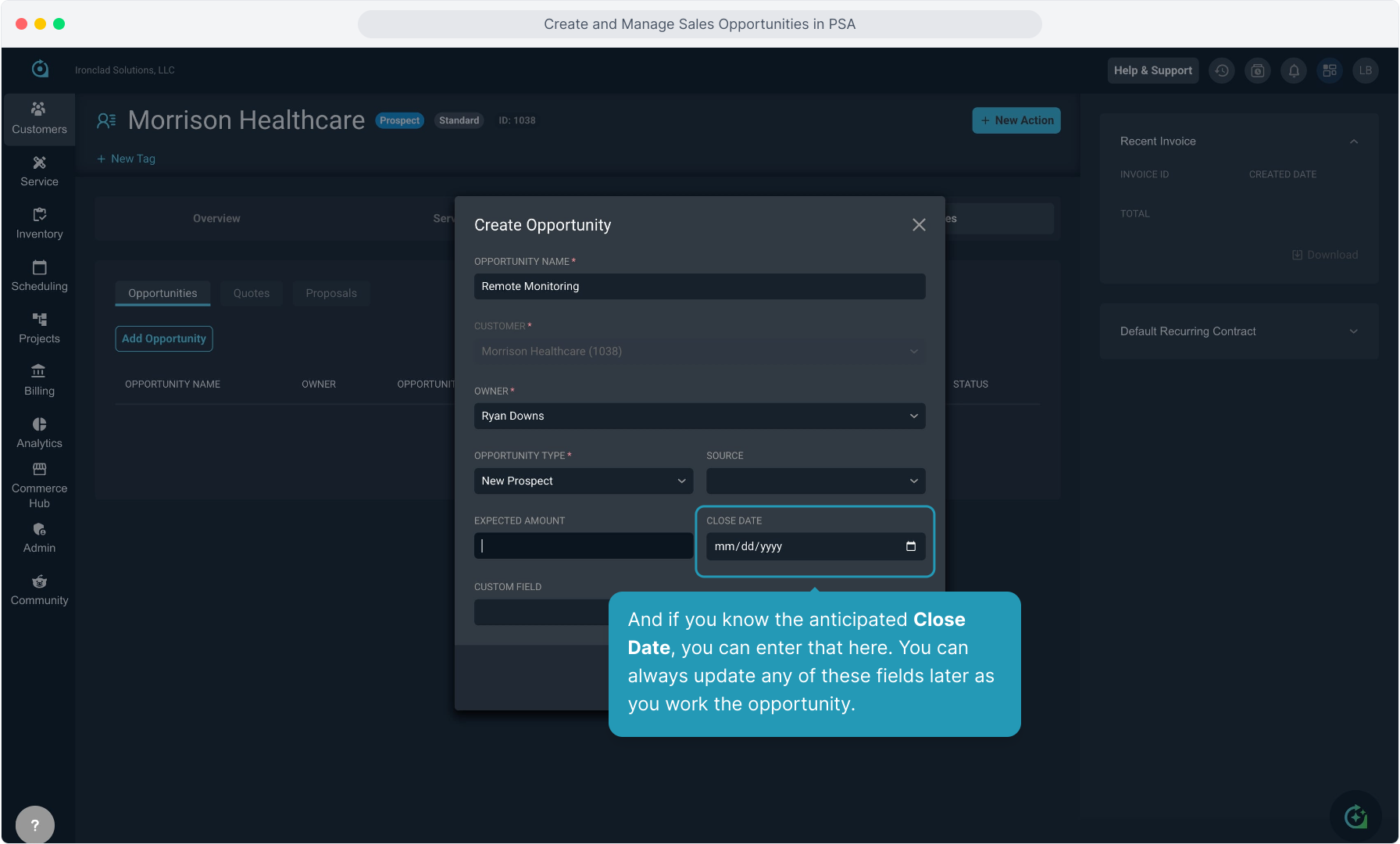
19. And if you know the anticipated Close Date, you can enter that here. You can always update any of these fields later as you work the opportunity.
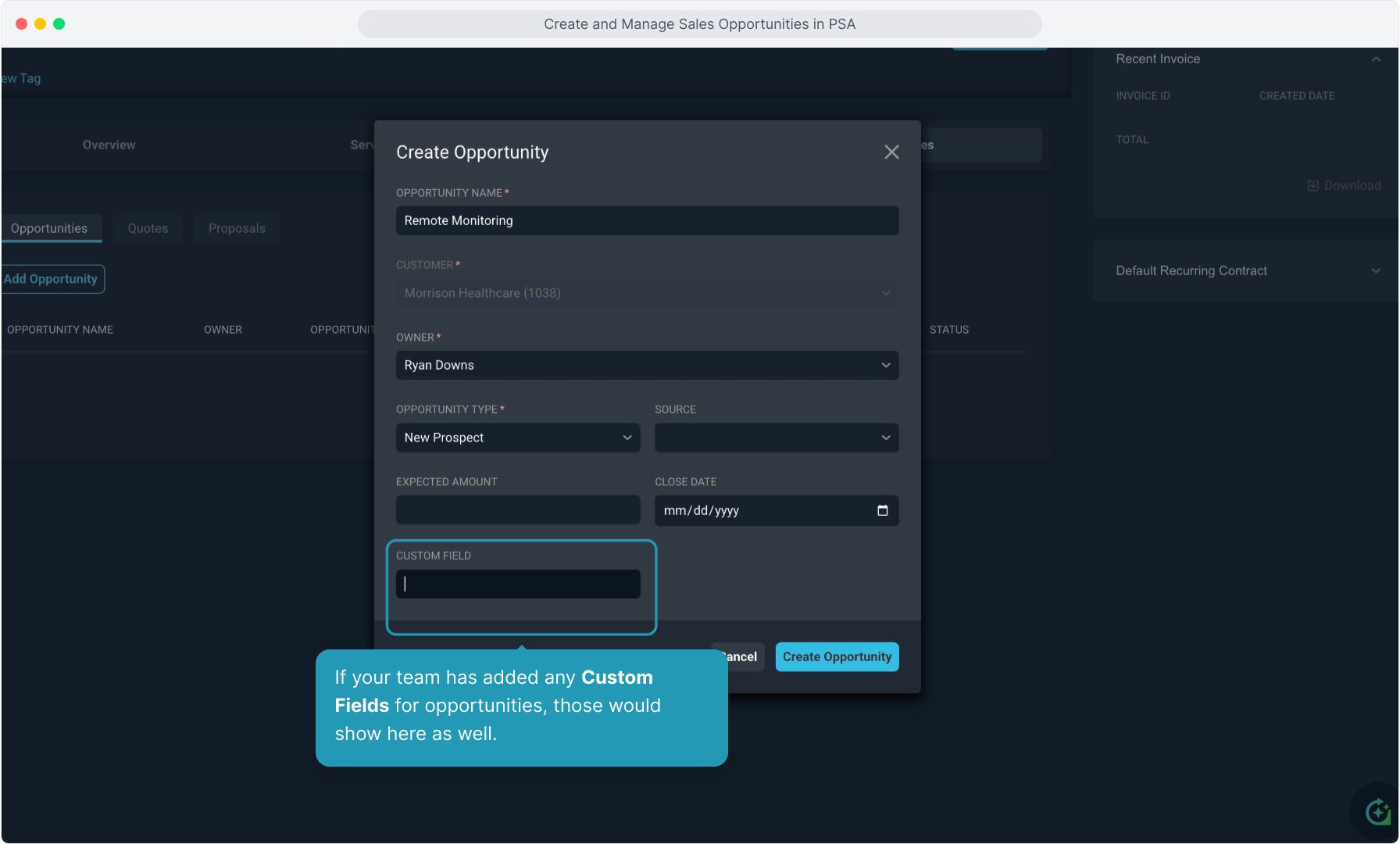
20. If your team has added any Custom Fields for opportunities, those would show here as well.
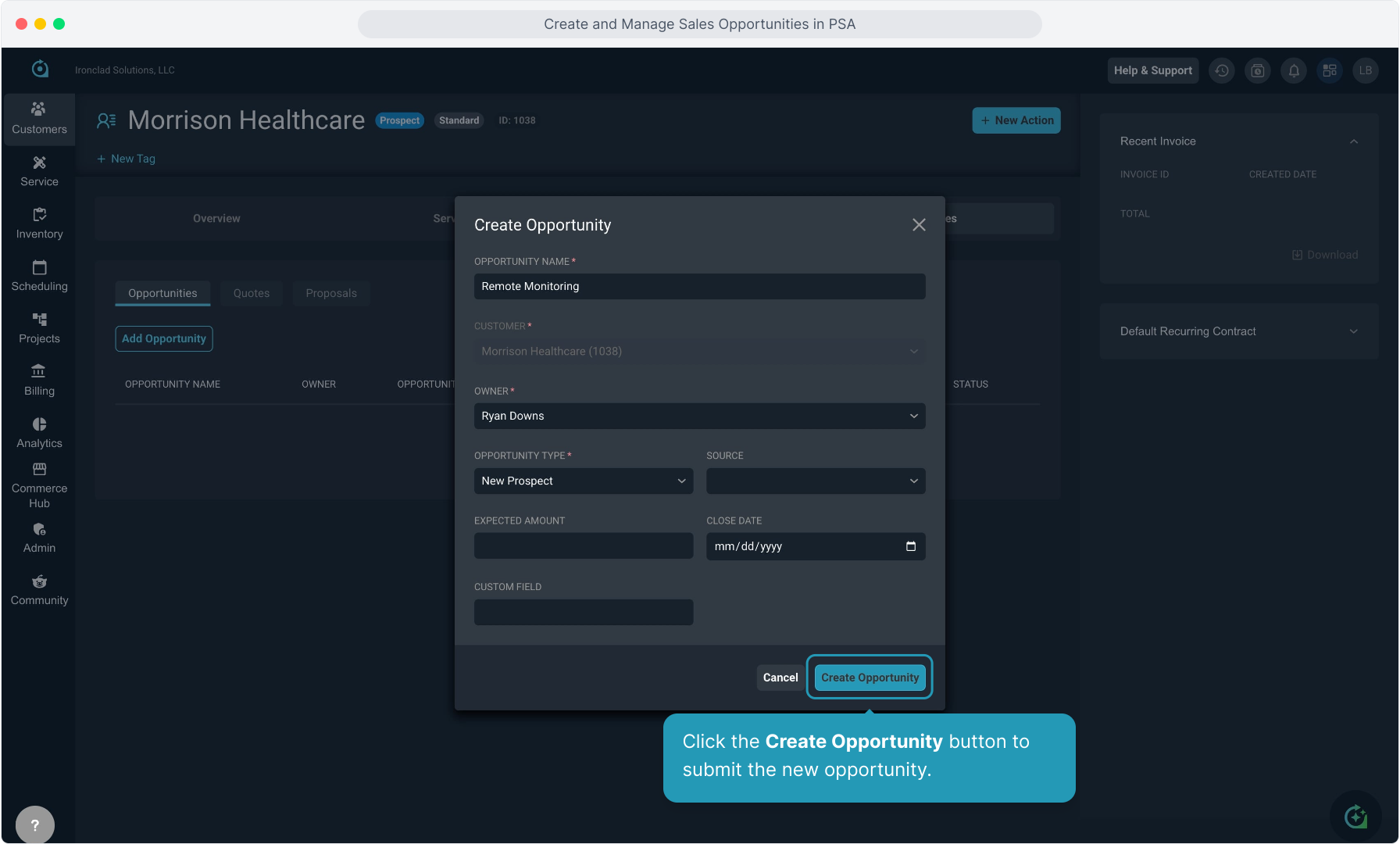
21. Click the Create Opportunity button to submit the new opportunity.
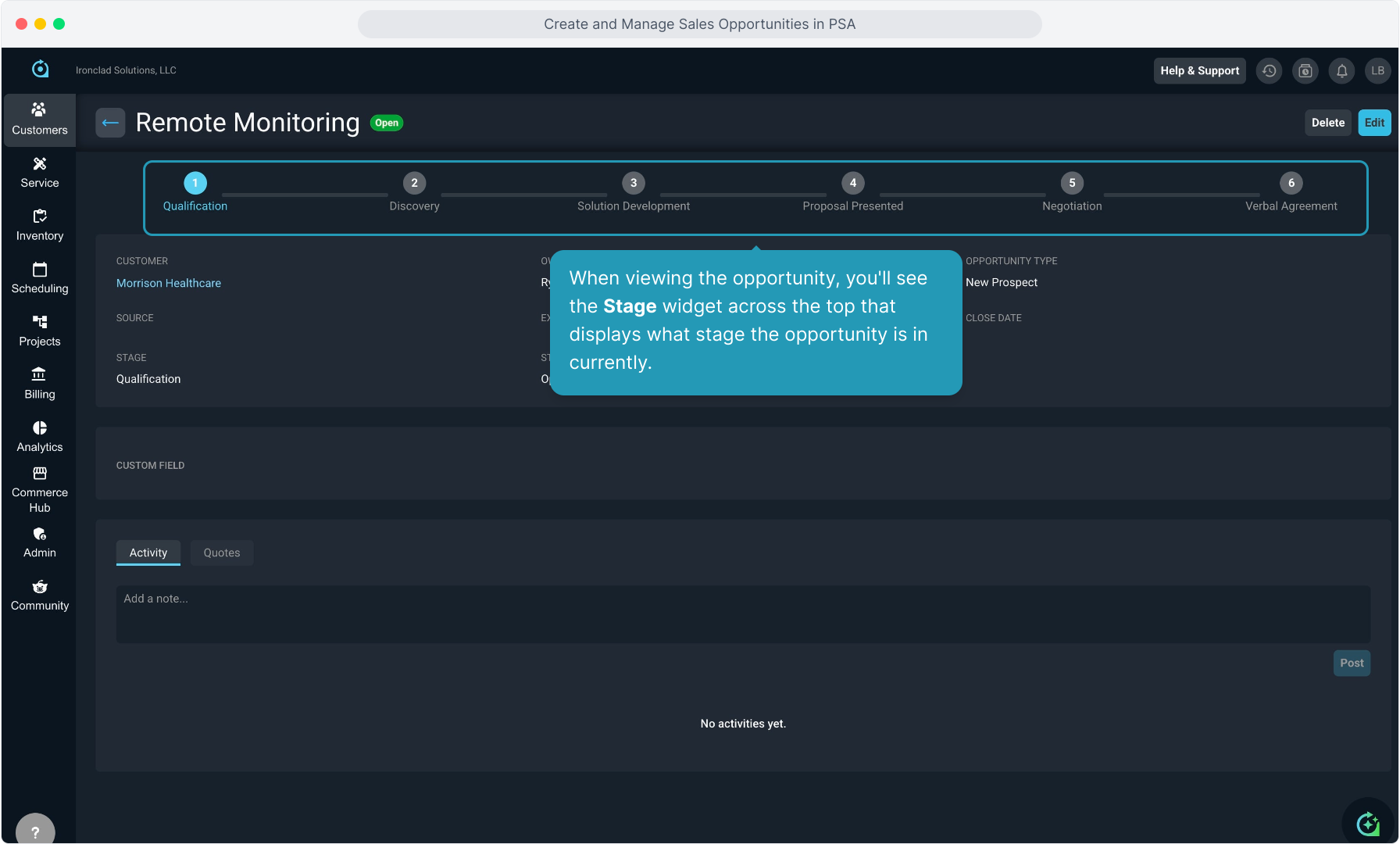
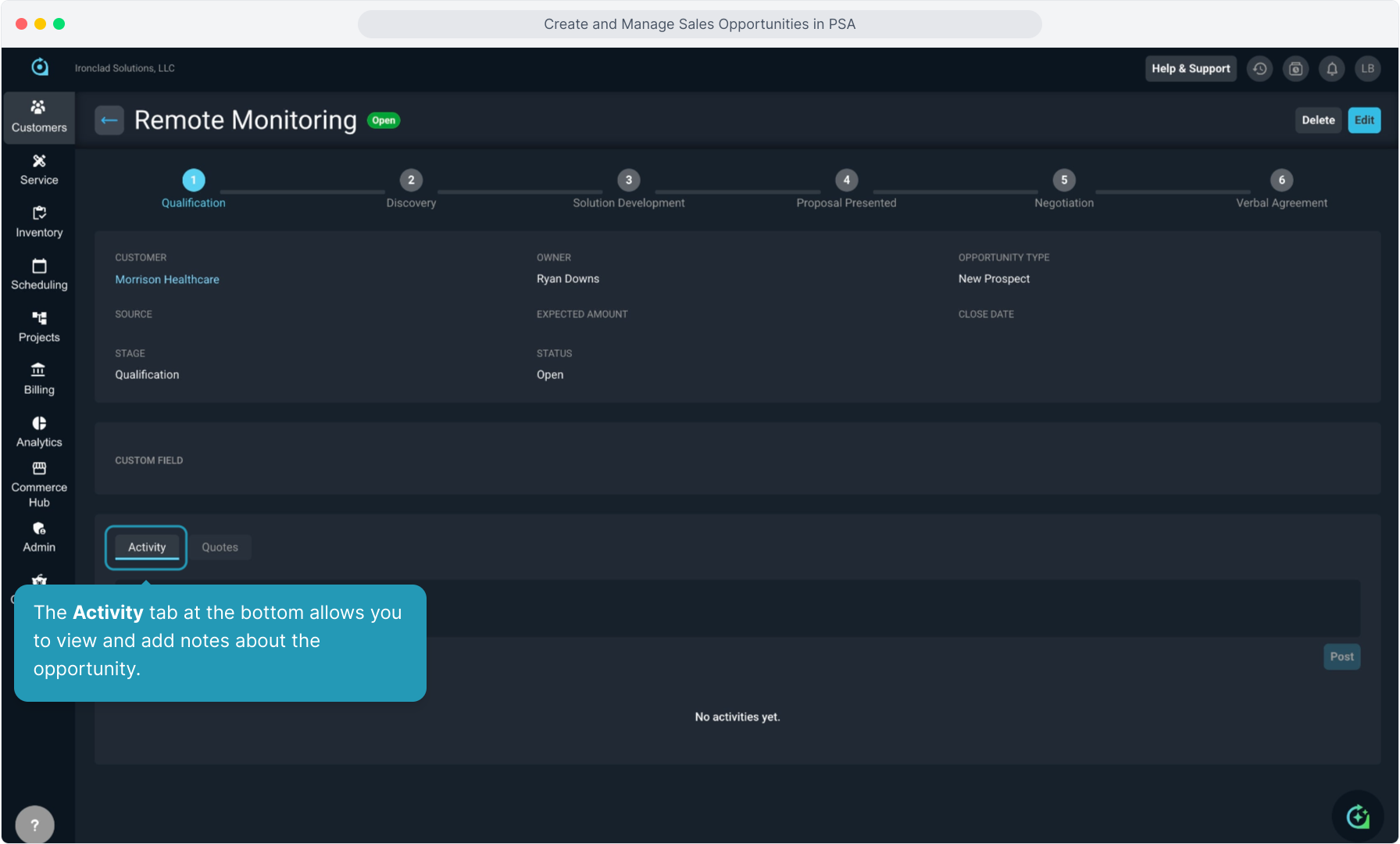
22. When viewing the opportunity, you'll see the Stage widget across the top that displays what stage the opportunity is in currently.
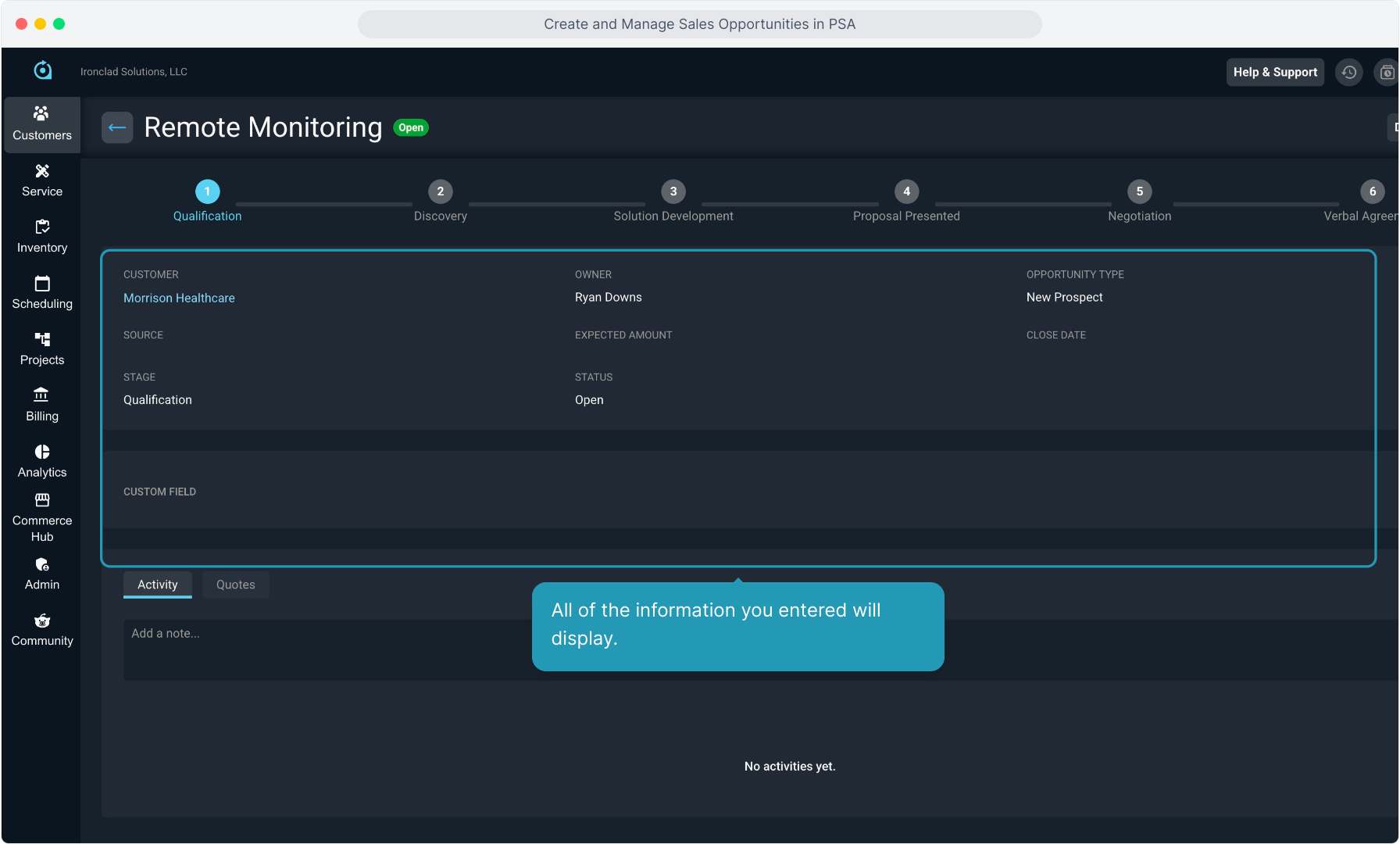
23. All of the information you entered will display.
24. The Activity tab at the bottom allows you to view and add notes about the opportunity.
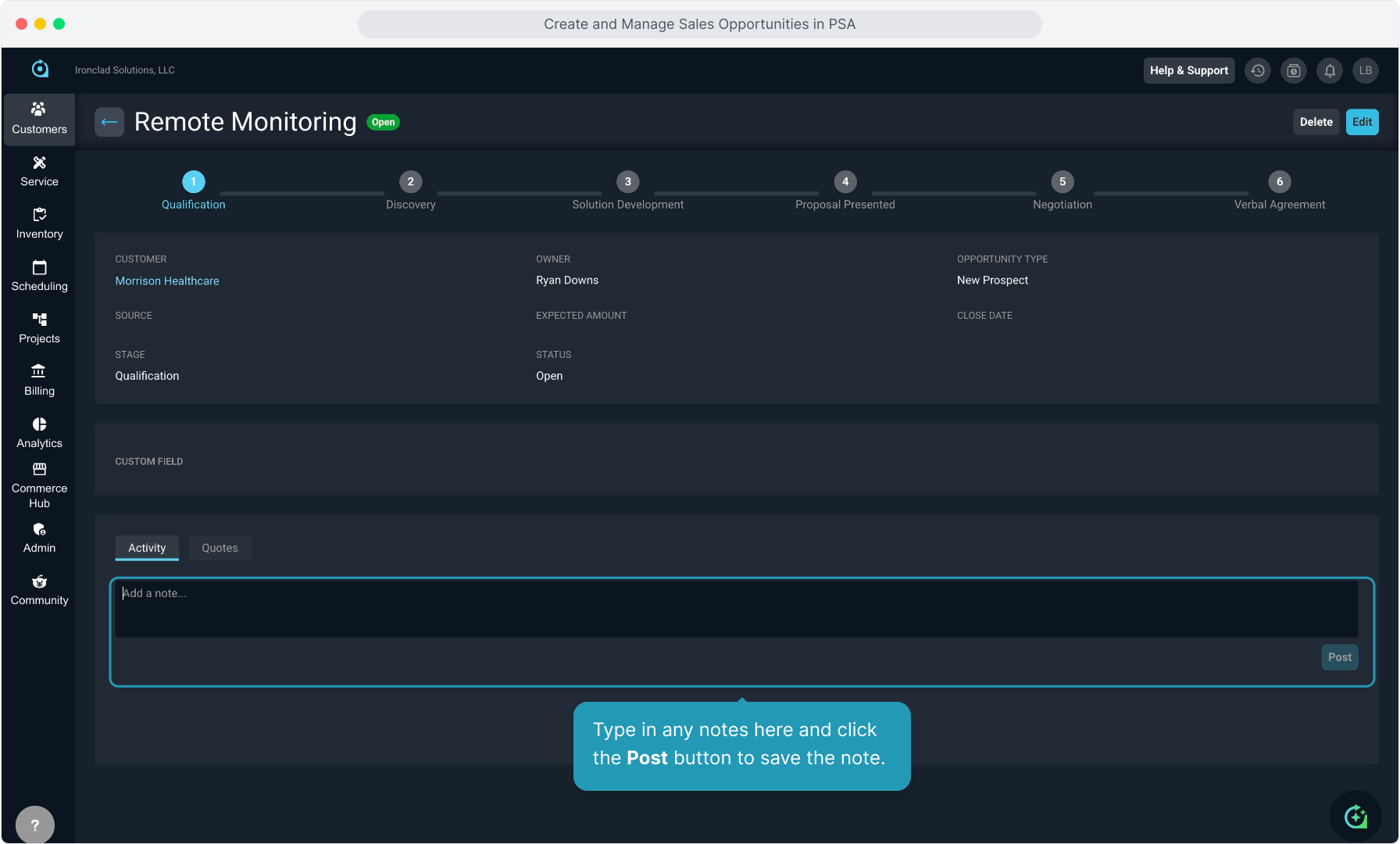
25. Type in any notes here and click the Post button to save the note.
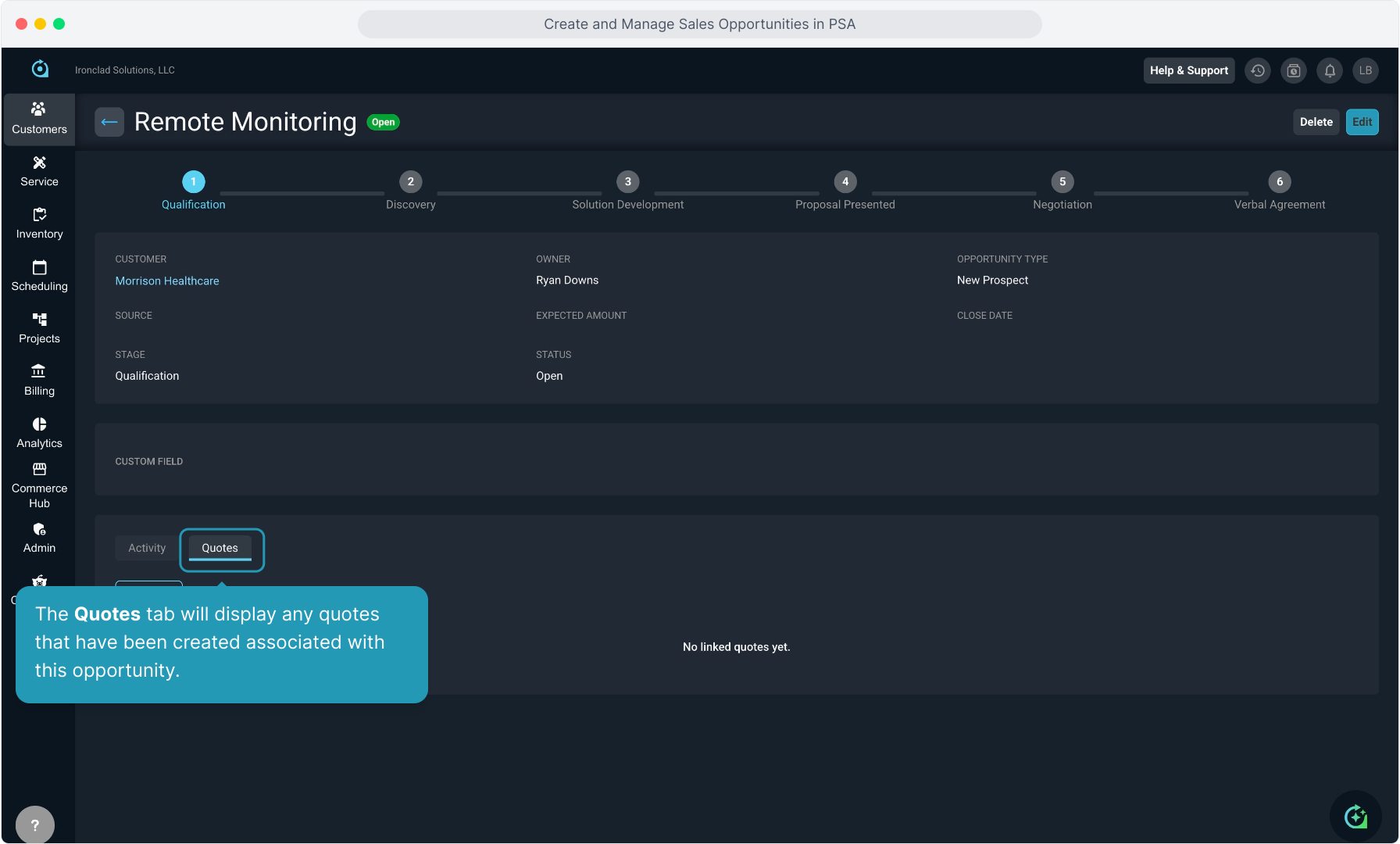
26. The Quotes tab will display any quotes that have been created associated with this opportunity.
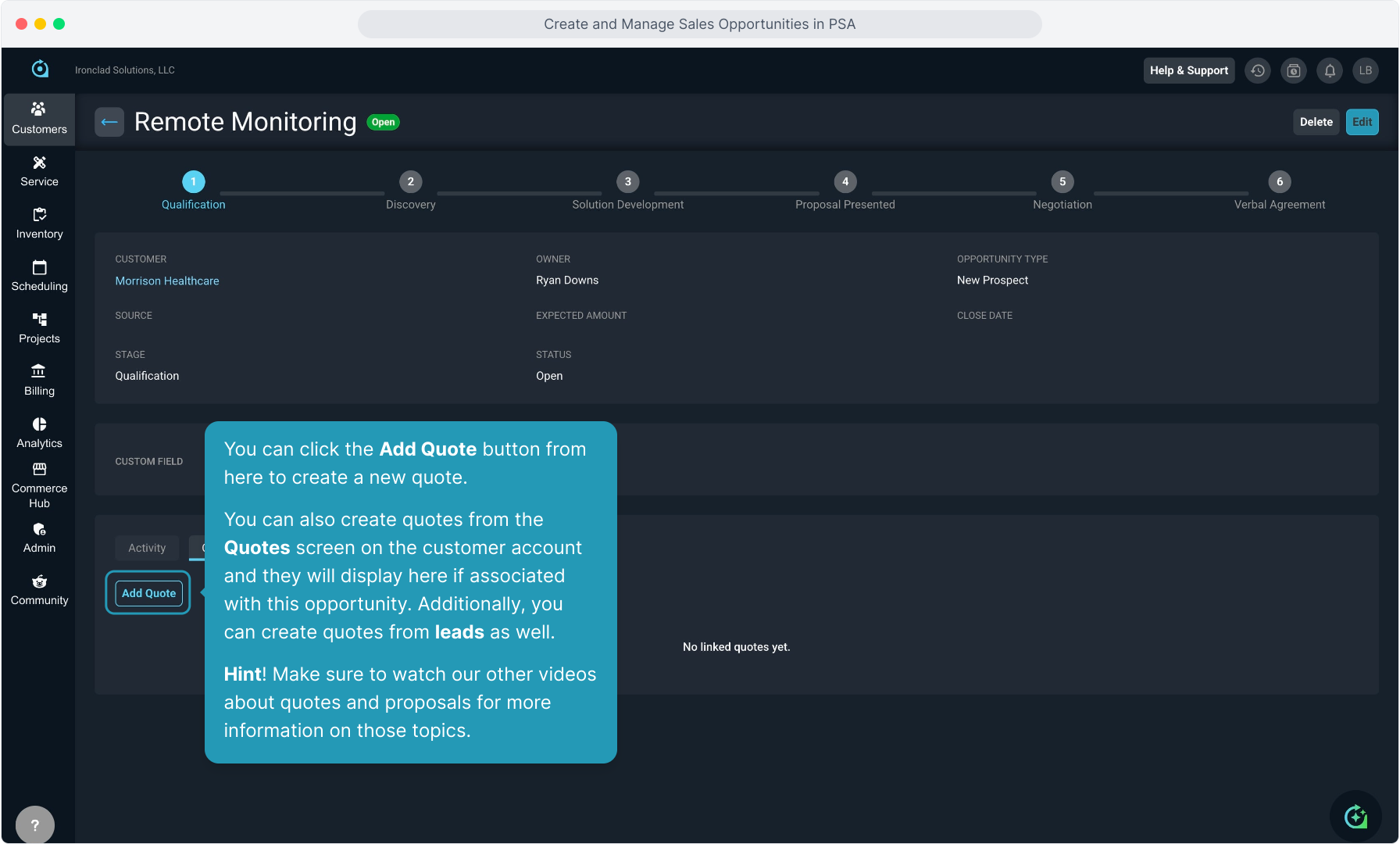
27. You can click the Add Quote button from here to create a new quote.
You can also create quotes from the Quotes screen on the customer account and they will display here if associated with this opportunity. Additionally, you can create quotes from leads as well.
Hint! Make sure to watch our other videos about quotes and proposals for more information on those topics.
28. You can click the Edit button at the top to edit any of the information in the opportunity.
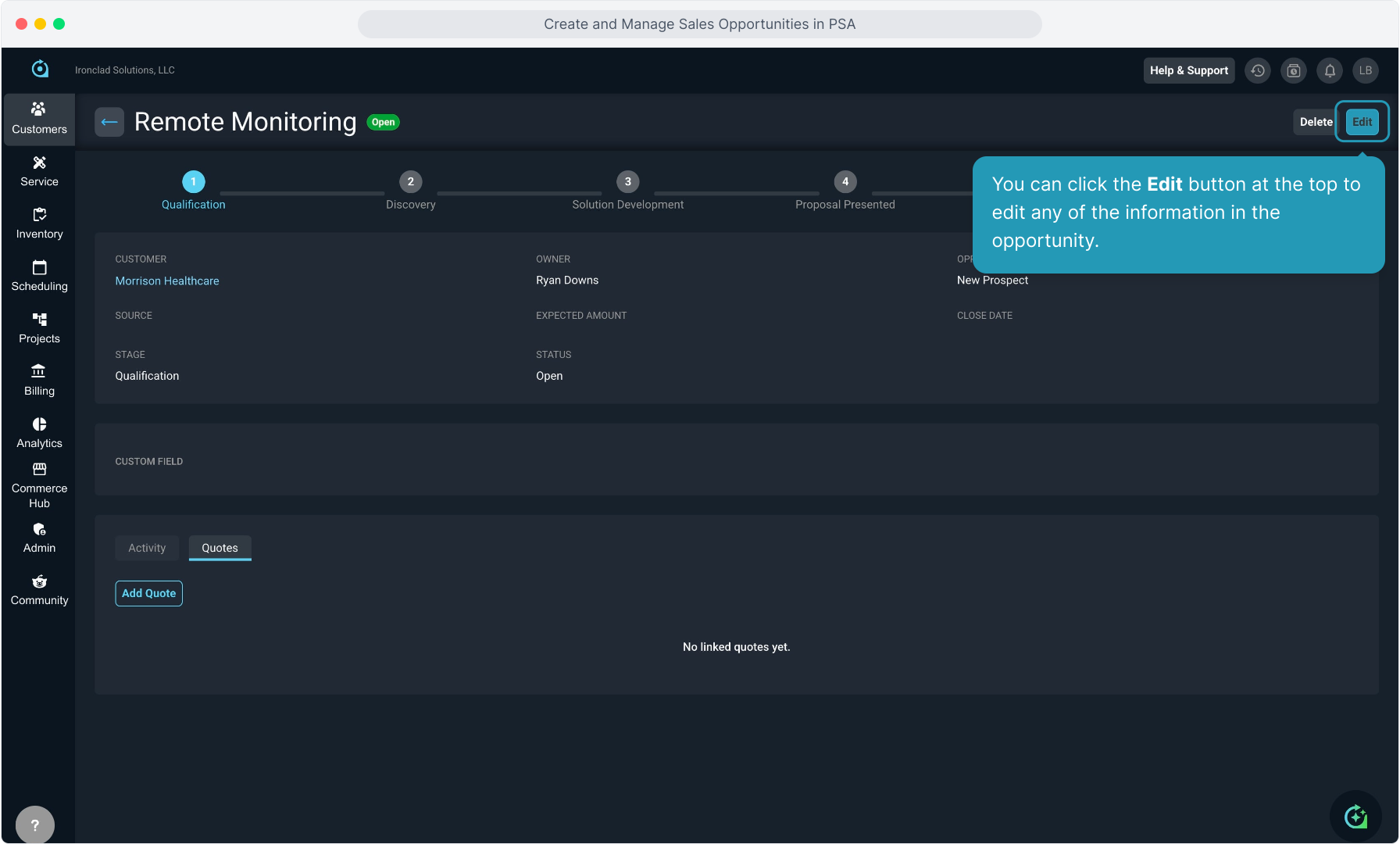
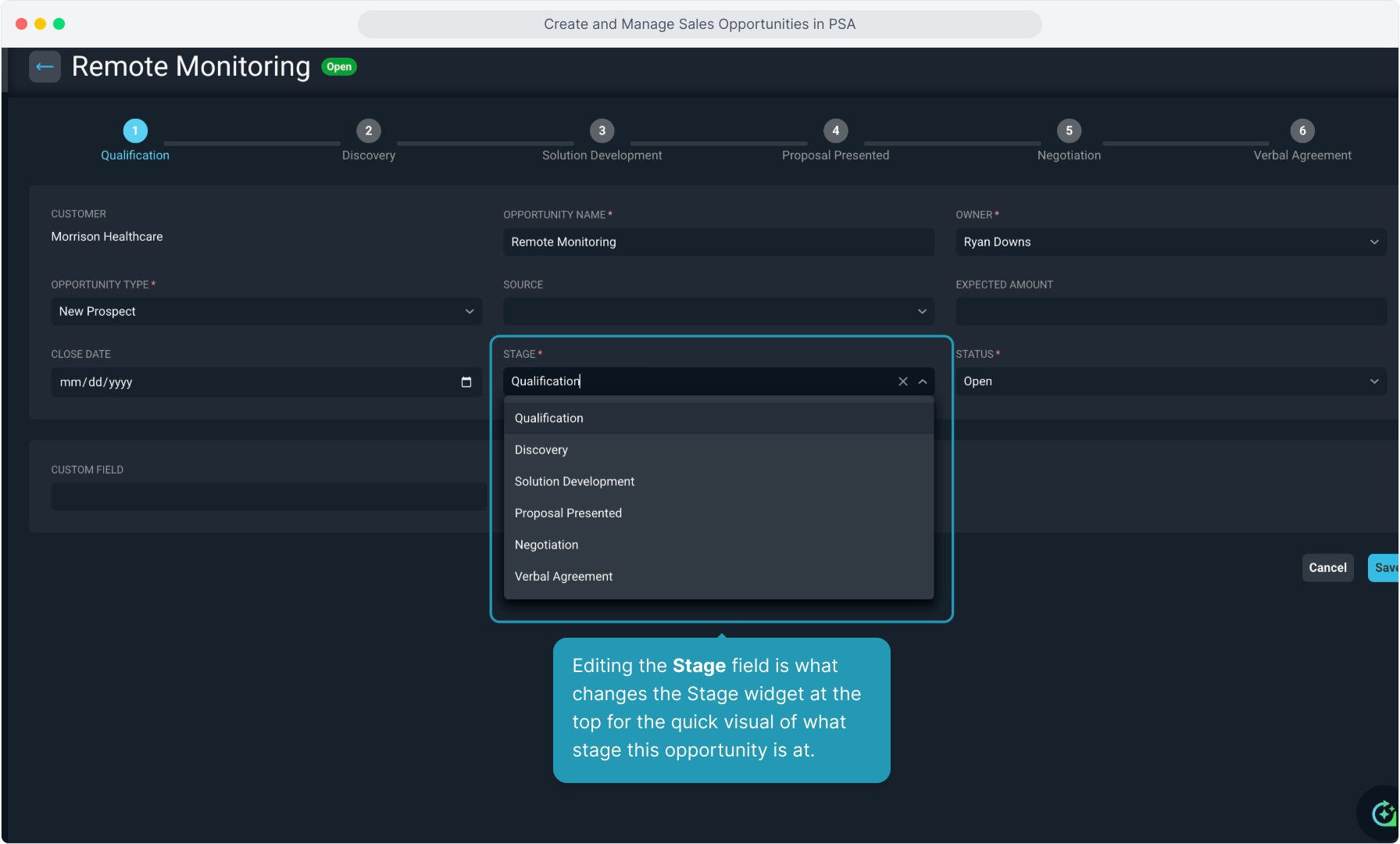
29. Editing the Stage field is what changes the Stage widget at the top for the quick visual of what stage this opportunity is at.
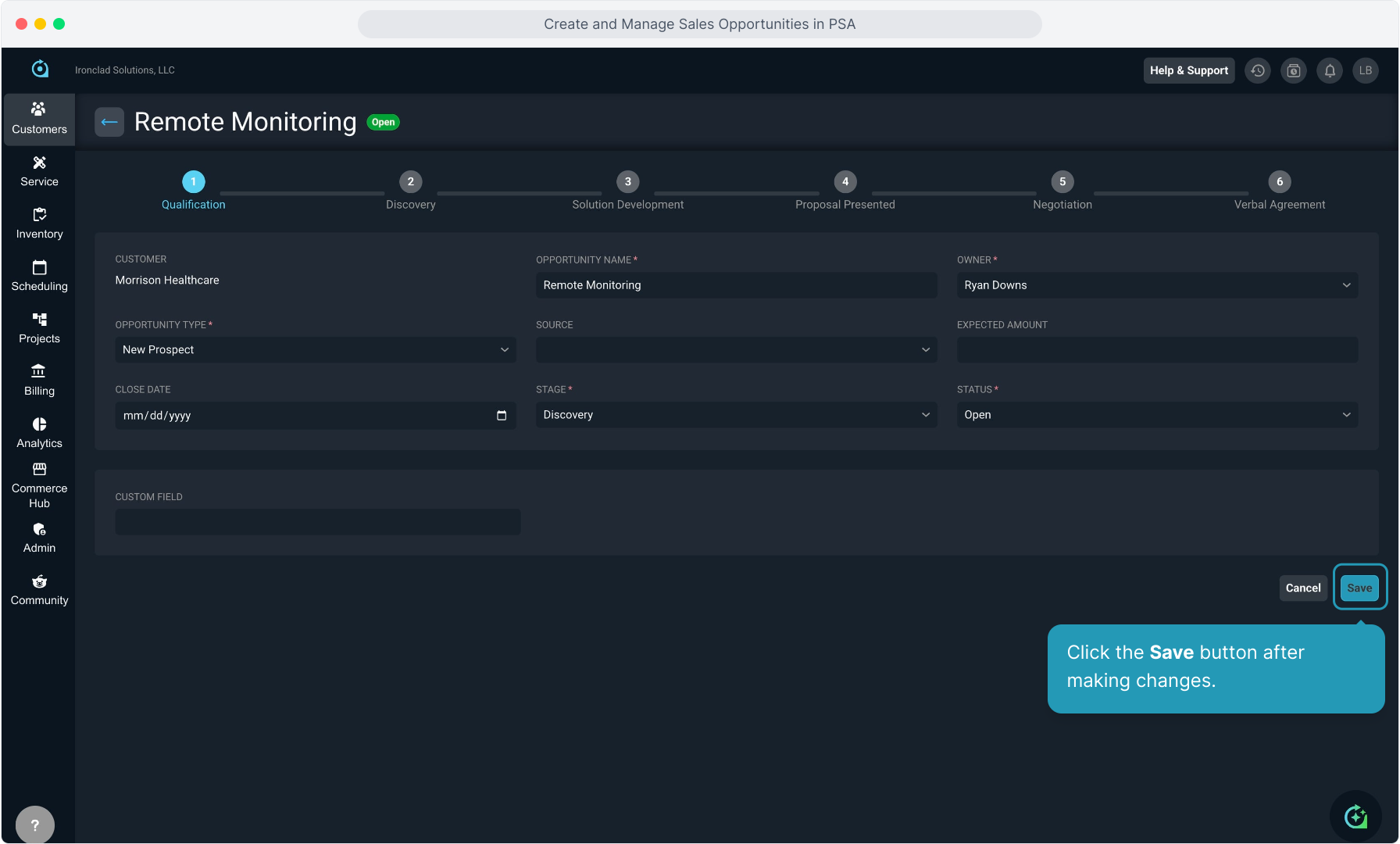
30. Click the Save button after making changes.
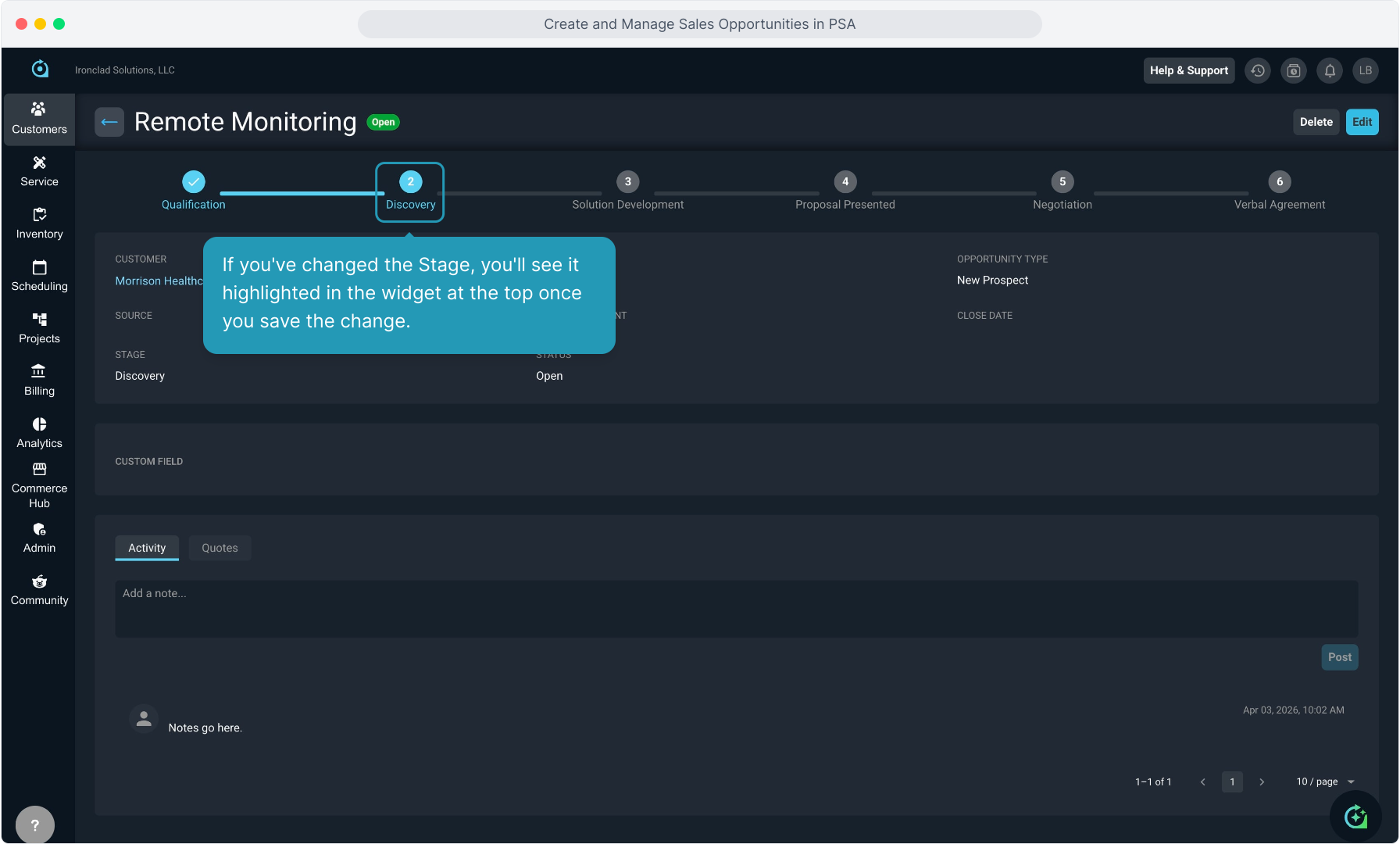
31. If you've changed the Stage, you'll see it highlighted in the widget at the top once you save the change.
32. When accessing a customer account, from the Quotes menu and then the Opportunities tab, you can view and access any opportunities.
33. And if you are on the lead and viewing the Opportunities tab near the bottom of the lead screen, you'll also see the same information.
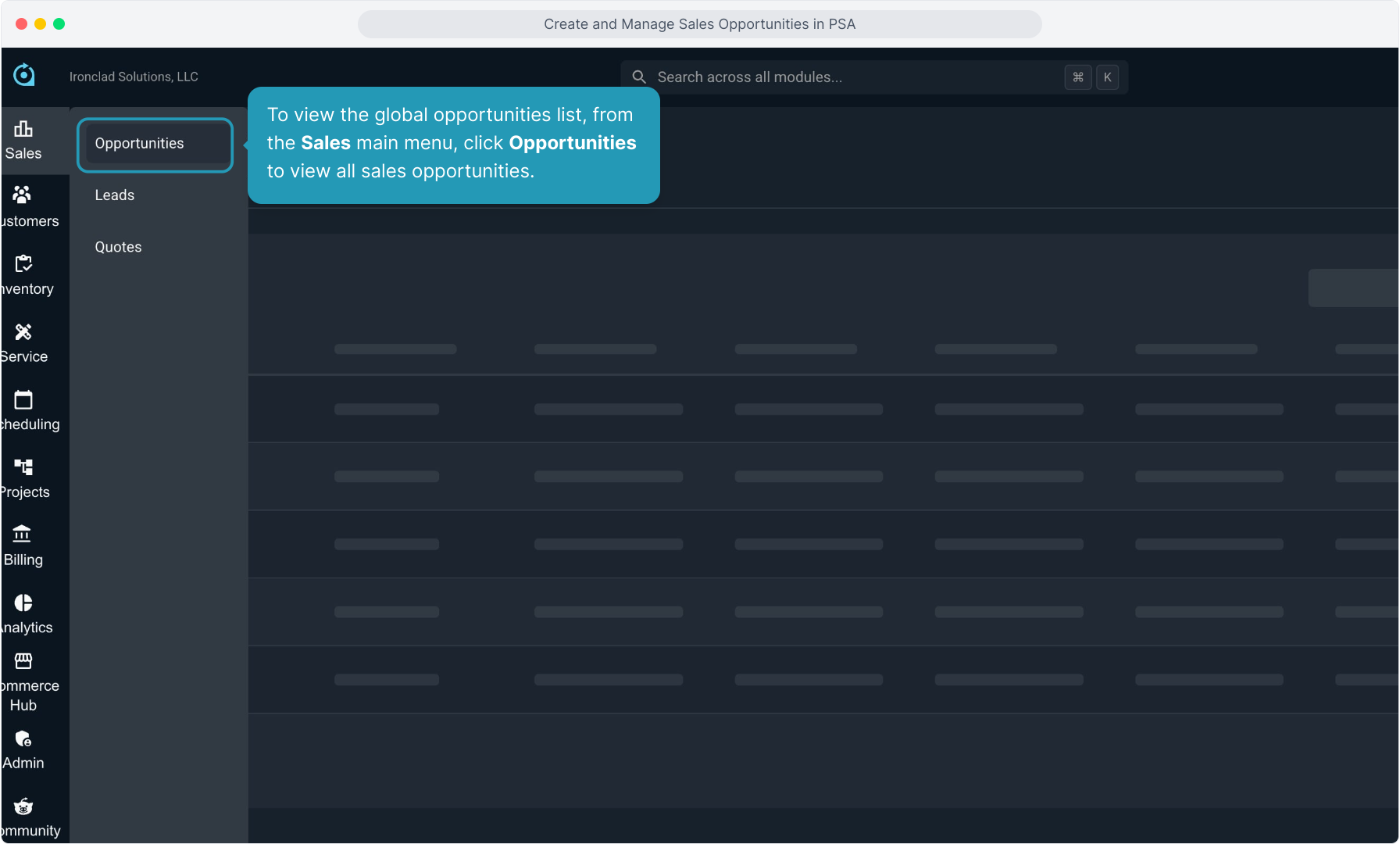
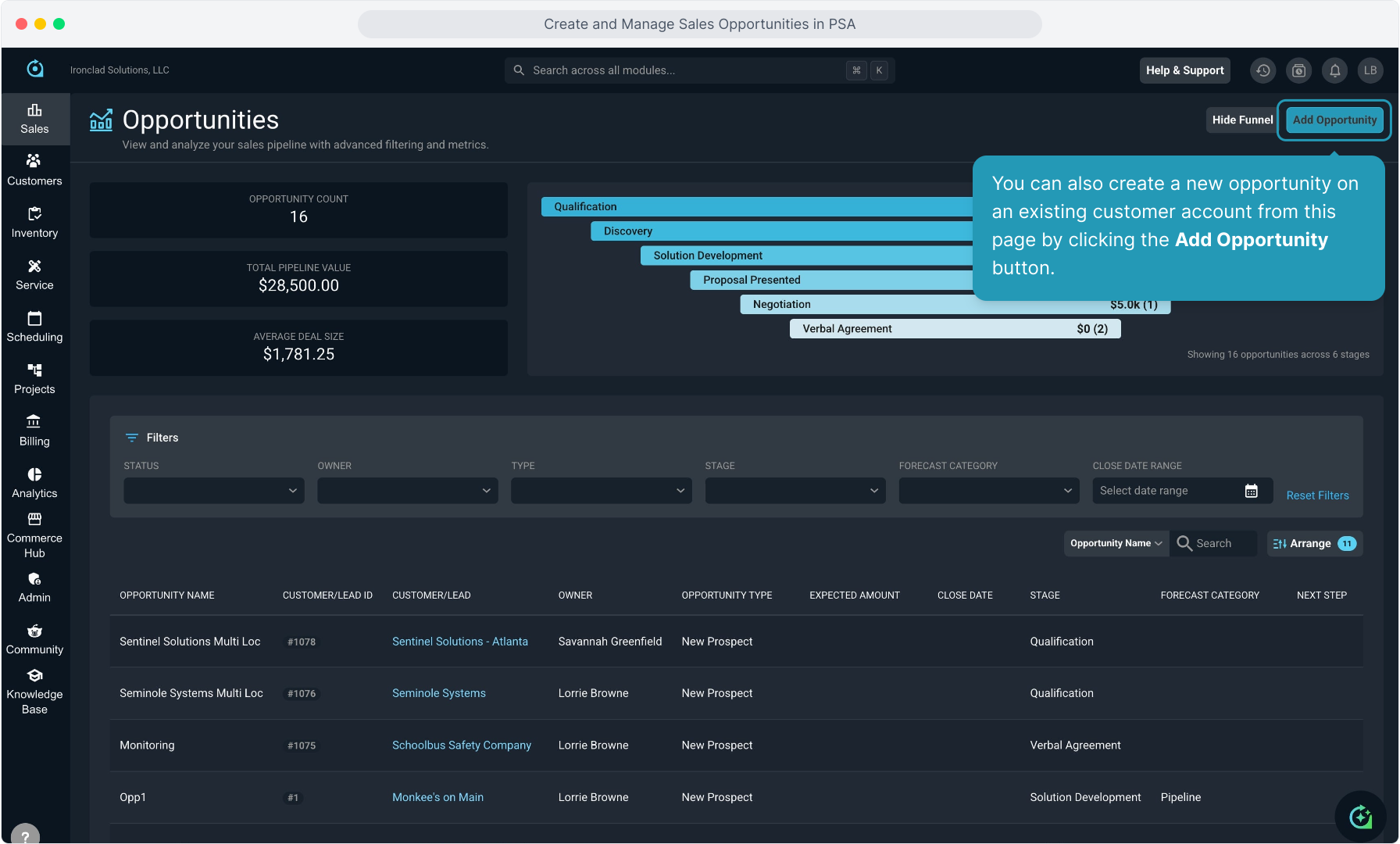
34. To view the global opportunities list, from the Sales main menu, click Opportunities to view all sales opportunities.
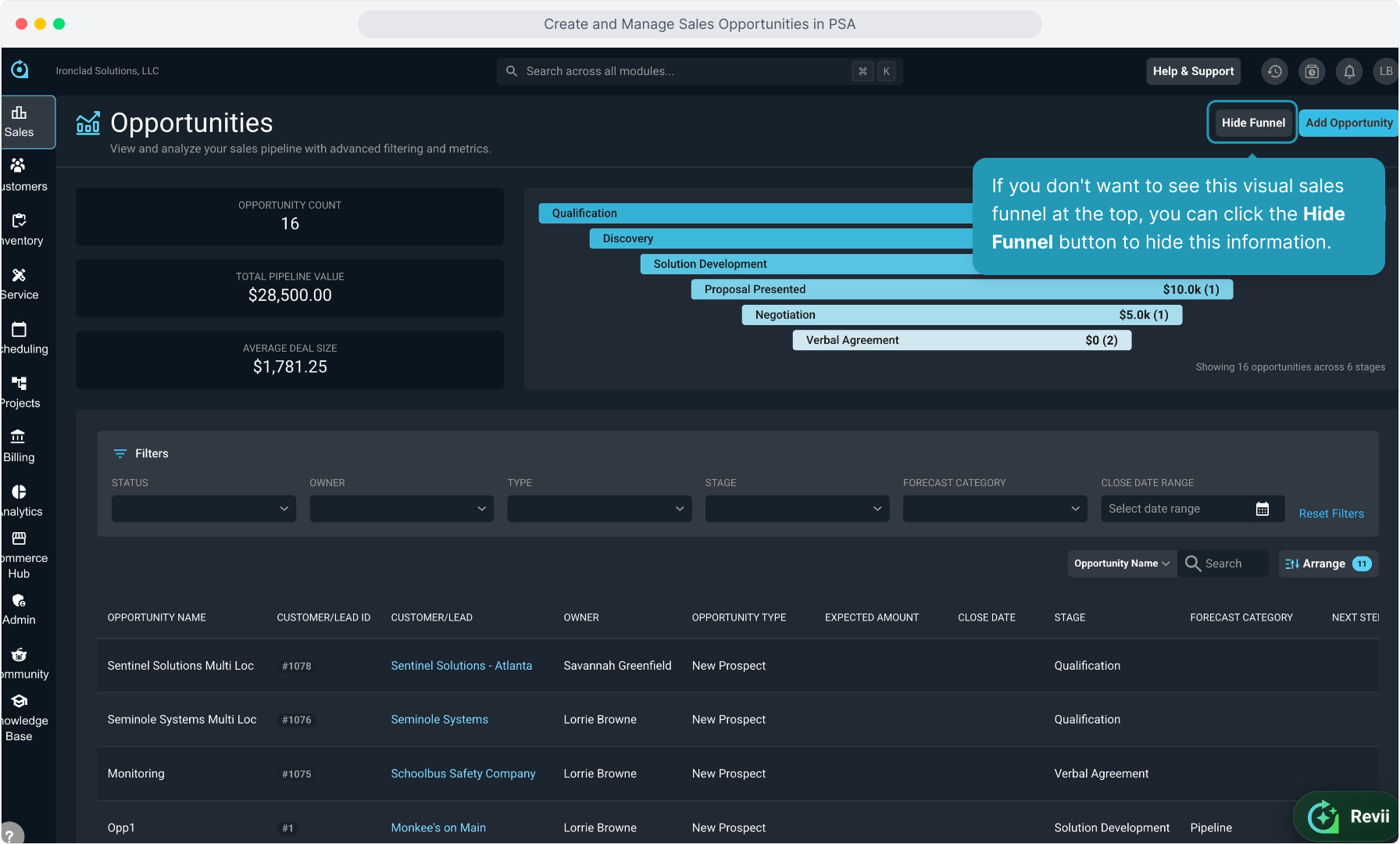
35. You can view overall pipeline information at the top.
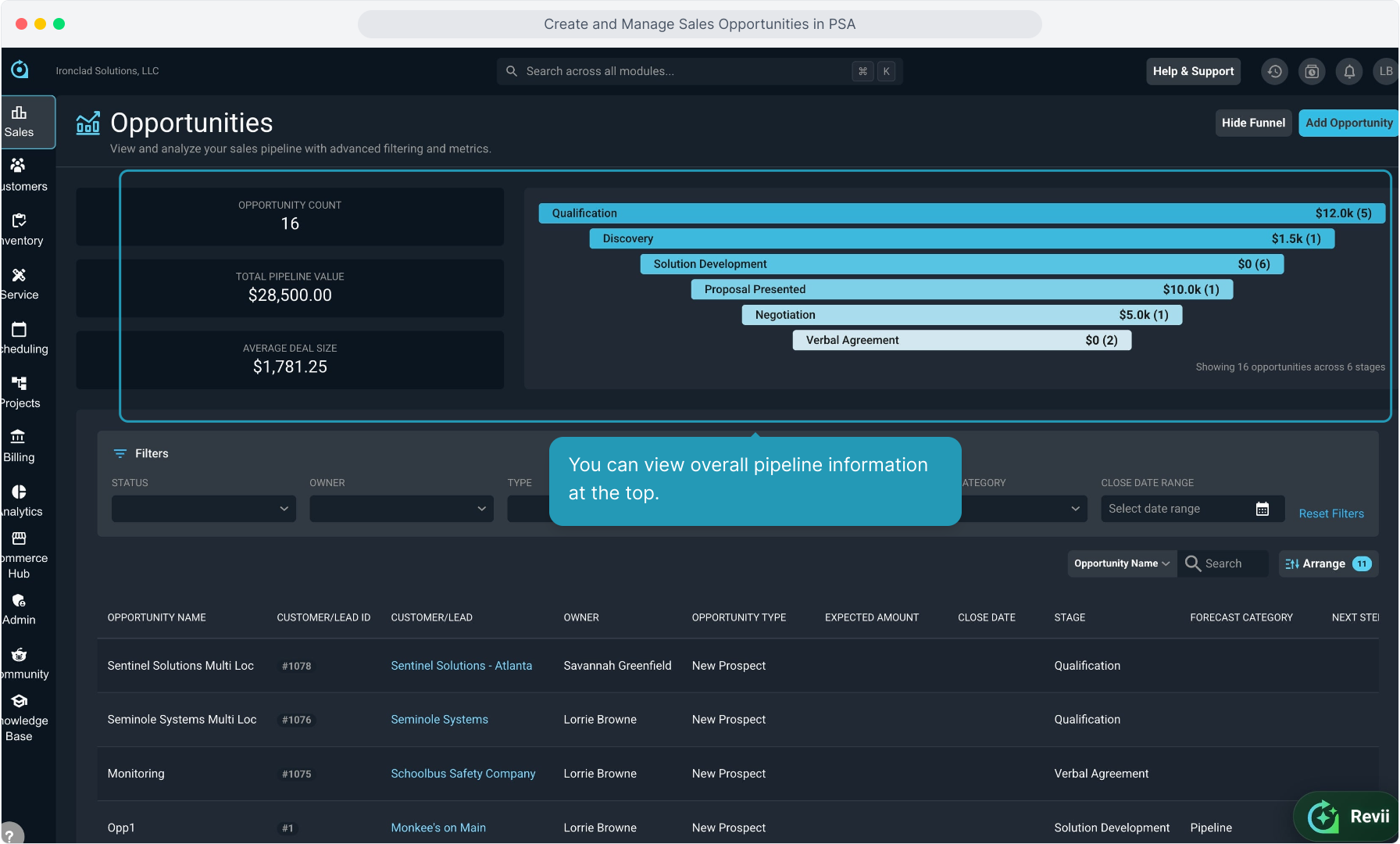
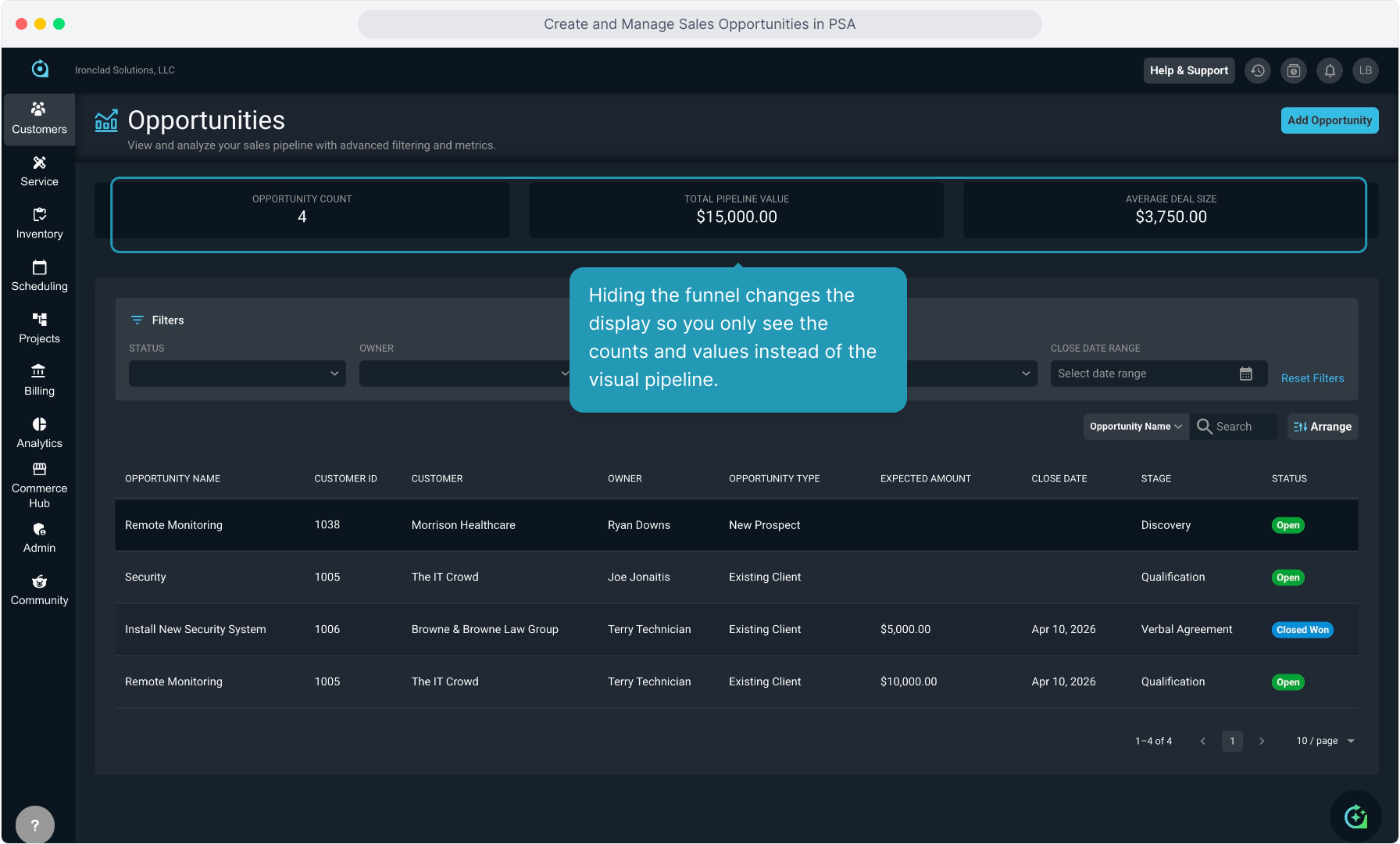
36. If you don't want to see this visual sales funnel at the top, you can click the Hide Funnel button to hide this information.
37. Hiding the funnel changes the display so you only see the counts and values instead of the visual pipeline.
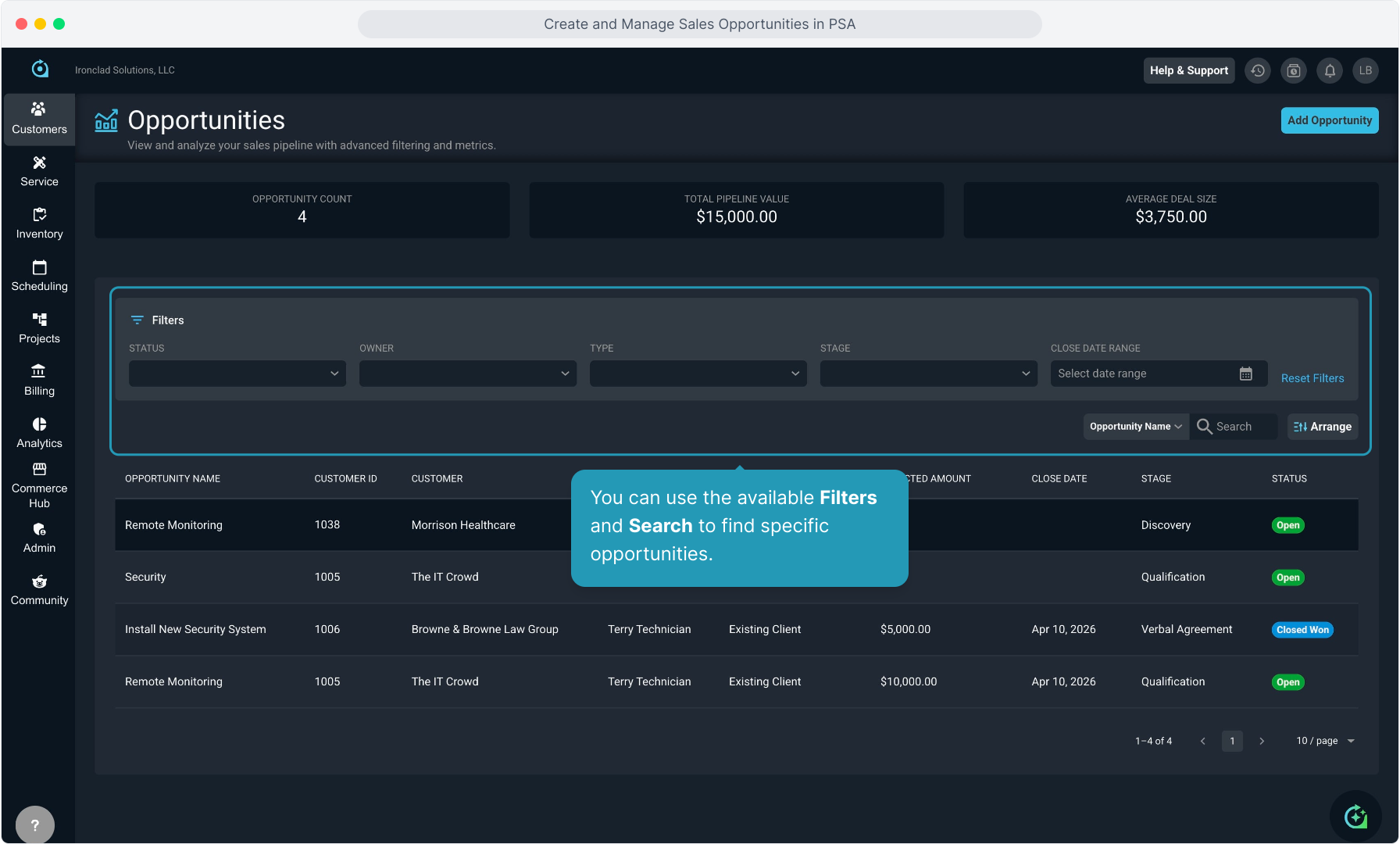
38. You can use the available Filters and Search to find specific opportunities.
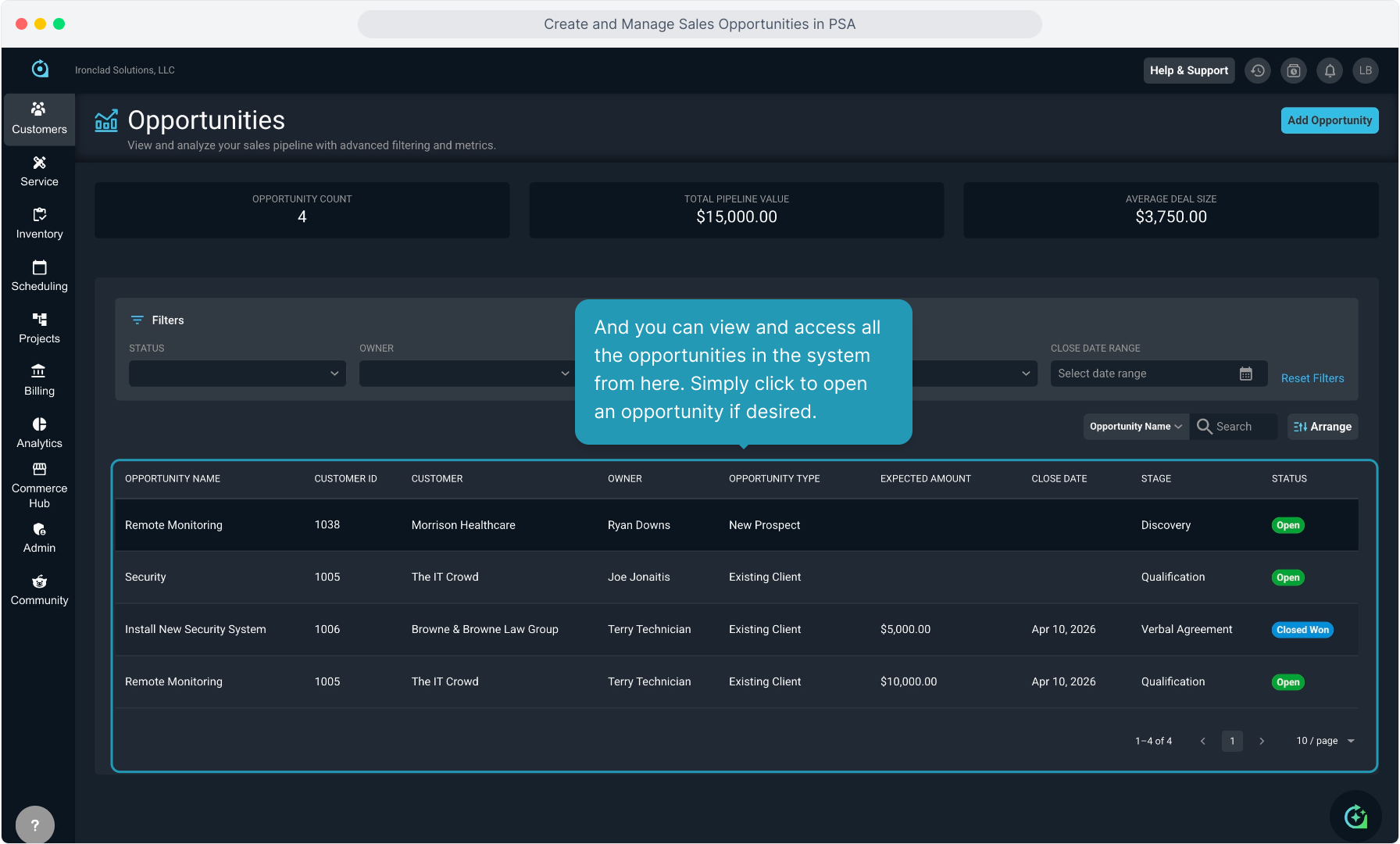
39. And you can view and access all the opportunities in the system from here. Simply click to open an opportunity if desired.
40. You can also create a new opportunity on an existing customer account from this page by clicking the Add Opportunity button.
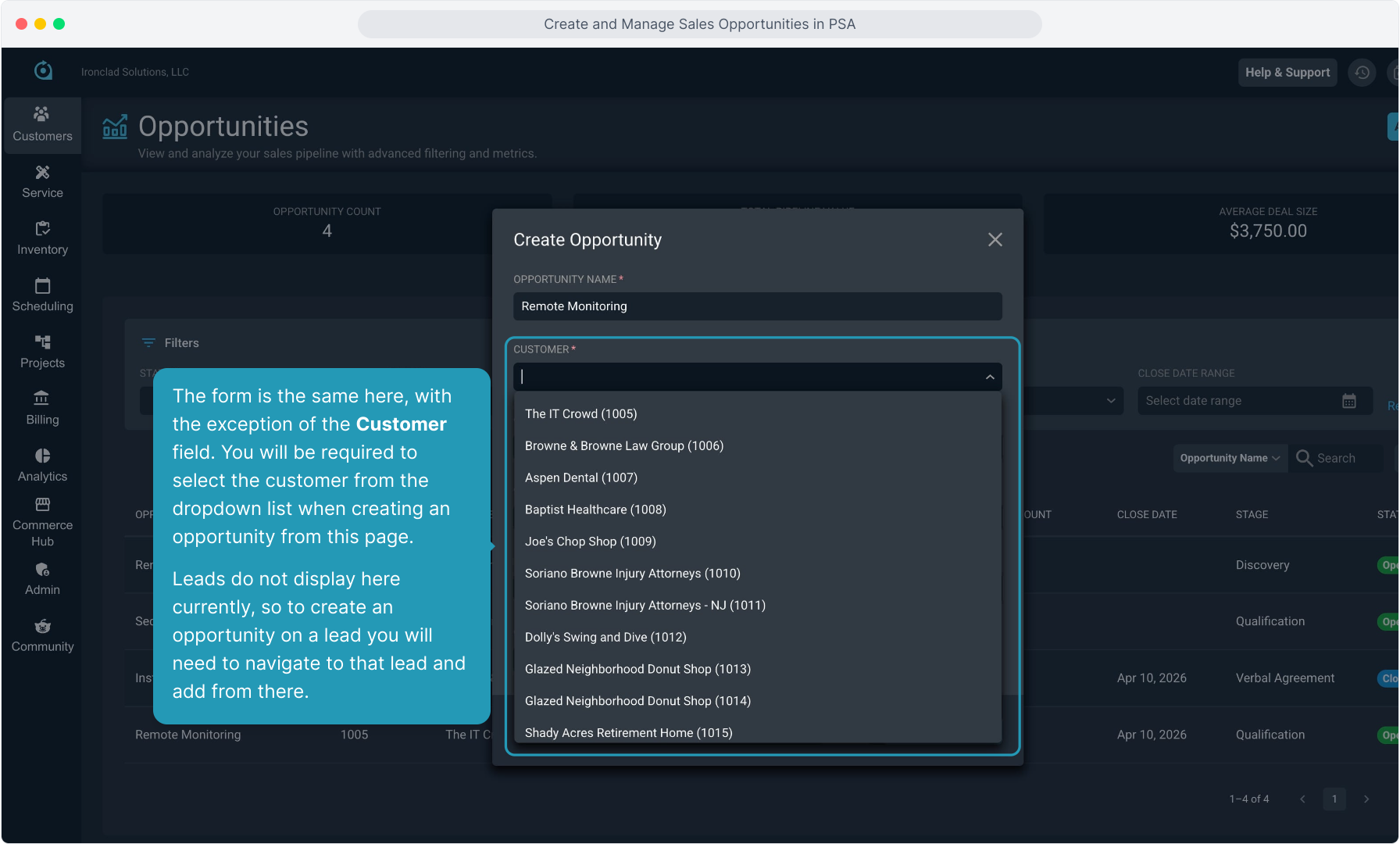
41. The form is the same here, with the exception of the Customer field. You will be required to select the customer from the dropdown list when creating an opportunity from this page.
Leads do not display here currently, so to create an opportunity on a lead you will need to navigate to that lead and add from there.