
Add/Edit Invoice Templates
The Invoice Templates tab in the Billing Config category on the System Settings screen allows you to create and manage the templates used to generate invoices for your customers. Templates can be configured as one-time or recurring to match your billing needs, and you can set one default template for each type. See the Customizing Invoice Templates article for more information about the specific options available when creating and editing invoice templates.
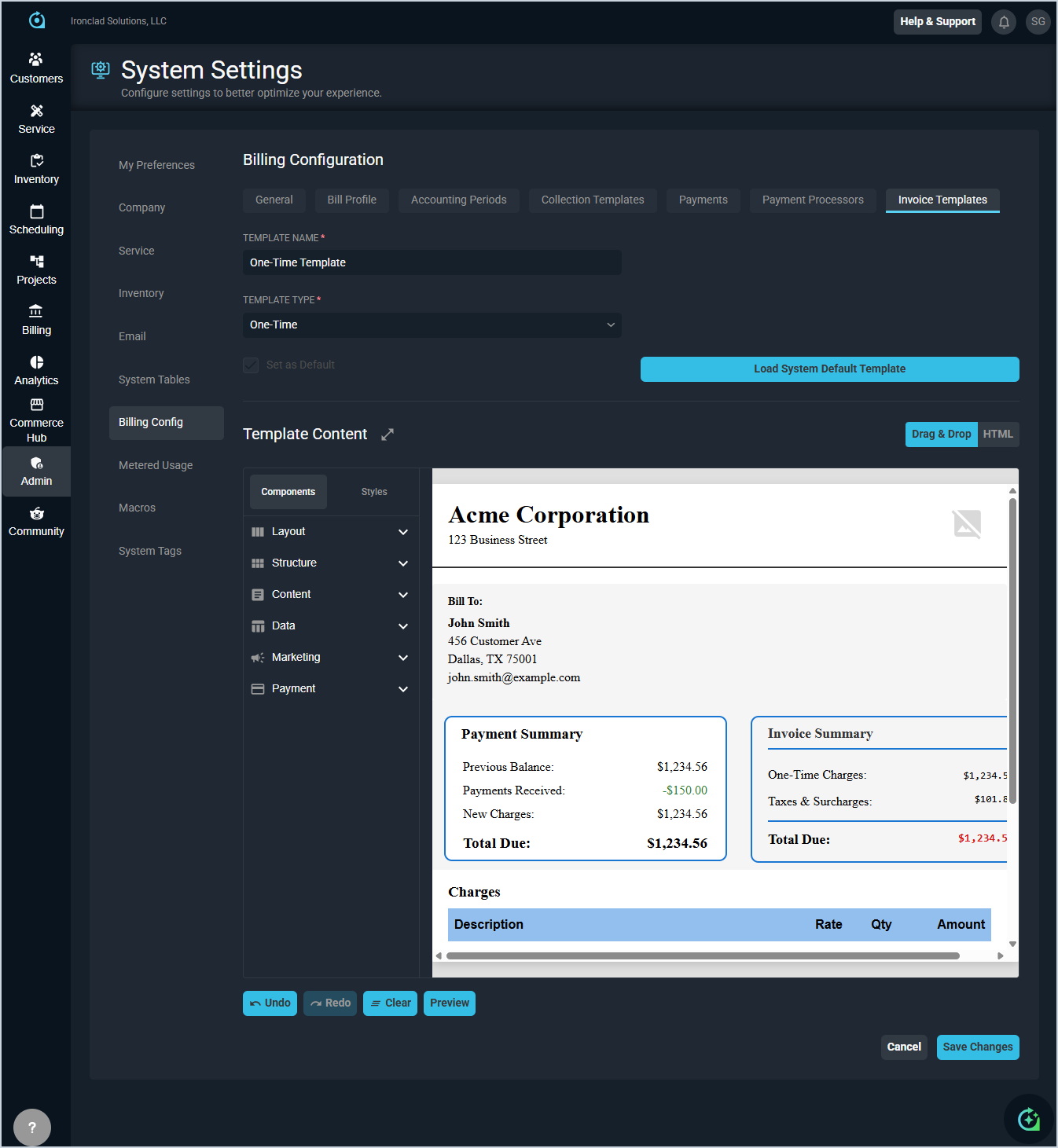
Each field for creating or editing an invoice template is defined below.
| Label | Definition |
|---|---|
| Template Name | Name of the invoice template. |
| Template Type | Type of invoice the template is used for. Type options include One-Time and Recurring. |
| Set as Default | Check this option to set the template as the default for its invoice type. |
The following actions are available when creating or editing an invoice template.
- Check Set as Default to set the template as the default for its invoice type.
- Load the system default template as a starting point by clicking Load System Default Template.
- Expand the template preview to full screen by clicking the expand icon next to Template Content.
- Build and arrange your template visually using the drag and drop editor by selecting Drag & Drop in the Template Content section.
- Edit the template directly in HTML by selecting HTML in the Template Content section.
- Add components to your template by selecting from the available options in the Components tab, including Layout, Structure, Content, Data, Marketing, and Payment sections.
- Display the special message and autopay messages from the customer or bill profile by adding the Bill Messages component from the Marketing category. See the Configuring Bill Messages on Invoices article for more information.
- Adjust the visual styling of your template by selecting a specific element on your template and clicking the Styles tab. The Styles tab includes options for Typography, Background, Spacing, Borders, and Size, as well as a Properties section where you can set an Id and Title for the selected element.
- Undo your last change by clicking Undo.
- Redo your last undone change by clicking Redo.
- Clear the template content by clicking Clear.
- Preview how the template will look when rendered by clicking Preview.
- Discard your changes and return to the Invoice Templates list by clicking Cancel.
- Save your changes by clicking Save Changes.