
Cancel Agreement
The Cancel Agreement dialog allows you to end an agreement, choose when the cancellation takes effect, and record why the agreement is being cancelled. The Cancel Agreement button is in the header of the agreement details screen.
To cancel an agreement, open it from the Agreements List view or from a customer's profile and click Cancel Agreement.
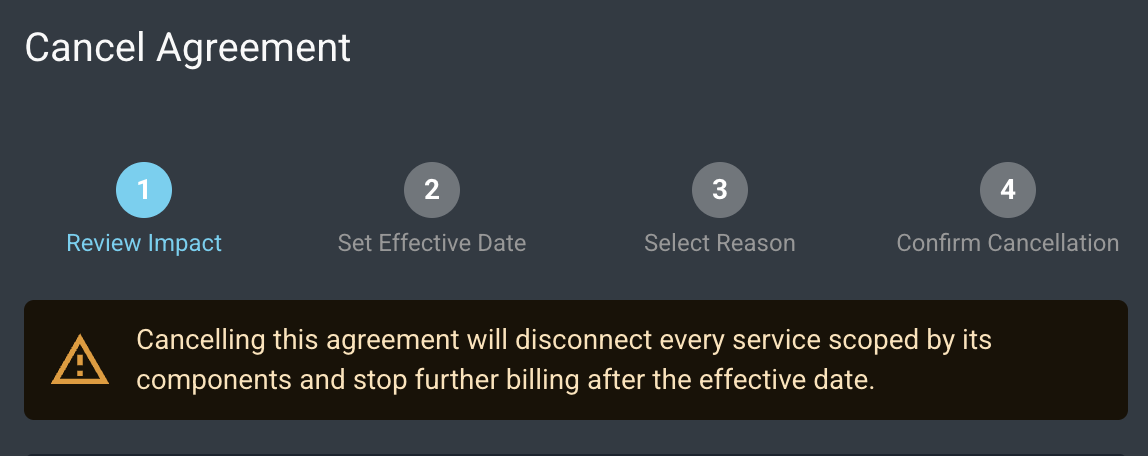
The dialog has four steps. Use Next and Back to move between steps, or click Cancel to close the dialog without cancelling the agreement. The steps are described below.
Label | Definition |
|---|---|
Review Impact | Displays a warning, a summary of the agreement, and a list of the components that will be affected. |
Set Effective Date | Choose when the cancellation takes effect. |
Select Reason | Choose a cancellation reason, add optional notes, and choose whether to notify the customer and prorate the final billing cycle. |
Confirm Cancellation | Review your choices and confirm the cancellation. |
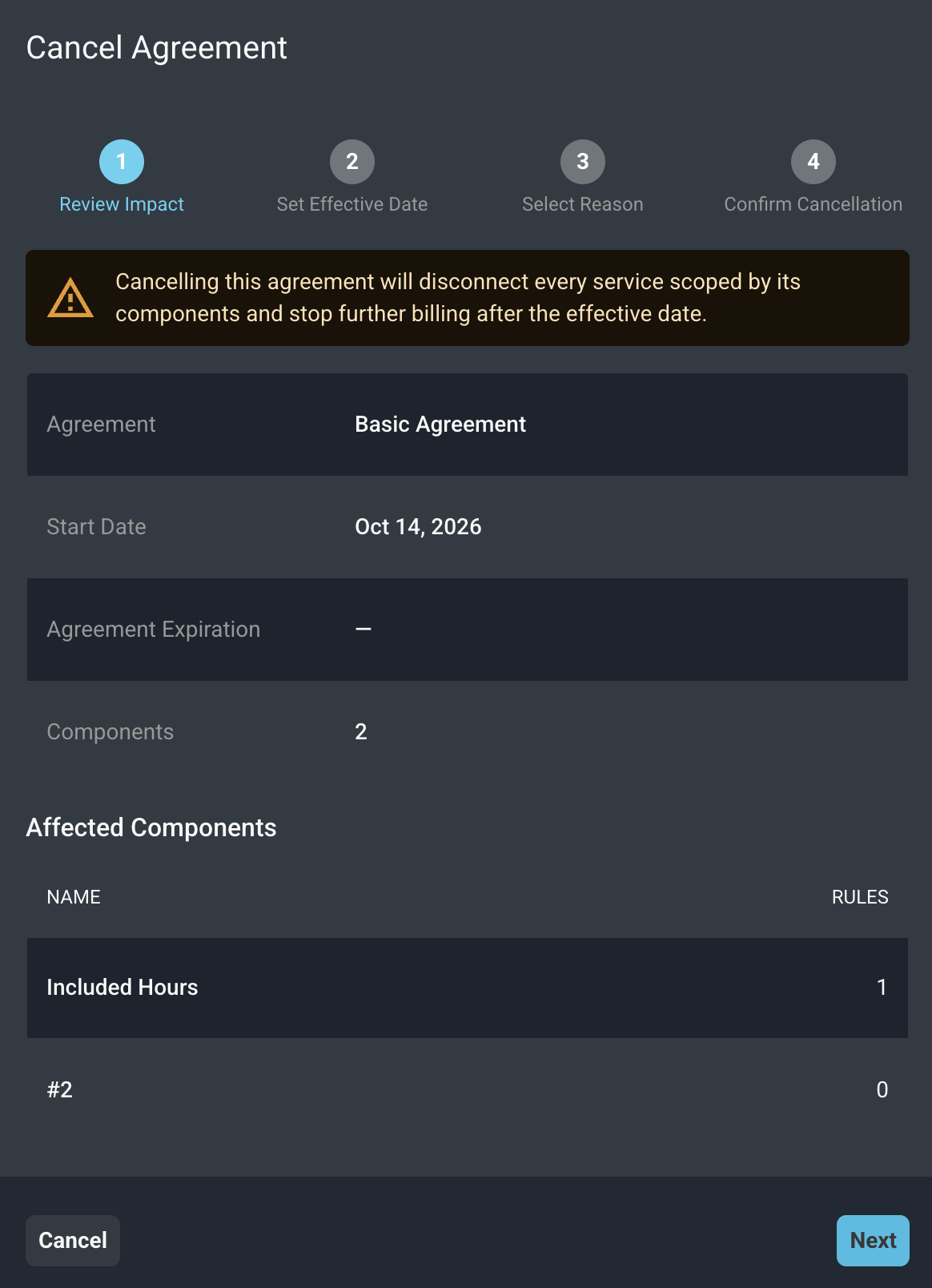
The Review Impact step warns that cancelling the agreement will disconnect every service scoped by its components and stop further billing after the effective date. It also displays the following information.
Label | Definition |
|---|---|
Agreement | Name of the agreement. |
Start Date | Date the agreement began. |
Agreement Expiration | Date the agreement expires, if applicable. |
Components | Number of components on the agreement. |
Affected Components | A list of the components on the agreement. Each row shows the component name and the number of rules on the component. A component without a name displays by its number. |
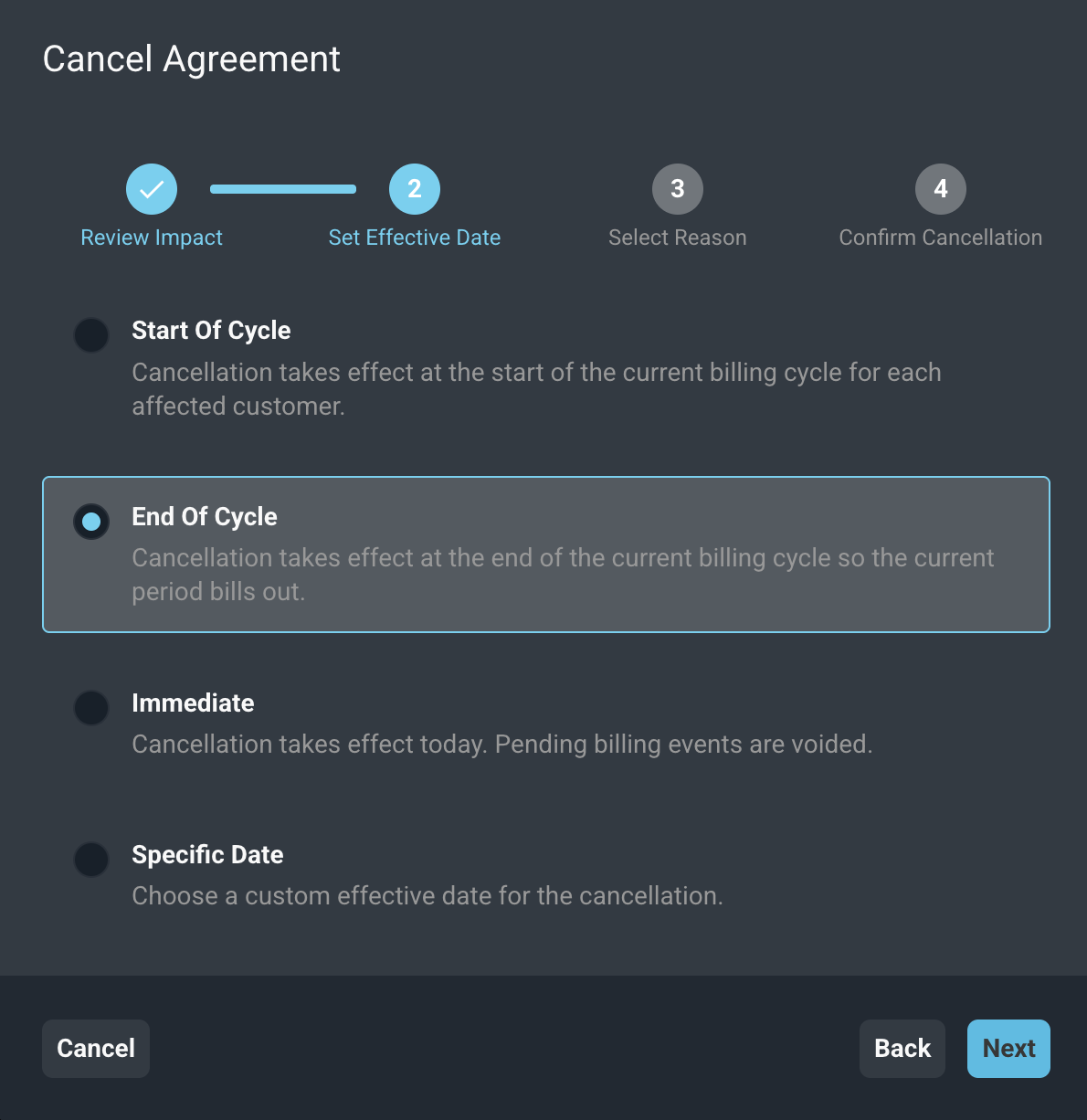
On the Set Effective Date step, choose one of the following options. End Of Cycle is selected by default.
Label | Definition |
|---|---|
Start Of Cycle | The cancellation takes effect at the start of the current billing cycle for each affected customer. Billed items are prorated and credit issued if already billed to the customer and if proration is configured on a product. |
End Of Cycle | The cancellation takes effect at the end of the current billing cycle so the current period bills out. No prorations will be generated. |
Immediate | The cancellation takes effect today. Pending billing events are prorated if set to do so and prorated credits are issued. |
Specific Date | Choose a custom effective date for the cancellation. Pending billing events are prorated if set to do so and credits are issued if applicable. |
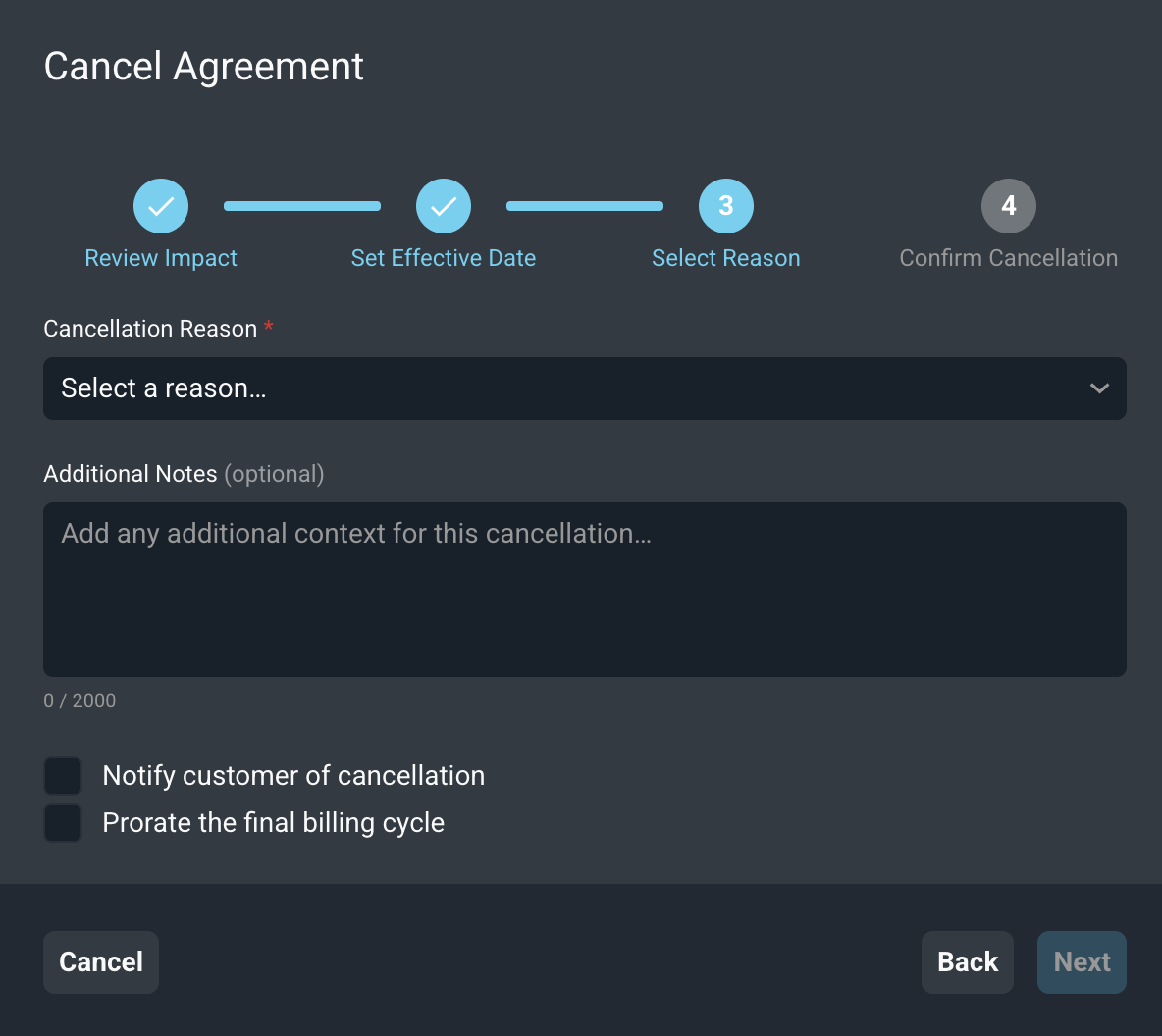
On the Select Reason step, complete the following fields. Next is not available until you select a cancellation reason.
Label | Definition |
|---|---|
Cancellation Reason | The reason the agreement is being cancelled. Select a reason from the list, which includes options such as Customer Request, Non-Payment, and Project completed. The list of reasons is predefined and cannot be edited at this time. |
Additional Notes | Optional notes about the cancellation. Notes can be up to 2,000 characters. |
Notify customer of cancellation | Sends the customer an email about the cancellation. No setup is needed. This option is off by default. |
Prorate the final billing cycle | Prorates the charges for the final billing cycle. This option is off by default. |
The Confirm Cancellation step displays a summary of your choices, including the agreement, the effective date, the reason, whether the customer will be notified, whether the final cycle will be prorated, and any notes. Review the summary, then click Confirm Cancellation.
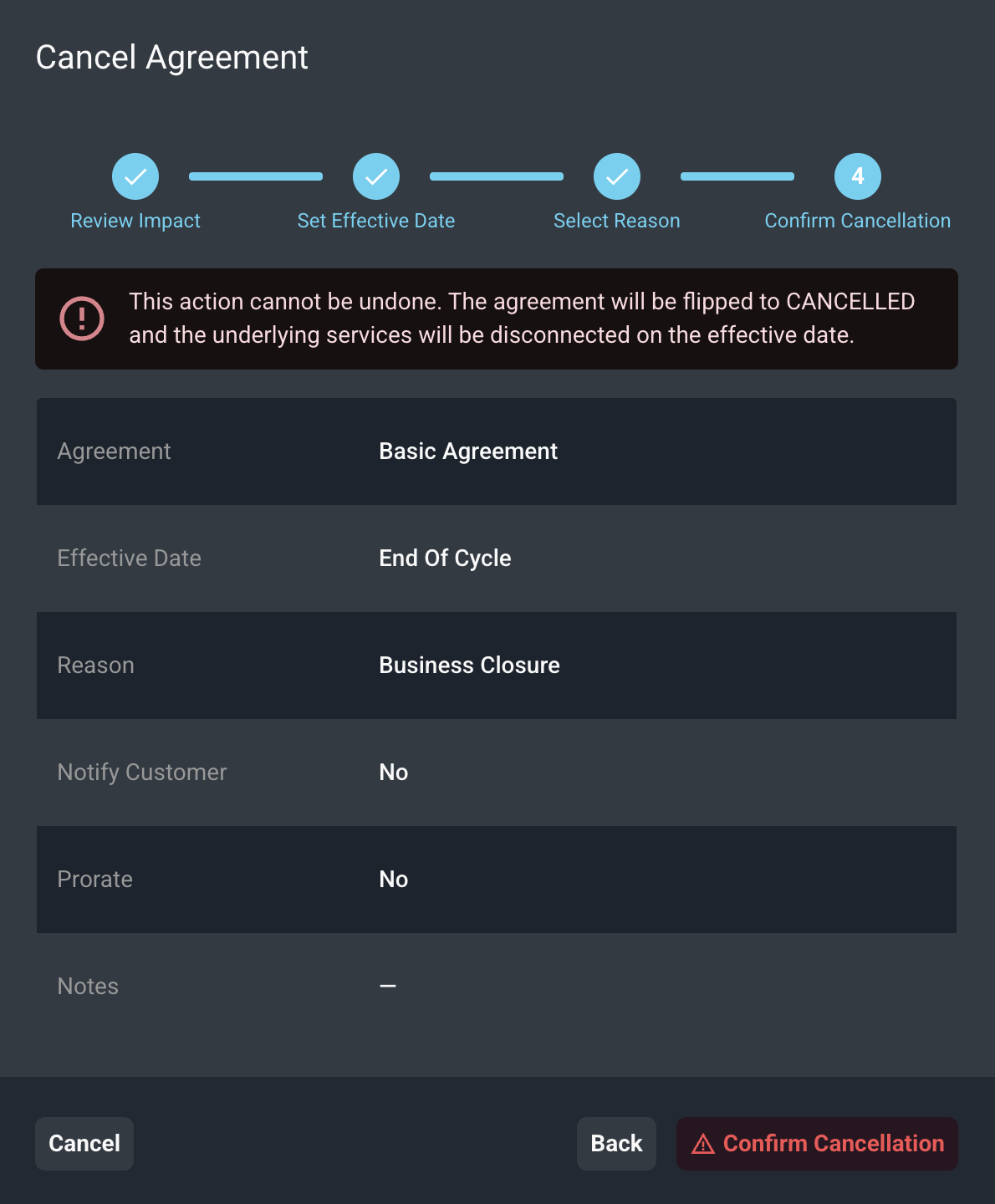
CAUTION: This action cannot be undone. The agreement is changed to Cancelled and the underlying services are disconnected on the effective date. |
If you choose an effective date in the future, the agreement stays in place until that date.
Use the following steps to cancel an agreement.
- Open the agreement and click Cancel Agreement.
- Review the affected components and click Next.
- Select an effective date and click Next.
- Select a cancellation reason, add notes if needed, choose whether to notify the customer and prorate the final billing cycle, and click Next.
- Review the summary and click Confirm Cancellation.
For more information about agreements, see the following articles.