
Add/Edit Rate Decks
The Rate Decks tab in the Metered Usage category on the System Settings screen allows you to manage various rate decks in your database. Rate decks define the pricing structure for telecom services by listing specific rates associated with call destinations, prefixes, or usage types. Each rate deck determines how usage is billed, including cost per minute, rate effective dates, and applicable billing increments. Some clients prefer to have separate rate decks for different types of calls, such as local, domestic long distance, international, etc., or for inbound versus outbound calls. Rate decks can be structured and created in whatever format works best for your needs.
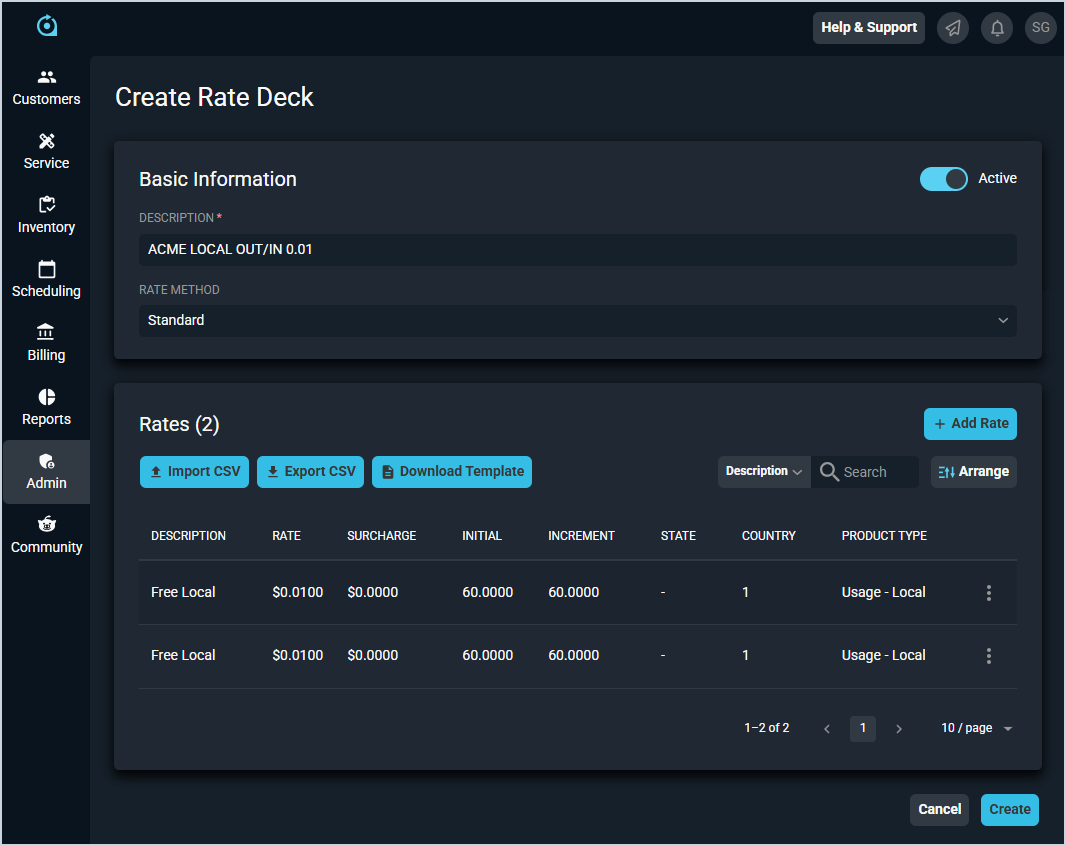
Each field on the New Rate Deck screen is defined below.
| No. | Label | Definition |
| Basic Information | ||
| 1 | Active | Indicates the rate deck is currently active. |
| 2 | Description | Description or name for the rate deck. |
| 3 | Rate Method | Method for the rate deck. Rate method options include Standard, Markup, and Margin. NOTE: The Rate Method cannot be changed once it is set for the rate deck. |
| Rates | ||
| 4 | Add Rate | Click to add a new rate to the rate deck. See the rows below for information on the fields available when entering rates. |
| 5 | Import CSV | Click to import a spreadsheet of rates for the rate deck. To access the template and prepare your rates for upload, click the Download Template button. |
| 6 | Export CSV | Click to export a spreadsheet of rates that have been added to the rate deck. |
| 7 | Download Template | Click to download a .CSV template to prepare rate information for upload. When you've formatted your rate information accordingly, click the Import CSV button to import the rates into Rev.io. |
| 8 | Description | Description of the rate. |
| 9 | Rate | Amount of the rate in dollars. |
| 10 | Surcharge | Amount of the surcharge in dollars. |
| 11 | Initial | Initial amount of seconds before the rate starts charging. |
| 12 | Increment | Increment at which the rate is charged. |
| 13 | State | State for the rate. |
| 14 | Country | Country for the rate. |
| 15 | Area | Area code for the rate. |
| 16 | Direction | Direction for the rate. Direction options include Inbound, Outbound, and Inbound and Outbound (both). |
| 17 | Product Type | Product type for the rate. Default Type options in Rev.io include Labor, Non-serialized, Serialized, and Service. See the Menu Tabs: Settings article in the Rev.io Billing Help Center for more information on configuring custom Product Types in the legacy Rev.io Billing application. NOTE: If you are an existing legacy Rev.io Billing customer, the Product Type dropdown will include all Product Types currently available in your Rev.io Billing environment. |
| 18 | Service Type | Service type for the rate. |
| 19 | LATA | Local Access and Transport Area (LATA) for the rate, which typically covers a larger geographic area than an area code. |
| 20 | OCN | Four-digit Operating Company Number for the rate that identifies a specific telecom company or service provider. |
| 21 | Provider Code | Provider code for the rate. |
| 22 | Rounding Digits | Number of digits the rate rounds to. Rounding Digits options include Default, 2, 3, 4, 5, and 6. |
| 23 | Minimum Charge | Minimum amount in dollars and cents for the rate. |
| 24 | Start Date | Start date for the rate. |
| 25 | End Date | End date for the rate. |
The following actions are available on the Create/Edit Rate Deck screens.
- Add a new rate to the rate deck by clicking the Add Rate button and entering the relevant details.
- Import rates for the rate deck by clicking the Import CSV button and choosing a file formatted using the template accessed by clicking the Download Template button.
- Export rates that have been added to the rate deck by clicking the Export CSV button.
- Download a .CSV template to prepare rates for upload by clicking the Download Template button. When you've formatted your rate information accordingly, click the Import CSV button to import the rates into Rev.io.
- Search the rates displayed in the Rates section by selecting a column from the dropdown above the grid and entering text in the Search field. The list view updates to display rates matching your search in the column you selected.
- Customize which columns display in the Rates section and the order in which they display by clicking the Arrange button and making the desired changes. See the Arrange Columns article for more information.
- Sort the results in the Rates section table by clicking the column label in the table header.
- Edit a rate in the rate deck by clicking the menu at the end of the row in the Rates section and selecting Edit from the menu options.
- Copy a rate in the rate deck by clicking the menu at the end of the row in the Rates section and selecting Copy from the menu options.
- Delete a rate in the rate deck by clicking the menu at the end of the row in the Rates section and selecting Delete from the menu options.
| Rate decks are called Usage Plans in the legacy Rev.io Billing application. For more information about usage plans in legacy Rev.io Billing, see the Usage Plans and Usage Plan Groups category in the Rev.io Billing Help Center. |