
✨System Settings: AI
The AI category on the System Settings screen allows you to manage AI settings for your Rev.io instance, including whether the AI sentiment indicator displays on customer profiles and where to store your Pax8 MCP token. To open it, click Admin in the sidebar menu, select System Settings, and click AI.
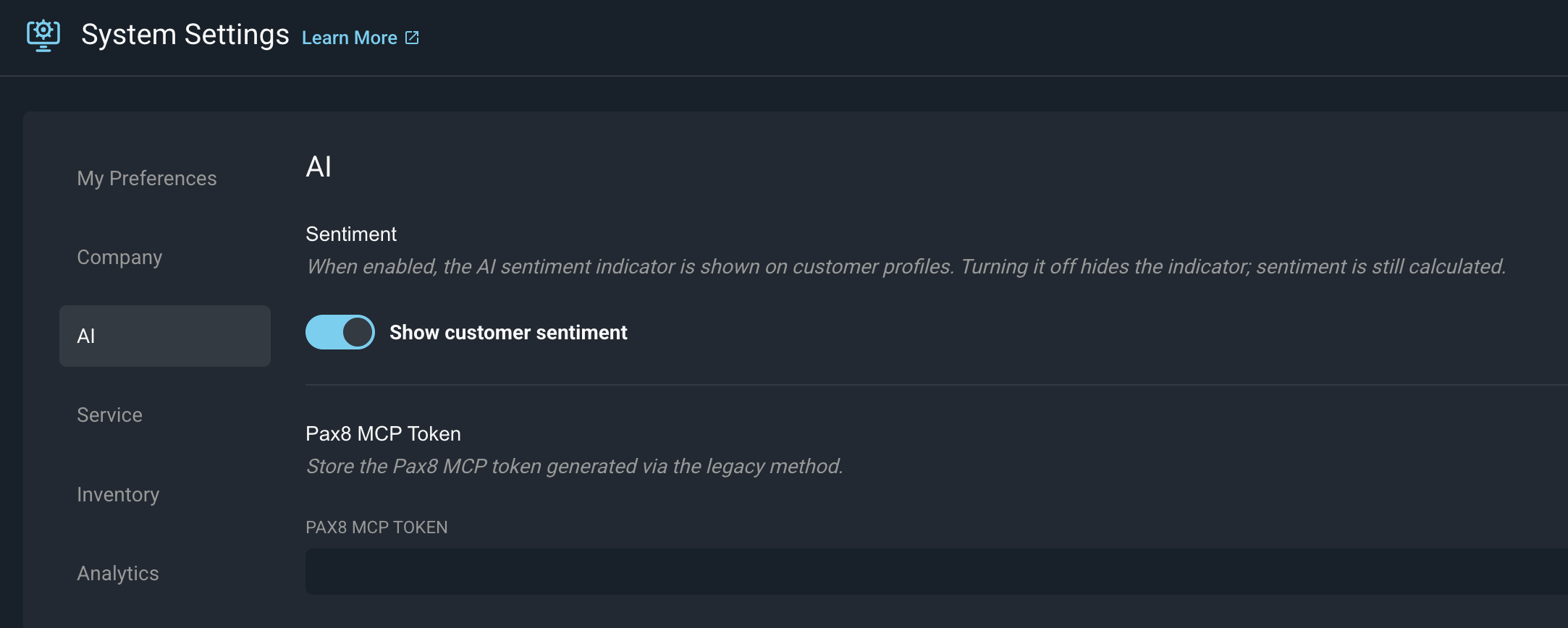
Each field in the AI category is defined below.
| Label | Definition |
| Show customer sentiment | Located in the Sentiment section. Turn on this option to show the AI sentiment indicator on customer profiles. When it is turned off, the indicator is hidden, but sentiment is still calculated. |
| Pax8 MCP Token | If required, Located in the Pax8 MCP Token section. Enter the Pax8 MCP token generated using the legacy method to store it in Rev.io. |
These actions are available in the AI category.
- Expand or collapse a section by clicking the section name.
- Show or hide the AI sentiment indicator on customer profiles by turning the Show customer sentiment toggle on or off.
- Store a Pax8 MCP token by entering it in the Pax8 MCP Token field.
For more information about the System Settings screen and AI features in Rev.io, see the following articles.
System Settings Overview
AI-Powered: Revii
Pax8 Integration: Configuration