
Product Details: Adjust Inventory Modal
The Inventory Quantities section on the View Product Details screen allows you to review the quantity of the product that you have on hand, reserved, available, and on order, as well as a total valuation of all your inventory for that product. Clicking the +/- icon in the Inventory Quantities section opens the Adjust Inventory modal where you can increase stock, decrease stock, or adjust cost for the product.
| NOTE: The Adjust Inventory modal displays differently depending on whether the product is serialized or non-serialized. |
Serialized Products
Adjusting inventory for serialized products requires you to track which serial numbers you’re adding or removing.
General
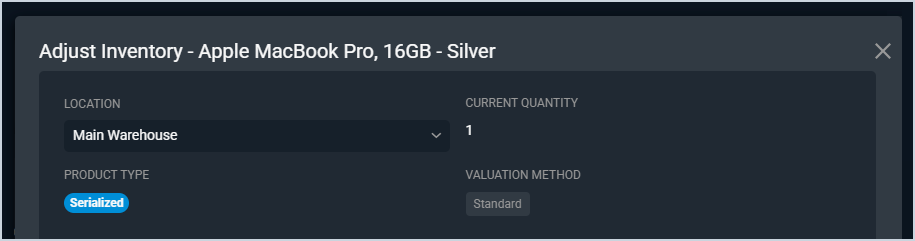
Each field in the general section is defined below.
| Label | Definition |
| Location | Name of the location where your product is stored. See the System Settings: System Tables - Inventory Management article for more information on configuring Location options. |
| Current Quantity | Current quantity of the product on hand. This field is read-only. |
| Product Type | Type for the product. This field is read-only. |
| Valuation Method | Valuation method for the product. This field is read-only. See the Changing Valuation Methods article for more information on the valuation methods. |
Quantity Adjustment
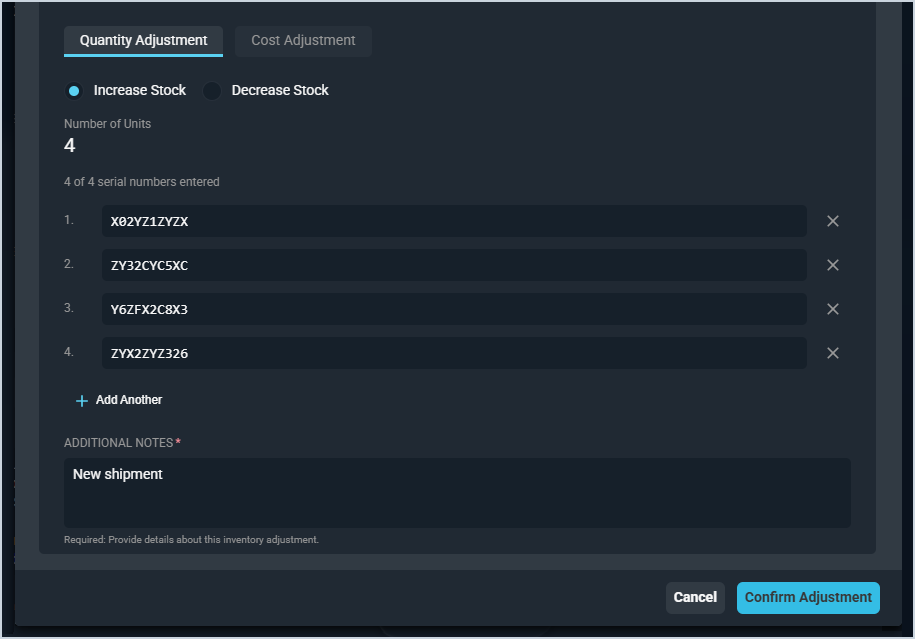
Each field in the Quantity Adjustment section is defined below.
| Label | Definition |
| Increase Stock | Click to increase the stock for the product. |
| Decrease Stock | Click to decrease the stock for the product. |
| Number of Units | Total quantity of the stock being added or removed. |
| Serial Numbers | When increasing stock, enter the serial numbers for the new stock. Click the Add Another option to add as many serial numbers as needed. Each serial number must be unique. When decreasing stock, select the serial numbers for the stock being removed. Serial numbers that are reserved or sold cannot be removed. |
| Additional Notes | Notes about the inventory adjustment, which will display on the Inventory History screen. See the Inventory History article for more information. |
Cost Adjustment
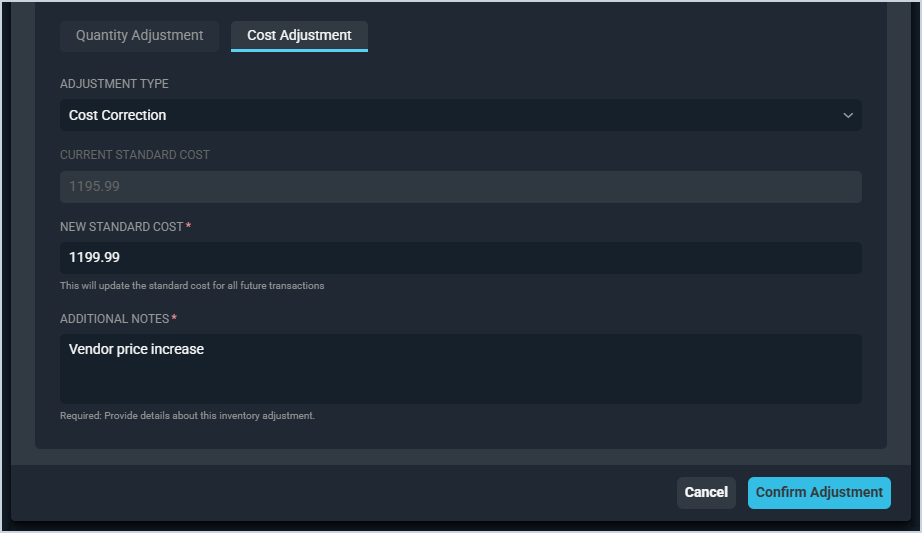
Each field in the Cost Adjustment section is defined below.
| Label | Definition |
| Adjustment Type | Type of the adjustment being entered for the product. Adjustment Type options include Cost Correction and Market Adjustment. |
| Current Standard Cost | Current amount it costs your company to buy the product in dollars and cents. This field is read-only. |
| New Standard Cost | New amount it costs your company to buy the product in dollars and cents. |
| Additional Notes | Notes about the cost adjustment, which will display on the Inventory History screen. See the Inventory History article for more information. |
Non-Serialized Products
Adjusting inventory for non-serialized products is simpler and doesn’t require as much additional information.
Quantity Adjustment
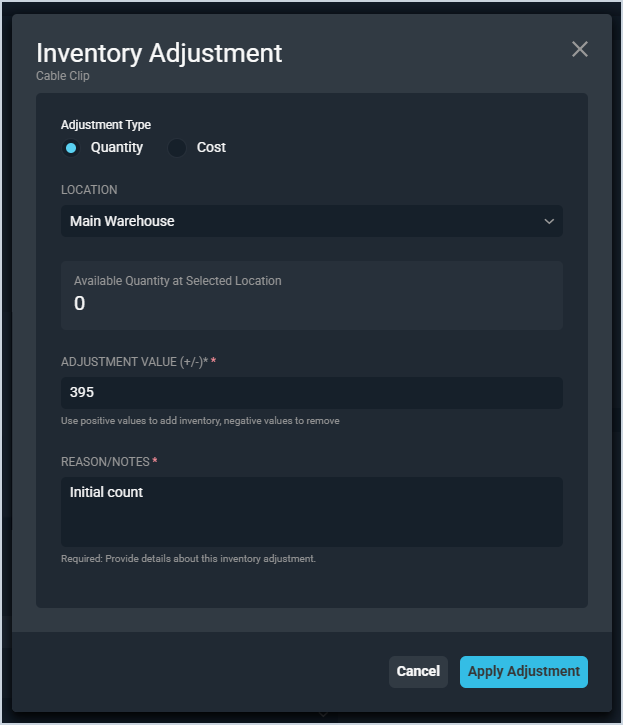
Each field in the Quantity Adjustment section is defined below.
| Label | Definition |
| Adjustment Type | Click Quantity to increase or decrease your stock for the product. |
| Location | Name of the location where your product is stored. See the System Settings: System Tables - Inventory Management article for more information on configuring Location options. |
| Available Quantity at Selected Location | Total quantity of stock at the selected location. |
| Adjustment Value (+/-) | When increasing stock, enter a positive number to add that number of products. When decreasing stock, enter a negative number to remove that number of products. |
| Reason/Notes | Notes about the inventory adjustment, which will display on the Inventory History screen. See the Inventory History article for more information. |
Cost Adjustment
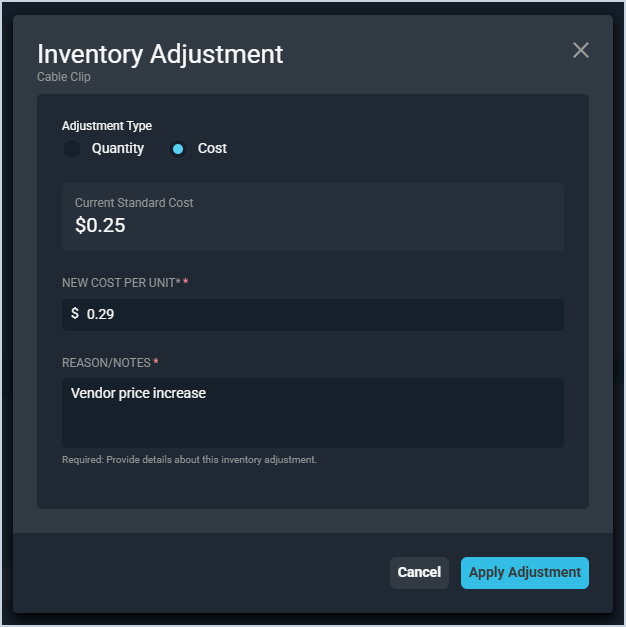
Each field in the Cost Adjustment section is defined below.
| Label | Definition |
| Adjustment Type | Click Cost to change your cost per unit for the product. |
| Current Standard Cost | Current amount it costs your company to buy the product in dollars and cents. This field is read-only. |
| New Cost Per Unit | New amount it costs your company to buy the product in dollars and cents. |
| Reason/Notes | Notes about the cost adjustment, which will display on the Inventory History screen. See the Inventory History article for more information. |
Available Actions
These actions are available on the Adjust Inventory modal.
- Change the location for the product by selecting a new Location from the dropdown.
- For serialized products:
- Increase your stock for the product by selecting the Increase Stock option and entering serial numbers for your new stock.
- Decrease your stock for the product by selecting the Decrease Stock option and selecting the serial numbers being removed from your stock.
- Adjust the cost for the product by selecting the Cost Adjustment tab and entering the New Standard Cost for the product.
- For non-serialized products:
- Increase your stock for the product by selecting the Quantity Adjustment Type option and entering a positive number to add that number of products to your inventory.
- Decrease your stock for the product by selecting the Quantity Adjustment Type option and entering a negative number to remove that number of products from your inventory.
- Adjust the cost for the product by selecting the Cost Adjustment Type option and entering the New Cost Per Unit for the product.