
Add/Edit Tickets
The Add Ticket panel allows you to enter ticket requests for your customers. To open it, click the Add Ticket button on the Ticket List View. The panel is organized into sections, and the most common fields display first.
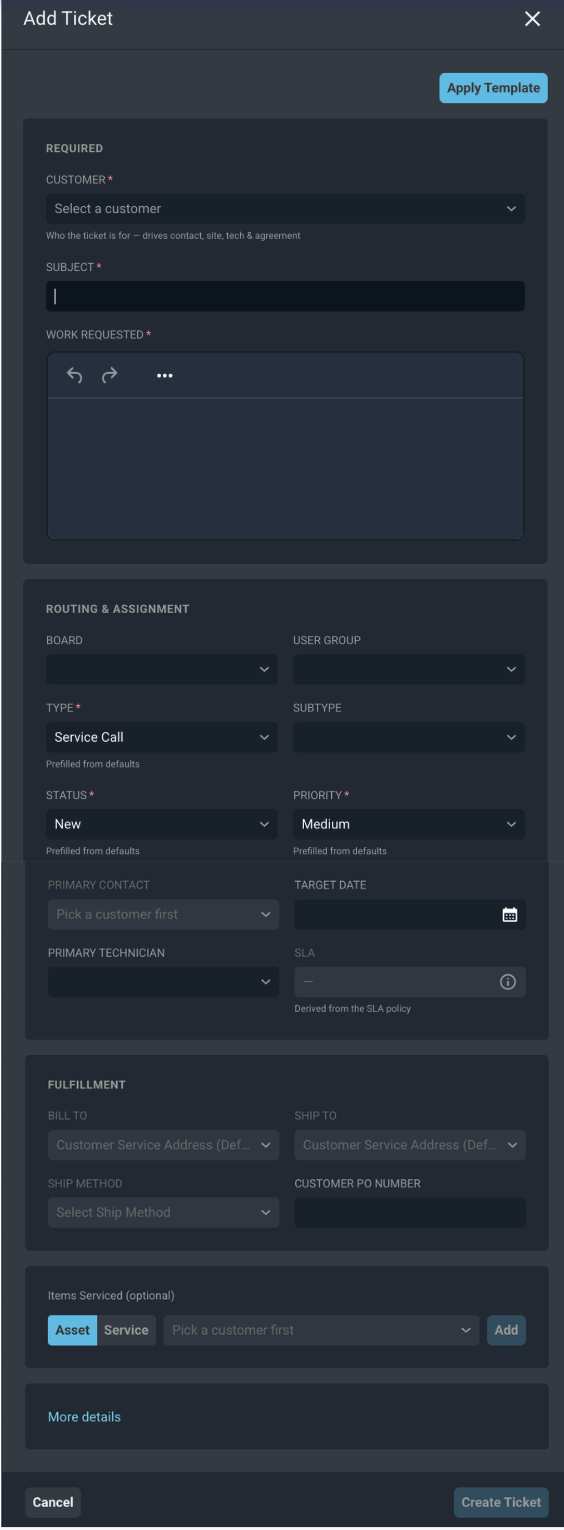
Clicking the Apply Template button will allow you to choose a configured ticket template if desired.
Each field in the Required section is defined below.
| Label | Definition |
| Customer | Customer the ticket is being created for. The customer you select drives the contact, site, tech, and agreement on the ticket. |
| Subject | Subject of the ticket. |
| Work Requested | Work requested by the customer for the ticket. |
The Board field in the Routing & Assignment section assigns the ticket to a board. A board is a saved ticket configuration that you open from the Tickets list view. Boards you open appear as tabs above the ticket list. When a board is created, it can also be displayed on the Dispatch Board, where it can be added as a tab that shows the tickets from that board and the technicians from the user groups you select. See the Create Ticket Boards article for information about creating boards and the Dispatch Board: Ticket Board Tabs article for information about adding boards as tabs on the Dispatch Board.
Each field in the Routing & Assignment section is defined below.
| Label | Definition |
| Board | Board the ticket is assigned to. See the Create Ticket Boards article for more information about boards. |
| User Group | User group assigned to the ticket. |
| Type | Type of ticket. Default Type options include Phone Support, Service Call, Installation, and Break/Fix. This field is prefilled from the defaults set in the Service category. See the System Settings: System Tables - Ticket article for more information on configuring Type options. |
| Subtype | Subtype of the ticket. Subtypes are set up for each ticket type. See the System Settings: System Tables - Ticket article for more information on configuring Subtype options. |
| Status | Status of the ticket. Default Status options include New, Open, Pending, Closed, and Void. This field is prefilled from the defaults set in the Service category. |
| Priority | Level of priority/importance for the ticket. Default Priority options include High, Medium, and Low. This field is prefilled from the defaults set in the Service category. |
| Primary Contact | Name of the primary contact at the customer's company for which the ticket was created. |
| Target Date | Date the ticket is targeted for completion. |
| Primary Technician | Primary tech assigned to work the ticket. |
| SLA | SLA applied to the ticket. This field is derived from the SLA policy. See the System Settings: SLA Policies article for more information. |
Each field in the Fulfillment section is defined below.
| Label | Definition |
| Bill To | Billing address for the ticket. |
| Ship To | Shipping address for the ticket. |
| Ship Method | Shipping method for the ticket. |
| Customer PO Number | Customer purchase order number for the ticket. |
The Items Serviced section is optional and allows you to add the assets or services being worked on. Select an Asset or Service and click Add. See the Ticket Details: Items Serviced Tab article for more information.
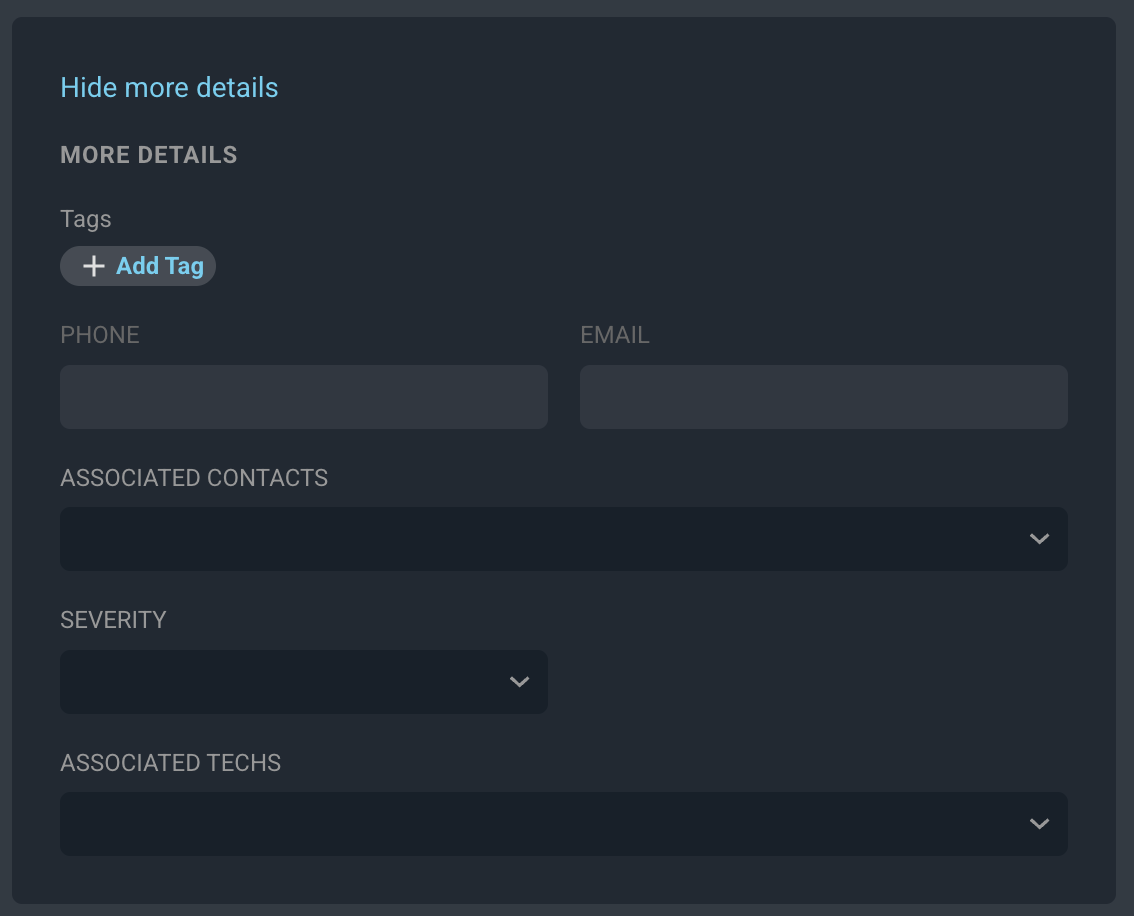
Click More details to display additional fields. Each field in the More Details section is defined below.
| Label | Definition |
| Tags | Tags applied to the ticket. Click Add Tag to add a tag. The tags available depend on the Use Ticket Tags setting in the Service category. |
| Phone | Phone number for the primary contact on the ticket. This field is read-only and populates based on the contact selected. |
| Email address for the primary contact on the ticket. This field is read-only and populates based on the contact selected. | |
| Associated Contacts | Additional contacts at the customer's company for the ticket. This dropdown is limited to contacts entered on the customer profile. NOTE: Adding Associated Contacts on the ticket creates a log in the System Entries section on the ticket's Activity tab. |
| Severity | Level of severity/urgency for the ticket. Default Severity options include Emergency, High, Medium, and Low. See the System Settings: System Tables - Ticket article for more information on configuring Severity options. |
| Associated Techs | Additional techs assigned to work the ticket. When their work is complete and they are no longer needed on the ticket, you can edit the ticket and mark Associated Techs as Complete. |
These actions are available on the Add Ticket panel.
- Populate the ticket with standardized information by clicking the Apply Template button, selecting a template from the list, and clicking Apply Template. The details for the selected template display before you apply it. See the System Settings: Templates article for more information on configuring templates.
- Assign the ticket to a board by selecting an option from the Board dropdown in the Routing & Assignment section. See the Create Ticket Boards article for more information about boards.
- Show or hide the additional fields by clicking More details or Hide more details.
- Create the ticket by clicking the Create Ticket button.
- Discard the ticket and close the panel by clicking the Cancel button.
For more information about tickets and boards, see the following articles.
Ticket List View
System Settings: Service
Add/Edit New Ticket Templates
Create Ticket Boards
Dispatch Board: Ticket Board Tabs