
View Serial Number Details
Clicking on a result from the Serial Number Lookup screen opens the serial number detail view, which displays the current status, location, and complete movement history for the selected item. The Movement History section displays a chronological log of every movement event recorded for the item. Movement event types include the following.
- Received. The item was received into inventory from a purchase order.
- Reserved. The item was reserved for a ticket.
- Transferred. The item was moved from one location to another.
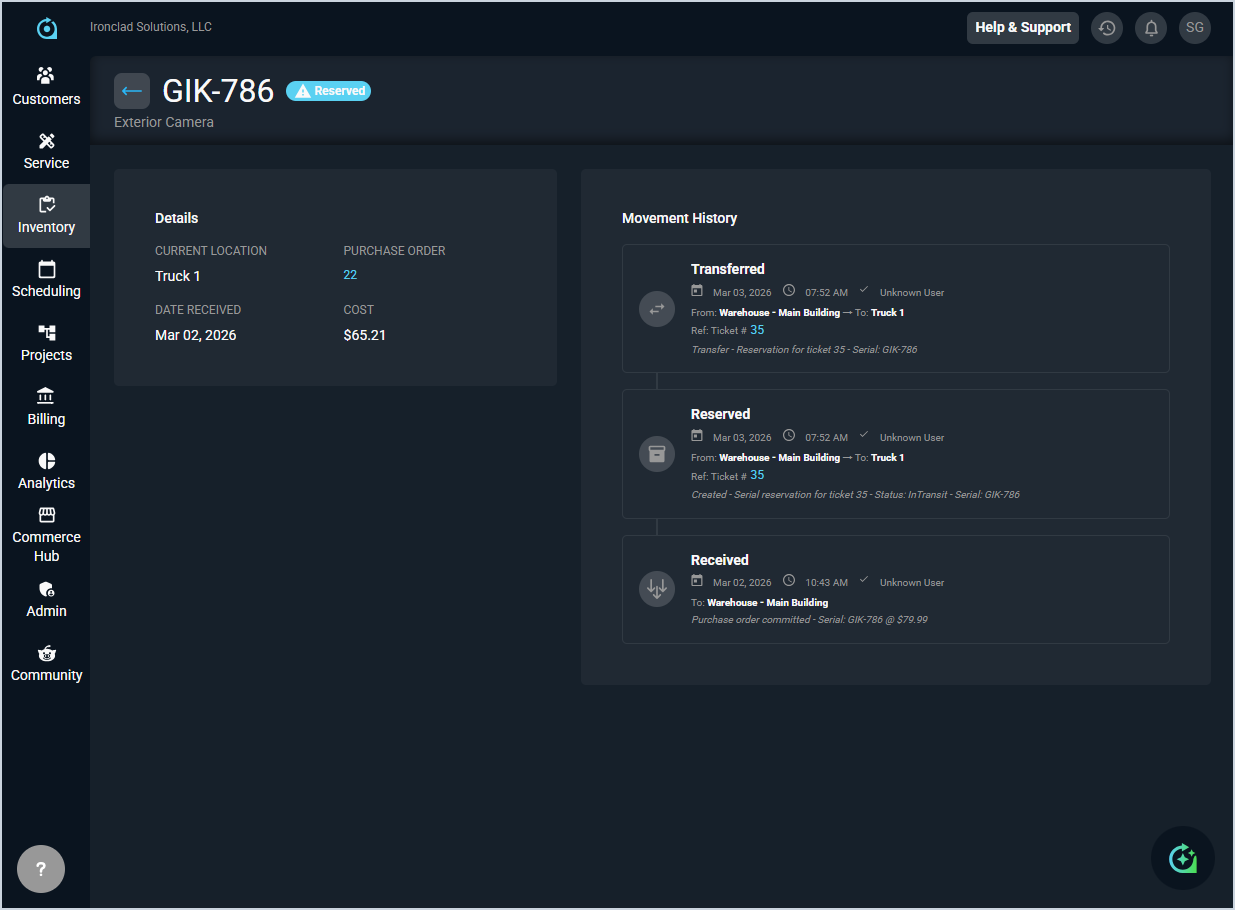
Each field on the Serial Number Details screen is defined below.
| No. | Label | Definition |
| 1 | Serial Number | The serial number of the inventory item. |
| 2 | Status | The current status of the item. Status options include Available and Reserved. |
| 3 | Product Name | The name of the product or asset associated with the serial number. |
| Details | ||
| 4 | Current Location | The location where the item is currently stored or assigned, such as a warehouse or vehicle. |
| 5 | Purchase Order | The purchase order associated with the item. Click the link to view the purchase order details. |
| 6 | Date Received | The date the item was received into inventory. |
| 7 | Cost | The cost of the item at the time it was received. |
| Movement History | ||
| 8 | Movement | The type of movement event. Event types include Received, Reserved, and Transferred. |
| 9 | Date | The date the movement event occurred. |
| 10 | Time | The time the movement event occurred. |
| 11 | User | The user who performed the action associated with the movement event. |
| 12 | From | The location the item was moved from. |
| 13 | To | The location the item was moved to. |
| 14 | Ref Ticket | The ticket associated with the movement event, if applicable. Click the link to view the ticket details. |
| 15 | Description | A brief description of the movement event, including relevant details such as the serial number and status. |
The following actions are available when viewing serial number details.
- Return to the Serial Number Lookup screen by clicking the back arrow next to the serial number at the top of the screen.
- View the purchase order associated with the item by clicking the purchase order link in the Details section.
- View a ticket associated with a movement event by clicking the ticket number link in the Movement History section.