
Add/Edit Custom Fields
Adding custom fields allows you to capture and track information specific to your business that is not included in the default system fields. Custom fields help keep customer data organized, accessible, and consistently recorded, supporting more efficient workflows and personalized service. You can choose from multiple field types and configure field settings to ensure information is captured accurately and consistently.
| NOTE: Some custom fields are only available in PSA or classic Billing and are not accessible in the other application. |
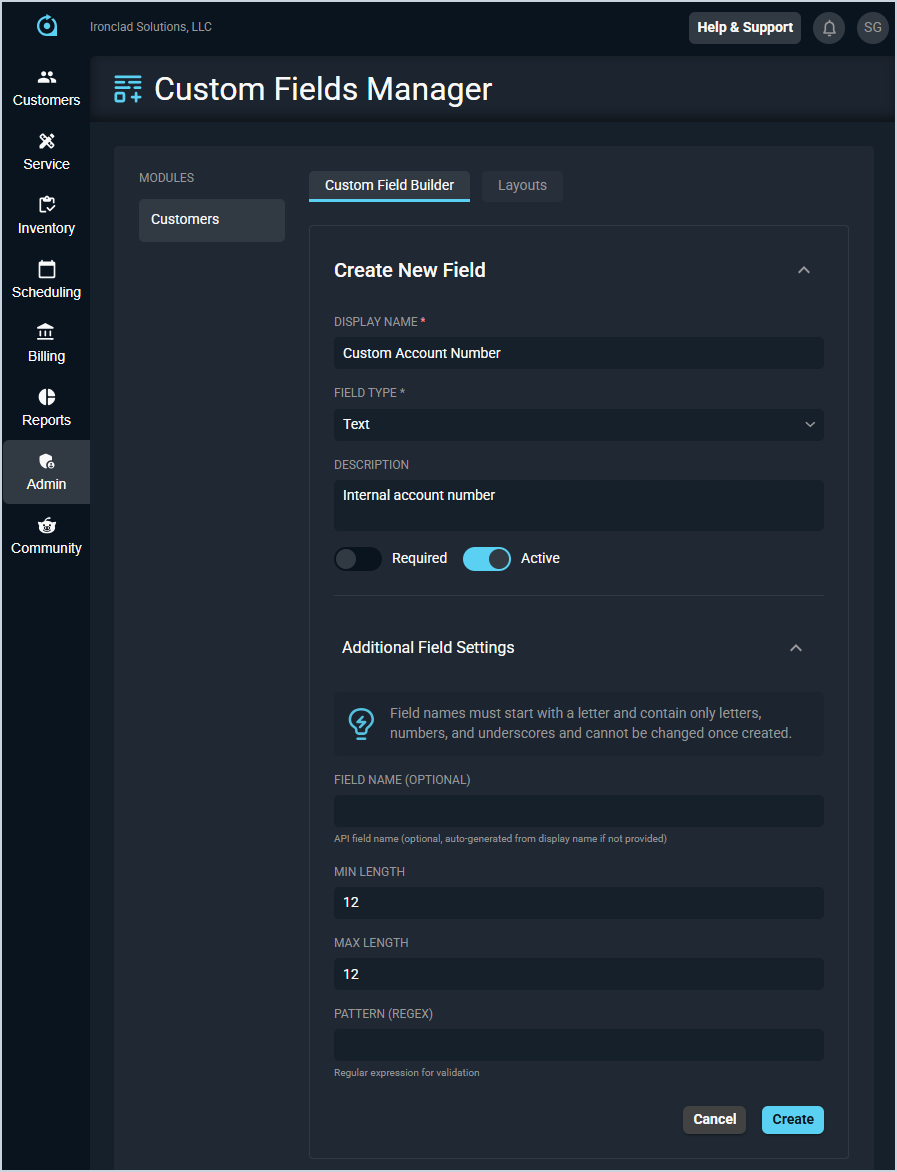
Each field for creating new custom fields is defined below.
| No. | Label | Definition |
| 1 | Display Name | Name of the custom field. |
| 2 | Field Type | Type of custom field. Field Type options include Text, Text Area, Number, Date, Dropdown, Multi-Select, and Checkbox. |
| 3 | Description | Description of the custom field. |
| 4 | Required | Indicates whether the custom field is required. |
| 5 | Active | Indicates whether the custom field is active. |
| Additional Field Settings | ||
| 6 | Field Name | API field name for the custom field. If you do not enter a Field Name, the system will automatically generate one based on the Display Name you entered. |
| 7 | Min Length | Minimum length for the custom field. |
| 8 | Max Length | Maximum length for the custom field. |
| 9 | Pattern (Regex) | Regular expression pattern for the custom field. |