
View Opportunity Details
Clicking on an opportunity from the Opportunities list view or a customer's Opportunities tab opens the opportunity detail view. This screen displays all of the information associated with the opportunity and allows you to add activity notes, view associated quotes, and edit or delete the opportunity.
The stage progression indicator at the top of the screen displays the opportunity's current position in the sales pipeline. Each stage is represented as a step in the progression, with completed stages marked with a checkmark and the current stage highlighted. Stage options include Qualification, Discovery, Solution Development, Proposal Presented, Negotiation, and Verbal Agreement.
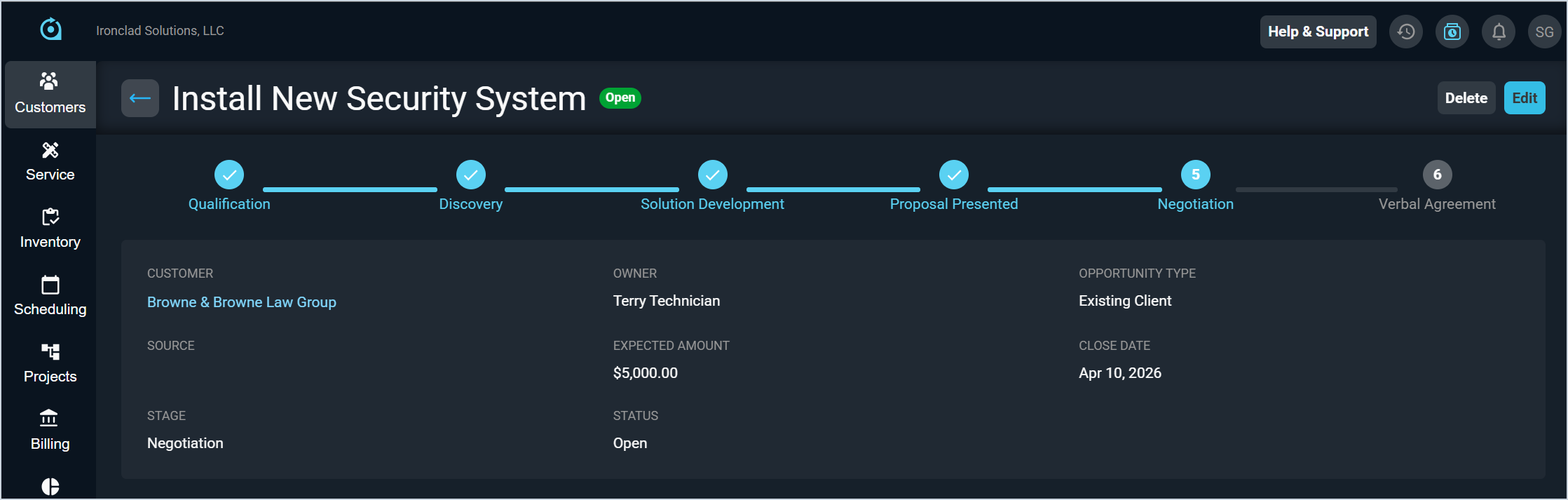
Each field on the opportunity detail view is defined below.
| No. | Label | Definition |
| 1 | Opportunity Name | Name of the opportunity. |
| 2 | Status | The current status of the opportunity. Status options include Open, Closed Won, and Closed Lost. See the System Settings: System Tables - Opportunities article for more information on configuring Opportunity Status options. |
| 3 | Customer | The customer account associated with the opportunity. |
| 4 | Owner | The user responsible for managing the opportunity. |
| 5 | Opportunity Type | The type of opportunity. Default Opportunity Type options include Existing Client or New Prospect. See the System Settings: System Tables - Opportunities article for more information on configuring Opportunity Type options. |
| 6 | Source | The source or origin of the opportunity. Source options can be configured in the Opportunity Sources section on the Opportunities tab in the System Tables. See the System Settings: System Tables - Opportunities article for more information on configuring Source options. |
| 7 | Expected Amount | The estimated value of the opportunity in dollars. |
| 8 | Close Date | The target date for closing the opportunity. |
| 9 | Stage | The current stage of the opportunity in the sales process. Default Stage options include Qualification, Discovery, Solution Development, Proposal Presented, Negotiation, and Verbal Agreement. See the System Settings: System Tables - Opportunities article for more information on configuring Sales Stages options. |
The following actions are available when viewing opportunity details.
- Return to the previous screen by clicking the back arrow next to the opportunity name at the top of the screen.
- Delete the opportunity by clicking the Delete button in the upper right corner.
- Edit the opportunity by clicking the Edit button in the upper right corner. See the Add/Edit Opportunities article for more information.
Activity Tab
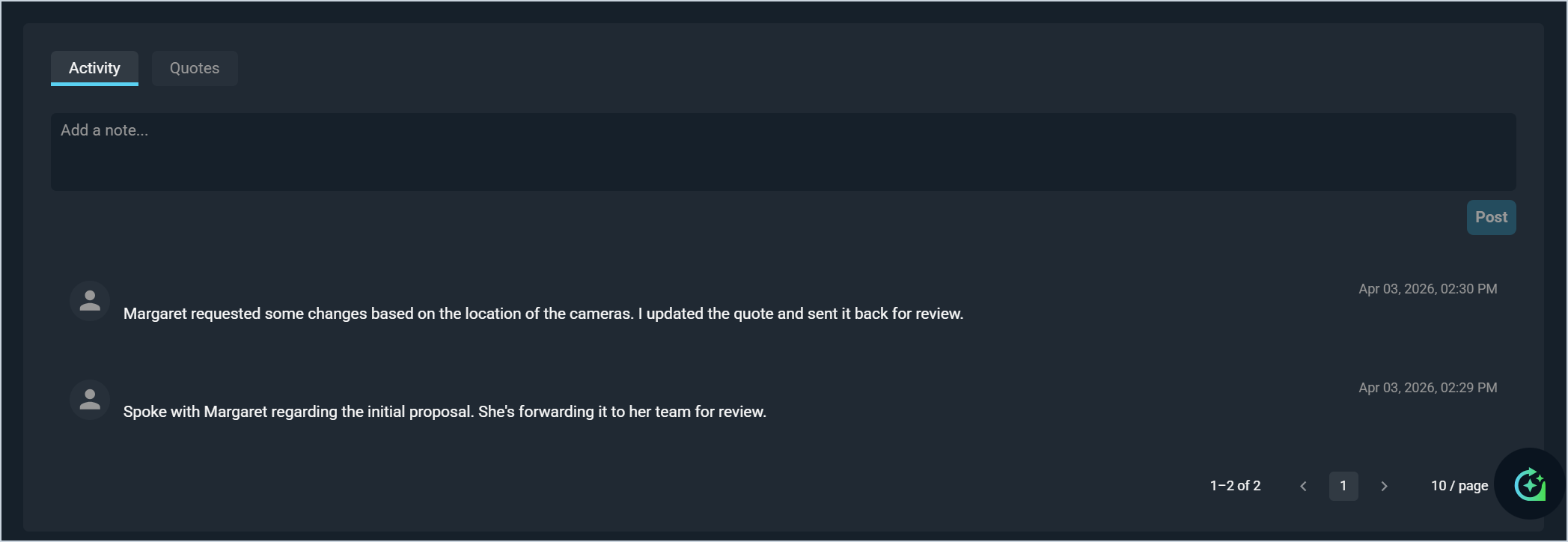
View and add notes related to the opportunity by clicking the Activity tab. The Activity tab displays a chronological log of all notes recorded against the opportunity, along with the date and time each note was posted. Enter text in the Add a note field and click the Post button to log a new note.
Quotes Tab
View quotes associated with the opportunity by clicking the Quotes tab. Click the Add Quote button to create a new quote directly from the opportunity. See the Managing Quotes article for more information.
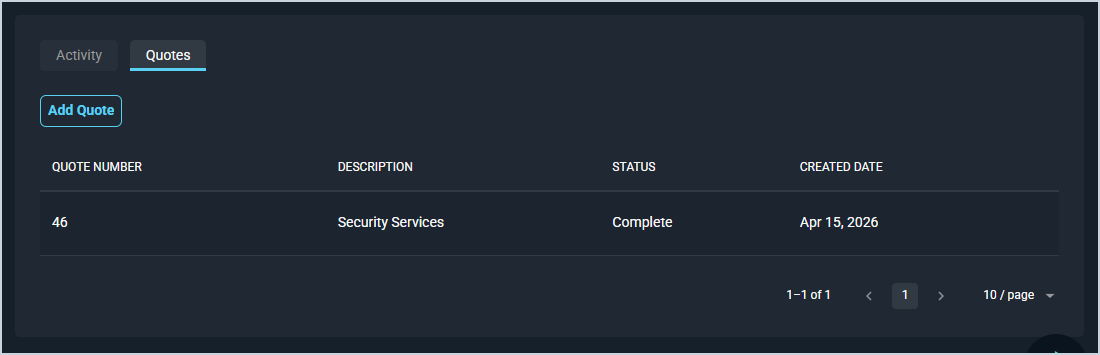
Each field on the Quotes tab is defined below.
| No. | Label | Definition |
| 1 | Quote Number | System-assigned number for the quote. |
| 2 | Description | Description of the quote. |
| 3 | Status | Status of the quote. Status options include Draft, Sent, Viewed, and Complete. The Status updates automatically once a quote has been sent to a customer, viewed by a recipient, and signed by all signers. NOTE: The Status does not update from Viewed to Completed until all signers have added their signatures. |
| 4 | Created Date | Date the quote was created. |