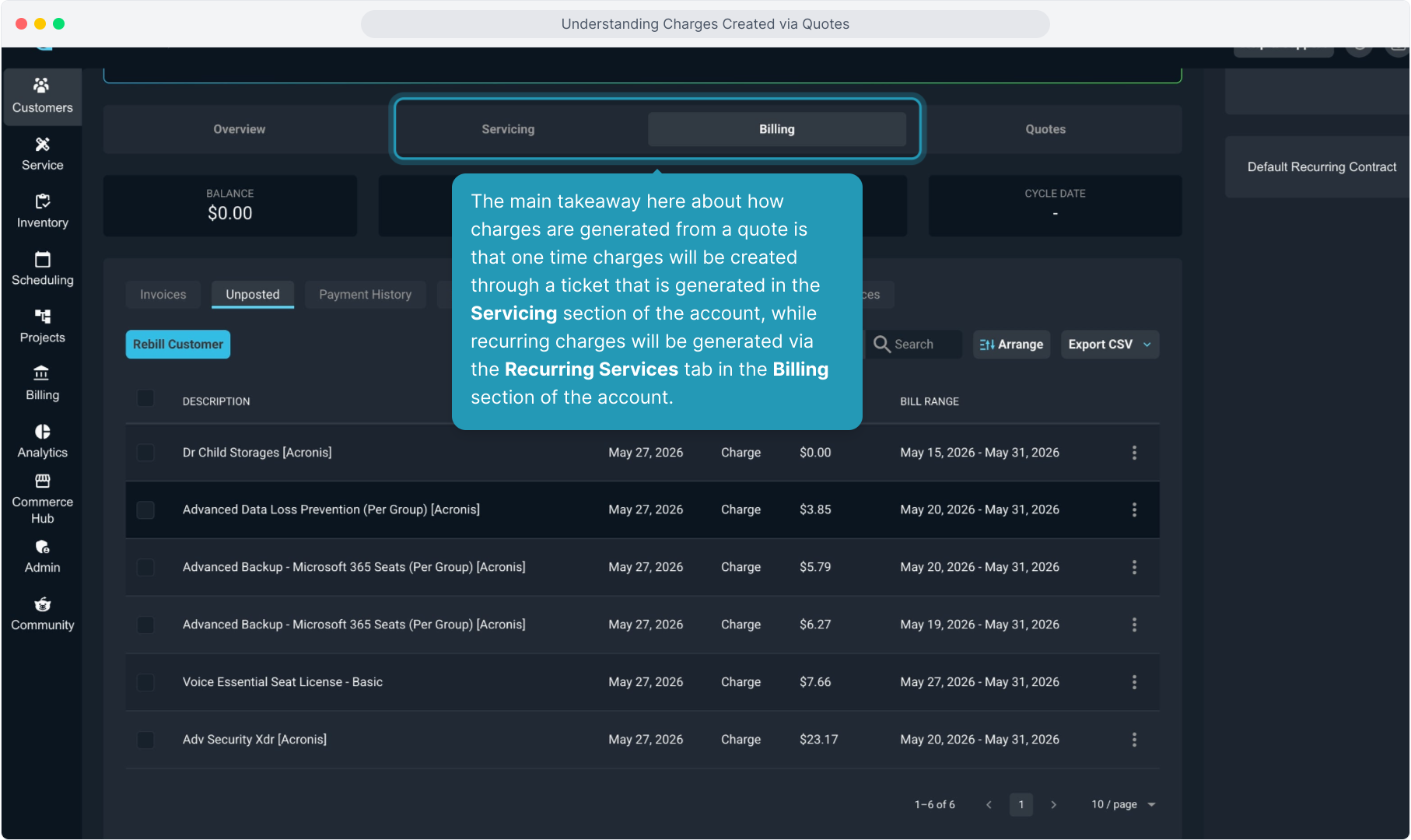
How To Guide: Understanding Charges Generated from a Quote
1. Introduction
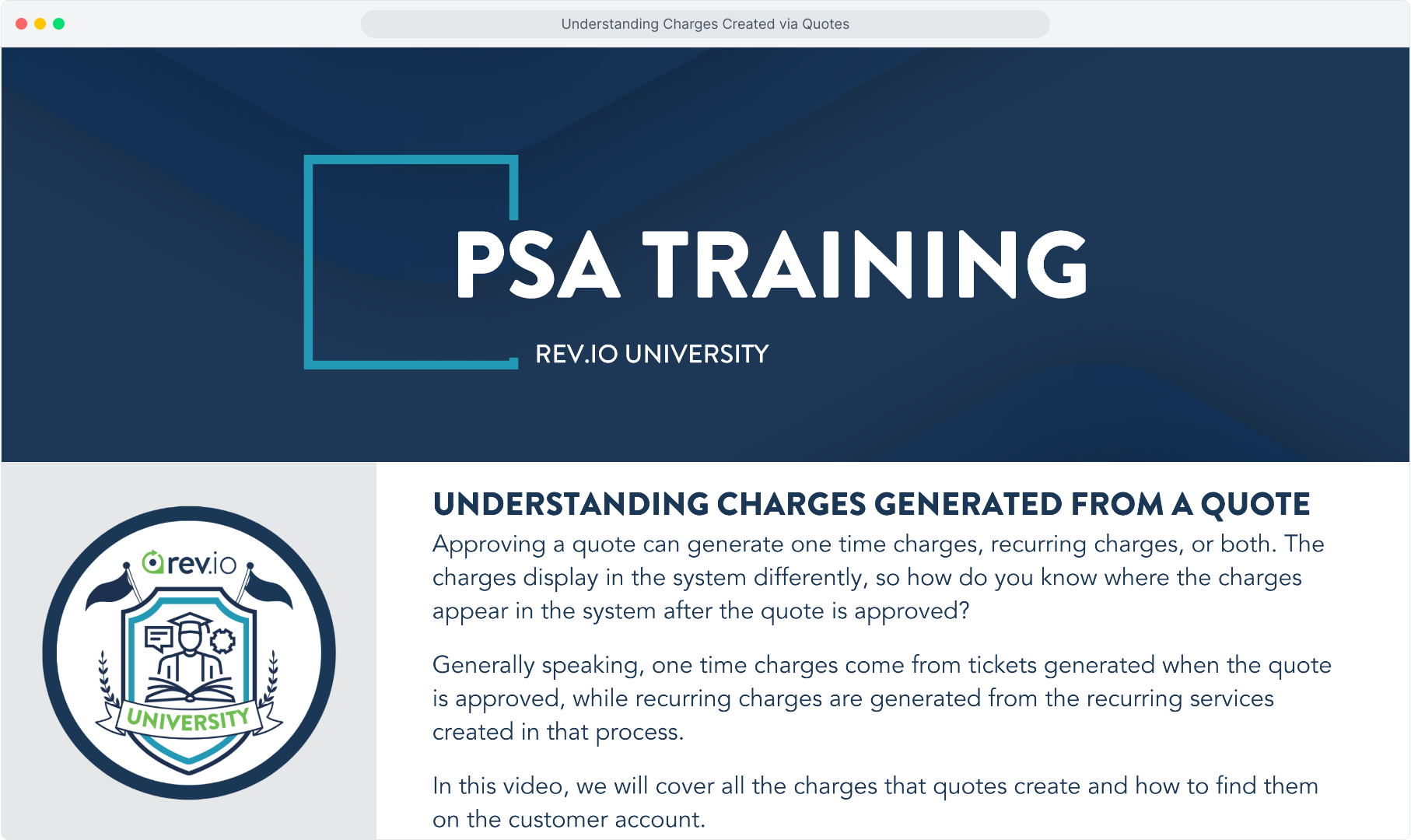
2. Click on the Quotes area of the customer account.
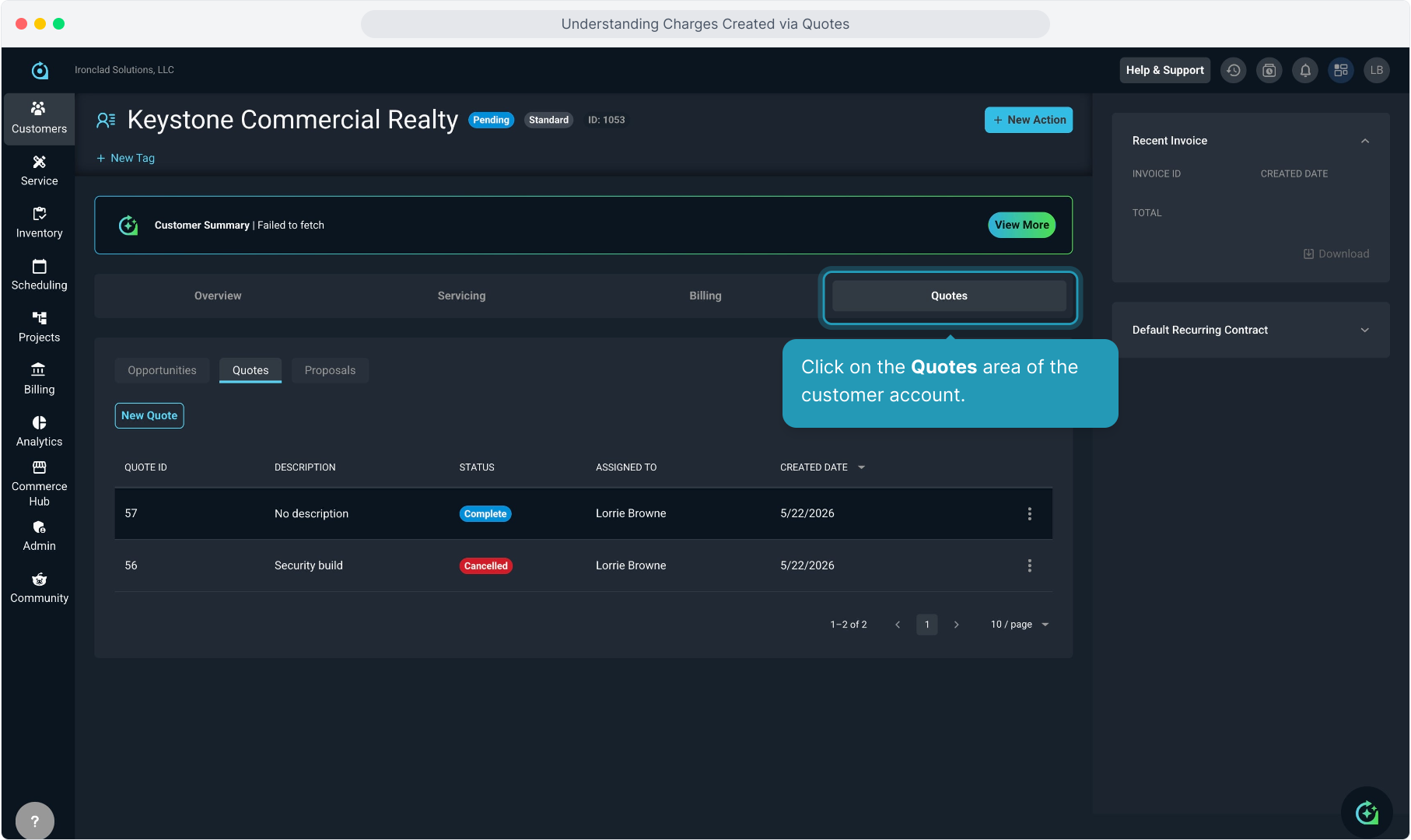
3. And then the Quotes sub tab.
We have one cancelled quote and one quote that has been completed on this customer account.
4. We'll look at the charges generated from the quote that the customer completed.
Click on the Quote ID to open the quote.
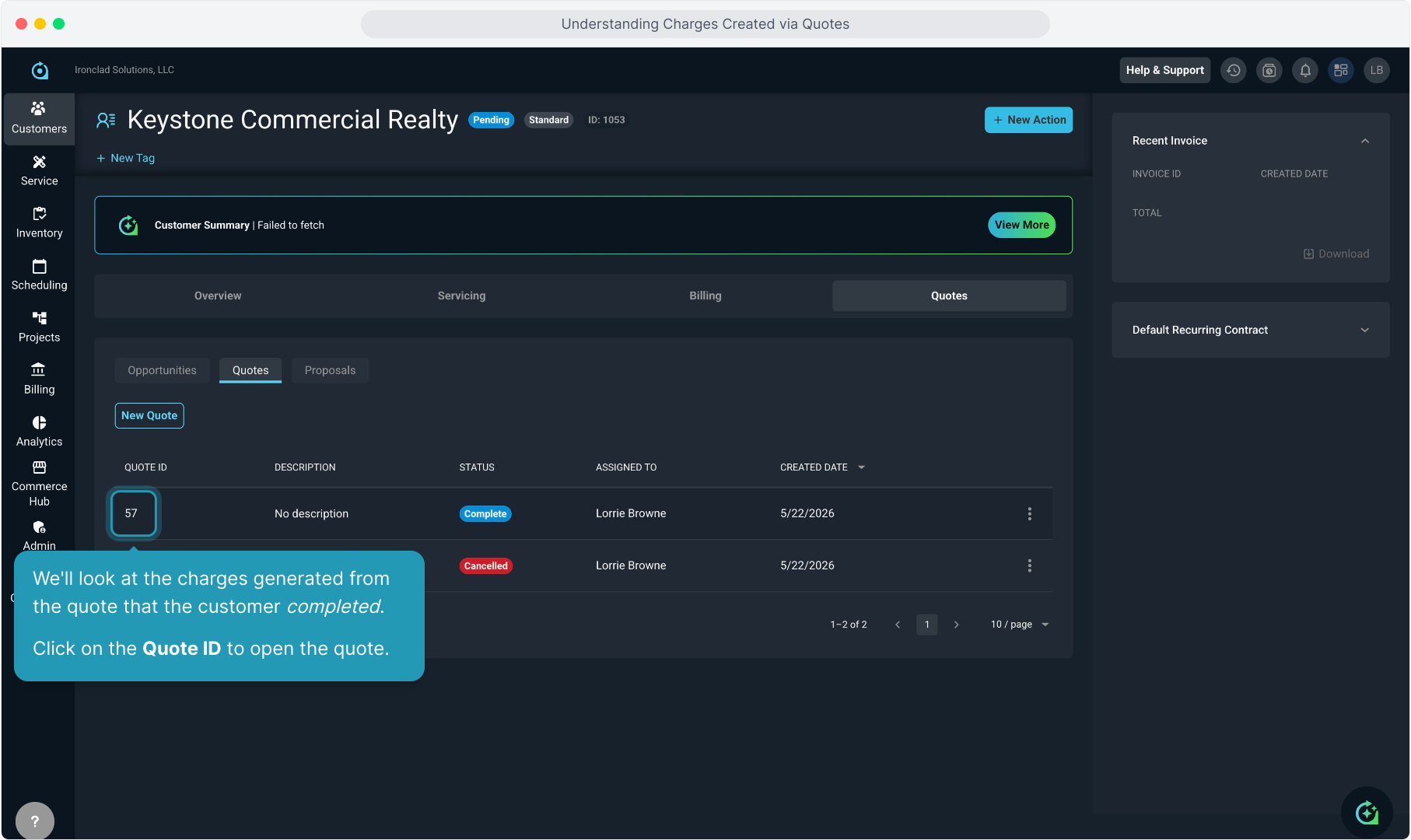
5. You'll see the Tickets section at the top.
There will be a ticket created if there were any one time charges included on the quote.
Note: If there were no one time charges, a ticket will not be generated automatically via the quote process.
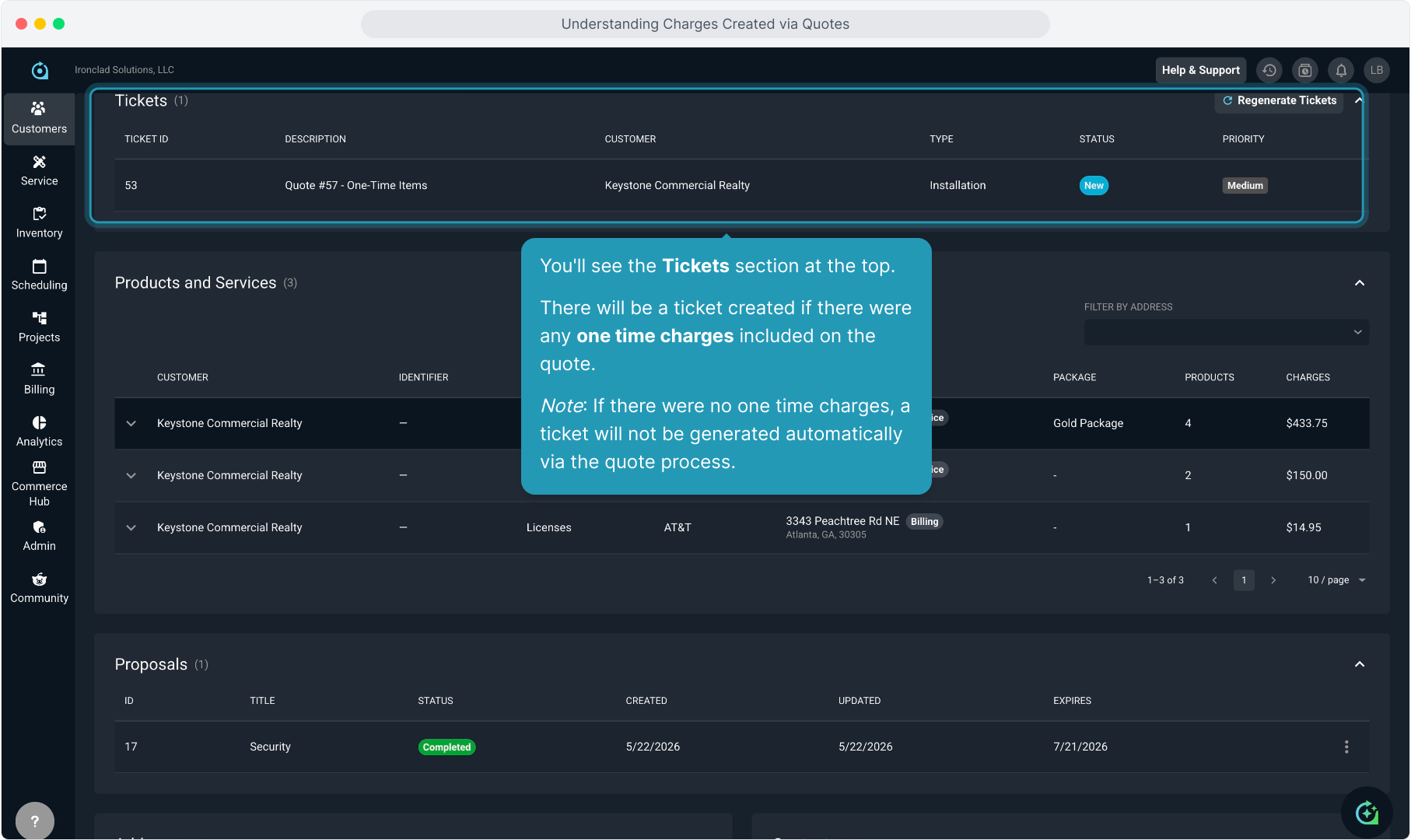
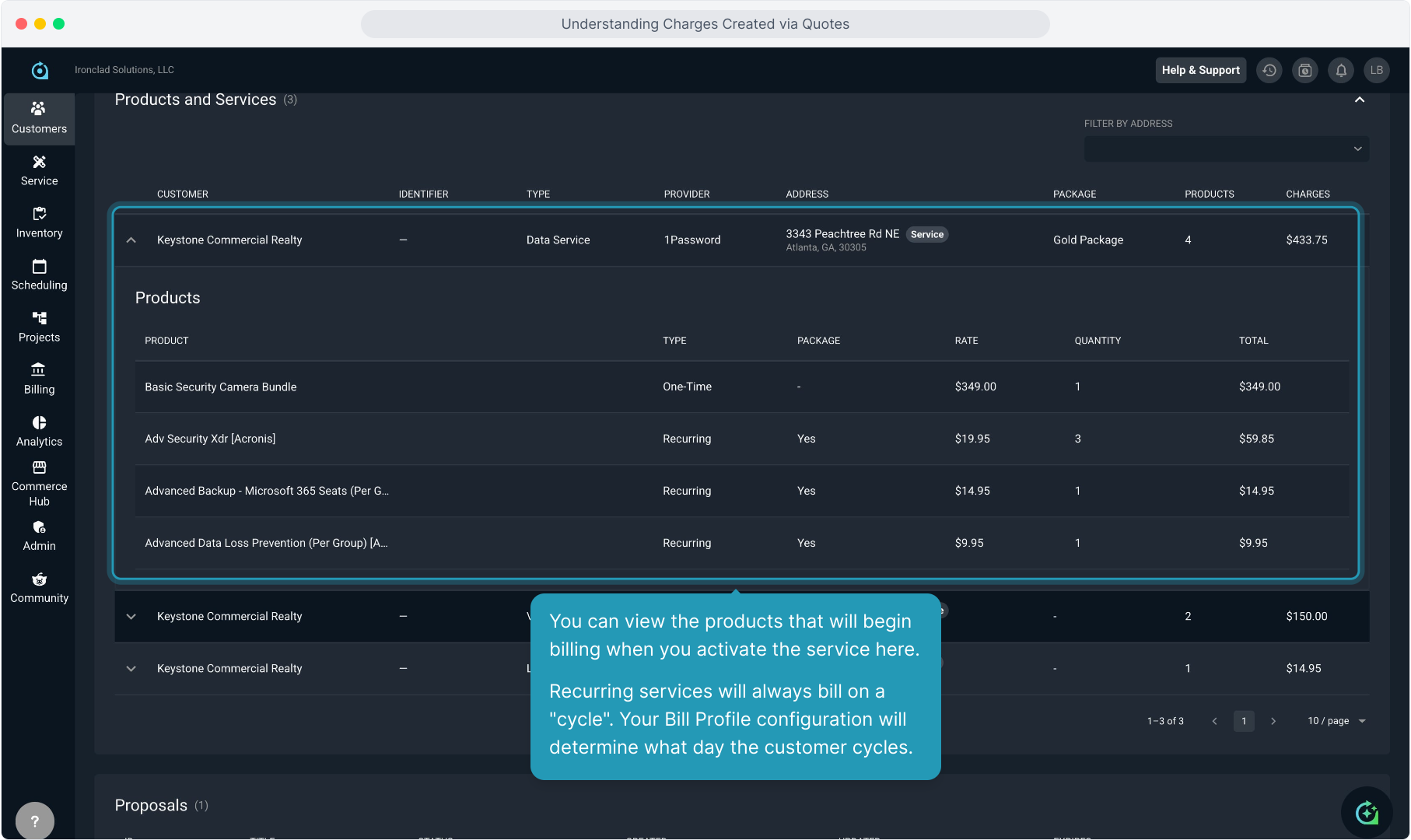
6. In the Products and Services section, you'll see a row for each recurring service you created on this quote.
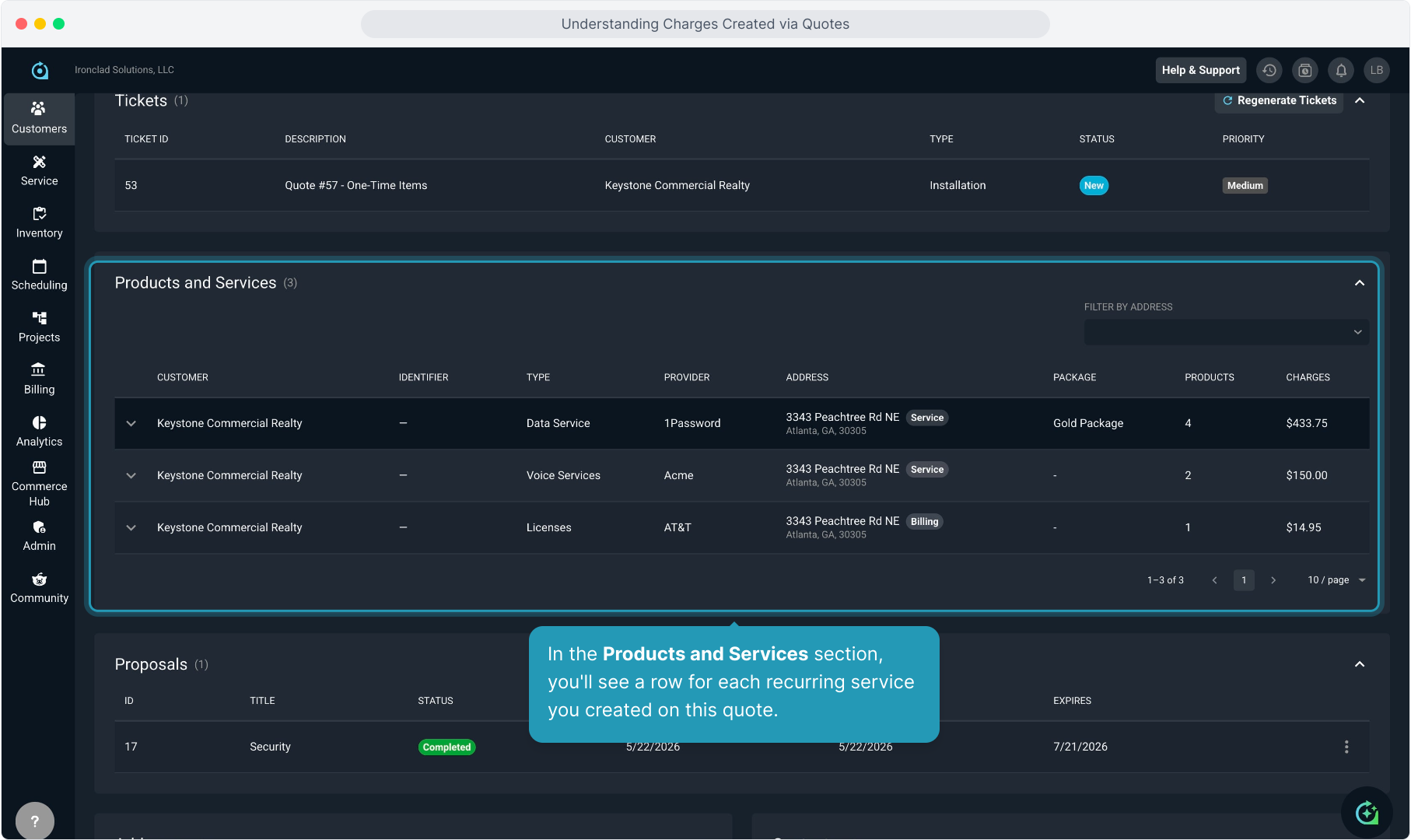
7. To view the recurring products included on each service, you can click the down arrows to open the service product view.
8. You can view the products that will begin billing when you activate the service here.
Recurring services will always bill on a "cycle". Your Bill Profile configuration will determine what day the customer cycles.
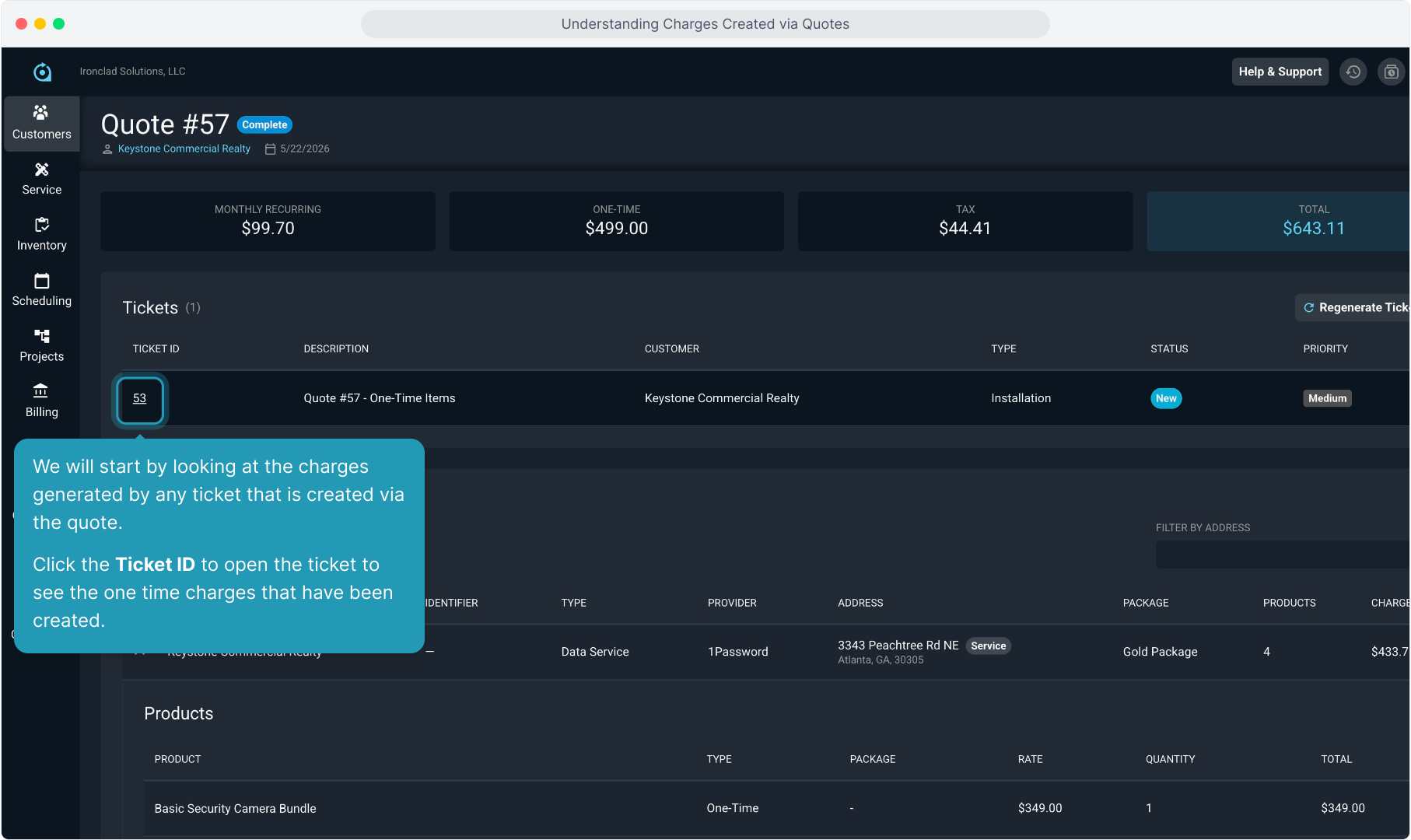
9. We will start by looking at the charges generated by any ticket that is created via the quote.
Click the Ticket ID to open the ticket to see the one time charges that have been created.
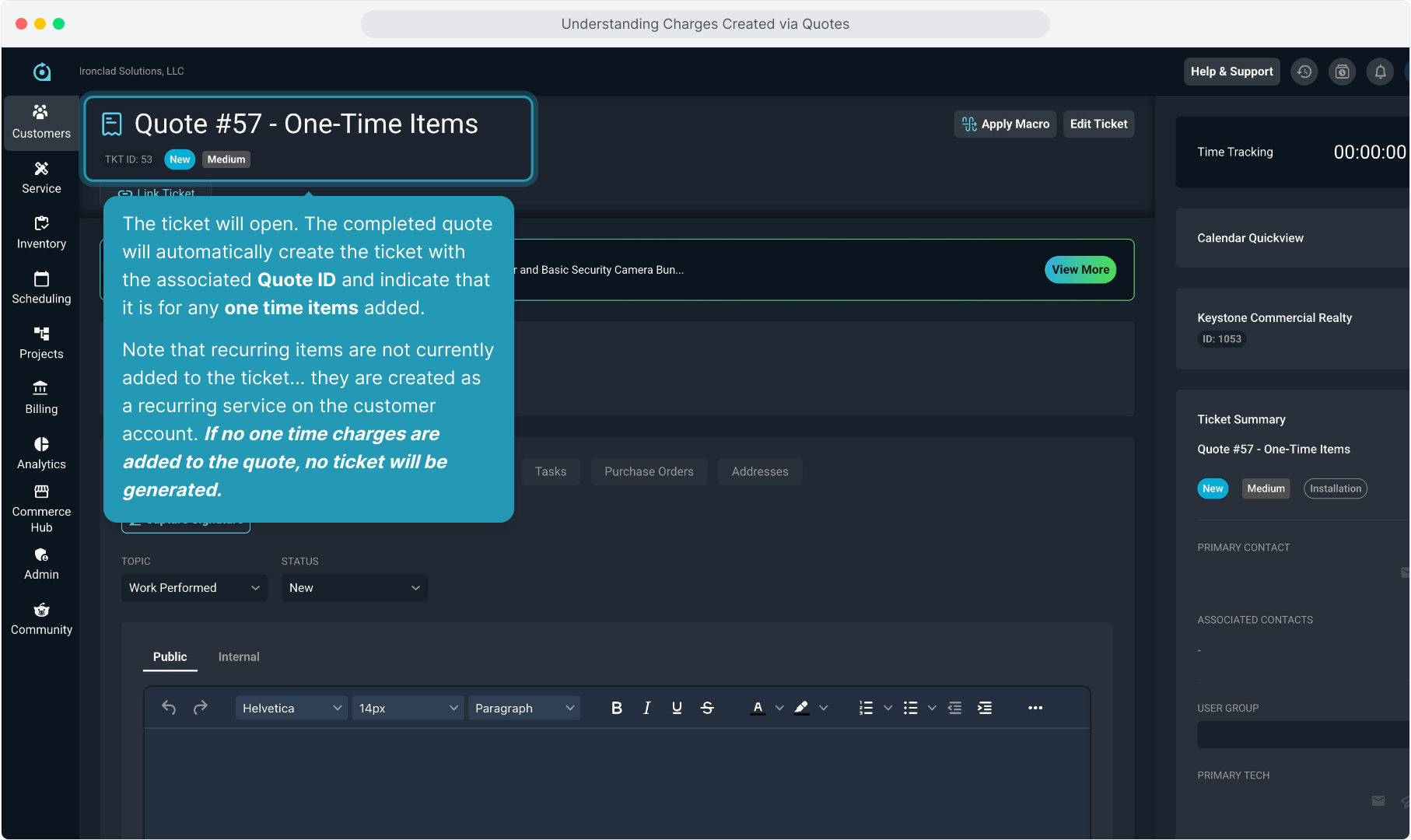
10. The ticket will open. The completed quote will automatically create the ticket with the associated Quote ID and indicate that it is for any one time items added.
Note that recurring items are not currently added to the ticket... they are created as a recurring service on the customer account. If no one time charges are added to the quote, no ticket will be generated.
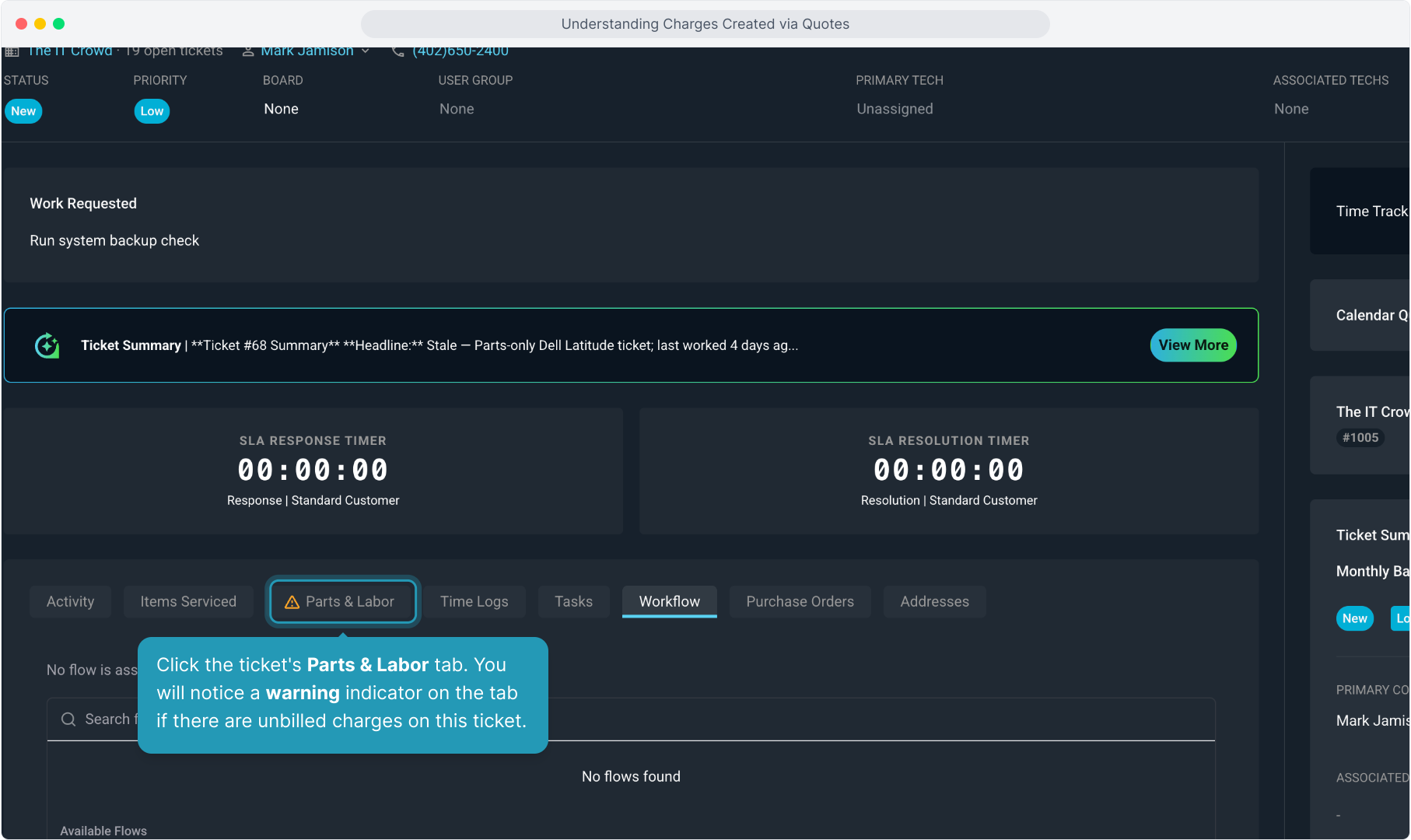
11. Click the ticket's Parts & Labor tab. You will notice a warning indicator on the tab if there are unbilled charges on this ticket.
12. All the one time products that were included on the quote will display here
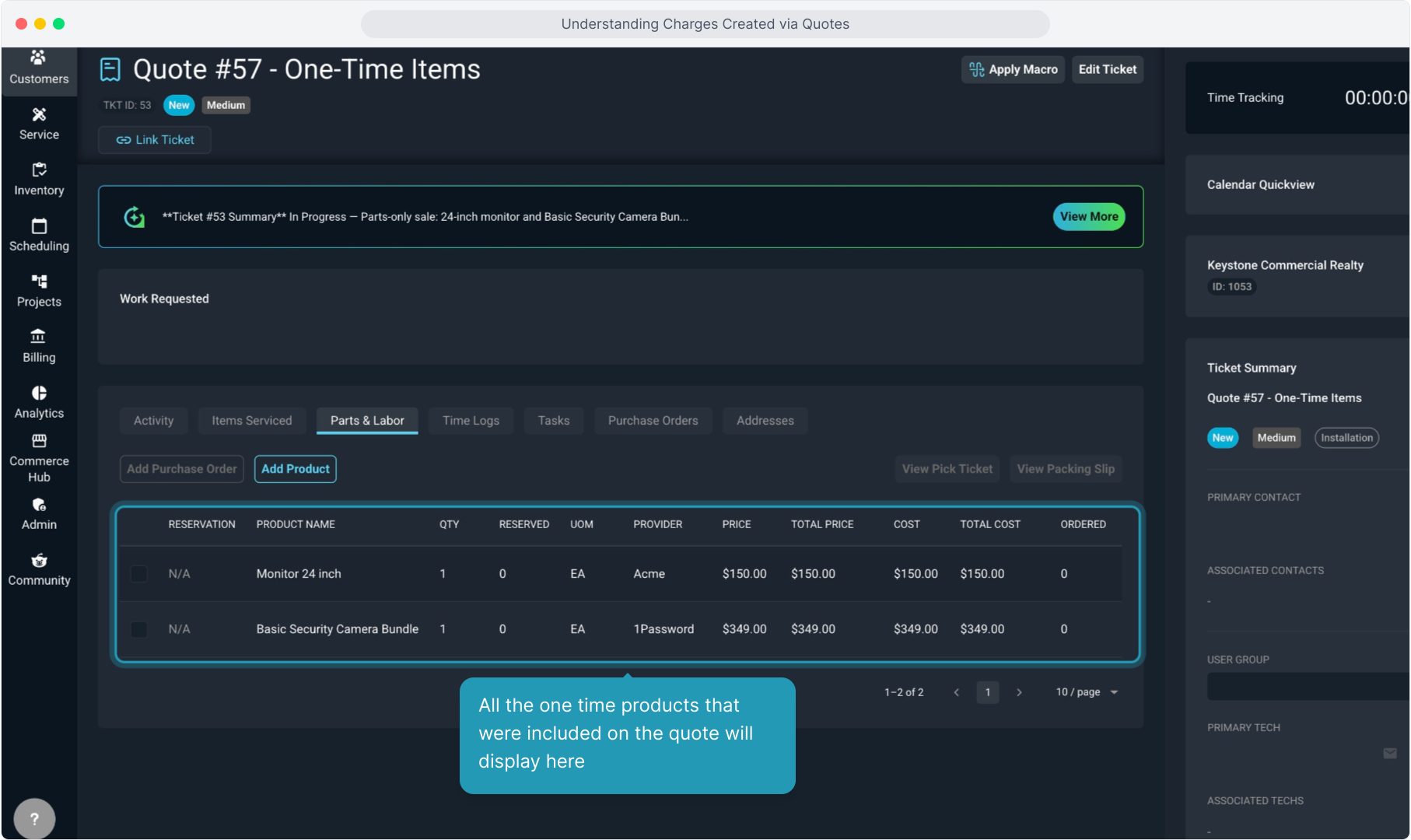
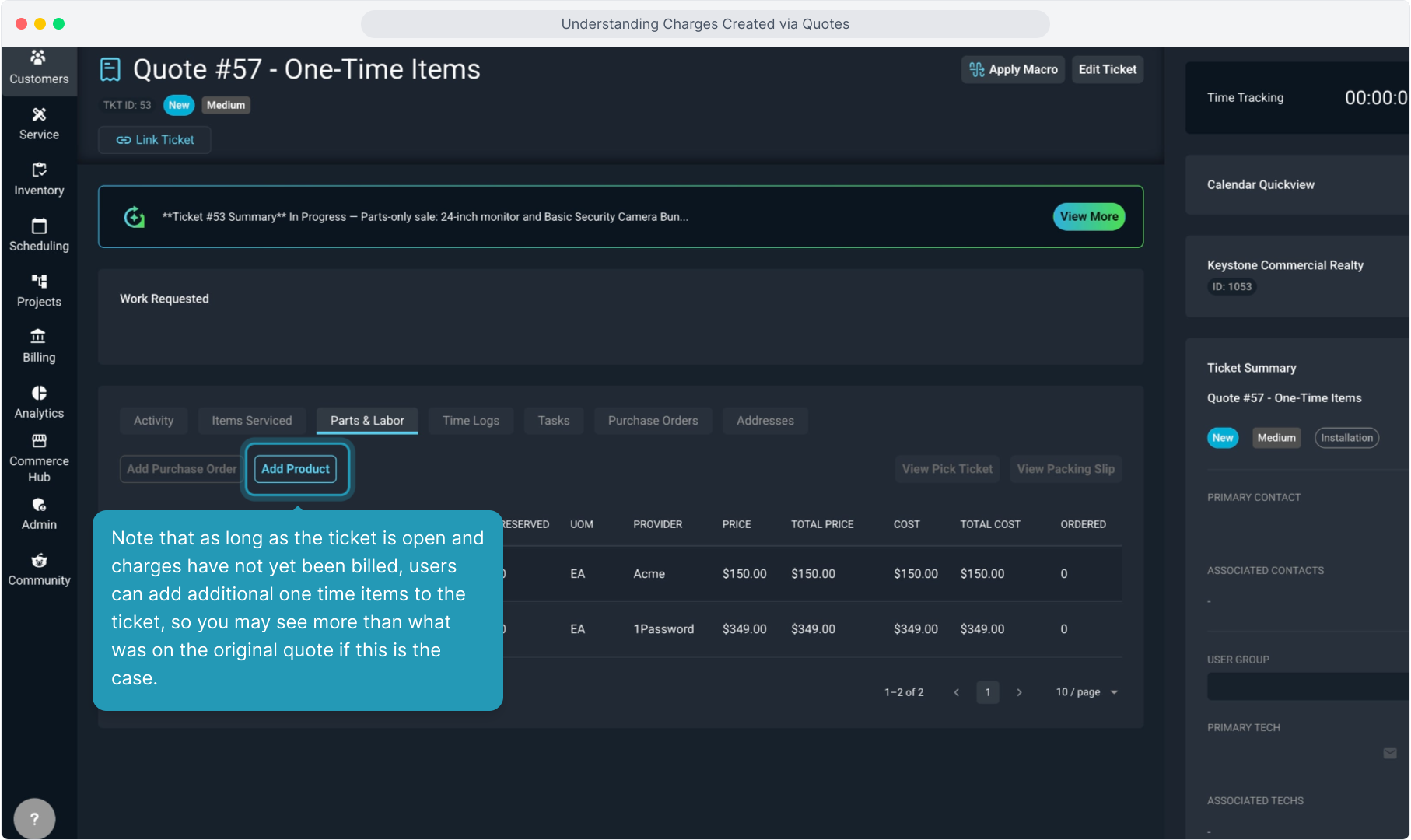
13. Note that as long as the ticket is open and charges have not yet been billed, users can add additional one time items to the ticket, so you may see more than what was on the original quote if this is the case.
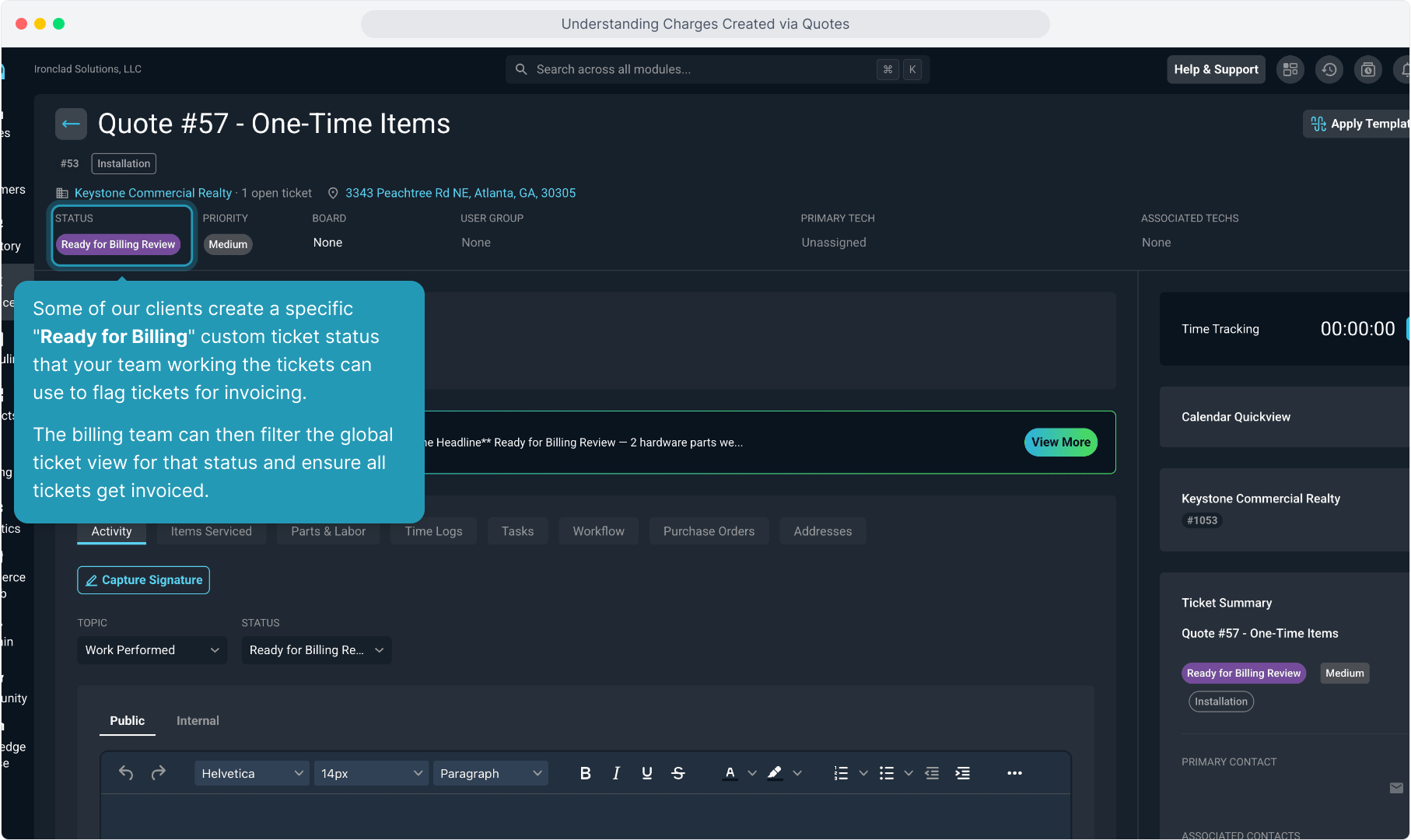
14. Some of our clients create a specific "Ready for Billing" custom ticket status that your team working the tickets can use to flag tickets for invoicing.
The billing team can then filter the global ticket view for that status and ensure all tickets get invoiced.
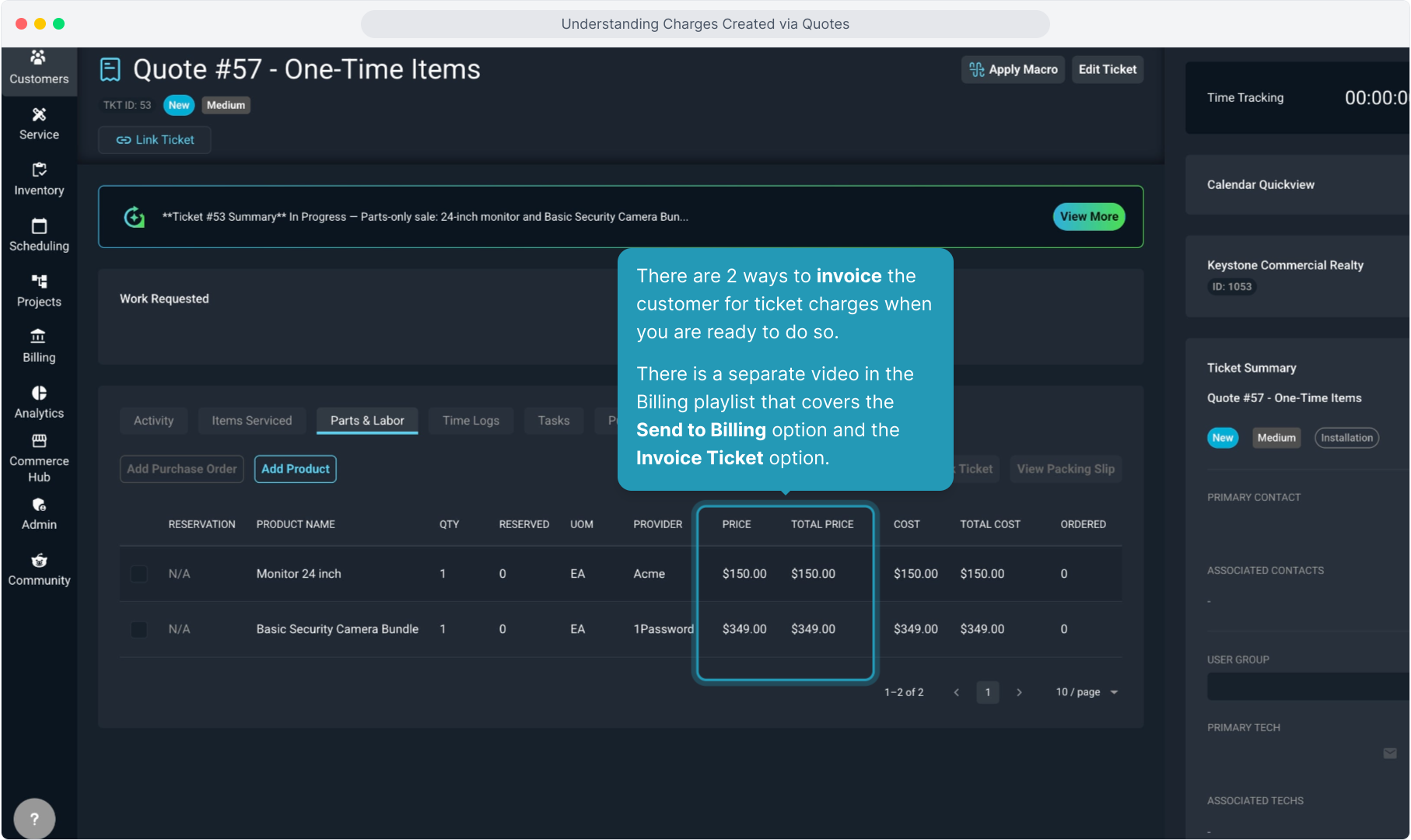
15. There are 2 ways to invoice the customer for ticket charges when you are ready to do so.
There is a separate video in the Billing playlist that covers the Send to Billing option and the Invoice Ticket option.
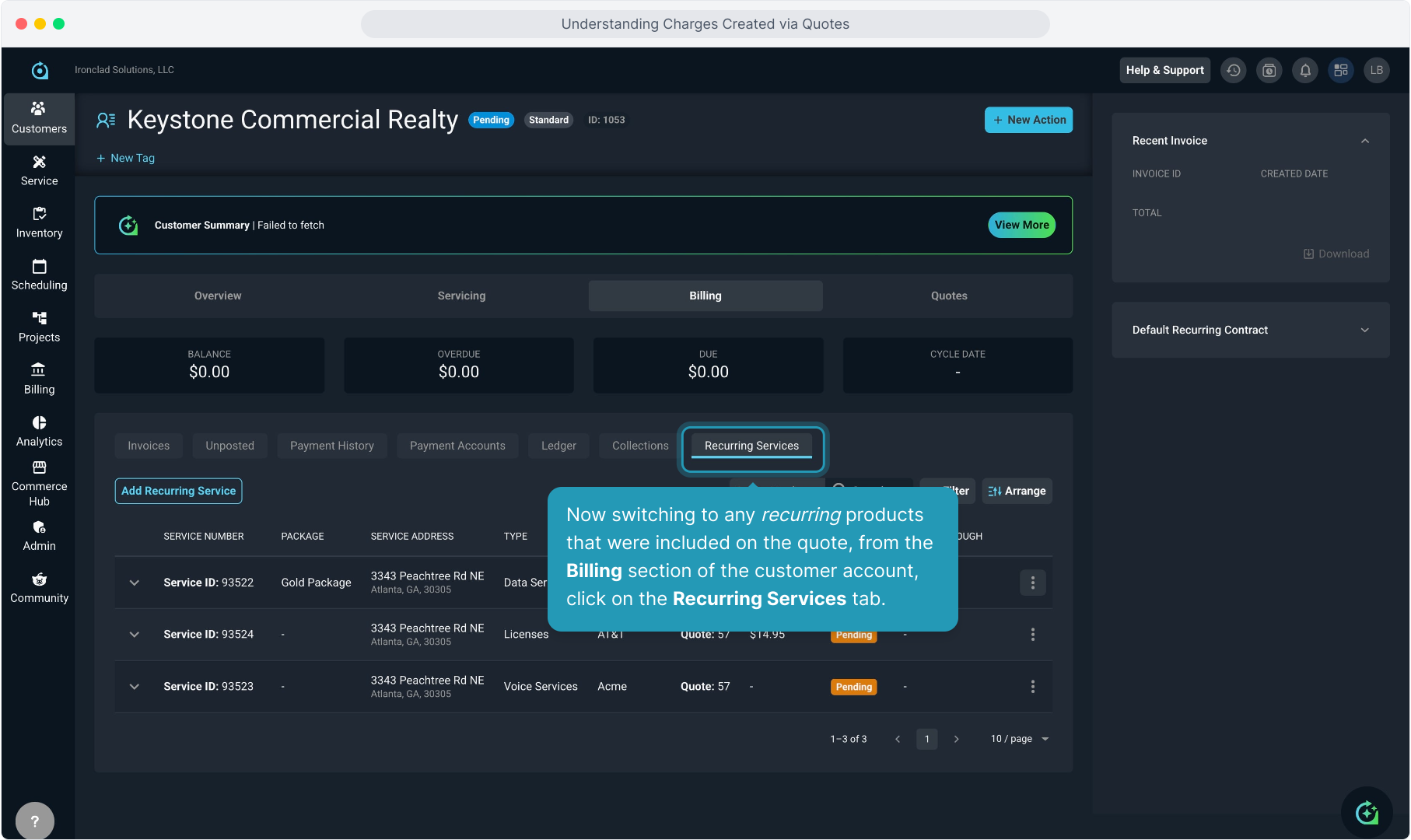
16. Now switching to any recurring products that were included on the quote, from the Billing section of the customer account, click on the Recurring Services tab.
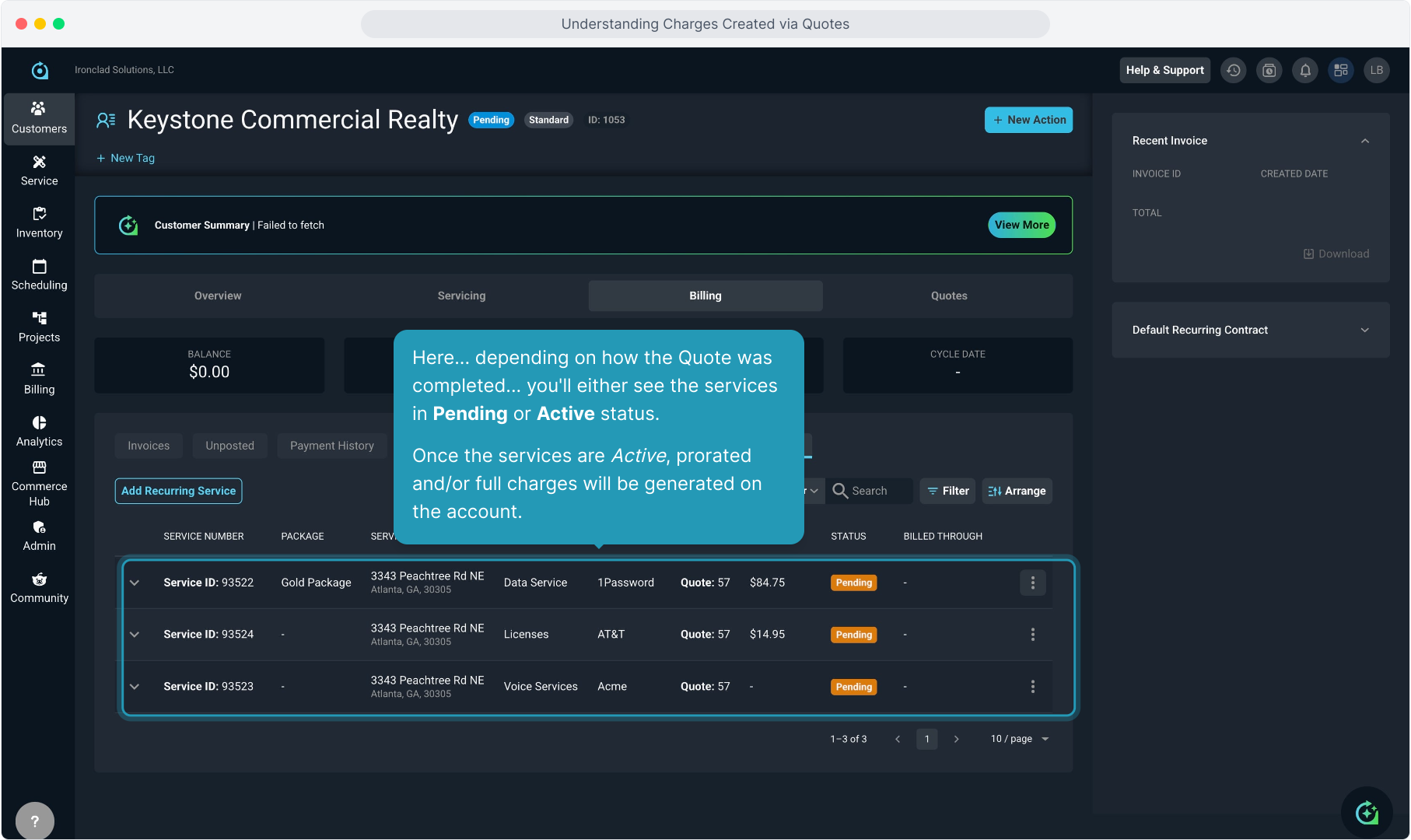
17. Here... depending on how the Quote was completed... you'll either see the services in Pending or Active status.
Once the services are Active, prorated and/or full charges will be generated on the account.
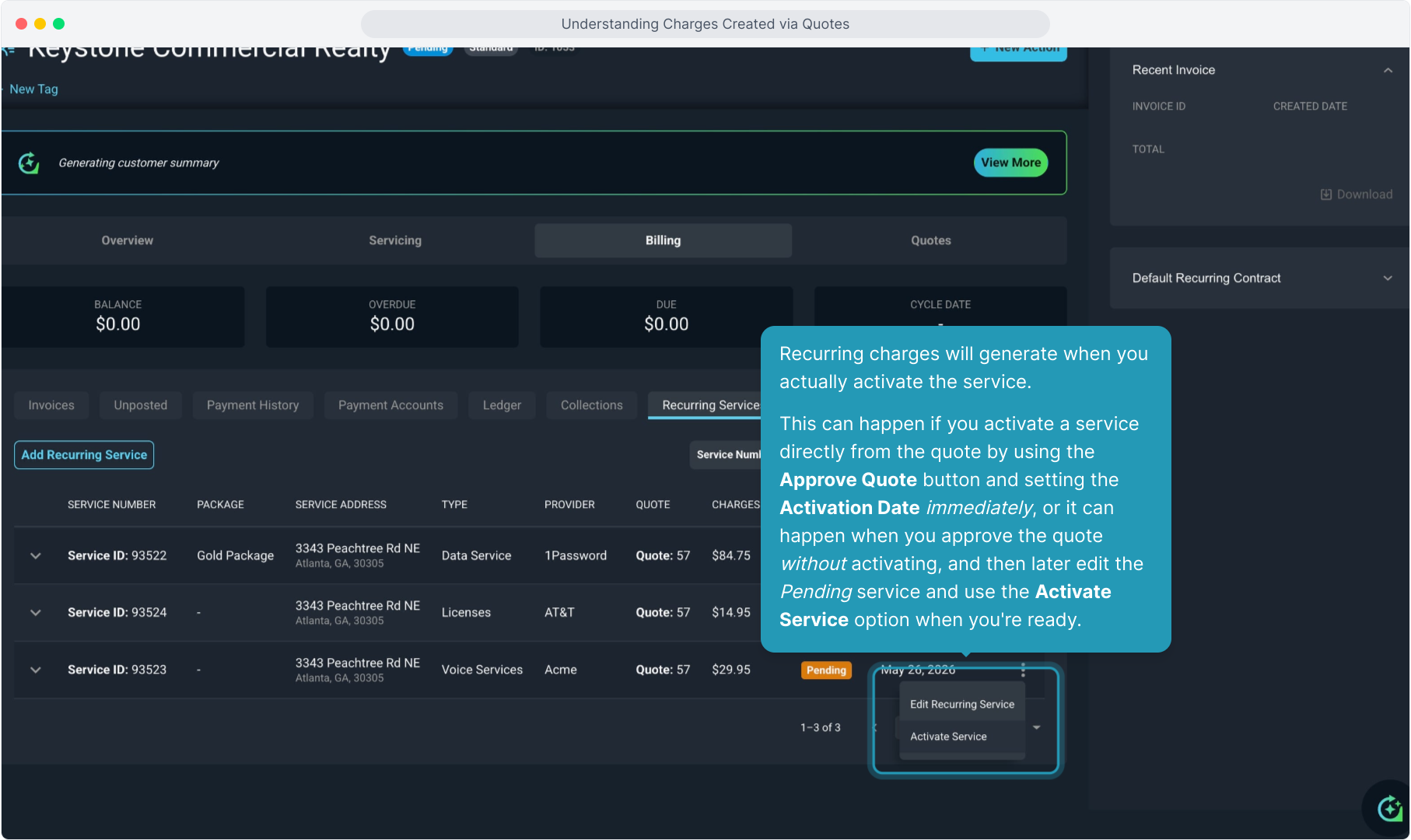
18. Recurring charges will generate when you actually activate the service.
This can happen if you activate a service directly from the quote by using the Approve Quote button and setting the Activation Date immediately, or it can happen when you approve the quote without activating, and then later edit the Pending service and use the Activate Service option when you're ready.
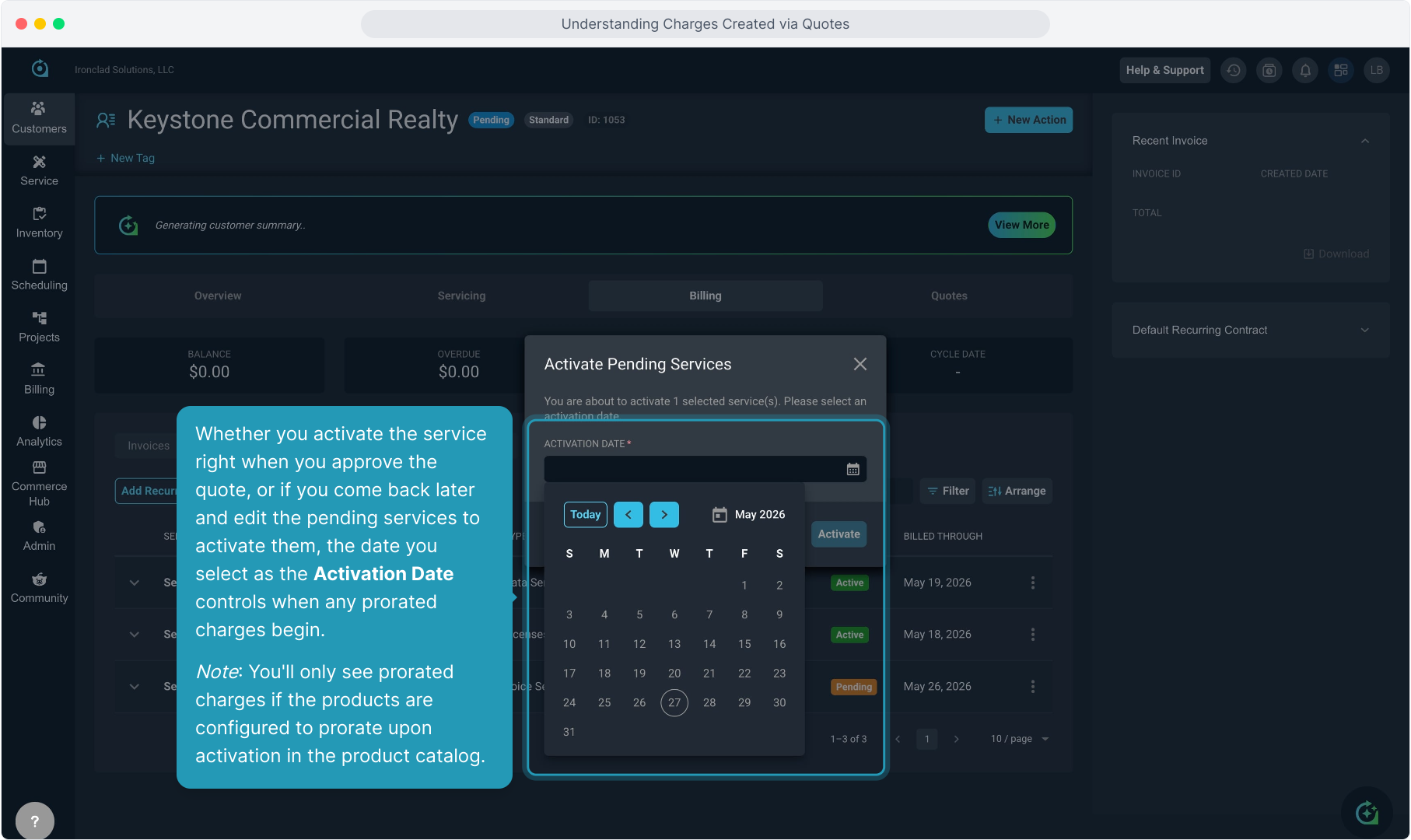
19. Whether you activate the service right when you approve the quote, or if you come back later and edit the pending services to activate them, the date you select as the Activation Date controls when any prorated charges begin.
Note: You'll only see prorated charges if the products are configured to prorate upon activation in the product catalog.
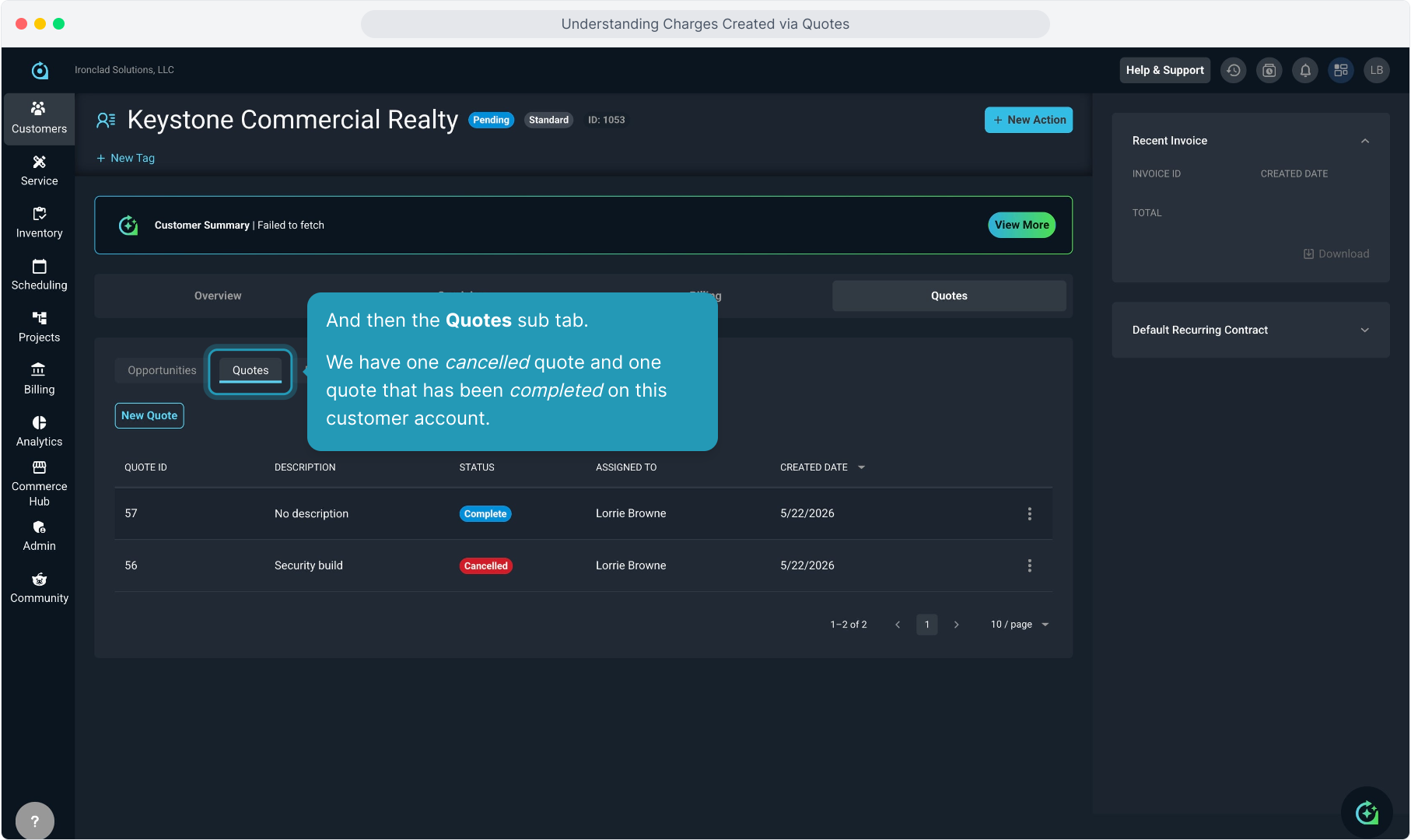
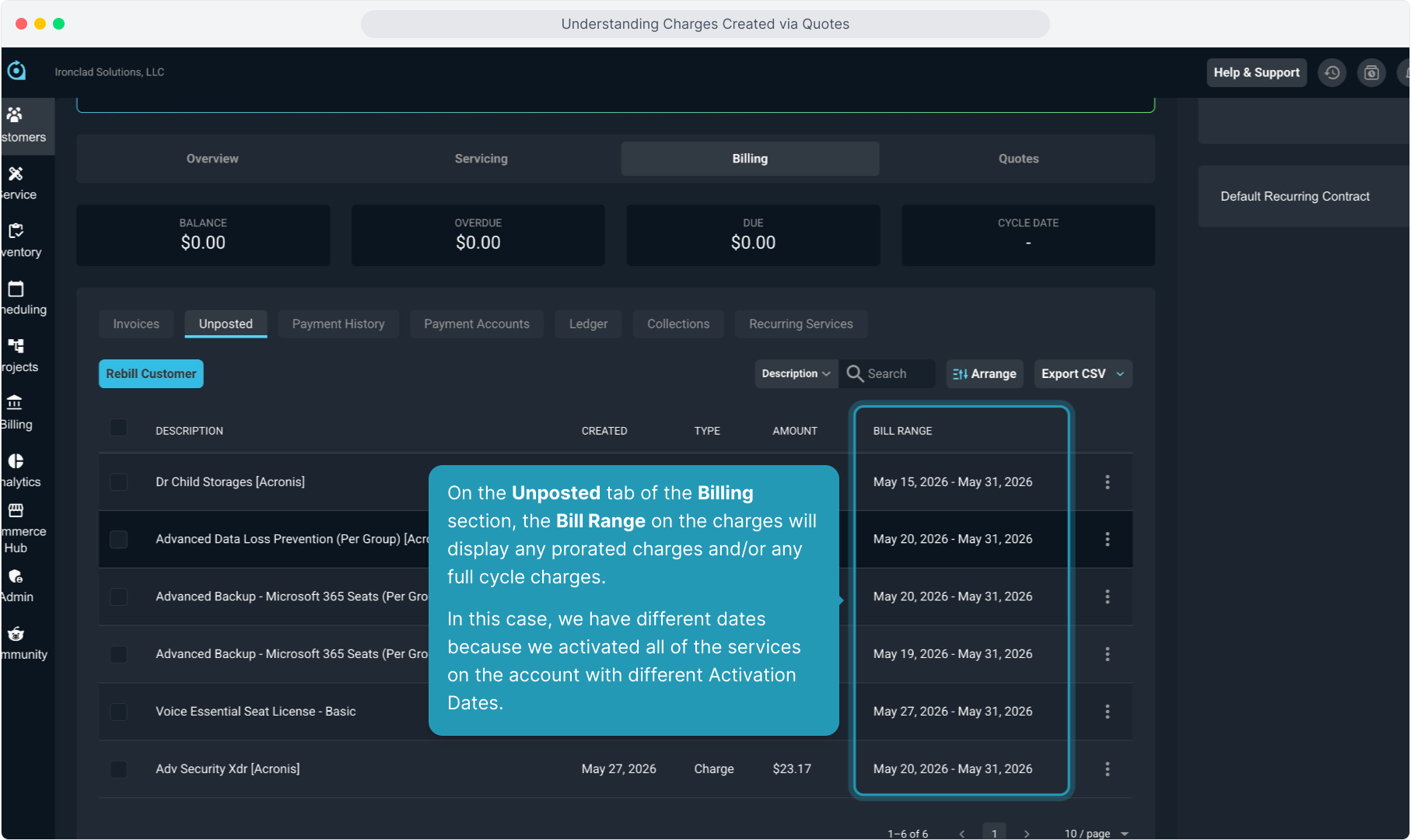
20. On the Unposted tab of the Billing section, the Bill Range on the charges will display any prorated charges and/or any full cycle charges.
In this case, we have different dates because we activated all of the services on the account with different Activation Dates.
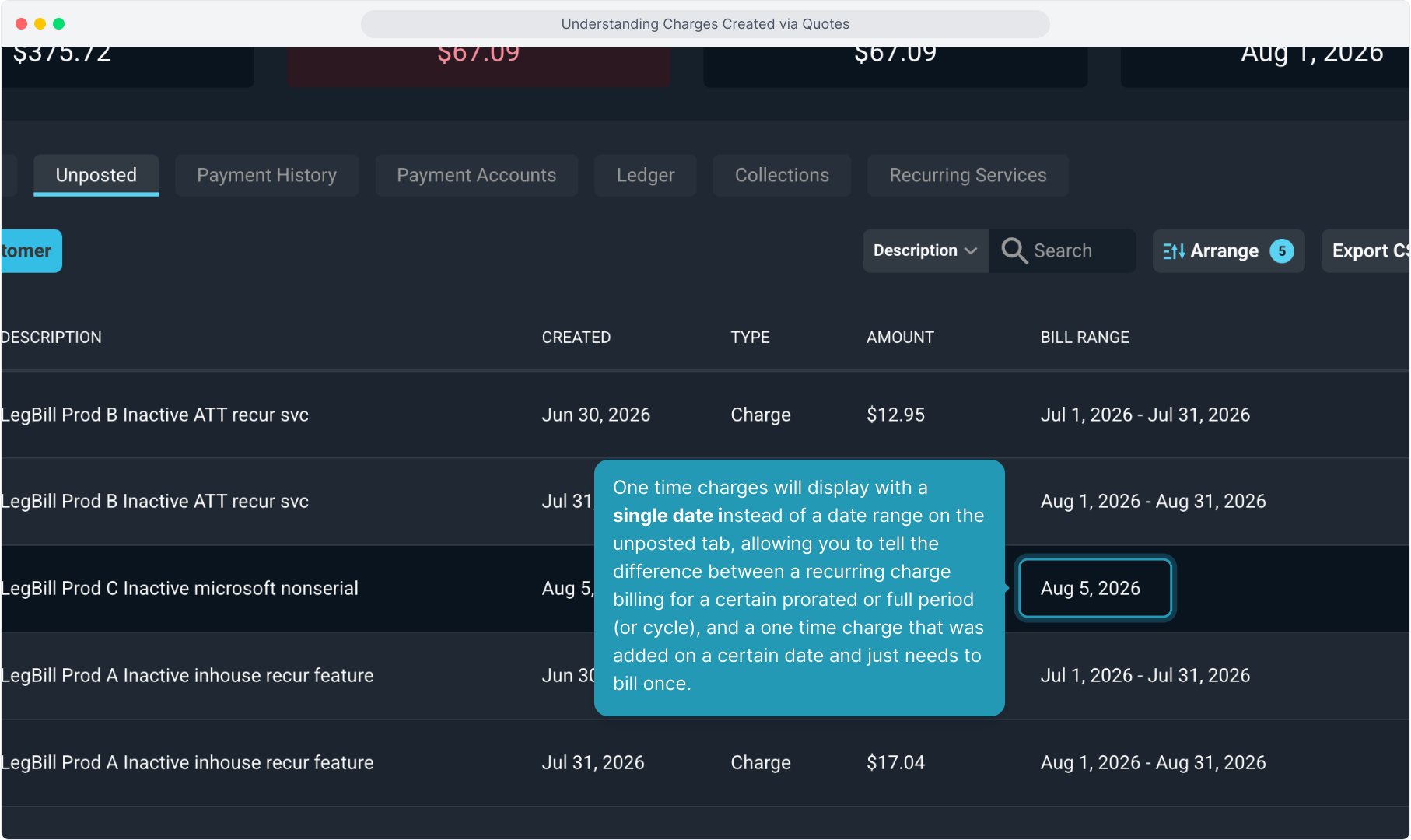
21. One time charges will display with a single date instead of a date range on the unposted tab, allowing you to tell the difference between a recurring charge billing for a certain prorated or full period (or cycle), and a one time charge that was added on a certain date and just needs to bill once.
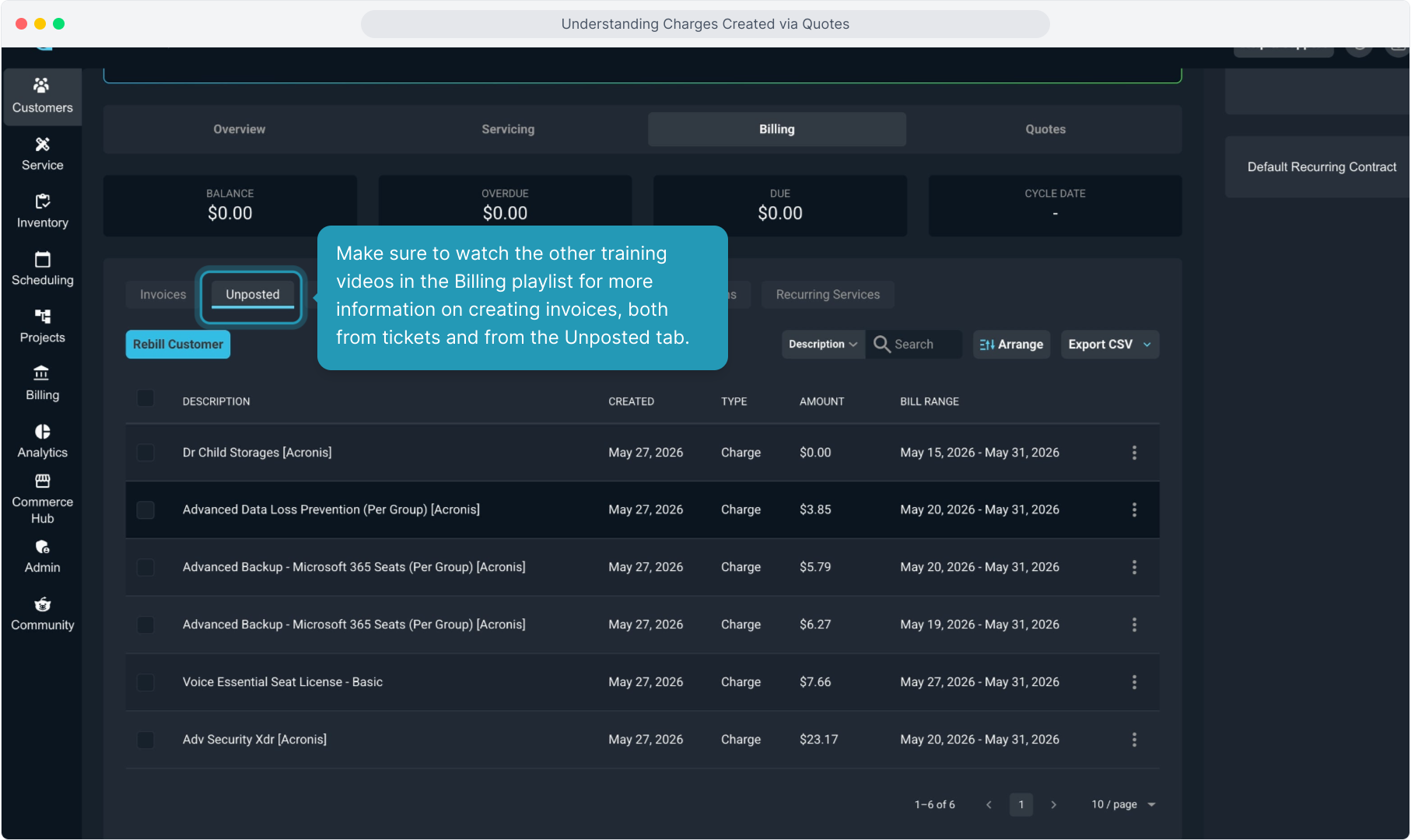
22. Make sure to watch the other training videos in the Billing playlist for more information on creating invoices, both from tickets and from the Unposted tab.
23. The main takeaway here about how charges are generated from a quote is that one time charges will be created through a ticket that is generated in the Servicing section of the account, while recurring charges will be generated via the Recurring Services tab in the Billing section of the account.