
Dispatch Board: Dispatch Window
The dispatch window opens when you drag a ticket from the ticket panel onto a technician's time slot in the timeline. It displays key ticket information and allows you to assign technicians and set scheduling details before confirming the dispatch.
The top of the dispatch window displays the ticket's Description, Customer, Severity, Priority, Response SLA Deadline, Resolution SLA Deadline, and Address. Click the external link icon next to the address to open it in a map.
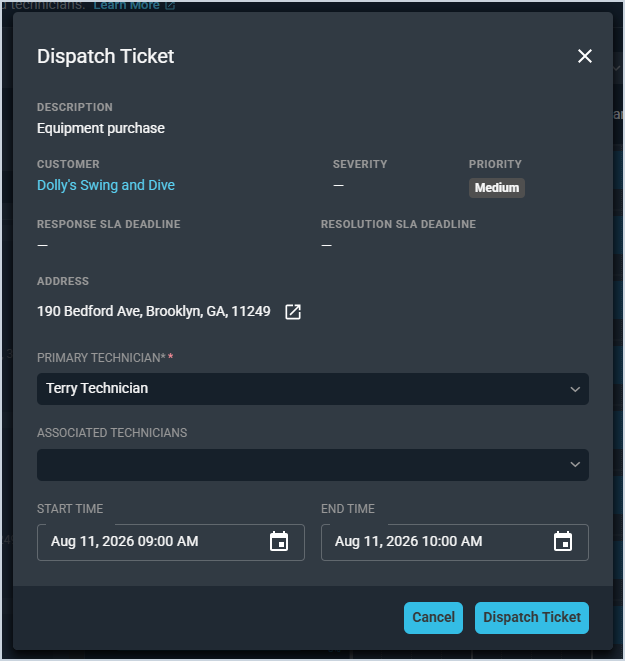
Each field in the dispatch window is defined below.
| No. | Label | Definition |
| 1 | Primary Technician | The technician assigned as the primary tech for the dispatch. Pre-filled based on the calendar slot the ticket was dragged to. |
| 2 | Associated Technicians | Additional technicians to associate with the dispatch. |
| 3 | Start Time | The scheduled start time for the dispatch. |
| 4 | End Time | The scheduled end time for the dispatch. |
Click Dispatch Ticket to confirm the dispatch, which creates a calendar item on the technician's schedule and automatically creates a task on the ticket. All dispatch actions are logged and viewable from the View Change Log button on the Dispatch Board header. Click Cancel to close the window without dispatching.
For information on other areas of the Dispatch Board screen, see the following articles.